Category: Terraform

  • 11 – Azure SQL Database Server Terraform Mini Project — Step-by-Step Guide

    In this hands-on tutorial, we will build a complete Azure SQL Server + SQL Database using Terraform, then securely connect to it from our local machine and run real SQL commands — without installing SSMS or Azure Data Studio.

    This mini project is perfect if you are learning:

    • Terraform Infrastructure as Code
    • Azure SQL PaaS services
    • Networking security with firewall rules
    • Database connectivity using Azure CLI and sqlcmd

    Let’s build everything step by step.

    Table of Contents

    1. What We Will Build
    2. Step 1 – Create Resource Group, SQL Server and Database
    3. Step 2 – Add Firewall Rule to Allow Local PC
    4. Step 3 – Test SQL Using CLI (No GUI Needed)
    5. Step 4 – Connect to Database Using sqlcmd
    6. Step 5 – Create Table and Insert Data
    7. What We Learned

    What We Will Build

    By the end of this demo, we will have:

    • An Azure Resource Group
    • Azure SQL Server
    • Azure SQL Database
    • Firewall rule to allow our PC to connect
    • Real database table with data
    • Full connectivity test using CLI

    Step 1 – Create Resource Group, SQL Server and Database

    First we define the core infrastructure using Terraform.

    Resource Group — rg.tf

    resource "azurerm_resource_group" "rg" {
      name     = "rgminipro98989"
      location = "Central US"
    }
    

    The resource group is a logical container that will hold our SQL server and database.


    SQL Server — sqlserver.tf

    resource "azurerm_mssql_server" "sql_server" {
      name                         = "sqlserverminipro876811"
      resource_group_name          = azurerm_resource_group.rg.name
      location                     = azurerm_resource_group.rg.location
      version                      = "12.0"
      administrator_login          = "sqladmin"
      administrator_login_password = "StrongPassword@123"
    }
    

    This creates:

    • Azure SQL logical server
    • Admin user and password
    • Hosted in Central US

    In real projects, never hardcode passwords — use Azure Key Vault or Terraform variables.


    SQL Database — sqldb.tf

    resource "azurerm_mssql_database" "sqldb" {
      name      = "sqldbminipro81829"
      server_id = azurerm_mssql_server.sql_server.id
    }
    

    This database is created inside the SQL server defined earlier.


    Deploy Infrastructure

    Run:

    terraform init
    terraform apply
    

    After apply completes:

    • Open Azure Portal
    • Navigate to your resource group
    • Verify SQL Server and Database exist

    Step 2 – Add Firewall Rule to Allow Local PC

    By default, Azure SQL blocks all external connections.
    We must allow our own IP address.

    Firewall Rule — firewallrule.tf

    resource "azurerm_mssql_firewall_rule" "firewall_rule" {
      name             = "sqlfirewallruleminipro909122"
      server_id        = azurerm_mssql_server.sql_server.id
      start_ip_address = ""
      end_ip_address   = ""
    }
    

    👉 Replace the empty IP values with your public IP.

    You can find your IP from:

    https://whatismyipaddress.com

    Example:

    start_ip_address = "203.0.113.10"
    end_ip_address   = "203.0.113.10"
    

    Apply again:

    terraform apply
    

    Step 3 – Test SQL Using CLI (No GUI Needed)

    We will connect using:

    • Azure CLI
    • sqlcmd tool

    List SQL Servers

    az sql server list -o table
    

    List Databases in Our Server

    az sql db list --server sqlserverminipro876811 --resource-group rgminipro98989 -o table
    

    Check Firewall Rules

    az sql server firewall-rule list --server sqlserverminipro876811 --resource-group rgminipro98989 -o table
    

    Step 4 – Connect to Database Using sqlcmd

    No SSMS required!

    Connect

    sqlcmd -S sqlserverminipro876811.database.windows.net -U sqladmin -P "StrongPassword@123" -d sqldbminipro81829
    

    IMPORTANT:
    Use full DNS name →
    sqlserverminipro876811.database.windows.net


    Verify Databases

    SELECT name FROM sys.databases;
    GO
    

    Every SQL command must end with:

    GO
    

    Step 5 – Create Table and Insert Data

    Create Table

    CREATE TABLE employees(
      id INT PRIMARY KEY,
      name VARCHAR(50),
      tech VARCHAR(30)
    );
    GO
    

    Insert Sample Data

    INSERT INTO employees VALUES
    (1, 'Alice', 'Terraform'),
    (2, 'Bob', 'Azure'),
    (3, 'Charlie', 'SQL');
    GO
    

    Query Data

    SELECT * FROM employees;
    GO
    

    🎉 You should see real output from Azure SQL Database!


    What We Learned

    In this mini project you successfully:

    • Provisioned Azure SQL using Terraform
    • Understood logical SQL server vs database
    • Configured network security via firewall
    • Connected securely from local PC
    • Executed real SQL queries using CLI

    This is exactly how cloud engineers deploy database environments in real projects — automated, repeatable, and infrastructure as code.

  • 10 – Azure Policy and Governance – Terraform Mini Project

    Table of Contents

    1. Step 1 – Create Resource Group and Base Terraform Setup
    2. Step 2 – Create Mandatory Tag Policy
    3. Step 3 – Create Allowed VM Size Policy
    4. Step 4 – Create Allowed Location Policy
    5. Final Outcome of This Mini Project

    In this mini project, we implement Azure governance using Terraform. The goal is to enforce organizational standards at the subscription level using Azure Policy—so that resources follow rules for:

    • Mandatory tags
    • Allowed VM sizes
    • Allowed deployment locations

    Everything is automated using Terraform infrastructure as code.


    Step 1 – Create Resource Group and Base Terraform Setup

    We start by creating:

    • A resource group
    • Variables for locations, VM sizes, and allowed tags
    • Output to display current subscription ID

    Resource Group – rg.tf

    resource "azurerm_resource_group" "rg" {
      name     = "rgminipro7878"
      location = "Central US"
    }
    

    Read Current Subscription – main.tf

    data "azurerm_subscription" "subscriptioncurrent" {}
    

    Output Subscription ID – output.tf

    output "subscription_id" {
      value = data.azurerm_subscription.subscriptioncurrent.id
    }
    

    Variables – variables.tf

    variable "location" {
      type    = list(string)
      default = ["eastus", "westus"]
    }
    
    variable "vm_sizes" {
      type    = list(string)
      default = ["Standard_B2s", "Standard_B2ms"]
    }
    
    variable "allowed_tags" {
      type    = list(string)
      default = ["department", "project"]
    }
    

    After running:

    terraform apply
    

    ✔ Resource group was created
    ✔ Subscription ID output was verified


    Step 2 – Create Mandatory Tag Policy

    Next, we enforce that every resource must contain two tags:

    • department
    • project

    If either tag is missing → resource creation is denied.

    Policy Definition – policy1.tf

    resource "azurerm_policy_definition" "tagpolicy" {
    
      name         = "allowed-tag"
      policy_type  = "Custom"
      mode         = "All"
      display_name = "Allowed tags policy"
    
      policy_rule = jsonencode({
        if = {
          anyOf = [
            {
              field  = "tags[${var.allowed_tags[0]}]"
              exists = false
            },
            {
              field  = "tags[${var.allowed_tags[1]}]"
              exists = false
            }
          ]
        }
    
        then = {
          effect = "deny"
        }
      })
    }
    

    Assign Policy to Subscription

    resource "azurerm_subscription_policy_assignment" "tag_assign" {
    
      name = "tag-assignment"
    
      policy_definition_id = azurerm_policy_definition.tagpolicy.id
    
      subscription_id = data.azurerm_subscription.subscriptioncurrent.id
    }
    

    ⚠ Important
    To create and assign policies, your account must have:
    Resource Policy Contributor role.

    Testing the Policy – testrg.tf

    resource "azurerm_resource_group" "bad" {
      name     = "bad-rg"
      location = "Central US"
    
      tags = {
        department = "IT"
        project    = "Demo"
      }
    }
    

    ✔ Without tags → RG creation blocked
    ✔ With tags → RG creation allowed


    Step 3 – Create Allowed VM Size Policy

    Now we restrict which VM sizes can be used.

    Allowed sizes:

    • Standard_B2s
    • Standard_B2ms

    Policy Definition – policy2.tf

    resource "azurerm_policy_definition" "vm_size" {
    
      name         = "vm-size"
      policy_type  = "Custom"
      mode         = "All"
      display_name = "Allowed vm policy"
    
      policy_rule = jsonencode({
        if = {
          field = "Microsoft.Compute/virtualMachines/sku.name"
    
          notIn = [
            var.vm_sizes[0],
            var.vm_sizes[1]
          ]
        }
    
        then = {
          effect = "deny"
        }
      })
    }
    

    Assign VM Size Policy

    resource "azurerm_subscription_policy_assignment" "vm_assign" {
    
      name = "size-assignment"
    
      policy_definition_id = azurerm_policy_definition.vm_size.id
    
      subscription_id = data.azurerm_subscription.subscriptioncurrent.id
    }
    

    ✔ Any VM outside allowed list → blocked
    ✔ Governance enforced at subscription level


    Step 4 – Create Allowed Location Policy

    Finally, we restrict deployments only to:

    • eastus
    • westus

    Policy Definition – policy3.tf

    resource "azurerm_policy_definition" "location" {
    
      name         = "location"
      policy_type  = "Custom"
      mode         = "All"
      display_name = "Allowed location policy"
    
      policy_rule = jsonencode({
        if = {
          field = "location"
    
          notIn = [
            var.location[0],
            var.location[1]
          ]
        }
    
        then = {
          effect = "deny"
        }
      })
    }
    

    Assign Location Policy

    resource "azurerm_subscription_policy_assignment" "loc_assign" {
    
      name = "location-assignment"
    
      policy_definition_id = azurerm_policy_definition.location.id
    
      subscription_id = data.azurerm_subscription.subscriptioncurrent.id
    }
    

    ✔ Resources in other regions → denied
    ✔ Standardized deployment geography


    Final Outcome of This Mini Project

    Using Terraform + Azure Policy we achieved:

    ✔ Mandatory tagging for all resources
    ✔ Standard VM sizes enforced
    ✔ Controlled allowed regions
    ✔ Governance at subscription level
    ✔ Fully automated with IaC

    This approach is ideal for:

    • Enterprise governance
    • Cost control
    • Security compliance
    • Standardization across teams
  • 9 – Terraform Provisioners in Azure : Local-Exec vs Remote-Exec vs File Provisioner (Hands-On Guide)

    When I started learning Terraform, I wondered:

    Terraform can create infrastructure… but how do we run scripts, install software, or copy files after a VM is created?

    That is where Terraform Provisioners come into the picture.

    In this hands-on mini project I implemented:

    • Local-Exec Provisioner
    • Remote-Exec Provisioner
    • File Provisioner

    and understood their real purpose, limitations, and practical usage.

    Table of Contents

    1. Project Goal
    2. Architecture Overview
    3. Step 1 – Create Core Azure Infrastructure
    4. Step 2 – Create VM and Verify SSH
    5. Step 3 – Local-Exec Provisioner
    6. Step 4 – Remote-Exec Provisioner
    7. Debug Steps and Errors Faced
    8. Step 5 – File Provisioner
    9. Understanding Provisioners
    10. Important Reality
    11. Final Learning Outcome

    Project Goal

    Build an Azure Linux VM using Terraform and:

    1. Run a command on my local PC during deployment
    2. Install Nginx inside the VM automatically
    3. Copy a configuration file from my laptop to the VM

    Architecture Overview

    The infrastructure consists of:

    • Resource Group
    • Virtual Network and Subnet
    • Network Security Group (SSH + HTTP)
    • Public IP
    • Network Interface
    • Linux Virtual Machine

    Step 1 – Create Core Azure Infrastructure

    Resource Group

    resource "azurerm_resource_group" "rg" {
      name     = "rgminipro878933"
      location = "Central US"
    }
    

    Virtual Network & Subnet

    resource "azurerm_virtual_network" "vnet" {
      name                = "vnetminipro7678678"
      address_space       = ["10.0.0.0/16"]
      location            = azurerm_resource_group.rg.location
      resource_group_name = azurerm_resource_group.rg.name
    }
    

    Network Security Group

    Inbound rules were added to allow:

    • Port 22 → SSH
    • Port 80 → HTTP

    Step 2 – Create VM and Verify SSH

    Generate SSH Keys

    ssh-keygen -t rsa -b 4096
    

    Create Linux VM

    The VM was created using azurerm_linux_virtual_machine with SSH key authentication.

    Test Connection

    ssh -i key1 azureuser@<public-ip>
    

    ✔ SSH login successful.


    Step 3 – Local-Exec Provisioner

    What Local-Exec Means

    Local-exec runs a command on:

    The machine where Terraform is executed
    NOT inside the Azure VM.

    Implementation

    provisioner "local-exec" {
      command = "echo Deployment started at ${timestamp()} > deployment.log"
    }
    

    Result

    A file deployment.log was created on my laptop — proof that the command executed locally.

    Real-World Uses

    • Trigger Ansible after Terraform
    • Call REST API or webhook
    • Notify Slack/Email
    • Generate inventory files
    • Write audit logs

    Step 4 – Remote-Exec Provisioner

    Purpose

    Run commands inside the VM after creation.

    Goal

    Install Nginx and deploy a simple webpage automatically.

    Implementation

    provisioner "remote-exec" {
      inline = [
        "while [ ! -f /var/lib/cloud/instance/boot-finished ]; do sleep 2; done",
        "sudo apt-get update -y",
        "sudo apt-get install -y nginx",
        "echo '<h1>Terraform Provisioner Demo Working!</h1>' | sudo tee /var/www/html/index.html",
        "sudo systemctl restart nginx"
      ]
    }
    

    Result

    Opening:

    👉 http://<public-ip>/

    displayed the custom webpage ✔

    Debug Lesson

    Initially nginx was not installed because:

    • VM was not fully ready
    • apt was locked by cloud-init

    Adding a wait for:

    /var/lib/cloud/instance/boot-finished
    

    fixed the issue.

    Debug Steps and Errors Faced

    While implementing this project, I faced several real-world issues. These are the exact steps that helped me troubleshoot.

    SSH Key Permission Issue on Windows

    Azure SSH login failed initially because Windows was treating the private key as insecure.

    Fix: Restrict key permissions in PowerShell

    icacls <key file path> /inheritance:r
    icacls <key file path> /grant:r "$($env:USERNAME):(R)"
    icacls <key file path> /remove "Authenticated Users" "BUILTIN\Users" "Everyone"
    

    After this, SSH worked correctly:

    ssh -i <key file path> azureuser@<public ip>
    

    Important: The key must be stored on an NTFS formatted drive (not FAT/external USB) for permissions to work.


    Web Page Not Loading After Remote-Exec

    Even though Terraform apply was successful, the browser showed:

    ERR_CONNECTION_REFUSED

    Debug Steps Inside VM

    1. SSH into the VM
    ssh -i key1 azureuser@<public-ip>
    
    1. Check if nginx is installed
    which nginx
    sudo systemctl status nginx
    
    1. Test locally inside VM
    curl http://localhost
    

    Root Cause

    • Remote-exec ran before the VM was fully ready
    • cloud-init was still configuring the system
    • apt was locked at the time of execution

    Fix Implemented

    Added wait for cloud-init before installing nginx:

    while [ ! -f /var/lib/cloud/instance/boot-finished ]; do sleep 2; done
    

    After this change, the webpage loaded correctly.


    Lesson Learned

    Terraform showing “Apply complete” does not always mean:

    • Software is installed
    • Services are running
    • VM is fully ready

    Provisioners need proper waiting and validation logic.


    Step 5 – File Provisioner

    Purpose

    Copy files from local machine → VM.

    Implementation

    provisioner "file" {
      source      = "configs/sample.conf"
      destination = "/home/azureuser/sample.conf"
    }
    

    Verification in VM

    ls -l /home/azureuser
    cat sample.conf
    

    ✔ File successfully transferred.


    Understanding Provisioners

    Local-Exec

    • Runs on local computer
    • Used for logs, notifications, triggers

    Remote-Exec

    • Runs inside the VM
    • Installs software, configures OS

    File Provisioner

    • Copies files to remote system

    Important Reality

    Terraform provisioners are:

    • ❌ Not guaranteed
    • ❌ Not idempotent
    • ❌ Not recommended for production

    Better Alternatives

    • cloud-init
    • Custom VM images
    • Ansible
    • Azure VM Extensions

    Final Learning Outcome

    This mini project helped me understand:

    • How Terraform builds infrastructure
    • Difference between the 3 provisioners
    • Debugging real deployment issues
    • Basic Linux + Azure networking

    It connected multiple skills:

    Terraform + Azure + Linux + Automation

  • 8 – 🚀 Deploy Azure Functions with Terraform — QR Code Generator Mini Project (Step-by-Step)

    In this post, I’ll walk you through a complete, working mini project where we deploy an Azure Linux Function App using Terraform and then deploy a Node.js QR Code Generator function using Azure Functions Core Tools.

    This is not just theory — this is exactly what I built, debugged, fixed, and verified end-to-end. I’ll also call out the gotchas I hit (especially in Step 2), so you don’t lose hours troubleshooting the same issues.

    Table of Contents

    1. 🔹 What We Are Building
    2. 🧱 Step 1: Create Core Azure Infrastructure with Terraform
    3. ⚙️ Step 2: Create the Linux Function App (Most Important Step)
    4. 📦 Step 3: Prepare the QR Code Generator App
    5. 🔐 Add local.settings.json (Local Only)
    6. 🚫 Add .funcignore
    7. 🛠 Install Azure Functions Core Tools (Windows)
    8. 🚀 Deploy the Function Code
    9. 🧪 Step 4: Test the Function End-to-End
    10. ✅ What This Demo Proves
    11. 🧠 Final Notes
    12. 🎯 Conclusion

    🔹 What We Are Building

    • Azure Resource Group
    • Azure Storage Account
    • Azure App Service Plan (Linux)
    • Azure Linux Function App (Node.js 18)
    • A Node.js HTTP-triggered Azure Function that:
      • Accepts a URL
      • Generates a QR code
      • Stores the QR image in Azure Blob Storage
      • Returns the QR image URL as JSON

    🧱 Step 1: Create Core Azure Infrastructure with Terraform

    In this step, we create the base infrastructure required for Azure Functions.

    Resource Group (rg.tf)

    resource "azurerm_resource_group" "rg" {
      name     = "rgminipro767676233"
      location = "Central US"
    }
    

    Storage Account (sa.tf)

    Azure Functions require a storage account for:

    • Function state
    • Logs
    • Triggers
    • Blob output (our QR codes)
    resource "azurerm_storage_account" "sa" {
      name                     = "saminipro7833430909"
      resource_group_name      = azurerm_resource_group.rg.name
      location                 = azurerm_resource_group.rg.location
      account_tier             = "Standard"
      account_replication_type = "LRS"
    }
    

    ⚠️ Storage account names must be globally unique and lowercase.

    App Service Plan (splan.tf)

    This defines the compute for the Function App.

    resource "azurerm_service_plan" "splan" {
      name                = "splanminipro8787"
      resource_group_name = azurerm_resource_group.rg.name
      location            = azurerm_resource_group.rg.location
      os_type             = "Linux"
      sku_name            = "B1"
    }
    

    Apply Terraform

    terraform apply
    

    ✅ Verify in Azure Portal:

    • Resource Group created
    • Storage Account exists
    • App Service Plan is Linux (B1)

    ⚙️ Step 2: Create the Linux Function App (Most Important Step)

    This step required multiple fixes for the app to actually run, so pay close attention.

    Linux Function App (linuxfa.tf)

    resource "azurerm_linux_function_app" "linuxfa" {
      name                = "linuxfaminipro8932340"
      resource_group_name = azurerm_resource_group.rg.name
      location            = azurerm_resource_group.rg.location
    
      storage_account_name       = azurerm_storage_account.sa.name
      storage_account_access_key = azurerm_storage_account.sa.primary_access_key
      service_plan_id            = azurerm_service_plan.splan.id
    
      app_settings = {
        FUNCTIONS_WORKER_RUNTIME = "node"
    
        # Required by Azure Functions runtime
        AzureWebJobsStorage = azurerm_storage_account.sa.primary_connection_string
    
        # Used by our application code
        STORAGE_CONNECTION_STRING = azurerm_storage_account.sa.primary_connection_string
    
        # Ensures package-based deployment
        WEBSITE_RUN_FROM_PACKAGE = "1"
      }
    
      site_config {
        application_stack {
          node_version = 18
        }
      }
    }
    

    Why Each Setting Matters

    • FUNCTIONS_WORKER_RUNTIME
      • Tells Azure this is a Node.js function app
    • AzureWebJobsStorage
      • Mandatory for Azure Functions to start
    • STORAGE_CONNECTION_STRING
      • Used by our QR code logic to upload images
    • WEBSITE_RUN_FROM_PACKAGE
      • Ensures consistent zip/package deployment
    • node_version = 18
      • Must match your app runtime

    Apply Terraform Again

    terraform apply
    

    ✅ Verify in Azure Portal:

    • Function App is Running
    • Runtime stack shows Node.js 18
    • No startup errors

    📦 Step 3: Prepare the QR Code Generator App

    Download the App

    Clone or download the QR code generator repository:

    git clone https://github.com/rishabkumar7/azure-qr-code
    

    Navigate to the function root directory (where host.json exists).

    Run npm install

    npm install
    

    This creates the node_modules folder — without this, the function will fail at runtime.

    Expected Folder Structure

    qrCodeGenerator/
    │
    ├── GenerateQRCode/
    │   ├── index.js
    │   └── function.json
    │
    ├── host.json
    ├── package.json
    ├── package-lock.json
    ├── node_modules/
    

    🔐 Add local.settings.json (Local Only)

    {
      "IsEncrypted": false,
      "Values": {
        "AzureWebJobsStorage": "<Storage Account Connection String>",
        "FUNCTIONS_WORKER_RUNTIME": "node"
      }
    }
    

    ❗ This file is NOT deployed to Azure and should never be committed.


    🚫 Add .funcignore

    This controls what gets deployed.

    .git*
    .vscode
    local.settings.json
    test
    getting_started.md
    *.js.map
    *.ts
    node_modules/@types/
    node_modules/azure-functions-core-tools/
    node_modules/typescript/
    

    ✅ We keep node_modules because this project depends on native Node packages.


    🛠 Install Azure Functions Core Tools (Windows)

    winget install Microsoft.Azure.FunctionsCoreTools
    

    Restart PowerShell and verify:

    func -v
    

    🚀 Deploy the Function Code

    Navigate to the directory where host.json exists:

    cd path/to/qrCodeGenerator
    

    Publish the function:

    func azure functionapp publish linuxfaminipro8932340 --javascript --force
    

    Successful Output Looks Like This

    Upload completed successfully.
    Deployment completed successfully.
    Functions in linuxfaminipro8932340:
        GenerateQRCode - [httpTrigger]
            Invoke url: https://linuxfaminipro8932340.azurewebsites.net/api/generateqrcode
    

    🧪 Step 4: Test the Function End-to-End

    Invoke the Function

    https://linuxfaminipro8932340.azurewebsites.net/api/generateqrcode?url=https://example.com
    

    Sample Response

    {
      "qr_code_url": "https://saminipro7833430909.blob.core.windows.net/qr-codes/example.com.png"
    }
    

    Download the QR Code

    Open the returned Blob URL in your browser:

    https://saminipro7833430909.blob.core.windows.net/qr-codes/example.com.png
    

    🎉 You’ll see the QR code image stored in Azure Blob Storage.


    ✅ What This Demo Proves

    • Terraform successfully provisions Azure Functions infrastructure
    • App settings are critical for runtime stability
    • Azure Functions Core Tools deploy code from the current directory
    • Missing npm install causes runtime failures
    • Blob Storage integration works end-to-end
    • Azure Functions can be tested via simple HTTP requests

    🧠 Final Notes

    • Warnings about extension bundle versions were intentionally ignored
    • This demo focuses on learning Terraform + Azure Functions, not production hardening
    • In real projects, code deployment is usually handled via CI/CD pipelines

    🎯 Conclusion

    This mini project demonstrates how Infrastructure as Code (Terraform) and Serverless (Azure Functions) work together in a practical, real-world scenario.

    If you can build and debug this, you’re well on your way to mastering Azure + Terraform.

    Happy learning 🚀

  • 7 – 🚀 Azure App Service with Terraform — Blue-Green Deployment Step-by-Step

    Blue-green deployment is a release strategy that lets you ship new versions of your app with near-zero downtime and low risk. Instead of updating your live app directly, you run two environments side-by-side and switch traffic between them.

    In this guide, I’ll walk you through how I implemented blue-green deployment on Azure using Terraform and simple HTML apps. This is written for beginners and focuses on understanding why we do each step — not just what to type.

    Table of Contents


    🧠 What Is Blue-Green Deployment (Simple Explanation)

    Imagine:

    • Blue = current live version
    • Green = new version

    Users only see one version at a time.

    You:

    1. Deploy the new version to Green
    2. Test it safely
    3. Swap Green → Production
    4. Instantly roll back if needed

    No downtime. No risky in-place updates.

    Azure App Service deployment slots make this easy.


    🎯 What We Will Build

    We will:

    ✅ Create Azure infrastructure with Terraform
    ✅ Create a staging slot
    ✅ Deploy two app versions (Blue & Green)
    ✅ Swap them using Terraform
    ✅ Understand how real companies do this


    📌 Prerequisites

    You should have:

    • Azure subscription
    • Terraform (by HashiCorp) installed
    • Azure CLI installed
    • Logged in using az login
    • Basic Terraform knowledge

    🏗️ Step 1 — Create Resource Group, App Service Plan & App Service

    Why these resources?

    Resource Group
    Container that holds everything.

    App Service Plan
    Defines pricing tier, performance, and features.
    Deployment slots require Standard tier or higher.

    App Service
    Your actual web app.


    rg.tf

    resource "azurerm_resource_group" "rg" {
      name = "rgminipro87897"
      location = "Central US"
    }
    

    asplan.tf

    resource "azurerm_app_service_plan" "asp" {
      name = "aspminipro8972"
      location = azurerm_resource_group.rg.location
      resource_group_name = azurerm_resource_group.rg.name
    
      sku {
        tier = "Standard"
        size = "S1"
      }
    }
    

    👉 Why S1?
    Slots are unavailable in Free/Basic tiers.


    appservice.tf

    resource "azurerm_app_service" "as" {
      name = "appserviceminipro87897987233"
      location = azurerm_resource_group.rg.location
      resource_group_name = azurerm_resource_group.rg.name
      app_service_plan_id = azurerm_app_service_plan.asp.id
    }
    

    ▶ Run Terraform

    terraform init
    terraform apply
    

    ✅ Verify

    Open the app URL in a browser.
    You’ll see a default Azure page — that means infrastructure works.


    🔁 Step 2 — Create a Staging Slot

    A deployment slot is a second live version of your app with its own URL.

    Think of it as a testing environment running inside the same App Service.


    slot.tf

    resource "azurerm_app_service_slot" "slot" {
      name = "slotstagingminipro78623"
      location = azurerm_resource_group.rg.location
      resource_group_name = azurerm_resource_group.rg.name
      app_service_plan_id = azurerm_app_service_plan.asp.id
      app_service_name = azurerm_app_service.as.name
    }
    

    ▶ Apply

    terraform apply
    

    ✅ Verify in Azure

    You will see:

    • Production slot
    • Staging slot
    • Traffic: 100% production, 0% staging

    👉 This is normal — staging is for testing.


    🌈 Step 3 — Deploy Blue & Green Apps

    Terraform builds infrastructure.
    We use Azure CLI to deploy app code.

    (That’s also how real companies separate infra and app deployments.)


    Blue Version (Production)

    Create:

    <h1 style="background:blue;color:white;">BLUE VERSION</h1>
    

    Zip with index.html at root → blueapp.zip


    Green Version (Staging)

    <h1 style="background:green;color:white;">GREEN VERSION</h1>
    

    Zip → greenapp.zip


    Deploy Using Microsoft Azure CLI

    Blue → Production

    az webapp deploy \
      --resource-group rgminipro87897 \
      --name appserviceminipro87897987233 \
      --src-path blueapp.zip \
      --type zip
    

    Green → Staging

    az webapp deploy \
      --resource-group rgminipro87897 \
      --name appserviceminipro87897987233 \
      --slot slotstagingminipro78623 \
      --src-path greenapp.zip \
      --type zip
    

    ✅ Verify

    Production URL → Blue
    Staging URL → Green

    Perfect setup!


    🔄 Step 4 — Slot Swapping (The Core of Blue-Green)

    Now we swap environments.


    swap.tf

    resource "azurerm_web_app_active_slot" "swap" {
      slot_id = azurerm_app_service_slot.slot.id
    }
    

    ▶ Apply

    terraform apply
    

    🎉 Result

    Now:

    Production → Green
    Staging → Blue

    You just performed a blue-green deployment!


    🔙 How to Swap Back

    Terraform won’t auto-reverse swaps.

    Use Azure CLI:

    az webapp deployment slot swap \
      --resource-group rgminipro87897 \
      --name appserviceminipro87897987233 \
      --slot slotstagingminipro78623 \
      --target-slot production
    

    🏢 How Companies Do This in Real Life

    In real projects:

    Terraform
    → Creates infrastructure

    CI/CD pipelines
    → Deploy apps & swap slots

    Why?

    Because swapping affects real users and needs:

    • Testing
    • Approval
    • Monitoring
    • Rollback strategy

    Common tools:

    • GitHub Actions
    • Azure DevOps
    • Jenkins

    📌 Key Lessons

    You learned:

    ✔ App Service basics
    ✔ Deployment slots
    ✔ Blue-green strategy
    ✔ Terraform infrastructure setup
    ✔ CLI deployment
    ✔ Slot swapping logic
    ✔ Real-world DevOps workflow


    🧹 Cleanup

    Avoid charges:

    terraform destroy
    

    🚀 Final Thoughts

    Blue-green deployment is a core DevOps skill.
    Mastering it early gives you a big advantage.

    This small demo mirrors how production systems reduce risk during releases.

  • 6 – Terraform + Azure Entra ID Mini Project: Step-by-Step Beginner Guide (Users & Groups from CSV)

    Table of Contents

    1. Terraform + Azure Entra ID Mini Project: Step-by-Step Beginner Guide (Users & Groups from CSV)
    2. 🎯 What We’re Building
    3. 🟢 Step 1 — Configure Provider & Fetch Domain
    4. 🟢 Step 2 — Test CSV Reading
    5. 🟢 Step 3 — Create ONE Test User
    6. 🟢 Step 4 — Create Users from CSV
    7. 🟢 Step 5 — Create Group & Add Members
    8. 🧠 Key Beginner Lessons
    9. 🚀 What You Can Try Next
    10. 🎉 Final Thoughts

    Terraform + Azure Entra ID Mini Project: Step-by-Step Beginner Guide (Users & Groups from CSV)

    In this mini project, I automated user and group management in Microsoft Entra ID using Terraform.

    Instead of creating infrastructure like VMs or VNets, we manage:

    • 👤 Users
    • 👥 Groups
    • 🔗 Group memberships

    I followed my instructor’s tutorial but implemented it in my own small, testable steps. This blog shows exactly how you can do the same and debug easily as a beginner.


    🎯 What We’re Building

    We will:

    ✅ Fetch our tenant domain
    ✅ Read users from a CSV file
    ✅ Create Entra ID users from CSV
    ✅ Detect duplicate usernames
    ✅ Create a group
    ✅ Add users to the group based on department


    🟢 Step 1 — Configure Provider & Fetch Domain

    azadprovider.tf

    terraform {
      required_providers {
        azuread = {
          source  = "hashicorp/azuread"
          version = "2.41.0"
        }
      }
    }
    

    👉 This tells Terraform to use the Azure AD provider.


    domainfetch.tf

    data "azuread_domains" "tenant" {
      only_initial = true
    }
    
    output "domain" {
      value = data.azuread_domains.tenant.domains.0.domain_name
    }
    

    Run

    terraform init
    terraform apply
    

    Verify

    You should see:

    domain = "yourtenant.onmicrosoft.com"
    

    ✅ Now Terraform can build valid usernames.


    🟢 Step 2 — Test CSV Reading

    locals {
      users = csvdecode(file("users.csv"))
    }
    
    output "users_debug" {
      value = local.users
    }
    

    Why?

    Before creating users, confirm Terraform reads the CSV correctly.

    Run

    terraform plan
    

    You should see structured user data printed.

    ✅ If this fails → your CSV format is wrong.


    🟢 Step 3 — Create ONE Test User

    Always test with one user first.

    resource "azuread_user" "testuserminipro867" {
      user_principal_name = "testuserminipro867@yourdomain.onmicrosoft.com"
      display_name = "Test User"
      password = "Password123!"
    }
    

    Verify in Portal

    Entra ID → Users → Confirm creation.

    ✅ Works? Good.
    Then comment it out.


    🟢 Step 4 — Create Users from CSV

    Now we automate.


    Generate UPNs

    locals {
      upns = [
        for u in local.users :
        lower("${u.first_name}.${u.last_name}@${data.azuread_domains.tenant.domains[0].domain_name}")
      ]
    }
    

    👉 Creates usernames like:

    michael.scott@tenant.onmicrosoft.com
    

    Detect Duplicates

    output "duplicate_check" {
      value = length(local.upns) != length(distinct(local.upns))
        ? "❌ DUPLICATES FOUND"
        : "✅ No duplicates"
    }
    

    💡 Beginner Tip:
    Duplicate usernames will break Terraform — always check first!


    Preview Planned Users

    output "planned_users" {
      value = local.upns
    }
    

    Create Users

    resource "azuread_user" "users" {
    
      for_each = {
        for idx, user in local.users :
        local.upns[idx] => user
      }
    
      user_principal_name = each.key
      display_name = "${each.value.first_name} ${each.value.last_name}"
      mail_nickname = lower("${each.value.first_name}${each.value.last_name}")
    
      department = each.value.department
      password = "Password123!"
    }
    

    Apply

    terraform apply
    

    Verify

    Check Entra ID → Users.

    ✅ Users created automatically!


    🔥 Important Learning

    If you change the CSV later:

    Terraform will
    ✔ create new users
    ✔ update existing users
    ✔ remove deleted users

    👉 This is Terraform’s desired state model in action.


    🟢 Step 5 — Create Group & Add Members


    Create Group

    resource "azuread_group" "test_group" {
      display_name = "Test Group"
      security_enabled = true
    }
    

    Add Members by Department

    resource "azuread_group_member" "education" {
    
      for_each = {
        for u in azuread_user.users :
        u.mail_nickname => u
        if u.department == "Education"
      }
    
      group_object_id = azuread_group.test_group.id
      member_object_id = each.value.id
    }
    

    Apply

    terraform apply
    

    Verify

    Portal → Groups → Members tab

    ✅ Only Education department users added.


    🧠 Key Beginner Lessons

    ✅ Work in Small Steps

    Don’t deploy everything at once.


    ✅ Always Check Data First

    Validate CSV before creating resources.


    ✅ Use Outputs for Debugging

    Outputs save hours of troubleshooting.


    ✅ Terraform is Declarative

    It maintains the desired state automatically.


    🚀 What You Can Try Next

    👉 Add more users to CSV
    👉 Create groups by job title
    👉 Use Service Principal authentication
    👉 Generate random passwords
    👉 Assign roles to groups


    🎉 Final Thoughts

    This project shows how powerful Terraform is beyond infrastructure — it can manage identity too.

    If you’re learning cloud or DevOps, this skill is extremely valuable because real organizations manage thousands of users and groups.

    Start small, test often, and build confidence step-by-step — exactly like you did here.

  • 5 – Azure VNet Peering: A Real-World Terraform Mini Project to Build a Secure Cloud Network

    In this mini project, I implemented Azure VNet peering using Terraform, but instead of applying everything at once, I deliberately broke the setup into small, testable steps.
    This approach makes it much easier to understand what’s happening, catch mistakes early, and build real confidence with Terraform and Azure networking.

    Below is the exact flow I followed — and you can follow the same steps as a beginner.

    Table of Contents

    1. Step 1: Create the Resource Group, Virtual Networks, and Subnets
    2. Step 2: Create VM1 in Subnet 1 (via a NIC)
    3. Step 3: Create VM2 in Subnet 2
    4. Step 4: Test Connectivity Before Peering (Expected to Fail)
    5. Step 5: Add VNet Peering (Both Directions)
    6. Step 6: Test Connectivity After Peering (Expected to Work)
    7. Key Takeaways for Beginners
    8. Why This Step-by-Step Approach Matters

    Step 1: Create the Resource Group, Virtual Networks, and Subnets

    We start by creating the network foundation:

    • One resource group
    • Two separate virtual networks
    • One subnet inside each virtual network

    At this stage, there is no connectivity between the networks.

    What we created

    • vnet1 → address space 10.0.0.0/16
    • vnet2 → address space 10.1.0.0/16
    • One /24 subnet in each VNet
    resource "azurerm_resource_group" "rg" {
      name     = "rgminipro76876"
      location = "Central US"
    }
    
    resource "azurerm_virtual_network" "vnet1" {
      name                = "vnet1minipro8768"
      location            = azurerm_resource_group.rg.location
      address_space       = ["10.0.0.0/16"]
      resource_group_name = azurerm_resource_group.rg.name
    }
    
    resource "azurerm_subnet" "sn1" {
      name                 = "subnet1minipro878"
      resource_group_name  = azurerm_resource_group.rg.name
      virtual_network_name = azurerm_virtual_network.vnet1.name
      address_prefixes     = ["10.0.0.0/24"]
    }
    
    resource "azurerm_virtual_network" "vnet2" {
      name                = "vnet2minipro8768"
      location            = azurerm_resource_group.rg.location
      address_space       = ["10.1.0.0/16"]
      resource_group_name = azurerm_resource_group.rg.name
    }
    
    resource "azurerm_subnet" "sn2" {
      name                 = "subnet2minipro878"
      resource_group_name  = azurerm_resource_group.rg.name
      virtual_network_name = azurerm_virtual_network.vnet2.name
      address_prefixes     = ["10.1.0.0/24"]
    }
    

    How to verify

    • Run terraform apply
    • Open Azure Portal
    • Confirm:
      • Both VNets exist
      • Each VNet has its own subnet
      • Address spaces do not overlap

    At this point, nothing can talk to anything else yet — and that’s expected.


    Step 2: Create VM1 in Subnet 1 (via a NIC)

    In Azure, VMs don’t live directly inside subnets.
    Instead, a Network Interface (NIC) is placed inside a subnet, and the VM attaches to that NIC.

    Here, we:

    • Create a NIC attached to subnet1
    • Create a VM that uses that NIC

    VM1 and NIC1

    resource "azurerm_network_interface" "nic1" {
      name                = "nic1minipro8789"
      location            = azurerm_resource_group.rg.location
      resource_group_name = azurerm_resource_group.rg.name
    
      ip_configuration {
        name                          = "ipconfignic1minipro989"
        subnet_id                     = azurerm_subnet.sn1.id
        private_ip_address_allocation = "Dynamic"
      }
    }
    
    resource "azurerm_virtual_machine" "vm1" {
      name                = "vm1minipro98908"
      location            = azurerm_resource_group.rg.location
      resource_group_name = azurerm_resource_group.rg.name
      network_interface_ids = [
        azurerm_network_interface.nic1.id
      ]
      vm_size = "Standard_D2s_v3"
    
      delete_os_disk_on_termination = true
    
      storage_image_reference {
        publisher = "Canonical"
        offer     = "0001-com-ubuntu-server-jammy"
        sku       = "22_04-lts"
        version   = "latest"
      }
    
      storage_os_disk {
        name              = "storageosdisk1"
        caching           = "ReadWrite"
        create_option     = "FromImage"
        managed_disk_type = "Standard_LRS"
      }
    
      os_profile {
        computer_name  = "peer1vm"
        admin_username = "testadmin"
        admin_password = "Password1234!"
      }
    
      os_profile_linux_config {
        disable_password_authentication = false
      }
    }
    

    How to verify

    • Run terraform apply
    • In Azure Portal:
      • VM1 exists
      • NIC is attached
      • NIC is in subnet1
      • VM has no public IP

    Step 3: Create VM2 in Subnet 2

    Now we repeat the same pattern for the second network:

    • NIC attached to subnet2
    • VM attached to that NIC
    resource "azurerm_network_interface" "nic2" {
      name                = "nic2minipro8789"
      location            = azurerm_resource_group.rg.location
      resource_group_name = azurerm_resource_group.rg.name
    
      ip_configuration {
        name                          = "ipconfignic2minipro989"
        subnet_id                     = azurerm_subnet.sn2.id
        private_ip_address_allocation = "Dynamic"
      }
    }
    
    resource "azurerm_virtual_machine" "vm2" {
      name                = "vm2minipro98908"
      location            = azurerm_resource_group.rg.location
      resource_group_name = azurerm_resource_group.rg.name
      network_interface_ids = [
        azurerm_network_interface.nic2.id
      ]
      vm_size = "Standard_D2s_v3"
    
      delete_os_disk_on_termination = true
    
      storage_image_reference {
        publisher = "Canonical"
        offer     = "0001-com-ubuntu-server-jammy"
        sku       = "22_04-lts"
        version   = "latest"
      }
    
      storage_os_disk {
        name              = "storageosdisk2"
        caching           = "ReadWrite"
        create_option     = "FromImage"
        managed_disk_type = "Standard_LRS"
      }
    
      os_profile {
        computer_name  = "peer2vm"
        admin_username = "testadmin"
        admin_password = "Password1234!"
      }
    
      os_profile_linux_config {
        disable_password_authentication = false
      }
    }
    

    How to verify

    • Run terraform apply
    • Confirm:
      • VM2 exists
      • NIC2 is attached
      • NIC2 belongs to subnet2
      • VM2 also has no public IP

    Step 4: Test Connectivity Before Peering (Expected to Fail)

    Now we test whether the two VMs can communicate without peering.

    Because:

    • They are in different VNets
    • There is no peering
    • No public IPs

    They should not be able to communicate.

    How I tested

    Using Azure Run Command (no SSH or Bastion needed):

    • VM1 → Operations → Run command → RunShellScript
    • Command:
    ping -c 4 10.1.0.x
    

    Result

    4 packets transmitted, 0 received, 100% packet loss
    

    ✅ This is the correct and expected behavior


    Step 5: Add VNet Peering (Both Directions)

    VNet peering in Azure is not automatic.
    You must create two peering connections:

    • VNet1 → VNet2
    • VNet2 → VNet1
    resource "azurerm_virtual_network_peering" "peer1to2" {
      name                      = "peer1to2minipro455"
      resource_group_name       = azurerm_resource_group.rg.name
      virtual_network_name      = azurerm_virtual_network.vnet1.name
      remote_virtual_network_id = azurerm_virtual_network.vnet2.id
    }
    
    resource "azurerm_virtual_network_peering" "peer2to1" {
      name                      = "peer2to1minipro455"
      resource_group_name       = azurerm_resource_group.rg.name
      virtual_network_name      = azurerm_virtual_network.vnet2.name
      remote_virtual_network_id = azurerm_virtual_network.vnet1.id
    }
    

    How to verify

    • Run terraform apply
    • Azure Portal → Virtual Networks → Peering
    • Status should show Connected

    Step 6: Test Connectivity After Peering (Expected to Work)

    Now we repeat the same test as before.

    ping -c 4 10.1.0.x
    

    Result

    4 packets transmitted, 4 received, 0% packet loss
    

    🎉 Success!

    This proves:

    • VNet peering is working
    • Traffic stays on Azure’s private backbone
    • No public IPs are required

    Key Takeaways for Beginners

    • VMs communicate via NICs, not directly via subnets
    • VNets are isolated by default
    • Peering must be created in both directions
    • Always test:
      • ❌ Before peering
      • ✅ After peering
    • Applying Terraform in small steps makes debugging much easier

    Why This Step-by-Step Approach Matters

    Instead of running one giant terraform apply and hoping for the best, this method:

    • Builds real understanding
    • Makes Azure networking concepts visual
    • Helps you debug like a real DevOps engineer

    If you can do this project, you already understand:

    • VNets
    • Subnets
    • NICs
    • VM placement
    • VNet peering
    • Real-world network isolation

    That’s solid progress 👏

  • 4 – 🚀 Terraform Mini Project: Building a Scalable Web App with VMSS, Load Balancer, NSG, and NAT Gateway(in Azure)

    Table of Contents

    1. What We Are Building (End Architecture Overview)
    2. Step 1: Resource Group, Virtual Network, and Subnet
    3. Step 2: Network Security Group (NSG)
    4. Step 3: Public IP (Inbound Traffic)
    5. Step 4: Load Balancer and Backend Pool
    6. Step 5: Health Probe and Load Balancing Rule
    7. Step 6: NAT Gateway (Outbound Traffic)
    8. Step 7: Virtual Machine Scale Set (VMSS)
    9. Step 8: Add Autoscaling (Last Step)
    10. Step 8.1: Add a Scale-Out Rule (CPU > 80%)
    11. Step 8.2: Add a Scale-In Rule (CPU < 10%)
    12. Step 8.3: Apply and Verify
    13. How to Test Autoscaling (Optional but Powerful)
    14. Final Result
    15. Why This Project Is Important for Beginners

    This mini project demonstrates how to build a real-world Azure infrastructure step by step using Terraform.
    The goal is not just to deploy resources, but to understand why each Azure service exists, how it fits into the architecture, and what each Terraform block actually does.

    Instead of creating everything in one go, we intentionally build the infrastructure incrementally. This makes it easier for beginners to:

    • Verify resources in the Azure Portal
    • Understand dependencies between services
    • Debug errors without feeling overwhelmed
    • Build a strong mental model of Azure networking and compute

    What We Are Building (End Architecture Overview)

    By the end of this project, we will have:

    • A Resource Group to logically contain all resources
    • A Virtual Network (VNet) with a defined private IP space
    • A Subnet to host compute resources
    • A Network Security Group (NSG) acting as a firewall
    • A Public IP for inbound internet access
    • A Standard Load Balancer to distribute traffic
    • A NAT Gateway to manage outbound internet traffic
    • A Virtual Machine Scale Set (VMSS) running a web application

    This architecture closely resembles how production web applications are deployed on Azure.


    Step 1: Resource Group, Virtual Network, and Subnet

    Why this step is required

    In Azure, nothing can exist without a Resource Group.
    Similarly, no virtual machine can exist outside a Virtual Network.

    This step lays the networking foundation for everything that follows.


    Resource Group (rg.tf)

    resource "azurerm_resource_group" "rg" {
      name     = "rgminipro345"
      location = "Central US"
    }
    

    Explanation:

    • azurerm_resource_group
      Creates a logical container for Azure resources.
    • name
      Used for management, billing, and cleanup.
    • location
      Determines the Azure region where resources are deployed.

    After applying, this can be verified in:
    Azure Portal → Resource Groups


    Virtual Network (vnet.tf)

    resource "azurerm_virtual_network" "vnet" {
      name                = "vnetminipro8979879"
      address_space       = ["10.0.0.0/16"]
      location            = azurerm_resource_group.rg.location
      resource_group_name = azurerm_resource_group.rg.name
    }
    

    Explanation:

    • address_space defines the private IP range for the entire VNet.
    • 10.0.0.0/16 provides ~65,536 private IPs.
    • VNets are isolated by default and cannot access the internet without configuration.

    Subnet

    resource "azurerm_subnet" "subnet" {
      name                 = "subnetminipro89"
      resource_group_name  = azurerm_resource_group.rg.name
      virtual_network_name = azurerm_virtual_network.vnet.name
      address_prefixes     = ["10.0.0.0/20"]
    }
    

    Explanation:

    • Subnets divide a VNet into smaller IP ranges.
    • /20 provides ~4,096 IPs.
    • This subnet will host:
      • VM Scale Set instances
      • NAT Gateway association
      • Network interfaces

    At this point, the subnet has no security rules applied.


    Step 2: Network Security Group (NSG)

    Why NSGs are needed

    A Network Security Group (NSG) is Azure’s primary network firewall.
    It controls what traffic is allowed or denied at the subnet or NIC level.


    NSG Definition (nsg.tf)

    resource "azurerm_network_security_group" "nsg" {
      name                = "nsgminipro76786"
      location            = azurerm_resource_group.rg.location
      resource_group_name = azurerm_resource_group.rg.name
    

    This creates an empty firewall that we populate with rules.


    Security Rules

    security_rule {
      name                       = "allow-http"
      priority                   = 100
      direction                  = "Inbound"
      access                     = "Allow"
      protocol                   = "Tcp"
      destination_port_range     = "80"
    }
    

    What this rule means:

    • Allows inbound HTTP traffic
    • Uses TCP protocol
    • Priority determines evaluation order (lower number = higher priority)

    Similar rules are added for HTTPS (443) and SSH (22).

    ⚠️ SSH is allowed here for learning purposes only.


    Associating NSG with Subnet

    resource "azurerm_subnet_network_security_group_association" "myNSG" {
      subnet_id                 = azurerm_subnet.subnet.id
      network_security_group_id = azurerm_network_security_group.nsg.id
    }
    

    Why this matters:

    • NSGs do nothing unless attached.
    • Subnet-level attachment applies rules to all resources inside the subnet.

    Verify in:
    Azure Portal → VNet → Subnets


    Step 3: Public IP (Inbound Traffic)

    Why a Public IP is required

    To expose an application to the internet, Azure requires a Public IP resource.


    resource "azurerm_public_ip" "pubip" {
      allocation_method = "Static"
      sku               = "Standard"
      zones             = ["1", "2", "3"]
    }
    

    Key points:

    • Static IP does not change
    • Standard SKU is required for Standard Load Balancer
    • Zone-redundant for high availability
    • Used only for inbound traffic

    Step 4: Load Balancer and Backend Pool

    Why a Load Balancer is needed

    The Load Balancer distributes incoming traffic across multiple VMs, enabling:

    • High availability
    • Fault tolerance
    • Horizontal scaling

    Load Balancer

    resource "azurerm_lb" "lb" {
      sku = "Standard"
    

    Frontend IP Configuration

    frontend_ip_configuration {
      public_ip_address_id = azurerm_public_ip.pubip.id
    }
    

    This connects the public IP to the Load Balancer frontend.


    Backend Pool

    resource "azurerm_lb_backend_address_pool" "bpool" {
      loadbalancer_id = azurerm_lb.lb.id
    }
    

    VMSS instances will later register here automatically.


    Step 5: Health Probe and Load Balancing Rule

    Health Probe

    resource "azurerm_lb_probe" "lbprobe" {
      protocol = "Http"
      port     = 80
    }
    

    Azure uses this probe to determine VM health.


    Load Balancing Rule

    resource "azurerm_lb_rule" "lbrule" {
      frontend_port = 80
      backend_port  = 80
      probe_id      = azurerm_lb_probe.lbprobe.id
    }
    

    Defines how traffic flows from the frontend to backend VMs.


    Step 6: NAT Gateway (Outbound Traffic)

    Why NAT Gateway is needed

    Inbound and outbound traffic should be separated.

    • Load Balancer → inbound
    • NAT Gateway → outbound

    resource "azurerm_nat_gateway" "natgw" {}
    

    Associated with:

    resource "azurerm_subnet_nat_gateway_association" "example" {
      subnet_id = azurerm_subnet.subnet.id
    }
    

    All outbound traffic from the subnet now uses a fixed public IP.


    Step 7: Virtual Machine Scale Set (VMSS)

    Why VMSS is used

    VMSS allows:

    • Running multiple identical VMs
    • Automatic scaling
    • Seamless Load Balancer integration

    SSH Authentication

    disable_password_authentication = true
    admin_ssh_key {
      public_key = file(".ssh/key.pub")
    }
    
    • Passwords are disabled
    • SSH key authentication is enforced
    • Keys are injected at creation time

    Network Integration

    load_balancer_backend_address_pool_ids = [
      azurerm_lb_backend_address_pool.bpool.id
    ]
    

    Automatically registers VM instances with the Load Balancer.


    user-data.sh (Cloud Init)

    The startup script:

    • Installs Apache and PHP
    • Deploys a test application
    • Displays instance metadata

    Every VM runs this script on first boot.


    Step 8: Add Autoscaling (Last Step)

    Finally, add autoscale.tf.

    Apply.

    What is happening here?

    • Autoscale profile is created
    • VMSS can scale between 1 and 10 instances

    Verify

    • Open VMSS
    • Go to Scaling
    • Confirm autoscale rules exist

    Step 8.1: Add a Scale-Out Rule (CPU > 80%)

    Add this inside the same profile {} block:

    rule {
      metric_trigger {
        metric_name        = "Percentage CPU"
        metric_resource_id = azurerm_orchestrated_virtual_machine_scale_set.vmss.id
        time_grain         = "PT1M"
        statistic          = "Average"
        time_window        = "PT5M"
        time_aggregation   = "Average"
        operator           = "GreaterThan"
        threshold          = 80
      }
    
      scale_action {
        direction = "Increase"
        type      = "ChangeCount"
        value     = "1"
        cooldown  = "PT5M"
      }
    }
    

    Line-by-line explanation (beginner friendly)

    • Percentage CPU → Azure’s built-in VMSS CPU metric
    • PT1M → Check CPU every 1 minute
    • PT5M → Evaluate average over 5 minutes
    • GreaterThan 80 → Trigger when CPU > 80%
    • Increase by 1 → Add one VM
    • Cooldown 5 min → Prevent rapid scaling

    Step 8.2: Add a Scale-In Rule (CPU < 10%)

    Add this below the scale-out rule:

    rule {
      metric_trigger {
        metric_name        = "Percentage CPU"
        metric_resource_id = azurerm_orchestrated_virtual_machine_scale_set.vmss.id
        time_grain         = "PT1M"
        statistic          = "Average"
        time_window        = "PT5M"
        time_aggregation   = "Average"
        operator           = "LessThan"
        threshold          = 10
      }
    
      scale_action {
        direction = "Decrease"
        type      = "ChangeCount"
        value     = "1"
        cooldown  = "PT5M"
      }
    }
    

    What this does

    • If CPU stays below 10% for 5 minutes
    • Azure removes one VM
    • But never below your minimum = 1

    Step 8.3: Apply and Verify

    Run:

    terraform plan
    terraform apply
    

    Then go to:

    Azure Portal → VM Scale Set → Scaling → JSON

    You should now see:

    • rules array populated
    • minimum = 1, maximum = 10
    • ✅ Autoscale logic visible in UI

    How to Test Autoscaling (Optional but Powerful)

    To actually see autoscaling happen:

    1. SSH into one VM using NAT rule
    2. Generate CPU load: sudo apt install stress -y stress --cpu 2 --timeout 600
    3. Wait ~5–10 minutes
    4. Watch VMSS instance count increase

    Final Result

    Access the application using:

    http://<load-balancer-public-ip>/index.php
    

    Traffic is:

    • Load balanced
    • Secured by NSG
    • Scaled via VMSS
    • Outbound traffic controlled by NAT Gateway

    Why This Project Is Important for Beginners

    This project teaches:

    • Core Azure networking concepts
    • Secure traffic flow design
    • Stateless compute patterns
    • Infrastructure-as-Code fundamentals

    If you understand this setup, you understand how most Azure web platforms are built.

  • 3 – Terraform Advanced

    Terraform Built-in Functions (Part 1): Learning Functions Through Hands-on Assignments

    In this section, we begin exploring Terraform built-in functions through practical, hands-on assignments.
    Instead of only reading documentation, the focus here is on:

    • Practicing functions directly in terraform console
    • Applying them in real Terraform files
    • Solving common problems such as:
      • Formatting names
      • Enforcing naming rules
      • Merging maps
      • Validating resource constraints
      • Generating dynamic values

    This approach helps beginners understand why functions exist and how to use them correctly.


    Practicing Functions Using terraform console

    Before writing full Terraform files, we can experiment with functions interactively.

    terraform console
    

    Inside the console, you can directly test functions.

    Example:

    max(2, 4, 1)
    

    Result:

    4
    

    This shows:

    • You do not need to write a full Terraform file
    • You can quickly test function behavior
    • This is the fastest way to learn functions safely

    Terraform only supports built-in functions.
    You cannot create custom functions in Terraform.


    Assignment 1: Formatting Resource Names with lower and replace

    Requirement:

    • Resource names must:
      • Be lowercase
      • Replace spaces with hyphens

    Input example:

    Project Alpha Resource
    

    Expected output:

    project-alpha-resource
    

    Step 1: Define the Variable

    variable "project_name" {
      type        = string
      description = "Name of the project"
      default     = "Project Alpha Resource"
    }
    

    Step 2: Format the Name Using Functions

    locals {
      formatted_name = lower(replace(var.project_name, " ", "-"))
    }
    

    Explanation:

    • replace(var.project_name, " ", "-")
      Replaces all spaces with hyphens
    • lower(...)
      Converts the entire string to lowercase

    Step 3: Use It in a Resource

    resource "azurerm_resource_group" "rg" {
      name     = "${local.formatted_name}-rg"
      location = "West US 2"
    }
    

    Now:

    • "Project Alpha Resource"
      Becomes:
      project-alpha-resource-rg

    This ensures consistent, policy-compliant naming.


    Assignment 2: Merging Tags Using merge

    Scenario:

    You have:

    • Default tags
    • Environment-specific tags

    You want to combine both maps into one.

    Step 1: Define the Tag Maps

    variable "default_tags" {
      type = map(string)
      default = {
        owner   = "team-a"
        project = "demo"
      }
    }
    
    variable "environment_tags" {
      type = map(string)
      default = {
        environment = "dev"
        costcenter  = "1001"
      }
    }
    

    Step 2: Merge Them Using merge

    locals {
      merged_tags = merge(var.default_tags, var.environment_tags)
    }
    

    Explanation:

    • merge(map1, map2)
      Combines both maps
    • If the same key exists in both, the last one wins

    Step 3: Apply to a Resource

    resource "azurerm_resource_group" "rg" {
      name     = "${local.formatted_name}-rg"
      location = "West US 2"
      tags     = local.merged_tags
    }
    

    This avoids repeating the same merge logic in multiple places.


    Assignment 3: Formatting Storage Account Names with Multiple Functions

    Azure Storage Account Rules:

    • Only lowercase letters and numbers
    • Length between 3 and 24 characters
    • No spaces
    • No special characters

    Step 1: Define an Invalid Input

    variable "storage_account_name" {
      type    = string
      default = "Tech Tutorials @ Demo 2024!!!"
    }
    

    This input:

    • Has spaces
    • Has uppercase
    • Has special characters
    • Is longer than allowed

    Step 2: Format the Name Using Nested Functions

    locals {
      formatted_storage_name = lower(
        replace(
          substr(var.storage_account_name, 0, 23),
          " ",
          ""
        )
      )
    }
    

    Explanation:

    • substr(var.storage_account_name, 0, 23)
      Limits length to 23 characters
    • replace(..., " ", "")
      Removes spaces
    • lower(...)
      Converts to lowercase

    This produces a valid Azure storage account name.


    Step 3: Use It in the Resource

    resource "azurerm_storage_account" "example" {
      name                     = local.formatted_storage_name
      resource_group_name      = azurerm_resource_group.rg.name
      location                 = azurerm_resource_group.rg.location
      account_tier             = "Standard"
      account_replication_type = "LRS"
    }
    

    This shows how multiple functions can be nested to enforce strict provider rules.


    Assignment 4: Generating NSG Rule Names Using split, for, and String Interpolation

    Scenario:

    You start with a comma-separated list of ports:

    "80,443,3306"
    

    You want to generate rule names like:

    • Port-80
    • Port-443
    • Port-3306

    Step 1: Define the Variable

    variable "allowed_ports" {
      type    = string
      default = "80,443,3306"
    }
    

    Step 2: Split the String into a List

    locals {
      formatted_ports = split(",", var.allowed_ports)
    }
    

    Explanation:

    • split(",", var.allowed_ports)
      Converts "80,443,3306" into:
    ["80", "443", "3306"]
    

    Step 3: Build a Map of NSG Rules Using a for Expression

    locals {
      nsg_rules = {
        for port in local.formatted_ports :
        "Port-${port}" => {
          name        = "Port-${port}"
          port        = port
          description = "Allow traffic on port ${port}"
        }
      }
    }
    

    Explanation:

    • for port in local.formatted_ports
      Loops through each port
    • "Port-${port}"
      Dynamically builds the rule name
    • Each iteration creates a map entry for one rule

    Step 4: Use the Map in a Dynamic Block

    resource "azurerm_network_security_group" "example" {
      name                = "${local.formatted_name}-nsg"
      location            = azurerm_resource_group.rg.location
      resource_group_name = azurerm_resource_group.rg.name
    
      dynamic "security_rule" {
        for_each = local.nsg_rules
    
        content {
          name                       = security_rule.value.name
          priority                   = 100
          direction                  = "Inbound"
          access                     = "Allow"
          protocol                   = "Tcp"
          source_port_range          = "*"
          destination_port_range     = security_rule.value.port
          source_address_prefix      = "*"
          destination_address_prefix = "*"
          description                = security_rule.value.description
        }
      }
    }
    

    Now Terraform automatically creates:

    • One rule per port
    • With correct names and descriptions
    • Without manually writing each rule

    Summary

    In this first part of Terraform functions, you learned how to:

    • Practice functions using terraform console
    • Format names using:
      • lower
      • replace
      • substr
    • Merge maps using:
      • merge
    • Enforce provider naming rules using nested functions
    • Convert strings to lists using:
      • split
    • Generate multiple blocks using:
      • for expressions
      • Dynamic maps

    These assignments show how Terraform functions help you write:

    • Cleaner code
    • Fewer hardcoded values
    • More reusable configurations
    • Provider-compliant resource definitions

    This forms the foundation for writing dynamic, production-ready Terraform code.

    Terraform Built-in Functions (Part 2): Practical Demos with Lookup, Validation, Sets, Math, Time, and Files

    In this section, we continue learning Terraform built-in functions through a set of hands-on assignments.
    The focus here is on how functions are used in real Terraform code to solve practical problems such as:

    • Selecting values dynamically
    • Validating user input
    • Enforcing naming rules
    • Removing duplicates
    • Performing math on lists
    • Working with timestamps
    • Handling sensitive data and files

    All examples below are written in a beginner-friendly, step-by-step way.


    Using lookup to Select Values from an Environment Map

    Instead of writing long conditional expressions, we use a map + lookup function to select the correct VM size based on the environment.

    Defining the Environment Variable with Validation

    variable "environment" {
      type        = string
      description = "Environment name"
    
      validation {
        condition     = contains(["dev", "staging", "prod"], var.environment)
        error_message = "Enter a valid value for environment: dev, staging, or prod"
      }
    }
    

    Explanation:

    • contains(["dev", "staging", "prod"], var.environment)
      Ensures the value is only one of the allowed environments
    • If the value is invalid, Terraform stops with the custom error message

    This prevents accidental typos like prods or testing.


    Mapping Environments to VM Sizes

    variable "vm_sizes" {
      type = map(string)
      default = {
        dev     = "Standard_D2s_v3"
        staging = "Standard_D4s_v3"
        prod    = "Standard_D8s_v3"
      }
    }
    

    This map defines which VM size should be used in each environment.


    Using lookup with a Fallback Value

    locals {
      selected_vm_size = lookup(var.vm_sizes, var.environment, "Standard_D2s_v3")
    }
    

    Explanation:

    • First argument → the input map
    • Second argument → the key to search (var.environment)
    • Third argument → fallback value if the key does not exist

    This means:

    • devStandard_D2s_v3
    • prodStandard_D8s_v3
    • Missing key → default VM size

    Printing the Result with an Output

    output "vm_size" {
      value = local.selected_vm_size
    }
    

    Running:

    terraform plan
    

    Shows the VM size selected based on the environment.


    Validating VM Size Using length and strcontains

    Now we add validation rules to a VM size string.

    Rules:

    • Length must be between 2 and 20 characters
    • It must contain the word “standard”
    variable "vm_size" {
      type    = string
      default = "Standard_D2s_v3"
    
      validation {
        condition = length(var.vm_size) >= 2 && length(var.vm_size) <= 20
        error_message = "VM size should be between 2 and 20 characters"
      }
    
      validation {
        condition = strcontains(lower(var.vm_size), "standard")
        error_message = "VM size should contain the word 'standard'"
      }
    }
    

    Explanation:

    • length(var.vm_size) checks the string length
    • lower(...) converts to lowercase
    • strcontains(...) checks if "standard" exists in the string

    Terraform throws a validation error if either rule fails.


    Marking Sensitive Variables with sensitive

    To protect secrets:

    variable "credential" {
      type      = string
      default   = "XYZ123"
      sensitive = true
    }
    

    And in the output:

    output "credential" {
      value     = var.credential
      sensitive = true
    }
    

    Terraform will display:

    credential = <sensitive>
    

    This prevents secrets from being printed in logs.


    Enforcing Naming Rules with endswith

    We ensure backup names end with _backup.

    variable "backup_name" {
      type    = string
      default = "test_backup"
    
      validation {
        condition     = endswith(var.backup_name, "_backup")
        error_message = "Backup name must end with _backup"
      }
    }
    

    If the name does not end with _backup, Terraform stops with an error.


    Combining Lists and Removing Duplicates with concat and toset

    locals {
      user_locations    = ["East US", "West US", "East US"]
      default_locations = ["Central US"]
    
      unique_locations = toset(concat(local.user_locations, local.default_locations))
    }
    

    Explanation:

    • concat(...) joins both lists
    • toset(...) removes duplicate values

    Result:

    ["East US", "West US", "Central US"]
    

    Working with Numbers Using abs and max

    locals {
      monthly_costs = [-50, 75, -200, 100]
    
      positive_costs = [for c in local.monthly_costs : abs(c)]
      max_cost       = max(local.positive_costs...)
    }
    

    Explanation:

    • abs(c) converts negative numbers to positive
    • for expression applies it to every element
    • max(... ) finds the largest number
    • ... expands the list into arguments

    Result:

    • positive_costs[50, 75, 200, 100]
    • max_cost200

    Working with Time Using timestamp and formatdate

    locals {
      current_time  = timestamp()
      resource_name = formatdate("YYYYMMDD", local.current_time)
      tag_date      = formatdate("DD-MM-YYYY", local.current_time)
    }
    

    Explanation:

    • timestamp() returns the current UTC time
    • formatdate() converts it into readable formats

    These values are commonly used in:

    • Resource names
    • Tags
    • Audit metadata

    Handling File Content with file, jsondecode, and sensitive

    locals {
      config_content = sensitive(file("config.json"))
      decoded_config = jsondecode(file("config.json"))
    }
    

    Explanation:

    • file("config.json") reads file content as a string
    • sensitive(...) hides it from output
    • jsondecode(...) converts JSON into a Terraform object

    This allows you to safely load structured configuration from files.


    Summary

    In this section, you learned how to use Terraform built-in functions to:

    • Select values dynamically with lookup
    • Validate inputs using:
      • contains
      • length
      • strcontains
      • endswith
    • Protect secrets with sensitive
    • Combine and deduplicate lists with:
      • concat
      • toset
    • Process numbers using:
      • abs
      • max
    • Work with time using:
      • timestamp
      • formatdate
    • Safely read and decode files using:
      • file
      • jsondecode

    These examples show how Terraform functions transform static configuration into intelligent, validated, and production-ready Infrastructure as Code.

    Terraform Data Sources: Using Existing Infrastructure in Your Terraform Code

    In this section, we learn about Terraform Data Sources — what they are, why we need them, and how to use them in a real Azure example.

    This is a very important concept for real-world projects, because in most organizations:

    • You do not create everything yourself
    • Many core resources (networks, subnets, security) are already managed by other teams
    • Your Terraform code must reuse existing infrastructure, not recreate it

    Let’s understand this step by step.


    Why Do We Need Terraform Data Sources?

    Imagine this common enterprise setup:

    • A central network team manages:
      • A shared Virtual Network (VNet)
      • Multiple subnets for different teams and environments
    • Each team is not allowed to create their own VNet or subnet
    • You only get permission to:
      • Create your own Resource Group
      • Create your own Virtual Machine
      • But you must place it inside an existing subnet

    Without data sources:

    • Terraform would try to create a new VNet and subnet
    • This would:
      • Break governance rules
      • Duplicate infrastructure
      • Cause conflicts

    With data sources:

    • Terraform can read existing resources
    • And attach new resources to them

    This is exactly what data sources are for:

    Data sources allow Terraform to read information about resources that already exist, without creating or modifying them.


    What Is a Terraform Data Source?

    A data source:

    • Starts with the data keyword
    • Reads an existing resource from the provider
    • Makes its attributes available in your configuration

    It does not create anything.
    It only fetches information.

    Basic pattern:

    data "provider_resource_type" "local_name" {
      name                = "existing-resource-name"
      resource_group_name = "existing-rg-name"
    }
    

    You then use it like:

    data.provider_resource_type.local_name.attribute
    

    Scenario Used in This Demo

    Already existing in Azure:

    • Resource Group: shared-network-rg
    • Virtual Network: shared-network-vnet
    • Subnet: shared-primary-sn

    Our goal:

    • Create a new Resource Group
    • Create a new Virtual Machine
    • Attach it to:
      • The existing VNet
      • The existing Subnet

    Without creating any new network resources.


    Step 1: Create a Data Source for the Existing Resource Group

    data "azurerm_resource_group" "rg_shared" {
      name = "shared-network-rg"
    }
    

    Line-by-line explanation:

    • data "azurerm_resource_group"
      Tells Terraform this is a data source, not a resource
    • "rg_shared"
      Local name to reference this data source
    • name = "shared-network-rg"
      The exact name of the existing Resource Group in Azure

    This lets us read:

    • Location
    • ID
    • Name
      From the existing resource group.

    Step 2: Create a Data Source for the Existing Virtual Network

    data "azurerm_virtual_network" "vnet_shared" {
      name                = "shared-network-vnet"
      resource_group_name = data.azurerm_resource_group.rg_shared.name
    }
    

    Explanation:

    • name
      Name of the existing VNet
    • resource_group_name
      We do not hardcode it
      We reuse it from the previous data source:
    data.azurerm_resource_group.rg_shared.name
    

    This creates a dependency chain:

    • First read Resource Group
    • Then read VNet from that Resource Group

    Step 3: Create a Data Source for the Existing Subnet

    data "azurerm_subnet" "subnet_shared" {
      name                 = "shared-primary-sn"
      resource_group_name  = data.azurerm_resource_group.rg_shared.name
      virtual_network_name = data.azurerm_virtual_network.vnet_shared.name
    }
    

    Explanation:

    • name
      Name of the existing subnet
    • resource_group_name
      Taken from the Resource Group data source
    • virtual_network_name
      Taken from the VNet data source

    Now Terraform knows exactly:

    • Which subnet
    • In which VNet
    • In which Resource Group

    Step 4: Use Data Sources in Your Own Resources

    Now we create our own Resource Group, but we align its location with the shared network.

    resource "azurerm_resource_group" "example" {
      name     = "day13-rg"
      location = data.azurerm_resource_group.rg_shared.location
    }
    

    Why this matters:

    • We are not hardcoding "East US" or "Canada Central"
    • We are reusing the same location as the shared network
    • This avoids region mismatch errors

    Step 5: Attach the VM to the Existing Subnet

    Inside the network interface configuration:

    subnet_id = data.azurerm_subnet.subnet_shared.id
    

    Explanation:

    • data.azurerm_subnet.subnet_shared.id
      Fetches the ID of the existing subnet

    This ensures:

    • Terraform does not create a new subnet
    • The VM is placed inside the shared subnet

    What Happens When We Run terraform plan?

    Terraform shows:

    • It will create:
      • Resource Group
      • Network Interface
      • Virtual Machine
    • It will not create:
      • Virtual Network
      • Subnet

    This confirms:

    • Data sources are being used correctly
    • Existing infrastructure is reused

    Verifying in Azure Portal

    After terraform apply:

    • The new VM appears in your new Resource Group
    • In Networking settings, you can see:
      • Virtual Network: shared-network-vnet
      • Subnet: shared-primary-sn

    This proves:

    The VM was created in your Resource Group,
    but connected to shared infrastructure managed by another team.


    Key Takeaways

    • Use data sources when:
      • A resource already exists
      • You are not allowed to recreate it
      • You need to reference it safely
    • Data sources:
      • Read existing resources
      • Do not create or modify them
      • Help enforce enterprise governance
    • Common use cases:
      • Shared VNets and subnets
      • Existing Resource Groups
      • Existing images
      • Existing Key Vaults
      • Existing Load Balancers

    This pattern is essential for working in real enterprise Terraform environments.

  • Terraform File and Directory Structure Best Practices

    As your Terraform projects grow, keeping everything in a single file becomes messy and hard to maintain.
    In this section, we’ll learn how to structure Terraform files properly and how Terraform decides the order in which resources are created using dependencies.

    This will help you write clean, scalable, and error-free Terraform code.


    Splitting Terraform Code into Multiple Files

    Terraform allows you to split your configuration into multiple .tf files.

    ✔ You can move each block (provider, resources, variables, outputs, etc.) into different files
    ✔ Terraform automatically loads all .tf files in a directory
    ✔ File names can be anything meaningful

    Example of a Clean File Structure

    You might organize your project like this:

    • main.tf → main resources
    • providers.tf → provider configuration
    • variables.tf → input variables
    • outputs.tf → output variables
    • locals.tf → local variables
    • backend.tf → backend configuration

    ⚠️ Important: File names don’t control execution order — dependencies do.


    Some Blocks Must Be Inside Parent Blocks

    Certain Terraform configurations must be nested inside parent blocks, such as the backend.

    Terraform Backend Block Example

    terraform {
      backend "azurerm" {
        resource_group_name  = ""  
        storage_account_name = ""                      
        container_name       = ""                      
        key                  = ""        
      }
    }
    

    Line-by-line Explanation

    • terraform { ... }
      This is the main Terraform configuration block
    • backend "azurerm"
      Specifies that the backend is Azure Resource Manager (Azure storage)
    • resource_group_name
      Name of the resource group where the backend storage exists
    • storage_account_name
      Azure Storage Account used to store Terraform state
    • container_name
      Blob container where the state file is kept
    • key
      The name of the Terraform state file

    👉 This ensures Terraform stores its state remotely instead of locally, which is crucial for team projects.


    Understanding Terraform Load Sequence

    Terraform does not execute resources based on file order.

    Instead, it determines the order using dependencies.

    Some resources must exist before others, for example:

    • A resource group must exist before a storage account
    • A virtual network must exist before subnets

    To handle this, Terraform supports:

    • Implicit dependencies
    • Explicit dependencies

    Implicit Dependency (Automatic)

    Terraform automatically understands dependencies when a resource uses values from another resource.

    Example: Implicit Dependency

    resource "azurerm_storage_account" "example" {
      name                     = "mytmhstorageaccount10021"
      resource_group_name      = azurerm_resource_group.example.name
      location                 = azurerm_resource_group.example.location
      account_tier             = "Standard"
      account_replication_type = "GRS"
    
      tags = {
        environment = local.common_tags.environment
      }
    }
    

    Line-by-line Explanation

    • resource "azurerm_storage_account" "example"
      Declares a storage account resource in Azure
    • name = "mytmhstorageaccount10021"
      The name of the storage account
    • resource_group_name = azurerm_resource_group.example.name
      Refers to another resource’s name
      👉 This creates an implicit dependency
    • location = azurerm_resource_group.example.location
      Uses the location of the resource group
      👉 Reinforces the dependency
    • account_tier = "Standard"
      Sets the performance tier
    • account_replication_type = "GRS"
      Enables geo-redundant storage
    • tags = { ... }
      Applies tags using local variables

    ✅ Terraform automatically knows that the resource group must be created first.


    Explicit Dependency (Manual)

    Sometimes Terraform cannot automatically detect a dependency, especially when:

    • No attribute is directly referenced
    • Order still matters logically

    In those cases, we use depends_on.

    Example: Explicit Dependency

    resource "azurerm_storage_account" "example" {
      name                     = "mytmhstorageaccount10021"
      resource_group_name      = azurerm_resource_group.example.name
      location                 = azurerm_resource_group.example.location
      account_tier             = "Standard"
      account_replication_type = "GRS"
    
      tags = {
        environment = local.common_tags.environment
      }
    
      depends_on = [ azurerm_resource_group.example ]
    }
    

    Line-by-line Explanation

    Everything above is the same as before, plus:

    • depends_on = [ azurerm_resource_group.example ]
      Forces Terraform to create the resource group first
      Even if Terraform wouldn’t detect the dependency automatically

    ⚠️ Use explicit dependency only when necessary — implicit is preferred.


    Best Practices Summary

    To keep your Terraform projects clean and reliable:

    ✔ Split code into meaningful files
    ✔ Don’t rely on file name order for execution
    ✔ Always use resource references to create implicit dependencies
    ✔ Use depends_on only when required
    ✔ Keep backend configuration inside the terraform block
    ✔ Organize directories logically as projects grow

    Terraform Type Constraints Explained (Through an Azure VM Example)

    In this section, we’ll understand Terraform Type Constraints by actually creating an Azure Virtual Machine step by step.
    Instead of theory alone, we’ll see how each data type is used in real Terraform code.

    We’ll cover:

    • Primitive types: string, number, bool
    • Collection types: list, map, set
    • Structural types: tuple, object

    Starting Point: Azure VM Terraform Documentation

    To understand which fields expect which types, we first look at the official Azure VM resource documentation:

    https://registry.terraform.io/providers/hashicorp/azurerm/latest/docs/resources/virtual_machine

    From here, we copy the sample VM code and then replace hardcoded values with typed variables.


    Primitive Types

    Primitive types hold only one value.

    String Variable Example

    variable "prefix" {
      default = "tfvmex"
    }
    

    Line-by-line Explanation

    • variable "prefix"
      Declares a variable named prefix
    • default = "tfvmex"
      Assigns a default string value

    This variable is commonly used to build resource names.


    Number Variable Example

    From the Azure VM documentation, inside storage_os_disk, we see:

    • disk_size_gb expects a number

    We define a number variable:

    variable "storage_disk_size" {
      type        = number
      description = "size of storage disk"
      default     = 80
    }
    

    Line-by-line Explanation

    • type = number
      Enforces that only numeric values are allowed
    • default = 80
      Sets the disk size to 80 GB by default

    Now we use it in the VM resource:

    storage_os_disk {
      name              = "myosdisk1"
      caching           = "ReadWrite"
      create_option     = "FromImage"
      managed_disk_type = "Standard_LRS"
      disk_size_gb      = var.storage_disk_size
    }
    

    Explanation

    • disk_size_gb = var.storage_disk_size
      Assigns the numeric variable to the disk size field

    Boolean Variable Example

    Azure VM has this property:

    delete_os_disk_on_termination = true
    

    This controls whether the OS disk is deleted when the VM is deleted.

    We replace this with a boolean variable.

    variable "is_disk_delete" {
      type        = bool
      description = "delete the OS disk automatically when deleting the VM"
      default     = true
    }
    

    Line-by-line Explanation

    • type = bool
      Only true or false is allowed
    • default = true
      Disk will be deleted by default

    Now use it:

    delete_os_disk_on_termination = var.is_disk_delete
    

    Important Note

    If you want to preserve data, set this to:

    default = false
    

    Verifying with Terraform Plan

    Run:

    terraform init
    terraform plan
    

    To see only the resources that will be created:

    terraform plan | Select-String "will be created"
    

    Example output:

    # azurerm_network_interface.main will be created
    # azurerm_resource_group.example will be created
    # azurerm_subnet.internal will be created
    # azurerm_virtual_machine.main will be created
    # azurerm_virtual_network.main will be created
    

    This confirms Terraform is reading your types correctly.


    List Type (Collection Type)

    A list holds multiple values of the same type, in a fixed order.

    Original Hardcoded Resource Group

    resource "azurerm_resource_group" "example" {
      name     = "${var.prefix}-resources"
      location = "West Europe"
    }
    

    We replace the hardcoded location with a list variable.

    Defining a List Variable

    variable "allowed_locations" {
      type        = list(string)
      description = "allowed locations for the creation of resources"
      default     = ["West Europe", "East Europe", "East US"]
    }
    

    Line-by-line Explanation

    • type = list(string)
      This is a list where every element must be a string
    • default = [ ... ]
      Defines three allowed locations in order

    Now use it:

    resource "azurerm_resource_group" "example" {
      name     = "${var.prefix}-resources"
      location = var.allowed_locations[0]
    }
    

    Explanation

    • var.allowed_locations[0]
      Accesses the first element of the list
      Index starts from 0, so "West Europe" is selected

    Map Type

    A map is a set of key-value pairs.

    We’ll use a map to define resource tags.

    Defining a Map Variable

    variable "allowed_tags" {
      type        = map(string)
      description = "allowed tags for resources"
      default = {
        "environment" = "staging"
        "department"  = "devops"
      }
    }
    

    Line-by-line Explanation

    • type = map(string)
      Keys are strings, values are strings
    • Inside default
      Defines two tags: environment and department

    Now use the map:

    tags = {
      environment = var.allowed_tags["environment"]
      department  = var.allowed_tags["department"]
    }
    

    Explanation

    • var.allowed_tags["environment"]
      Fetches the value for the key "environment"
    • var.allowed_tags["department"]
      Fetches the department tag

    Tuple Type

    A tuple can hold multiple values of different types in a fixed order.

    We define network configuration as a tuple.

    Defining a Tuple Variable

    variable "my_network_config" {
      type        = tuple([string, string, number, bool])
      description = "VNet address, subnet address, subnet mask, a test flag"
      default     = ["10.0.0.0/16", "10.0.2.0/24", 24, true]
    }
    

    Line-by-line Explanation

    • type = tuple([string, string, number, bool])
      Defines the exact type of each position in order
    • default = [ ... ]
      Four values in the exact order of the tuple definition

    Original Virtual Network Code

    address_space = ["10.0.0.0/16"]
    

    We replace it with tuple value:

    address_space = [element(var.my_network_config, 0)]
    

    Explanation

    • element(var.my_network_config, 0)
      Gets the first element of the tuple ("10.0.0.0/16")
    • [ ... ]
      Wraps it into a list, because address_space expects a list of strings

    ⚠️ Important:
    Even though the tuple gives a string, address_space requires a list, so we must use [].


    Set Type

    A set is like a list, but:

    • No duplicate values allowed
    • No guaranteed order
    • Cannot use direct indexing

    We define allowed VM sizes as a set.

    Defining a Set Variable

    variable "allowed_vm_sizes" {
      type        = set(string)
      description = "allowed VM sizes"
      default     = ["Standard_DS1_v2", "Standard_DS2_v2"]
    }
    

    Line-by-line Explanation

    • type = set(string)
      Unique collection of strings
    • Duplicates are automatically removed

    Accessing a Set Value

    We cannot do:

    var.allowed_vm_sizes[1]   # ❌ Invalid
    

    We must convert it to a list first:

    vm_size = tolist(var.allowed_vm_sizes)[1]
    

    Explanation

    • tolist(var.allowed_vm_sizes)
      Converts the set into a list
    • [1]
      Selects the second element from the converted list

    ⚠️ Note: Order is not guaranteed when converting a set.


    Object Type

    An object groups multiple named fields of any type, like a configuration object.

    We define a VM configuration object.

    Defining an Object Variable

    variable "vm_config" {
      type = object({
        size      = string
        publisher = string
        offer     = string
        sku       = string
        version   = string
      })
      description = "VM Configuration"
      default = {
        size      = "Standard_DS1_v2"
        publisher = "Canonical"
        offer     = "0001-com-ubuntu-server-jammy"
        sku       = "22_04-lts"
        version   = "latest"
      }
    }
    

    Line-by-line Explanation

    • type = object({ ... })
      Defines the exact structure and types of each field
    • Each field has a name and a type
    • default provides values for all fields

    Using the Object in VM Resource

    storage_image_reference {
      publisher = var.vm_config.publisher
      offer     = var.vm_config.offer
      sku       = var.vm_config.sku
      version   = var.vm_config.version
    }
    

    Explanation

    • var.vm_config.publisher
      Accesses the publisher field from the object
    • Same pattern for offer, sku, and version

    This keeps VM image configuration clean and centralized.


    Summary

    In this section, you learned how Terraform type constraints work by using:

    • string → resource names and prefixes
    • number → disk size
    • bool → delete OS disk flag
    • list(string) → multiple locations
    • map(string) → tags
    • tuple(...) → mixed network configuration
    • set(string) → unique VM sizes
    • object({...}) → structured VM configuration

    Understanding these types is essential to avoid type mismatch errors and to write robust, reusable Terraform code.

    Terraform Resource Meta-Arguments: count and for_each

    In this section, we’ll learn about Terraform Resource Meta-Arguments, specifically:

    • count
    • for_each

    These meta-arguments allow you to create multiple resources in a loop using collections like lists, sets, and maps.

    We’ll use a practical example: creating multiple Azure Storage Accounts, and we’ll also see how to output the names of created resources, which is a very common real-world requirement.


    Why Meta-Arguments Are Needed

    Without count or for_each, you would have to:

    • Write one resource block per storage account
    • Duplicate the same code again and again

    With meta-arguments, you can:

    • Write the resource once
    • Dynamically create many instances
    • Control creation using variables

    This makes your Terraform code:

    • Cleaner
    • More scalable
    • Easier to maintain

    Using count to Create Multiple Resources

    count is best suited when:

    • You are working with a list
    • The order of items matters
    • You want to access elements using an index

    Defining a List of Storage Account Names

    variable "storage_account_names" {
      type        = list(string)
      description = "storage account names for creation"
      default     = ["myteststorageacc222j22", "myteststorageacc444l44"]
    }
    

    Line-by-line Explanation

    • type = list(string)
      Declares a list where every element must be a string
    • default = [ ... ]
      Defines two storage account names in a fixed order

    Creating Resources Using count

    resource "azurerm_storage_account" "example" {
      count = length(var.storage_account_names)
    
      name                     = var.storage_account_names[count.index]
      resource_group_name      = azurerm_resource_group.example.name
      location                 = azurerm_resource_group.example.location
      account_tier             = "Standard"
      account_replication_type = "GRS"
    
      tags = {
        environment = "staging"
      }
    }
    

    Line-by-line Explanation

    • count = length(var.storage_account_names)
      Sets how many resources to create based on the list length
    • count.index
      Provides the current loop index (0, 1, 2, …)
    • var.storage_account_names[count.index]
      Selects the correct name from the list using the index

    This ensures:

    • First storage account → first name
    • Second storage account → second name

    Output with count

    Because count creates a list of resources, we can use the splat expression ([*]) to collect attributes from all instances.

    output "created_storage_account_names" {
      value = azurerm_storage_account.example[*].name
    }
    

    Line-by-line Explanation

    • azurerm_storage_account.example
      Refers to all storage account instances created using count
    • [*]
      The splat operator means:
      “Apply this to every resource in the list
    • .name
      Extracts the name attribute from each storage account

    If two storage accounts are created, the output will be:

    [
      "myteststorageacc222j22",
      "myteststorageacc444l44"
    ]
    

    ⚠️ This syntax works only because count creates a list.


    Using for_each to Create Multiple Resources

    for_each is best suited when:

    • You are working with a set or a map
    • You want stable resource identity
    • Order does not matter
    • You want to avoid index-based behavior

    Why for_each Does Not Work with Lists

    Lists:

    • Can contain duplicate values
    • Are ordered
    • Are not ideal for stable addressing

    for_each requires:

    • A set (unique values), or
    • A map (key-value pairs)

    Defining a Set of Storage Account Names

    variable "storage_account_names" {
      type        = set(string)
      description = "storage account names for creation"
      default     = ["myteststorageacc222j22", "myteststorageacc444l44"]
    }
    

    Line-by-line Explanation

    • type = set(string)
      Declares a collection of unique strings
    • Duplicates are automatically removed
    • Order is not guaranteed

    Creating Resources Using for_each

    resource "azurerm_storage_account" "example" {
      for_each = var.storage_account_names
    
      name                     = each.key
      resource_group_name      = azurerm_resource_group.example.name
      location                 = azurerm_resource_group.example.location
      account_tier             = "Standard"
      account_replication_type = "GRS"
    
      tags = {
        environment = "staging"
      }
    }
    

    Line-by-line Explanation

    • for_each = var.storage_account_names
      Iterates over each element in the set
    • each.key
      For a set, the key is the value itself
      This becomes the storage account name
    • each.value
      For a set, each.key and each.value are the same

    If this were a map:

    • each.key → map key
    • each.value → map value

    Output with for_each (Important Difference)

    With for_each, this will not work:

    azurerm_storage_account.example[*].name   # ❌ Invalid
    

    Why?

    • count creates a list of resources
    • for_each creates a map of resources

    So we must use a for expression.


    Correct Output with for_each

    output "created_storage_account_names" {
      value = [for sa in azurerm_storage_account.example : sa.name]
    }
    

    Line-by-line Explanation

    • azurerm_storage_account.example
      This is a map of resources
    • for sa in ...
      Iterates over each resource in the map
    • sa.name
      Extracts the name attribute from each storage account
    • [ ... ]
      Collects all names into a list of strings

    This produces:

    [
      "myteststorageacc222j22",
      "myteststorageacc444l44"
    ]
    

    Key Differences: count vs for_each

    Featurecountfor_each
    Input typeNumber / ListSet / Map
    Resource collectionList of resourcesMap of resources
    Access patterncount.indexeach.key, each.value
    Output with [*]✅ Works❌ Does not work
    Stable identity❌ Index-based✅ Key-based
    Handles duplicates❌ Yes✅ No (unique only)

    Summary

    In this section, you learned:

    • Why Terraform meta-arguments are needed
    • How to use count with a list and count.index
    • How to output resource names using splat syntax with count
    • Why for_each works with sets and maps, not lists
    • How each.key and each.value work
    • Why outputs with for_each require a for expression

    This section gives you a strong foundation for writing dynamic, scalable Terraform configurations.

    Terraform Lifecycle Rules: create_before_destroy

    In this section, we’ll focus only on the Terraform lifecycle rule create_before_destroy:

    • What it does
    • Why it exists
    • When you should use it
    • How to clearly demo it in practice using Azure

    This lifecycle rule is essential for building safe, zero-downtime infrastructure changes.


    What Is create_before_destroy?

    By default, when a Terraform change requires a resource replacement, Terraform follows this order:

    1. Destroy the old resource
    2. Create the new resource

    This is called destroy-before-create.

    For many critical resources, this can cause:

    • Downtime
    • Broken dependencies
    • Temporary service outages

    The lifecycle rule:

    lifecycle {
      create_before_destroy = true
    }
    

    Changes the behavior to:

    1. Create the new resource first
    2. Then destroy the old resource

    This is called create-before-destroy.


    Why create_before_destroy Is Important

    You should use create_before_destroy when:

    • A change forces resource replacement
    • The resource is critical (network, storage, compute)
    • You want to avoid downtime
    • Other resources depend on this resource

    Common scenarios:

    • Renaming a resource
    • Changing immutable properties
    • Blue-green style deployments
    • High-availability systems

    When Does Terraform Replace a Resource?

    Terraform replaces a resource when:

    • An attribute is marked as ForceNew by the provider
    • The change cannot be applied in-place

    Examples:

    • Changing a storage account name
    • Changing a VM OS disk image
    • Changing certain network properties

    In such cases, Terraform shows:

    -/+ resource_name (replace)
    

    This means:

    • The resource will be destroyed and recreated
    • But the order is not shown in the plan

    Demo create_before_destroy

    A very important learning point:

    You cannot see the difference in terraform plan.
    The difference appears only during terraform apply, in the execution order.

    We demo this by:

    • Creating a resource
    • Changing an immutable field
    • Watching the order of operations during apply

    Step 1: Create a Simple Azure Storage Account

    resource "azurerm_resource_group" "example" {
      name     = "rg-lifecycle-demo"
      location = "West Europe"
    }
    
    resource "azurerm_storage_account" "example" {
      name                     = "lifecycledemoacc01abc"
      resource_group_name      = azurerm_resource_group.example.name
      location                 = azurerm_resource_group.example.location
      account_tier             = "Standard"
      account_replication_type = "LRS"
    }
    

    Apply once:

    terraform apply
    

    This creates the initial infrastructure.


    Step 2: Force a Replacement (Without Lifecycle Rule)

    Now change the storage account name:

    name = "lifecycledemoacc02abc"
    

    Run:

    terraform apply
    

    You will see logs like:

    Destroying azurerm_storage_account.example
    Destruction complete
    Creating azurerm_storage_account.example
    Creation complete
    

    What This Shows

    Order is:

    1. Destroy old resource
    2. Create new resource

    This is the default Terraform behavior.


    Step 3: Add create_before_destroy

    Now add the lifecycle rule:

    resource "azurerm_storage_account" "example" {
      name                     = "lifecycledemoacc02abc"
      resource_group_name      = azurerm_resource_group.example.name
      location                 = azurerm_resource_group.example.location
      account_tier             = "Standard"
      account_replication_type = "LRS"
    
      lifecycle {
        create_before_destroy = true
      }
    }
    

    Change the name again:

    name = "lifecycledemoacc03abc"
    

    Run:

    terraform apply
    

    Now you will see:

    Creating azurerm_storage_account.example
    Creation complete
    Destroying azurerm_storage_account.example
    Destruction complete
    

    What This Shows

    Order is now:

    1. Create new resource
    2. Destroy old resource

    This proves that create_before_destroy changes the execution order.


    Making the Demo Clearer with Sequential Execution

    Terraform may run operations in parallel, which can hide the order.

    To make the demo very clear, run:

    terraform apply -parallelism=1
    

    This forces Terraform to:

    • Execute one operation at a time
    • Clearly show:
      • Destroy → Create (default)
      • Create → Destroy (create_before_destroy)

    This is ideal for:

    • Screen recordings
    • Blog screenshots
    • Teaching demos

    Important Azure Limitation

    Azure storage account names must be:

    • Globally unique

    So for this demo:

    • You must use a new unique name each time

    Example sequence:

    • lifecycledemoacc01abc
    • lifecycledemoacc02abc
    • lifecycledemoacc03abc

    If you try to reuse the same name, Azure will block creation and the demo will fail.


    Key Points to Remember

    • create_before_destroy applies only when a resource is being replaced
    • It does not affect in-place updates
    • It may temporarily create two resources at the same time
    • The platform must allow both to exist simultaneously
    • The difference is visible only during terraform apply, not in terraform plan

    Summary

    In this section, you learned:

    • Default Terraform behavior: destroy → create
    • What create_before_destroy changes: create → destroy
    • Why this rule is important for zero-downtime changes
    • How to demo it by:
      • Changing an immutable field
      • Running terraform apply
      • Observing the execution order in logs

    This lifecycle rule is a core building block for writing safe, production-ready Terraform configurations.

    Terraform Lifecycle ignore_changes

    In this section, we’ll learn about another very important Terraform lifecycle rule: ignore_changes.

    We’ll cover:

    • What ignore_changes does
    • Why it is needed
    • When you should use it
    • How to demo it clearly using an Azure Resource Group and Storage Account

    This rule is essential when you want Terraform to stop managing certain attributes of a resource.


    What Is ignore_changes?

    By default, Terraform continuously tries to make the real infrastructure match exactly what is written in your configuration.

    If someone changes a resource manually in the Azure Portal, Terraform will:

    • Detect the difference during terraform plan
    • Try to revert it back during terraform apply

    The lifecycle rule:

    lifecycle {
      ignore_changes = [ ... ]
    }
    

    Tells Terraform:

    “If this specific attribute changes outside Terraform,
    do not treat it as drift and do not try to fix it.”

    In simple words:

    • Terraform will ignore changes to selected fields
    • Those fields become partially unmanaged by Terraform

    Why ignore_changes Is Useful

    You should use ignore_changes when:

    • Some attributes are modified by:
      • Other teams
      • Other tools
      • The cloud platform itself
    • You do not want Terraform to:
      • Overwrite manual changes
      • Continuously show drift in every plan

    Common real-world examples:

    • Tags managed by a governance tool
    • Auto-generated fields (timestamps, IDs)
    • Scaling values changed by autoscaling
    • Temporary hotfix changes

    How to Demo ignore_changes

    We will demo this using:

    • One Azure Storage Account
    • One attribute: tags.environment

    We will:

    1. Create the resource
    2. Change the tag manually in Azure
    3. Run terraform plan
    4. Observe the difference:
      • Without ignore_changes
      • With ignore_changes

    Step 1: Create a Storage Account with a Tag

    resource "azurerm_resource_group" "example" {
      name     = "rg-ignore-demo"
      location = "West Europe"
    }
    
    resource "azurerm_storage_account" "example" {
      name                     = "ignoredemostore01abc"
      resource_group_name      = azurerm_resource_group.example.name
      location                 = azurerm_resource_group.example.location
      account_tier             = "Standard"
      account_replication_type = "LRS"
    
      tags = {
        environment = "staging"
      }
    }
    

    Apply it:

    terraform apply
    

    This creates a storage account with:

    environment = "staging"
    

    Step 2: Change the Tag Manually in Azure

    Go to:

    • Azure Portal
    • Open the storage account
    • Go to Tags

    Change:

    environment = "staging"
    

    To:

    environment = "production"
    

    Save the change.

    Now Terraform state and real infrastructure are out of sync.


    Step 3: Run terraform plan (Without ignore_changes)

    Run:

    terraform plan
    

    You will see something like:

    ~ azurerm_storage_account.example
      tags.environment: "production" => "staging"
    

    What This Shows

    Terraform is saying:

    • The real value is "production"
    • The config says "staging"
    • Terraform wants to change it back to staging

    This is normal default behavior.


    Step 4: Add ignore_changes

    Now update the resource with a lifecycle block:

    resource "azurerm_storage_account" "example" {
      name                     = "ignoredemostore01abc"
      resource_group_name      = azurerm_resource_group.example.name
      location                 = azurerm_resource_group.example.location
      account_tier             = "Standard"
      account_replication_type = "LRS"
    
      tags = {
        environment = "staging"
      }
    
      lifecycle {
        ignore_changes = [
          tags.environment
        ]
      }
    }
    

    Line-by-line Explanation

    • lifecycle { ... }
      Declares lifecycle rules for this resource
    • ignore_changes = [ tags.environment ]
      Tells Terraform to ignore drift in the environment tag only

    Terraform will still manage:

    • The resource
    • All other attributes

    But it will stop managing this one field.


    Step 5: Run terraform plan Again

    Run:

    terraform plan
    

    Now you will see:

    • No changes detected
    • Terraform does not try to revert the tag

    Even though:

    • Config says: "staging"
    • Azure says: "production"

    Terraform stays silent.


    Ignoring Multiple Attributes

    You can ignore multiple fields:

    lifecycle {
      ignore_changes = [
        tags,
        access_tier,
        account_replication_type
      ]
    }
    

    This tells Terraform to ignore changes to:

    • All tags
    • Access tier
    • Replication type

    Important Rules About ignore_changes

    • It applies only to future drift, not past
    • It does not delete the attribute from state
    • Terraform still manages the resource itself
    • Only the specified fields are ignored
    • Overuse can hide real configuration problems

    When Not to Use ignore_changes

    Avoid using it when:

    • The field is critical for correctness
    • You want full control from Terraform
    • You are trying to hide frequent mistakes

    ignore_changes should be:

    • Used carefully
    • Documented clearly
    • Limited to specific attributes

    Key Takeaway

    You can summarize this clearly in your blog:

    • Default behavior:
      • Terraform detects drift
      • Terraform tries to fix drift
    • With ignore_changes:
      • Terraform detects drift
      • Terraform intentionally ignores it

    This is how you allow controlled manual changes without fighting Terraform.


    Summary

    In this section, you learned:

    • What ignore_changes does
    • Why it is useful in real projects
    • How Terraform behaves without it
    • How to demo it by:
      • Changing a field manually in Azure
      • Running terraform plan
      • Observing drift detection
      • Adding ignore_changes and re-running plan
    • How to safely ignore selected attributes

    This lifecycle rule is essential for handling partial ownership and real-world drift scenarios in Terraform.

    Terraform Lifecycle prevent_destroy: What It Is and How to Demo It

    In this section, we’ll learn about the Terraform lifecycle rule prevent_destroy:

    • What it does
    • Why it exists
    • When you should use it
    • How to demo it clearly using Azure

    This rule is designed to protect important resources from accidental deletion.


    What Is prevent_destroy?

    By default, Terraform allows you to:

    • Delete resources with terraform destroy
    • Delete resources when you remove them from configuration
    • Delete resources when a replacement is required

    The lifecycle rule:

    lifecycle {
      prevent_destroy = true
    }
    

    Tells Terraform:

    “This resource must never be destroyed by Terraform.”

    If any plan or apply would destroy this resource, Terraform will:

    • Stop the operation
    • Return an error
    • Refuse to continue

    This acts as a safety lock on critical infrastructure.


    Why prevent_destroy Is Important

    You should use prevent_destroy when:

    • The resource is critical
    • Deleting it would cause:
      • Data loss
      • Service outage
      • Compliance violations

    Common real-world examples:

    • Production databases
    • Key Vaults and secrets
    • Storage accounts with important data
    • Shared networking components

    In short:

    It protects you from human mistakes.


    How to Demo prevent_destroy

    We will demo this using:

    • One Azure Resource Group
    • One Azure Storage Account

    We will:

    1. Create the resource
    2. Enable prevent_destroy
    3. Try to destroy it
    4. Observe how Terraform blocks the operation

    Step 1: Create a Basic Storage Account

    resource "azurerm_resource_group" "example" {
      name     = "rg-prevent-destroy-demo"
      location = "West Europe"
    }
    
    resource "azurerm_storage_account" "example" {
      name                     = "preventdestroydemo01abc"
      resource_group_name      = azurerm_resource_group.example.name
      location                 = azurerm_resource_group.example.location
      account_tier             = "Standard"
      account_replication_type = "LRS"
    }
    

    Apply it:

    terraform apply
    

    This creates the resource normally.


    Step 2: Add prevent_destroy

    Now protect the storage account with a lifecycle block:

    resource "azurerm_storage_account" "example" {
      name                     = "preventdestroydemo01abc"
      resource_group_name      = azurerm_resource_group.example.name
      location                 = azurerm_resource_group.example.location
      account_tier             = "Standard"
      account_replication_type = "LRS"
    
      lifecycle {
        prevent_destroy = true
      }
    }
    

    Apply again:

    terraform apply
    

    No changes occur, but the resource is now protected.


    Step 3: Try to Destroy the Resource

    Now attempt to destroy the infrastructure:

    terraform destroy
    

    Terraform will fail with an error similar to:

    Error: Instance cannot be destroyed
    
    Resource azurerm_storage_account.example has lifecycle.prevent_destroy set,
    but the plan calls for this resource to be destroyed.
    

    What This Shows

    Terraform is telling you:

    • This resource is marked as non-destructible
    • The operation is blocked
    • Nothing will be deleted

    This proves that prevent_destroy is working.


    Step 4: How to Intentionally Destroy a Protected Resource

    To destroy a resource with prevent_destroy, you must explicitly remove the protection first.

    1. Remove the lifecycle block:
    lifecycle {
      prevent_destroy = true
    }
    
    1. Run:
    terraform apply
    
    1. Then run:
    terraform destroy
    

    Only now will Terraform allow the resource to be deleted.

    This ensures:

    • Deletion is always a conscious, intentional action

    Important Rules About prevent_destroy

    • It blocks:
      • terraform destroy
      • Replacements that require destroy
      • Deletions caused by config changes
    • It does not block:
      • In-place updates
      • Reading the resource
      • Drift detection
    • It applies only to Terraform actions
    • It does not prevent manual deletion in the Azure Portal

    When Not to Use prevent_destroy

    Avoid using it when:

    • The resource is temporary
    • You use frequent tear-down environments (dev, test)
    • You rely on automated cleanup pipelines

    Overusing prevent_destroy can:

    • Block automation
    • Cause stuck pipelines
    • Require manual intervention

    Use it only for truly critical resources.


    Summary

    In this section, you learned:

    • What prevent_destroy does
    • Why it is essential for protecting critical infrastructure
    • How Terraform behaves without it
    • How to demo it by:
      • Adding prevent_destroy
      • Running terraform destroy
      • Observing the blocked operation
    • How to safely remove the protection when deletion is required

    This lifecycle rule is Terraform’s strongest safety mechanism for preventing catastrophic accidental deletions in production environments.

    Terraform Lifecycle replace_triggered_by: What It Is and How to Demo It

    In this section, we’ll learn about the Terraform lifecycle rule replace_triggered_by:

    • What it does
    • Why it exists
    • When you should use it
    • How to demo it clearly using Azure

    This rule is used when you want Terraform to force replacement of a resource when some other resource or attribute changes.


    What Is replace_triggered_by?

    By default, Terraform replaces a resource only when:

    • One of its own attributes changes
    • And that change requires replacement

    The lifecycle rule:

    lifecycle {
      replace_triggered_by = [ ... ]
    }
    

    Tells Terraform:

    “If this other resource or attribute changes,
    then recreate this resource as well,
    even if this resource itself did not change.”

    In simple words:

    • You define a trigger
    • When the trigger changes
    • Terraform forces replacement of this resource

    Why replace_triggered_by Is Important

    You should use replace_triggered_by when:

    • One resource is tightly coupled to another
    • An in-place update is not safe
    • You want to guarantee a fresh recreation

    Common real-world examples:

    • Recreate a VM when its image version changes
    • Recreate an app when a config file changes
    • Recreate a resource when a subnet changes
    • Recreate a resource when a secret or key changes

    In short:

    It gives you explicit control over replacement behavior.


    How to Demo replace_triggered_by

    We will demo this using:

    • One Azure Resource Group
    • One Azure Storage Account
    • One simple trigger resource

    We will:

    1. Create the resources
    2. Link them using replace_triggered_by
    3. Change only the trigger
    4. Observe that Terraform replaces the storage account

    Step 1: Create a Basic Resource Group

    resource "azurerm_resource_group" "example" {
      name     = "rg-replace-trigger-demo"
      location = "West Europe"
    }
    

    Apply once:

    terraform apply
    

    This creates the resource group.


    Step 2: Create a Trigger Resource

    We use a null_resource as a simple trigger.

    resource "null_resource" "trigger" {
      triggers = {
        version = "v1"
      }
    }
    
    Explanation
    • null_resource
      A Terraform-only resource used for triggering behavior
    • triggers = { version = "v1" }
      Any change to this value will cause this resource to be replaced

    This will act as our replacement trigger.

    Apply:

    terraform apply
    

    Step 3: Create a Storage Account Without Any Direct Dependency

    resource "azurerm_storage_account" "example" {
      name                     = "replacetriggerdemo01abc"
      resource_group_name      = azurerm_resource_group.example.name
      location                 = azurerm_resource_group.example.location
      account_tier             = "Standard"
      account_replication_type = "LRS"
    }
    

    Apply again:

    terraform apply
    

    At this point:

    • Resource group exists
    • Trigger resource exists
    • Storage account exists

    Step 4: Add replace_triggered_by

    Now link the storage account lifecycle to the trigger.

    resource "azurerm_storage_account" "example" {
      name                     = "replacetriggerdemo01abc"
      resource_group_name      = azurerm_resource_group.example.name
      location                 = azurerm_resource_group.example.location
      account_tier             = "Standard"
      account_replication_type = "LRS"
    
      lifecycle {
        replace_triggered_by = [
          null_resource.trigger
        ]
      }
    }
    

    Apply:

    terraform apply
    

    No changes occur, but the dependency is now registered.


    Step 5: Change Only the Trigger

    Now change only the trigger value:

    resource "null_resource" "trigger" {
      triggers = {
        version = "v2"
      }
    }
    

    Note:

    • We did not change anything in the storage account
    • Only the trigger changed

    Run:

    terraform plan
    

    You will see:

    -/+ azurerm_storage_account.example (replace)
    

    What This Shows

    This proves that:

    • The storage account is being replaced
    • Not because its own attributes changed
    • But because another resource changed

    This is exactly what replace_triggered_by is designed for.


    Using Real Resources as Triggers

    Instead of null_resource, in real projects you often use:

    • A subnet ID
    • A VM image ID
    • A Key Vault secret version
    • A configuration resource

    Example:

    lifecycle {
      replace_triggered_by = [
        azurerm_subnet.example.id
      ]
    }
    

    This means:

    If the subnet changes, recreate this resource.


    Important Rules About replace_triggered_by

    • It forces replacement, not in-place update
    • It works only when the trigger resource is changed or replaced
    • It does not override provider rules
    • It can cause unexpected recreations if overused

    Use it carefully and only when replacement is truly required.


    Summary

    In this section, you learned:

    • What replace_triggered_by does
    • Why it is useful for tightly coupled resources
    • How Terraform behaves without it
    • How to demo it by:
      • Creating a trigger resource
      • Linking it using replace_triggered_by
      • Changing only the trigger
      • Observing forced replacement in terraform plan
    • How this rule gives you explicit control over resource recreation

    This lifecycle rule is a powerful tool for handling intentional, dependency-driven replacements in production Terraform configurations.

    Terraform Custom Conditions: What They Are and How to Demo Them

    In this section, we’ll learn about Terraform Custom Conditions, also called:

    • precondition
    • postcondition

    These allow you to validate assumptions about your infrastructure and fail early if something is wrong.

    We’ll cover:

    • What custom conditions are
    • Why they are useful
    • When to use precondition and postcondition
    • How to demo them clearly using an Azure Storage Account

    This feature is extremely useful for building safe, self-validating Terraform code.


    What Are Custom Conditions?

    Terraform custom conditions let you attach logical checks to:

    • A resource
    • A data source
    • An output

    There are two types:

    precondition  # Checked before creating or updating a resource
    postcondition # Checked after the resource is created or read
    

    If the condition is false, Terraform will:

    • Stop the plan or apply
    • Show a clear error message
    • Refuse to continue

    In simple words:

    Custom conditions let you say:
    “This must be true, otherwise Terraform should fail.”


    Why Custom Conditions Are Important

    You should use custom conditions when:

    • You want to enforce rules in code
    • You want to catch mistakes before deployment
    • You want to protect against invalid configurations

    Common real-world examples:

    • Enforce allowed locations
    • Enforce naming conventions
    • Enforce minimum disk size
    • Prevent use of unsupported VM sizes
    • Validate relationships between resources

    In short:

    They turn Terraform into a self-validating system.


    Difference Between precondition and postcondition

    • precondition
      • Checked before creating or updating a resource
      • Prevents invalid plans from running
    • postcondition
      • Checked after a resource is created or read
      • Validates what was actually provisioned

    Most beginner demos start with precondition, because it is easier to understand.


    How to Demo Custom Conditions

    We will demo this using:

    • One Azure Storage Account
    • One simple rule:
      • Storage account name must start with "demo"

    We will:

    1. Create a resource with a valid name
    2. Add a precondition
    3. Change the name to an invalid value
    4. Observe Terraform failing with a custom error

    Step 1: Create a Basic Storage Account

    resource "azurerm_resource_group" "example" {
      name     = "rg-condition-demo"
      location = "West Europe"
    }
    
    resource "azurerm_storage_account" "example" {
      name                     = "democonditionacc01"
      resource_group_name      = azurerm_resource_group.example.name
      location                 = azurerm_resource_group.example.location
      account_tier             = "Standard"
      account_replication_type = "LRS"
    }
    

    Apply once:

    terraform apply
    

    This works normally.


    Step 2: Add a precondition

    Now add a custom condition to the storage account.

    resource "azurerm_storage_account" "example" {
      name                     = "democonditionacc01"
      resource_group_name      = azurerm_resource_group.example.name
      location                 = azurerm_resource_group.example.location
      account_tier             = "Standard"
      account_replication_type = "LRS"
    
      lifecycle {
        precondition {
          condition     = startswith(self.name, "demo")
          error_message = "Storage account name must start with 'demo'."
        }
      }
    }
    
    Line-by-line Explanation
    • lifecycle { ... }
      Declares lifecycle rules for this resource
    • precondition { ... }
      Defines a validation rule that runs before creation or update
    • condition = startswith(self.name, "demo")
      Checks that the storage account name begins with "demo"
    • error_message = "..."
      Message shown if the condition fails

    Apply again:

    terraform apply
    

    No change occurs, because the condition is satisfied.


    Step 3: Break the Condition Intentionally

    Now change the name to an invalid value:

    name = "invalidacc01"
    

    Run:

    terraform plan
    

    You will see an error like:

    Error: Resource precondition failed
    
    Storage account name must start with 'demo'.
    

    What This Shows

    This proves that:

    • Terraform evaluated the condition
    • The condition returned false
    • Terraform stopped before creating or modifying anything

    This is the core power of custom conditions.


    Demo Using postcondition

    Now let’s see a simple postcondition.

    We will check that the storage account location is really "West Europe".

    resource "azurerm_storage_account" "example" {
      name                     = "democonditionacc01"
      resource_group_name      = azurerm_resource_group.example.name
      location                 = azurerm_resource_group.example.location
      account_tier             = "Standard"
      account_replication_type = "LRS"
    
      lifecycle {
        postcondition {
          condition     = self.location == "West Europe"
          error_message = "Storage account was not created in West Europe."
        }
      }
    }
    

    What This Does

    • Terraform creates or reads the resource
    • Then checks the condition
    • If the actual location is not "West Europe", Terraform fails

    This validates the real result, not just the input.


    Where Else Can You Use Custom Conditions?

    You can use custom conditions in:

    • resource blocks
    • data blocks
    • output blocks

    Example on output:

    output "storage_account_name" {
      value = azurerm_storage_account.example.name
    
      precondition {
        condition     = length(self) > 3
        error_message = "Storage account name is too short."
      }
    }
    

    This validates outputs before showing them.


    Important Rules About Custom Conditions

    • They fail the plan or apply immediately
    • They do not fix problems, only detect them
    • They improve safety, not automation
    • Overuse can make configs too strict
    • They should contain clear error messages

    When Not to Use Custom Conditions

    Avoid using them when:

    • The rule is already enforced by the provider
    • The rule is too flexible to express in code
    • You want to allow experimentation in dev

    Use them mainly for:

    • Production guardrails
    • Organizational policies
    • Hard technical requirements

    Summary

    In this section, you learned:

    • What custom conditions are
    • The difference between precondition and postcondition
    • Why they are important for safe Terraform code
    • How to demo them by:
      • Adding a precondition
      • Breaking the rule intentionally
      • Observing Terraform fail with a custom error
    • How to validate real infrastructure using postcondition

    Custom conditions turn Terraform from a simple provisioning tool into a rule-enforcing, self-validating infrastructure platform.

    Terraform Dynamic Expressions: Why We Need Dynamic Blocks and How They Work with Azure NSG

    In this section, we’ll understand why Terraform dynamic blocks are needed, how NSG rules look without dynamic blocks, and why in this demo we store rule values in locals and use them inside a dynamic block instead of looping through a simple list.

    This explanation is based on your exact Azure Network Security Group demo code.

    Official documentation for Azure NSG using terraform:

    https://registry.terraform.io/providers/hashicorp/azurerm/latest/docs/resources/network_security_group


    The Core Problem: Repeated Nested Blocks

    In Azure, an NSG can contain many security_rule blocks.

    Without dynamic blocks, Terraform code looks like this:

    resource "azurerm_network_security_group" "example" {
    
      security_rule {
        name                   = "Allow-SSH"
        priority               = 100
        destination_port_range = "22"
        description            = "Allow SSH"
      }
    
      security_rule {
        name                   = "Allow-HTTP"
        priority               = 200
        destination_port_range = "80"
        description            = "Allow HTTP"
      }
    
      security_rule {
        name                   = "Allow-HTTPS"
        priority               = 300
        destination_port_range = "443"
        description            = "Allow HTTPS"
      }
    }
    

    Problems with This Approach

    • Every rule is hardcoded
    • The same block structure is repeated many times
    • Adding or removing rules requires:
      • Editing the resource block itself
    • Hard to reuse in modules
    • Hard to scale when you have many rules

    In simple words:

    This is manual configuration, not scalable Infrastructure as Code.


    Why We Need Dynamic Blocks

    A dynamic block allows Terraform to:

    • Generate nested blocks using a loop
    • Separate data from logic
    • Add or remove rules by changing only the data
    • Keep the resource definition generic and reusable

    In simple words:

    Instead of writing rules as code,
    we write rules as data,
    and let Terraform generate the code.

    This is the main reason dynamic blocks exist.


    Why Store Values in locals Instead of Hardcoding?

    In your demo, you defined NSG rules in locals:

    locals {
      nsg_rules = {
        "allow_http" = {
          priority = 100
          destination_port_range = "80"
          description = "Allow HTTP"
        },
    
        "allow_https" = {
          priority = 110
          destination_port_range = "443"
          description = "Allow HTTPS"
        }
      }
    }
    

    This design is intentional and very important.


    Why Not Hardcode Rules in the Resource?

    If rules are hardcoded:

    • You must edit the resource every time
    • Code becomes long and repetitive
    • Difficult to reuse in modules
    • Hard to automate rule generation

    By moving rules to locals:

    • Resource code becomes clean and generic
    • Rules become pure data
    • Adding a rule means:
      • Add one entry in locals
      • No change to resource logic

    Why Not Use a Simple List?

    A simple list might look like this:

    [
      {
        name = "allow_http"
        priority = 100
        port = "80"
      },
      {
        name = "allow_https"
        priority = 110
        port = "443"
      }
    ]
    

    This works, but it has drawbacks:

    • Rules are identified by index, not by name
    • Reordering the list can cause unnecessary changes
    • Harder to track which rule changed
    • Less predictable behavior

    Why Use a Map in locals?

    Your nsg_rules is a map, not a list:

    nsg_rules = {
      "allow_http"  = { ... }
      "allow_https" = { ... }
    }
    

    This gives important advantages:

    • Each rule has a stable identity (map key)
    • Terraform tracks rules by key, not by index
    • Reordering rules does not cause drift**
    • Easy to add, remove, or rename rules
    • More predictable plans and applies

    In short:

    Maps give stable, predictable behavior
    Lists give fragile, index-based behavior

    This is why maps are preferred for dynamic blocks.


    How the Dynamic Block Uses the Local Map

    From your main.tf:

    dynamic "security_rule" {
      for_each = local.nsg_rules
    
      content {
        name                   = security_rule.key
        priority               = security_rule.value.priority
        destination_port_range = security_rule.value.destination_port_range
        description            = security_rule.value.description
      }
    }
    

    How the Loop Works

    • for_each = local.nsg_rules
      Terraform loops over each item in the map

    For each iteration:

    • security_rule.key
      → The map key
      "allow_http" or "allow_https"
    • security_rule.value
      → The object containing:
      • priority
      • destination_port_range
      • description

    Why Use security_rule.key for the Name?

    name = security_rule.key
    

    This ensures:

    • Rule name comes from the map key
    • Rule identity is stable
    • Renaming a key clearly means:
      • Replace this specific rule

    This is much safer than using list indexes.


    What Terraform Generates Internally

    From your two rules in locals, Terraform generates:

    security_rule {
      name                   = "allow_http"
      priority               = 100
      destination_port_range = "80"
      description            = "Allow HTTP"
    }
    
    security_rule {
      name                   = "allow_https"
      priority               = 110
      destination_port_range = "443"
      description            = "Allow HTTPS"
    }
    

    But:

    • You did not write these blocks manually
    • You only maintained the locals data
    • Terraform handled all repetition

    Why This Design Is Better Than Without Dynamic Blocks

    With locals + dynamic blocks:

    • Resource code stays constant
    • Rules are data-driven
    • Easy to extend and modify
    • Ideal for modules and production use
    • Clean separation of:
      • Configuration data
      • Resource logic

    Without dynamic blocks:

    • Code grows quickly
    • Hard to maintain
    • High chance of mistakes
    • Poor scalability

    Summary

    In this section, you learned:

    • How NSG rules look without dynamic blocks
    • Why hardcoding repeated security_rule blocks does not scale
    • Why dynamic blocks are needed for repeated nested blocks
    • Why storing rules in locals as a map is better than:
      • Hardcoding
      • Using simple lists
    • How security_rule.key and security_rule.value work
    • How Terraform converts data into real configuration

    This pattern — maps in locals + dynamic blocks in resources — is a key step from basic Terraform to clean, scalable, production-grade Infrastructure as Code.

    Terraform Conditional Expressions: Dynamically Naming an NSG Based on Environment

    In this section, we’ll learn how to use a Terraform conditional expression to dynamically set the name of an Azure Network Security Group (NSG) based on the value of an environment variable.

    This is a practical beginner example that shows how:

    • One Terraform codebase
    • Can create different resource names
    • For different environments like dev and staging
    • Without changing the code itself

    We’ll explain this using the exact code and CLI output from your demo.


    The Problem We Are Solving

    In real projects, you rarely deploy only one environment.

    You usually have:

    • Development (dev)
    • Staging (staging)
    • Testing (test)
    • Production (prod)

    Each environment must have:

    • Different resource names
    • To avoid conflicts
    • To keep environments isolated

    Without conditional logic, you would need:

    • Separate Terraform files per environment, or
    • Manual edits before every deployment

    Terraform conditional expressions solve this cleanly.


    The Conditional Expression in Your Code

    From your NSG resource:

    resource "azurerm_network_security_group" "example" {
      name = var.environment == "dev" ? "mytestnsg10001dev" : "mytestnsg10001test"
      location            = azurerm_resource_group.example.location
      resource_group_name = azurerm_resource_group.example.name
    

    This single line controls the NSG name:

    name = var.environment == "dev" ? "mytestnsg10001dev" : "mytestnsg10001test"
    

    Understanding the Syntax

    Terraform conditional expressions follow this format:

    condition ? value_if_true : value_if_false
    

    In your case:

    var.environment == "dev" ? "mytestnsg10001dev" : "mytestnsg10001test"
    

    This reads as:

    • If environment is "dev"
      → Use the name mytestnsg10001dev
    • Otherwise (for any other value)
      → Use the name mytestnsg10001test

    This decision is made during terraform plan, before any resource is created.


    The Environment Variable That Drives the Logic

    From your code:

    variable "environment" {
      type        = string
      default     = "staging"
      description = "Environmnet"
    }
    

    This means:

    • If you do not pass -var, Terraform uses:
      • environment = "staging"
    • You can override it from the CLI:
      • -var=environment=dev

    This variable is the input that controls the conditional expression.


    Case 1: Running Without Passing Any Variable

    You ran:

    terraform plan
    

    Since no -var was provided, Terraform used the default:

    environment = "staging"
    

    Now evaluate the condition:

    var.environment == "dev" ? "mytestnsg10001dev" : "mytestnsg10001test"
    
    • Is "staging" == "dev"?
      → No

    So Terraform selected the false branch:

    mytestnsg10001test
    

    This is exactly what your plan output showed:

    + name = "mytestnsg10001test"
    

    This proves:

    The default value "staging" caused Terraform to use
    the test-style NSG name.


    Case 2: Running with -var=environment=dev

    Next, you ran:

    terraform plan -var=environment=dev
    

    Now Terraform used:

    environment = "dev"
    

    Evaluate the condition again:

    var.environment == "dev" ? "mytestnsg10001dev" : "mytestnsg10001test"
    
    • Is "dev" == "dev"?
      → Yes

    So Terraform selected the true branch:

    mytestnsg10001dev
    

    And your plan output showed:

    + name = "mytestnsg10001dev"
    

    This clearly demonstrates that:

    Changing only the variable value
    Changed only the resource name,
    Without changing any Terraform code.


    Why This Pattern Is Important

    With this one conditional expression, you achieved:

    • One Terraform configuration
    • Multiple environment behaviors
    • No duplicate files
    • No manual renaming
    • Fully automated naming

    This pattern is widely used for:

    • Environment-specific resource names
    • Avoiding name collisions
    • Managing dev/test/prod with one codebase

    A More Scalable Naming Pattern

    Your current logic handles two cases: dev and “not dev”.

    In real projects, a more scalable pattern is:

    name = "mytestnsg10001-${var.environment}"
    

    This automatically produces:

    • mytestnsg10001-dev
    • mytestnsg10001-staging
    • mytestnsg10001-test
    • mytestnsg10001-prod

    This avoids long conditional chains and scales naturally to many environments.


    Summary

    In this section, you learned:

    • What a Terraform conditional expression looks like
    • The syntax:
      • condition ? true_value : false_value
    • How your exact expression works:
    var.environment == "dev" ? "mytestnsg10001dev" : "mytestnsg10001test"
    
    • Why:
      • Default "staging" produced mytestnsg10001test
      • -var=environment=dev produced mytestnsg10001dev
    • How conditional expressions let you:
      • Dynamically name resources
      • Use one codebase for many environments
      • Build environment-aware Terraform configurations

    This is a simple but very powerful example of how Terraform conditional expressions make your infrastructure flexible, automated, and production-ready.

    Terraform Splat Expression: Collecting Values from Multiple Resources

    In this section, we’ll learn about the Terraform splat expression and how it is used to collect values from multiple instances of a resource into a single list.

    We’ll cover:

    • What a splat expression is
    • Why splat expressions are needed
    • When you typically use them
    • The syntax of splat expressions
    • A simple demo with multiple resources
    • How this is commonly used with count and for_each

    Splat expressions are a key concept when you start working with multiple resource instances in Terraform.


    What Is a Splat Expression?

    A splat expression is a shortcut syntax used to:

    Extract the same attribute
    From all instances of a resource
    And return them as a list.

    Basic syntax:

    resource_type.resource_name[*].attribute
    

    Example:

    azurerm_storage_account.example[*].name
    

    This means:

    • Take all instances of azurerm_storage_account.example
    • Get the name attribute from each one
    • Return a list of names

    Why We Need Splat Expressions

    Splat expressions are useful when:

    • You create multiple resources using:
      • count
      • for_each
    • You want to:
      • Output all names
      • Pass all IDs to another resource
      • Collect all IP addresses
      • Build a list from many instances

    Without splat:

    • You would have to reference each instance manually:
      • example[0].name
      • example[1].name
      • example[2].name

    With splat:

    One expression
    Collects everything automatically.


    Splat Expression with count

    Consider this resource created using count:

    resource "azurerm_storage_account" "example" {
      count = 2
    
      name                     = "mystorage${count.index}"
      resource_group_name      = azurerm_resource_group.example.name
      location                 = azurerm_resource_group.example.location
      account_tier             = "Standard"
      account_replication_type = "LRS"
    }
    

    This creates:

    • example[0]
    • example[1]

    Now, to collect all storage account names:

    output "storage_account_names" {
      value = azurerm_storage_account.example[*].name
    }
    

    Line-by-line Explanation

    azurerm_storage_account.example[*].name
    
    • azurerm_storage_account.example
      Refers to all instances of this resource
    • [*]
      Means: “For every instance”
    • .name
      Extracts the name attribute from each instance

    The result is a list like:

    [
      "mystorage0",
      "mystorage1"
    ]
    

    Splat Expression with for_each

    Now consider a resource created using for_each:

    variable "storage_names" {
      type    = set(string)
      default = ["stor1", "stor2"]
    }
    
    resource "azurerm_storage_account" "example" {
      for_each = var.storage_names
    
      name                     = each.key
      resource_group_name      = azurerm_resource_group.example.name
      location                 = azurerm_resource_group.example.location
      account_tier             = "Standard"
      account_replication_type = "LRS"
    }
    

    Here:

    • Instances are created as a map:
      • example["stor1"]
      • example["stor2"]

    To collect all names, splat still works:

    output "storage_account_names" {
      value = [for sa in azurerm_storage_account.example : sa.name]
    }
    

    In this case, we often prefer a for expression because:

    • for_each creates a map, not a list
    • Order is not guaranteed
    • Explicit iteration is clearer

    But conceptually, this is still the same idea as splat:

    Collect one attribute from all instances.


    When Splat Expressions Are Most Commonly Used

    Splat expressions are frequently used for:

    • Output variables
    • Passing IDs to other resources
    • Building lists for:
      • Load balancers
      • Security group associations
      • Subnet attachments
      • Backend pools

    Example:

    backend_address_pool_ids = azurerm_network_interface.example[*].id
    

    This passes all NIC IDs into another resource.


    Full vs Legacy Splat Syntax

    Modern Terraform uses the full splat syntax:

    resource[*].attribute
    

    Older Terraform versions used:

    resource.*.attribute
    

    Example:

    azurerm_storage_account.example.*.name   # Legacy
    azurerm_storage_account.example[*].name  # Modern (recommended)
    

    You should always use the modern [*] syntax.


    Important Rules About Splat Expressions

    • They work only when:
      • The resource has multiple instances
    • The result is always a list
    • With count:
      • Order is predictable (by index)
    • With for_each:
      • Order is not guaranteed
      • Often better to use a for expression
    • You can only extract:
      • One attribute at a time

    A Simple Real-World Example

    Create two NSGs:

    resource "azurerm_network_security_group" "example" {
      count = 2
      name  = "nsg-${count.index}"
      ...
    }
    

    Collect all NSG IDs:

    output "nsg_ids" {
      value = azurerm_network_security_group.example[*].id
    }
    

    Terraform returns:

    [
      "/subscriptions/.../nsg-0",
      "/subscriptions/.../nsg-1"
    ]
    

    This list can now be passed to another resource.


    Summary

    In this section, you learned:

    • What a Terraform splat expression is
    • The syntax:
      • resource[*].attribute
    • Why splat expressions are needed to collect values
    • How splat works with:
      • count
      • for_each
    • How to use splat in output variables
    • The difference between:
      • Legacy *. syntax
      • Modern [*] syntax

    Splat expressions are one of the most important tools for working with multiple resource instances and building data flows between Terraform resources.

    Terraform Built-in Functions: Useful String, List & Map Helpers

    Terraform comes with a set of built-in functions you can use inside expressions to transform values, manipulate strings, work with lists or maps, and more. These functions are extremely helpful when you want to process values dynamically in a module, variable, local, or resource attribute.
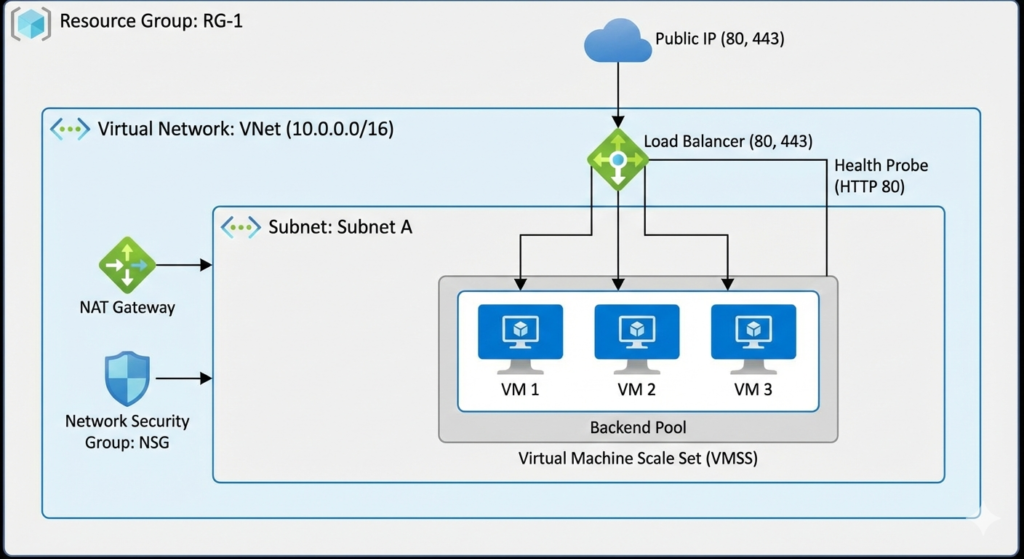
    Below are some commonly used functions with simple explanations and examples so you can start using them in your code confidently. For full reference, see the official docs: https://developer.hashicorp.com/terraform/language/functions


    trim

    What it does:
    Removes whitespace from the start and end of a string.

    Example:

    locals {
      messy = "  hello world  "
      clean = trim(local.messy)
    }
    

    Result:

    "hello world"
    

    Use this when your values might have extra spaces you don’t want.


    chomp

    What it does:
    Removes a trailing newline (end-of-line) from a string.

    Example:

    locals {
      text_with_newline = "hello\n"
      fixed_text        = chomp(local.text_with_newline)
    }
    

    Result:

    "hello"
    

    This is useful when reading output that may include newline characters.


    max

    What it does:
    Returns the largest numeric or alphabetic value from a list.

    Example (numbers):

    locals {
      numbers = [10, 32, 5, 18]
      largest = max(local.numbers...)
    }
    

    Result:

    32
    

    Example (strings):

    locals {
      words = ["apple", "banana", "grape"]
      highest = max(local.words...)
    }
    

    Result:

    "grape"
    

    Note: You need ... to expand list into separate arguments.


    lower

    What it does:
    Converts a string to all lowercase.

    Example:

    locals {
      mixed = "HELLoTerraform"
      lowercased = lower(local.mixed)
    }
    

    Result:

    "helloterraform"
    

    Great for normalizing strings when case doesn’t matter.


    reverse

    What it does:
    Reverses a list (flips order).

    Example:

    locals {
      numbers = [1, 2, 3, 4]
      backwards = reverse(local.numbers)
    }
    

    Result:

    [4, 3, 2, 1]
    

    Works only on lists, not on maps or strings.


    merge

    What it does:
    Combines two or more maps into one.

    Example:

    locals {
      tags1 = { env = "dev" }
      tags2 = { project = "blog" }
      merged_tags = merge(local.tags1, local.tags2)
    }
    

    Result:

    { env = "dev", project = "blog" }
    

    If maps have the same key, the last one wins.


    substr

    What it does:
    Returns a part of a string given a start index and length.

    Syntax:

    substr(string, start, length)
    

    Example:

    locals {
      full = "terraform"
      part = substr(local.full, 0, 4)
    }
    

    Result:

    "terr"
    

    Indices start at 0 (first character).


    replace

    What it does:
    Replaces all occurrences of a substring with another string.

    Example:

    locals {
      original = "prod-environment"
      fixed = replace(local.original, "prod", "production")
    }
    

    Result:

    "production-environment"
    

    Useful for transforming naming conventions.


    split

    What it does:
    Splits a single string into a list based on a separator.

    Syntax:

    split(separator, string)
    

    Example:

    locals {
      raw = "80,443,22"
      ports = split(",", local.raw)
    }
    

    Result:

    ["80", "443", "22"]
    

    You can then loop over this list in a dynamic block or for expression.


    When To Use These in Real Terraform

    These functions are most commonly used in:

    • locals (to preprocess values)
    • variables (to validate/transform inputs)
    • dynamic blocks (to generate nested blocks)
    • outputs (to format output values)
    • resource arguments (to build names, tags, policies)

    By combining conditions and functions, you can make your Terraform configurations more flexible, less repetitive, and more maintainable.


    Summary

    FunctionWhat It Does
    trimRemoves leading/trailing spaces
    chompRemoves trailing newline
    maxReturns the largest numeric/string value
    lowerConverts string to lowercase
    reverseReverses a list
    mergeCombines maps
    substrExtracts part of a string
    replaceReplaces substrings
    splitSplits a string into a list