Category: Azure Networking Basic

  • ๐ŸŽฏ What Youโ€™ll Learn

    In this blog, we dive deeper into Azure Application Gateway and explore how it can be used as a smart and secure entry point for multiple web applications. By the end of this guide, you will understand how to design real-world traffic routing and protect your applications from common web attacks.

    Hereโ€™s what we will be doing:

    • Understand what Azure Application Gateway is and why it works at Layer 7 (Application Layer)
    • Deploy two Ubuntu virtual machines running Nginx as independent web servers
      • One serving video content
      • One serving image content
    • Configure Network Security Groups (NSG) to allow:
      • SSH access for administration
      • HTTP access for users
    • Create an Application Gateway as the single public entry point
    • Implement URL-based routing so that:
      • /videos โ†’ goes to the video server
      • /images โ†’ goes to the image server
    • Keep backend servers private and protected, exposing only the gateway to the internet
    • Enable Web Application Firewall (WAF) to defend against:
      • SQL Injection
      • Cross-Site Scripting (XSS)
      • Protocol violations and other malicious requests
    • Learn the difference between:
      • Detection mode โ€“ monitor attacks
      • Prevention mode โ€“ actively block threats

    By the end of this blog, you will have a clear, hands-on understanding of how Application Gateway can:

    โœ… Route traffic intelligently
    โœ… Secure multiple apps with one public IP
    โœ… Protect web applications using enterprise-grade WAF

    Letโ€™s get started ๐Ÿš€

    STEP 1 : ๐Ÿ–ฅ๏ธ Creating Two Ubuntu Web Servers

    To demonstrate URL-based routing with Application Gateway, we first need two separate web servers. Each server will handle a different type of content, and later the gateway will decide where to send traffic based on the request URL.

    ๐ŸŽฏ Goal of This Setup

    • Create 2 Ubuntu Virtual Machines in the same subnet
    • One VM will serve video pages
    • The other VM will serve image pages
    • Application Gateway will later route:
      • /videos โ†’ Video VM
      • /images โ†’ Image VM

    ๐Ÿ’ก We do NOT attach NSG directly to each VM.
    Instead, we attach a single NSG to the subnet for centralized control.


    ๐Ÿ” Network & NSG Configuration

    While creating the VMs:

    • You can assign Public IPs to make SSH access easy for testing
    • Skip NSG at VM level (we manage it at subnet level)

    Modify NSG Rules

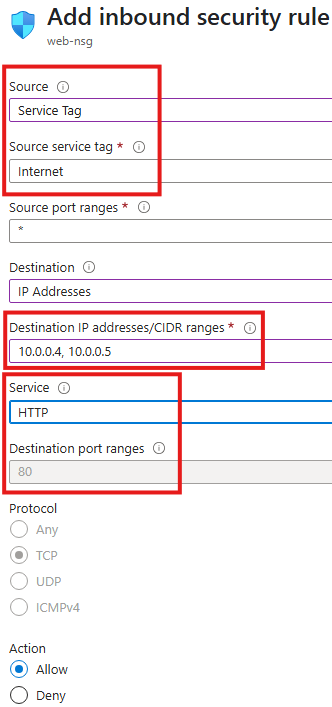
    We need two inbound rules:

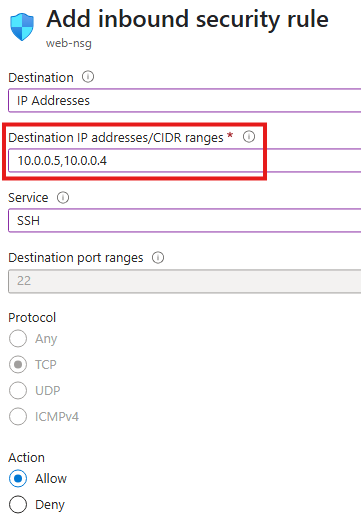
    1๏ธโƒฃ Allow SSH to the VMs

    • Destination: Private IPs of the VMs
    • Service: SSH (port 22)
    • Purpose: Admin access to configure the servers
    2๏ธโƒฃ Allow HTTP Traffic

    Since these VMs will act as web servers:

    • Source: Internet (Service Tag)
    • Destination Port: 80 (HTTP)
    • Destination: Private IPs of the VMs

    This allows users to browse the pages hosted on the servers.


    ๐Ÿงฐ Install Nginx on Both VMs

    Now we turn both Ubuntu machines into web servers.

    SSH into each VM and run:

    sudo apt update
    sudo apt install nginx
    

    After installation, Nginx starts serving files from:

    /var/www/html
    

    ๐ŸŽฌ Configure First VM โ€“ Video Web Server

    On VM 1, we create content for videos:

    cd /var/www/html
    sudo chmod 777 /var/www/html
    mkdir videos
    cd videos
    echo "Videos for you" > Default.html
    

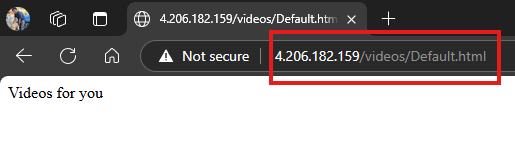
    Now this server responds to:

    ๐Ÿ‘‰ http://<VM1-Public-IP>/videos/Default.html

    and shows:
    Videos for you


    ๐Ÿ–ผ๏ธ Configure Second VM โ€“ Image Web Server

    On VM 2, repeat the same steps but for images:

    cd /var/www/html
    sudo chmod 777 /var/www/html
    mkdir images
    cd images
    echo "Images for you" > Default.html
    

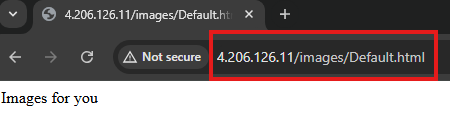
    This server is available at:

    ๐Ÿ‘‰ http://<VM2-Public-IP>/images/Default.html

    and displays:
    Images for you


    โœ… What We Have Achieved So Far

    At this stage:

    โœ” Two independent Ubuntu web servers are running
    โœ” Both are in the same subnet
    โœ” NSG allows SSH and HTTP access
    โœ” Each server serves different content
    โœ” We can browse them directly using their IPs

    But users currently need to remember two different IP addresses โŒ

    In the next step, we will:

    Use Application Gateway to provide a single entry point and route traffic automatically based on URL ๐Ÿšฆ

    STEP 2:๐Ÿšฆ Implement URL Routing Using Application Gateway

    Now that we have two web servers readyโ€”one for videos and one for imagesโ€”itโ€™s time to place Application Gateway in front of them.
    The goal is simple:

    Users will access a single public IP, and the gateway will decide which VM should handle the request based on the URL.


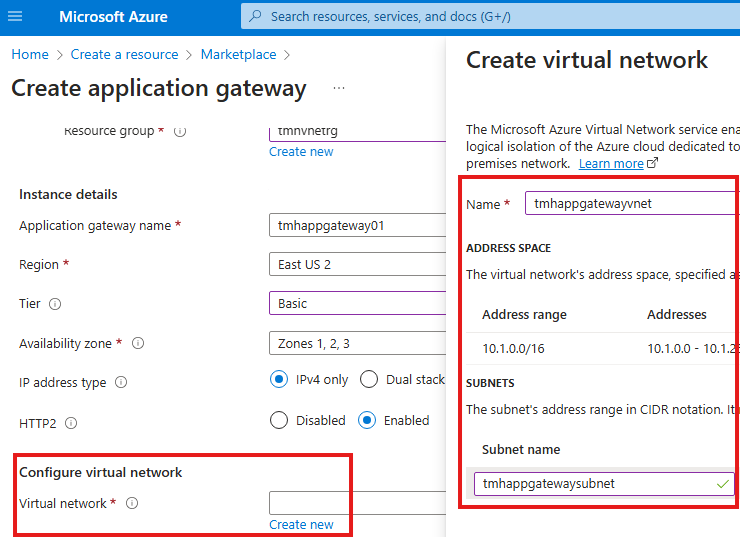
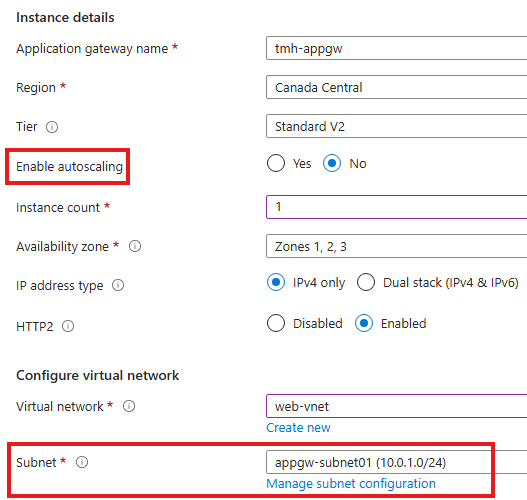
    ๐Ÿงฑ Prerequisite โ€“ Empty Subnet for Application Gateway

    Application Gateway must be deployed in its own dedicated subnet.
    It cannot share a subnet with VMs or other resources.

    So first ensure:

    โœ” A separate subnet exists (e.g., appgw-subnet01)
    โœ” No VMs or other services are inside this subnet

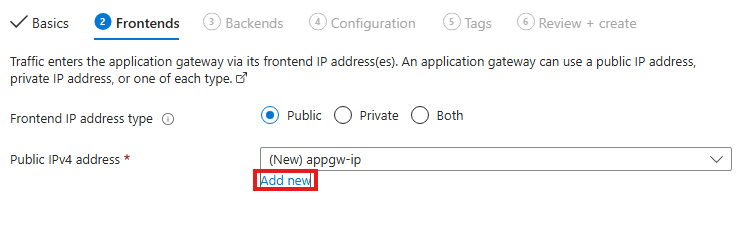
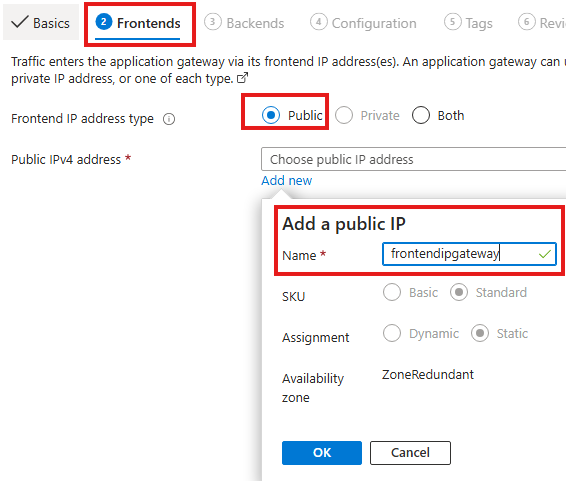
    ๐ŸŒ Create Frontend IP

    While creating the Application Gateway:

    1. Add a new Public IP address
    2. This IP becomes the single entry point for all users

    ๐Ÿ’ก After this setup, users will no longer connect directly to the web serversโ€”only to this frontend IP.


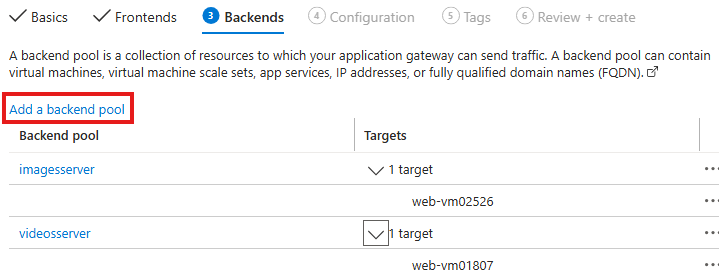
    ๐Ÿงฉ Create Backend Pools

    We need two backend pools, one for each server:

    • ๐ŸŽฌ videoserver โ†’ points to Video VM
    • ๐Ÿ–ผ๏ธ imageserver โ†’ points to Image VM

    Each pool contains the private IP of the corresponding Ubuntu VM.


    ๐ŸŽง Configure Listener

    The Listener decides when routing rules should be applied.

    We create a listener with:

    • Protocol: HTTP
    • Port: 80
    • Frontend IP: Application Gateway public IP
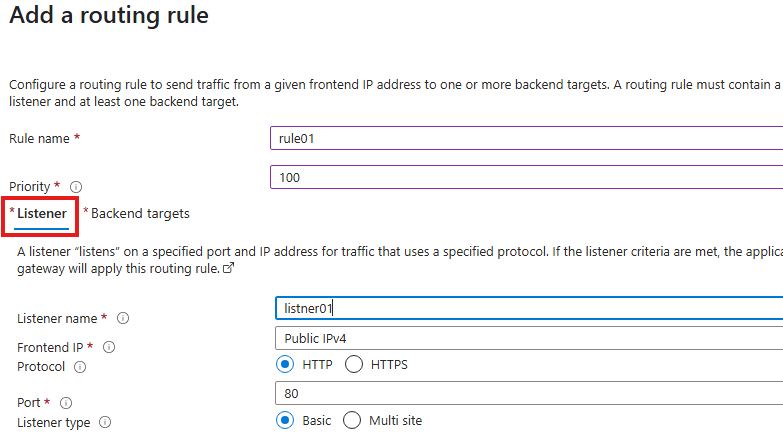
    ๐Ÿ“Œ Listener = โ€œWait for requests on this IP and port before applying any routing logic.โ€


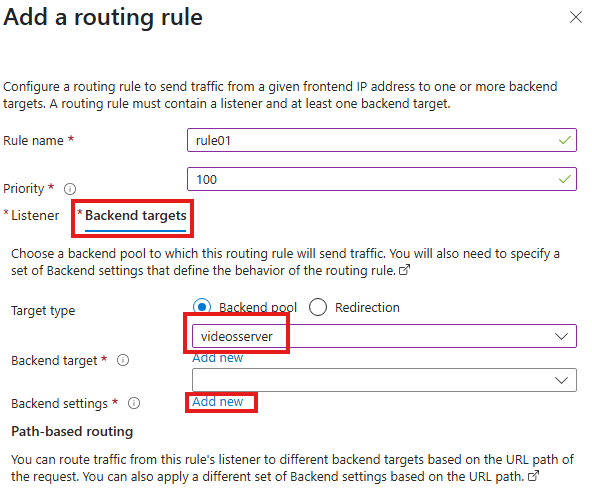
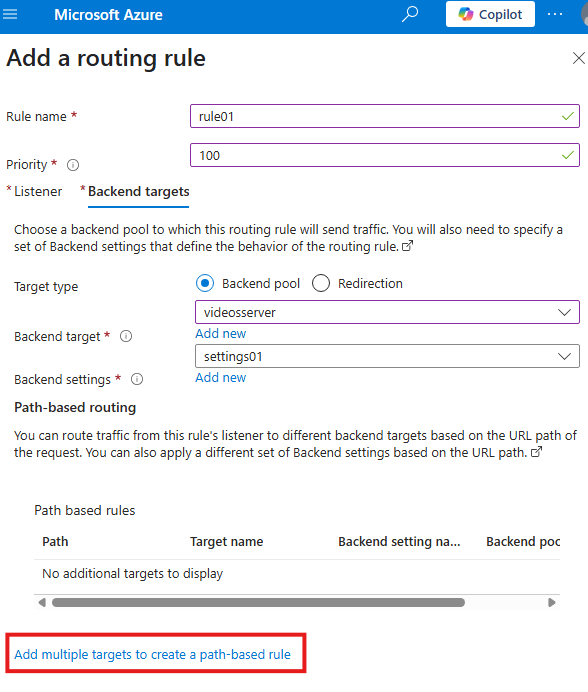
    ๐ŸŽฏ Configure Backend Targets

    Next we connect the listener to a backend pool:

    1. Select a backend pool (e.g., videoserver)
    2. Create Backend Settings
      • Just provide a name like settings01

    Backend settings define how the gateway communicates with the servers.


    ๐Ÿ”€ Add Path-Based Routing Rules

    This is the heart of the demo ๐Ÿ”ฅ.

    We click:

    ๐Ÿ‘‰ Add multiple targets to create a path-based rule

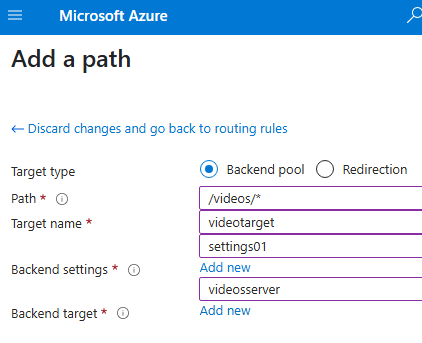
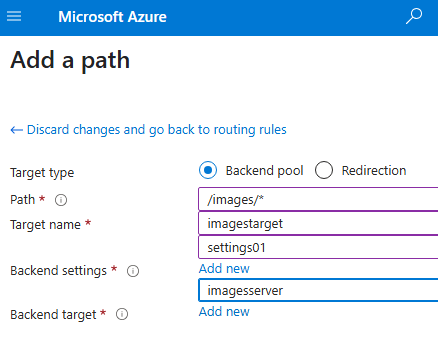
    Then create two paths:

    Rule 1 โ€“ Videos

    • Path: /videos/*
    • Target: videoserver
    • Backend settings: settings01

    Rule 2 โ€“ Images

    • Path: /images/*
    • Target: imageserver
    • Backend settings: settings01

    ๐Ÿง  Now the gateway can read the URL and decide where to send the request.


    ๐Ÿงช Test the Setup

    Access the Application Gateway public IP:

    ๐Ÿ‘‰ http://<appgw-ip>/videos/Default.html
    โžก Shows โ€œVideos for youโ€

    ๐Ÿ‘‰ http://<appgw-ip>/images/Default.html
    โžก Shows โ€œImages for youโ€

    ๐ŸŽ‰ URL-based routing is working!


    ๐Ÿ” Final Architecture Result

    โœ” Only Application Gateway needs a public IP
    โœ” Web servers can stay private
    โœ” Users access one endpoint
    โœ” Traffic is routed intelligently by URL

    URLDestination
    /videosVideo VM
    /imagesImage VM

    ๐Ÿ’ก What We Achieved

    • Implemented Layer 7 routing
    • Reduced public exposure
    • Centralized traffic control
    • Prepared foundation for WAF security

    In the next section, we will:

    Enable Web Application Firewall (WAF) to protect these applications from real attacks ๐Ÿ›ก๏ธ.

    ๐Ÿ›ก๏ธ Web Application Firewall (WAF)

    So far, we have used Application Gateway for routing traffic intelligently.
    Now we add the most important layer โ€” Web Application Firewall (WAF).

    ๐Ÿ’ก WAF is enabled and managed directly from the Application Gateway resource, not from the backend VMs or App Service.
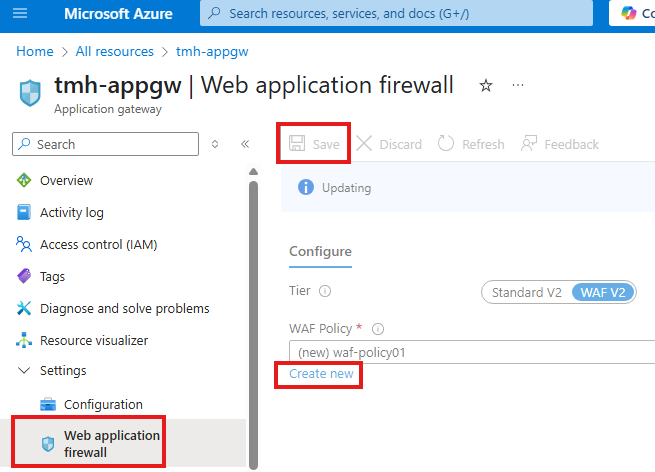
    WAF protects web applications from common and dangerous attacks such as:

    • ๐Ÿ’‰ SQL Injection
    • ๐Ÿงจ Cross-Site Scripting (XSS)
    • ๐Ÿšซ Protocol violations
    • ๐Ÿค– Malicious bots and scanners

    Instead of exposing our web servers directly to the internet, WAF acts like a smart shield in front of them.


    ๐Ÿ†• Creating a WAF Policy

    To enable WAF on the Application Gateway:

    1. Open the Application Gateway resource
    2. Go to the Web Application Firewall blade
    3. Click Create new to create a WAF policy

    This policy will be attached to the gateway and will inspect all incoming requests.
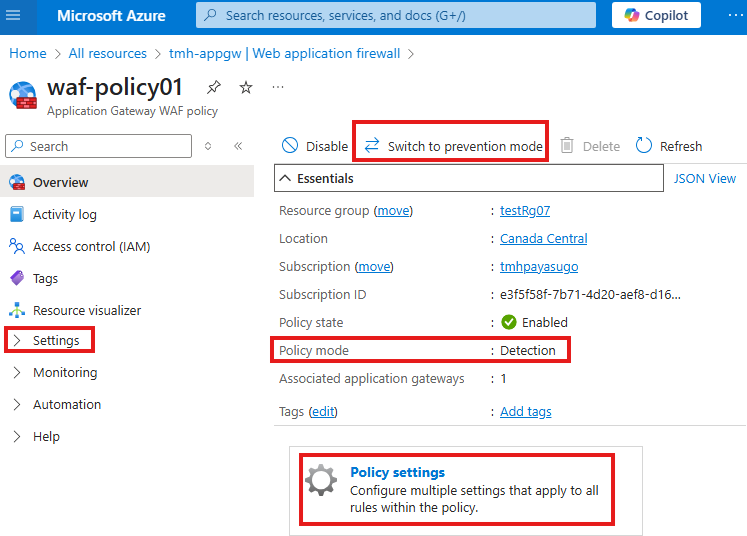

    ๐Ÿ” Detection Mode vs Prevention Mode

    After the policy is created, its default mode is:

    ๐Ÿ‘‰ Detection Mode

    • WAF only logs suspicious requests
    • Traffic is still allowed to reach the application
    • Useful for testing without blocking real users

    You can switch to:

    ๐Ÿ‘‰ Prevention Mode

    • Malicious requests are actively blocked
    • Real protection for production environments

    ๐Ÿ’ก Best Practice
    Start with Detection, monitor logs, then move to Prevention.


    ๐Ÿ“ฆ Managed Rules

    Inside the WAF policy:

    1. Go to Policy settings โ†’ Managed rules

    Here you will see a large set of built-in rules provided by Microsoft (based on OWASP standards).
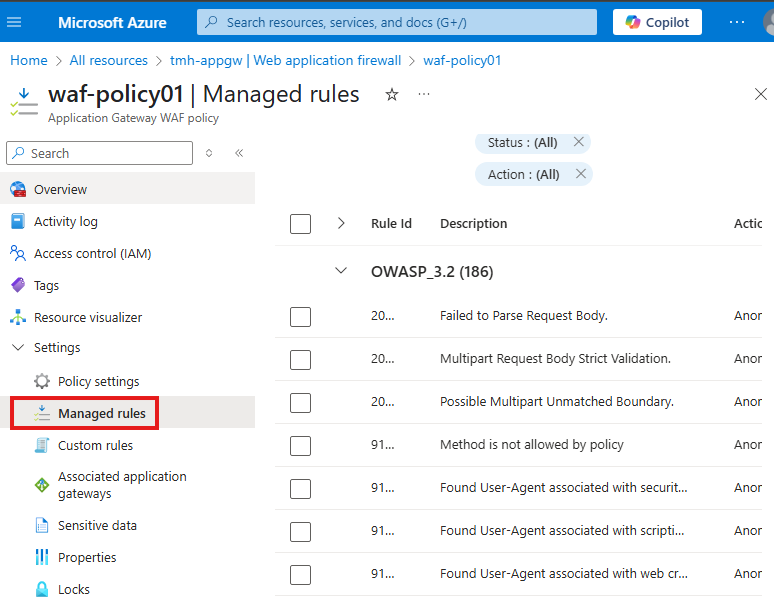
    These rules automatically detect:

    • SQL injection patterns
    • XSS payloads
    • Illegal HTTP methods
    • Malformed requests

    โœ… No need to write complex security logic โ€” WAF handles it for you.


    โœ Adding Custom Rules

    Apart from managed rules, we can create our own logic.
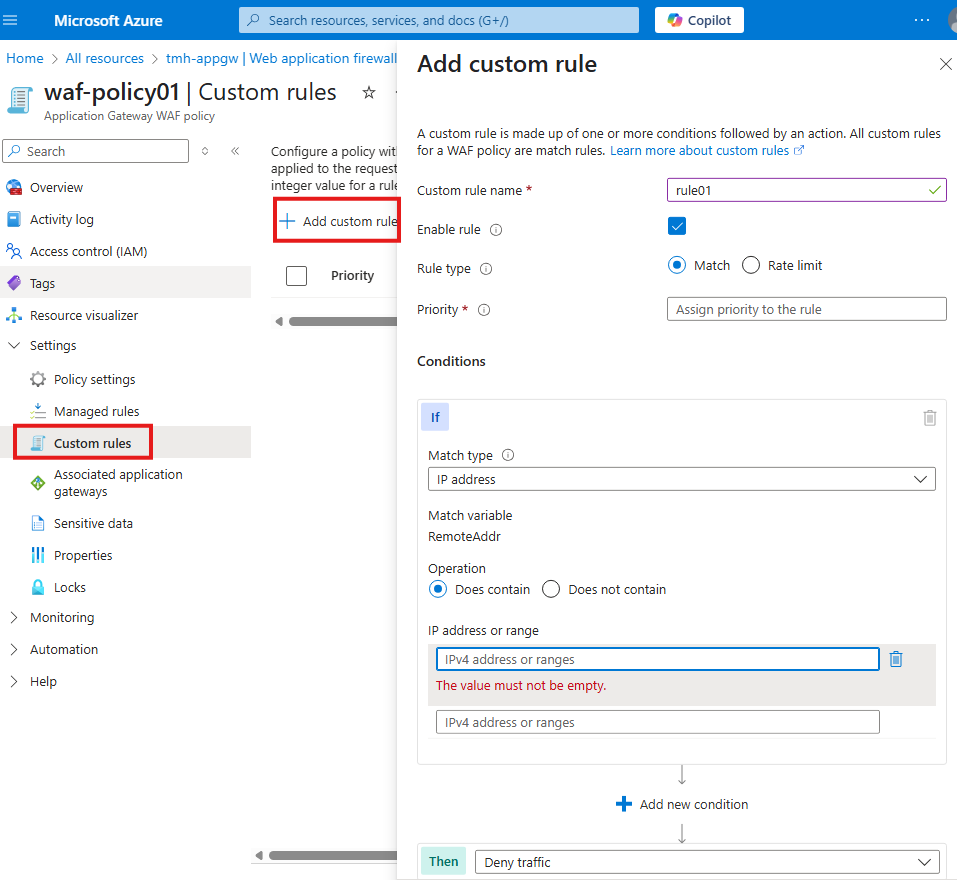
    From the Custom rules blade:

    1. Click + Add custom rule
    2. Define conditions such as:
    • Block specific IP addresses
    • Allow only certain countries
    • Rate-limit requests
    • Deny traffic matching patterns

    Example:

    Block traffic if request comes from a specific IP range โ†’ Deny traffic

    This gives full control over application security.


    ๐Ÿง  What We Achieved

    By enabling WAF:

    โœ” Application Gateway inspects every request
    โœ” Common attacks are detected and blocked
    โœ” Security is centralized
    โœ” Backend VMs stay protected


    ๐Ÿ Final Architecture

    User โ†’ Internet
    โžก Application Gateway + WAF
    โžก URL Routing
    โžก Video / Image Web Servers

    Our web apps are now not just reachable โ€” they are secure and enterprise-ready ๐Ÿ”.

  • ๐Ÿ” 3- Security For Web App Hosted in App Service

    Table of Contents

    1. ๐ŸŽฏ What Youโ€™ll Learn in This Blog
    2. ๐Ÿง  Core Security Concepts
    3. โš ๏ธ Insecure Way: Exposing VM Web App
    4. ๐Ÿข NSG at NIC vs Subnet
    5. โ˜๏ธ Azure Web App Service
    6. ๐Ÿ†š VM Hosting vs App Service Hosting
    7. ๐Ÿ›ก๏ธ How to Secure App Service
    8. ๐Ÿฐ Analogy โ€“ The Mansion Outside the Gate
    9. ๐Ÿšฆ Application Gateway โ€“ The Smart Security Guard
    10. ๐Ÿงช Demo: Protect App Service with Application Gateway
    11. ๐Ÿ’ก What We Understood from the Demo
    12. ๐Ÿš‡ Better Approach โ€“ Private Endpoint
    13. ๐Ÿ Final Architecture
    14. โœ… Key Takeaways

    ๐ŸŽฏ What Youโ€™ll Learn in This Blog

    In this guide we will:

    • Understand how Network Security Groups (NSG) protect Azure resources
    • Learn how IP addresses, protocols, and ports control network traffic
    • Compare security between:
      • Web app hosted in Virtual Machine
      • Web app hosted in Azure App Service
    • Explore why NSG cannot be used for App Service
    • Implement security using:
      • โœ… Service Endpoints
      • โœ… Private Endpoints
      • โœ… Access Restrictions
    • Protect apps using Azure Application Gateway + WAF

    By the end, youโ€™ll know how to secure an App Service web app like an enterprise architect ๐Ÿ›ก๏ธ.


    ๐Ÿง  Core Security Concepts

    ๐Ÿ”’ Network Security Group (NSG)

    An NSG is a set of rules that decide:

    • Who can access a VM or subnet
    • Which traffic should be allowed or denied

    NSG can be attached to:

    • ๐Ÿ–ฅ๏ธ A VMโ€™s Network Interface (NIC)
    • ๐Ÿข An entire Subnet

    ๐ŸŒ How Data Travels on a Network

    To send data from System A โ†’ System B we need:

    1. IP Address โ€“ where to send
    2. Protocol โ€“ how to send (TCP/IP)

    ๐Ÿ“ฌ What Are Ports?

    Just like physical ports:

    • USB
    • HDMI
    • Ethernet

    Computers also have virtual ports identified by numbers.

    PortPurpose
    80HTTP
    443HTTPS
    22SSH
    3389RDP
    25SMTP

    NSG rules filter traffic using:

    • Source IP
    • Destination IP
    • Port
    • Protocol

    ๐Ÿ’ก Think of NSG as a digital security guard checking:
    โ€œWhere are you coming from? Which door are you using?โ€


    โš ๏ธ Insecure Way: Exposing VM Web App

    To make a VM-hosted app public, people usually:

    1. Add NSG rule to allow port 8080
    2. Disable VM firewall

    โŒ This is extremely risky and NOT recommended.


    ๐Ÿข NSG at NIC vs Subnet

    Option 1 โ€“ Attach NSG to NIC

    • Works per VM
    • Hard to manage at scale

    Option 2 โ€“ Attach NSG to Subnet

    • Centralized control
    • Best practice

    ๐Ÿ“ Note:
    NSG cannot be applied to the entire VNetโ€”only to subnets or NICs.


    โ˜๏ธ Azure Web App Service

    Azure App Service lets you host apps without managing VMs.

    โœ” No OS patching
    โœ” No IIS management
    โœ” Auto scaling
    โœ” Managed platform

    Butโ€ฆ

    โ— You donโ€™t control its VNet or subnet
    โ— NSG is NOT applicable
    โ— App is public by default


    ๐Ÿ†š VM Hosting vs App Service Hosting

    FeatureVM HostedApp Service
    Infrastructure controlFullLimited
    NSG supportYesNo
    Public by defaultNoYes
    Management effortHighLow

    So we need different security methods for App Service.


    ๐Ÿ›ก๏ธ How to Secure App Service

    Two main approaches:

    1. โœ… Service Endpoint + Access Restriction
    2. โœ… Private Endpoint + Access Restriction

    And on top of that:

    ๐Ÿ‘‰ Application Gateway + WAF


    ๐Ÿฐ Analogy โ€“ The Mansion Outside the Gate

    • VNet = Gated community
    • Subnet = Building
    • App Service = Mansion outside the gate

    By default โ†’ anyone can enter the mansion ๐Ÿ˜ฑ

    We must:

    1. Restrict public access
    2. Allow only members of our VNet
    3. Create a private tunnel

    ๐Ÿšฆ Application Gateway โ€“ The Smart Security Guard

    Application Gateway is:

    • Layer 7 load balancer
    • Web traffic inspector
    • Security filter

    Capabilities

    โœ… URL-based routing โ€“ Direct traffic to different back-end resources based on the requested URL
    โœ… Multi-site hosting โ€“ Host multiple websites behind a single gateway
    โœ… SSL termination โ€“ Handle HTTPS encryption at the gateway level
    โœ… WAF protection โ€“ Block common web attacks using Web Application Firewall

    Key Components of Application Gateway

    1. Front-end IP

    This is the public or private IP address exposed by the Application Gateway.
    All external users connect to this IP first.

    2. HTTP Listener

    The listener receives HTTP or HTTPS requests from users and passes them to routing rules for further processing.

    3. Back-end Pool

    This contains the actual resources where web apps are hosted, such as:

    • Virtual Machines running IIS
    • Azure App Service web apps
    • Or a combination of both

    These resources remain protected behind the Application Gateway and are not directly exposed to the internet.

    4. Routing Rules

    Routing rules decide which back-end resource should handle a particular request based on:

    • URL path
    • Host name
    • Listener configuration

    5. Backend Settings

    These settings define:

    • Whether traffic to the backend should be HTTP or HTTPS
    • Port number
    • Session affinity
    • Health probe configuration

    ๐Ÿงฑ Architecture
    Internet โ†’ Application Gateway โ†’ App Service
    NOT โ†’ Internet โ†’ App Service directly


    ๐Ÿงช Demo: Protect App Service with Application Gateway

    ๐Ÿ› ๏ธ Step 1 โ€“ Create Application Gateway

    To secure the App Service web app, we first deploy an Application Gateway that will act as the single, controlled entry point from the internet to our application.

    Basic Details

    While creating the Application Gateway, provide the following:

    • Name โ€“ for example: appgw-webapp
    • Region โ€“ same region as the App Service
    • Tier โ€“ Standard v2 or WAF v2 (recommended for security)
    • Virtual Network โ€“ the VNet that the Application Gateway will trust and operate within

    ๐Ÿ’ก The selected VNet is important because only resources inside this VNet can communicate privately with the Application Gateway.


    Frontend Configuration

    In the Frontend tab, choose:

    • Public IP address โ€“ for internet-facing applications
    • Private IP โ€“ only for internal applications

    Since our web app must be accessed from the internet, we select Public IP.


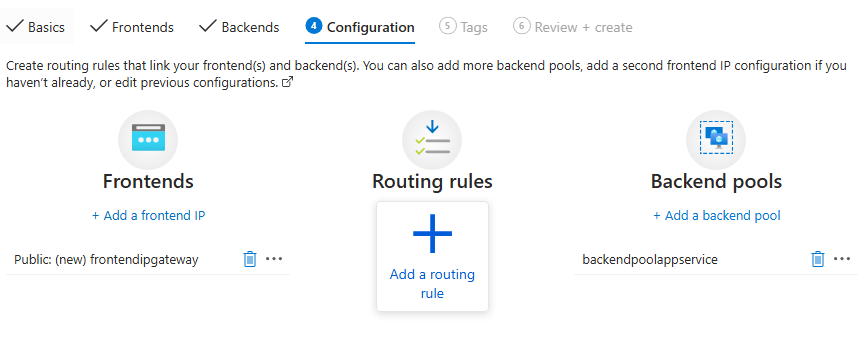
    Backend Pool Configuration

    In the Backend tab:

    • Choose App Service as the backend target
    • Select the App Service created earlier

    โœ… This configuration tells the gateway:
    โ€œForward incoming requests to this App Service.โ€


    Routing Rule Configuration

    The routing rule defines how traffic flows through the gateway.
    It has two main parts:

    1. Listener โ€“ receives incoming requests
    2. Backend Target โ€“ forwards requests to the destination

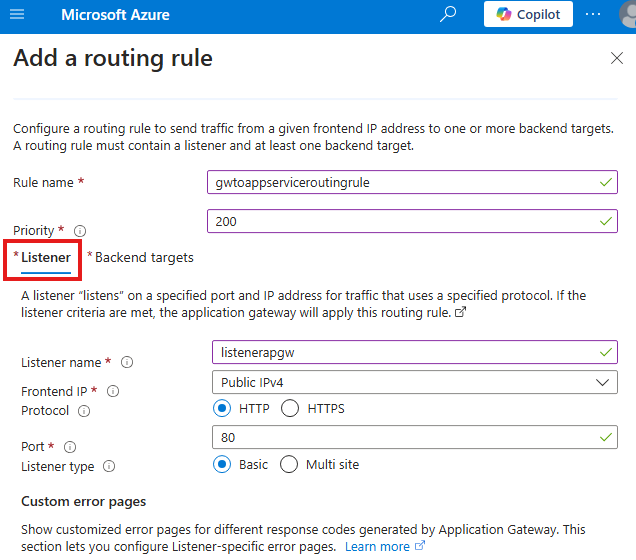
    Listener Settings Explained

    The listener controls how the gateway accepts traffic.

    • Frontend IP โ€“ public IP exposed by the gateway
    • Protocol โ€“ HTTP or HTTPS
    • Port โ€“ 80 for HTTP, 443 for HTTPS
    • Listener Type โ€“ Basic or Multi-site

    For this demo we used:

    • Protocol: HTTP
    • Port: 80
    • Listener Type: Basic

    ๐Ÿ“Œ Use Multi-site listener when hosting multiple websites behind one gateway.

    1๏ธโƒฃ Listener (Port 80) โ€“ How Users Talk to Application Gateway

    The listener defines how users on the internet connect to the Application Gateway. When we choose HTTP on port 80, we are saying that public users will access the gateway using a normal web request like http://22.22.22.22. At this stage, the App Service is not involved yetโ€”the listener only handles traffic between the user and the gateway.


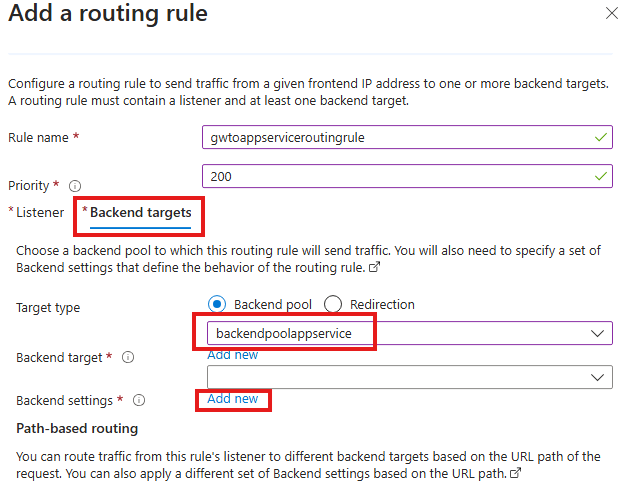
    Backend Target Settings Explained

    This section links the listener to the App Service.

    1. Backend Pool

    Select the pool containing the App Service:

    ๐Ÿ‘‰ backendpoolappservice

    This means all requests from the listener will be sent to this App Service.


    2. Backend Settings

    Key values used:

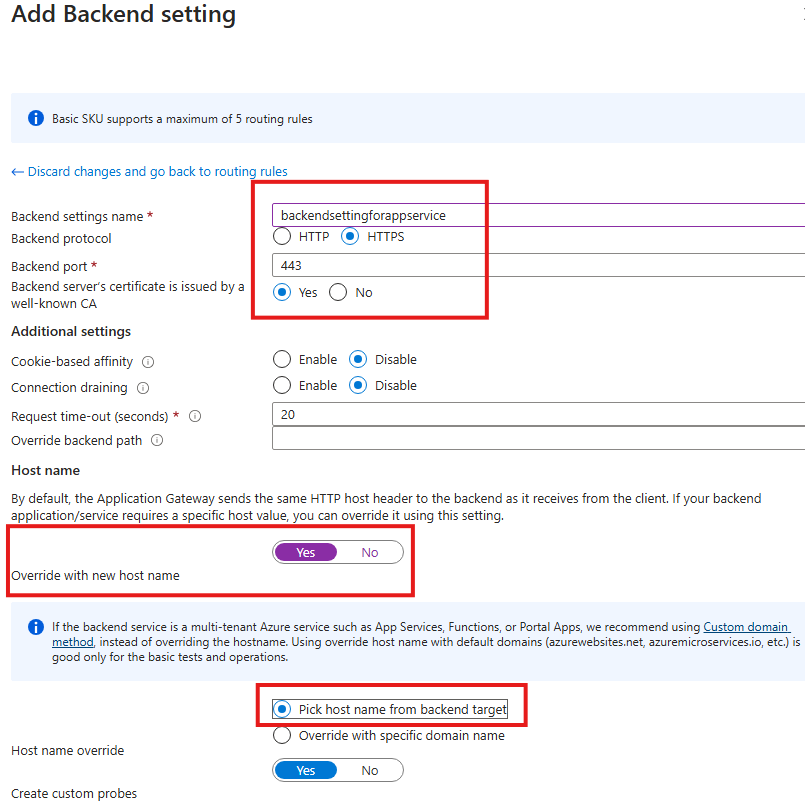
    • Backend protocol: HTTPS โ€“ App Service requires secure communication
    • Port: 443 โ€“ default HTTPS port
    • Trusted certificate: Yes โ€“ App Service uses Microsoft-issued certificates

    2๏ธโƒฃ Backend Settings (Port 443) โ€“ How Gateway Talks to App Service

    After receiving the request, the Application Gateway must forward it to the App Service. Azure App Service only accepts HTTPS traffic on port 443, so the backend settings use protocol HTTPS and port 443. This means there are two separate connections: one from the user to the gateway on port 80, and another secure connection from the gateway to the App Service on port 443.


    3. Host Name Override (Critical Setting)

    Enabled options:

    • โœ… Override with new host name โ€“ Yes
    • โœ… Pick host name from backend target
    Why this is important?

    3๏ธโƒฃ Host Name Override โ€“ Why It Is Required

    Think of the App Service like a person whose real name is โ€œmyapp.azurewebsites.net.โ€
    When a user visits the Application Gateway IP, the gateway originally calls the app like:

    โ€œHey 22.22.22.22, give me the website!โ€

    But the App Service replies:

    โ€œThatโ€™s not my name โ€” I donโ€™t recognize you!โ€ โŒ

    When we enable Host Name Override, the gateway changes the message to:

    โ€œHey myapp.azurewebsites.net, give me the website!โ€

    Now the App Service says:

    โ€œYes, thatโ€™s me!โ€ โœ…

    and it returns the page correctly.
    So Host Name Override simply makes the gateway call the App Service by its real domain name instead of the gateway IP.

    App Service expects requests with its original domain such as:

    myapp.azurewebsites.net
    

    Without host name override, the request comes with the gateway IP and App Service may return:

    โŒ 404 error
    โŒ Host not recognized

    ๐Ÿ’ก This setting ensures Application Gateway sends the correct host header to the App Service.

    Now the app is reachable via:

    ๐Ÿ‘‰ Application Gateway public IP


    ๐Ÿ› ๏ธ Step 2 โ€“ Add Service Endpoint

    Before we can restrict access to the App Service, the Application Gateway subnet must be authorized to talk to Microsoft Web services.
    This is done using a Service Endpoint.

    ๐Ÿ’ก If we skip this step and try to add access restrictions first, Azure will show:
    โŒ โ€œNo service endpoint is present for this subnet.โ€


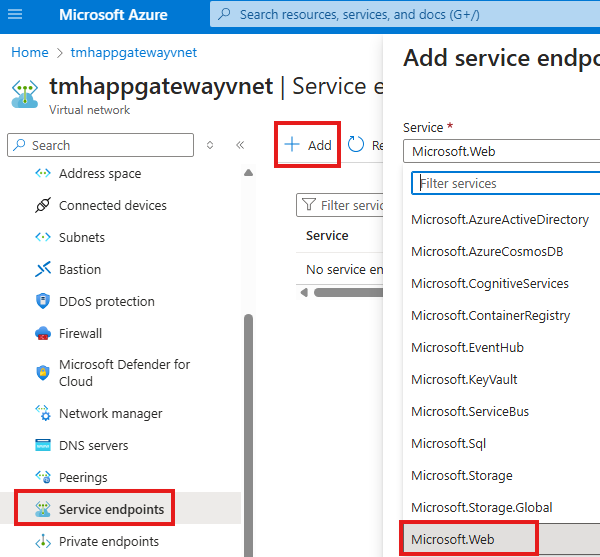
    1๏ธโƒฃ Open the Virtual Network of Application Gateway

    1. Go to the Virtual Network where your Application Gateway is deployed
    2. From the left menu, select Service endpoints

    This page shows which Azure platform services are allowed to be accessed from this VNet.


    2๏ธโƒฃ Add the Microsoft.Web Service Endpoint

    1. Click + Add
    2. In the Service dropdown, select:

    ๐Ÿ‘‰ Microsoft.Web

    This option represents Azure App Service and other web-related PaaS services.


    3๏ธโƒฃ Select the Application Gateway Subnet

    1. Choose the Subnet in which your Application Gateway is located
    2. Confirm and save the configuration

    This tells Azure:

    โ€œDevices inside this subnet (Application Gateway) are allowed to securely access Azure Web App services.โ€


    What This Step Actually Does

    After adding the service endpoint:

    • The App Service can now recognize the Application Gateway subnet
    • Traffic from this subnet is treated as trusted Azure backbone traffic
    • We are allowed to create access restriction rules referencing this subnet

    Without this:

    Before we can restrict access to the App Service, the Application Gateway subnet must be authorized to talk to Microsoft Web services.
    This is done using a Service Endpoint.

    ๐Ÿ’ก If we skip this step and try to add access restrictions first, Azure will show:
    โŒ โ€œNo service endpoint is present for this subnet.โ€


    1๏ธโƒฃ Open the Virtual Network of Application Gateway

    1. Go to the Virtual Network where your Application Gateway is deployed
    2. From the left menu, select Service endpoints

    This page shows which Azure platform services are allowed to be accessed from this VNet.


    2๏ธโƒฃ Add the Microsoft.Web Service Endpoint

    1. Click + Add
    2. In the Service dropdown, select:

    ๐Ÿ‘‰ Microsoft.Web

    This option represents Azure App Service and other web-related PaaS services.


    3๏ธโƒฃ Select the Application Gateway Subnet

    1. Choose the Subnet in which your Application Gateway is located
    2. Confirm and save the configuration

    This tells Azure:

    โ€œDevices inside this subnet (Application Gateway) are allowed to securely access Azure Web App services.โ€


    What This Step Actually Does

    After adding the service endpoint:

    • The App Service can now recognize the Application Gateway subnet
    • Traffic from this subnet is treated as trusted Azure backbone traffic
    • We are allowed to create access restriction rules referencing this subnet

    Without this:

    • App Service cannot be locked down to the gateway
    • Access restriction configuration will fail

      ๐Ÿ› ๏ธ Step 3 โ€“ Block Direct Access to App Service

      Right now, the web app hosted in App Service is publicly accessible by default.
      Anyone on the internet can open the app directly using:

      ๐Ÿ‘‰ https://myapp.azurewebsites.net

      Our goal is:

      โŒ Users must NOT access the App Service directly
      โœ… Users should access it ONLY through the Application Gateway

      To achieve this, we configure Access Restrictions in the App Service.


      1๏ธโƒฃ Check Current Access Status

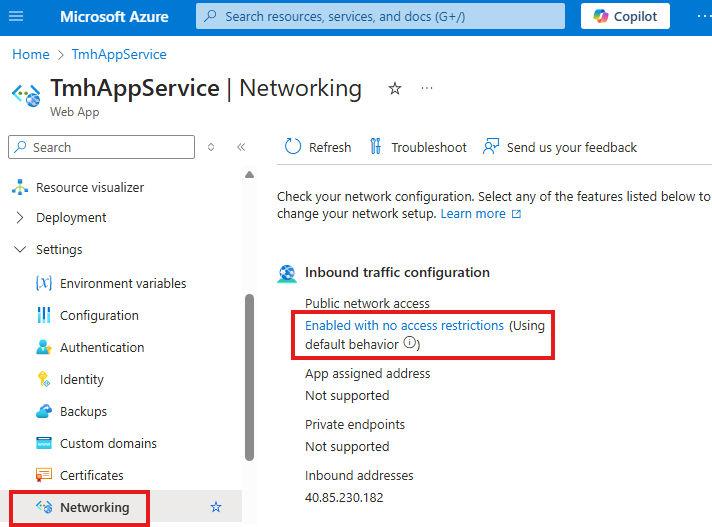
      1. Open your App Service in the Azure Portal
      2. Go to the Networking blade
      3. Under Inbound traffic configuration, you will see:

      Public network access: Enabled with no access restrictions

      This means the web app is currently open to the entire internet, which is not secure.


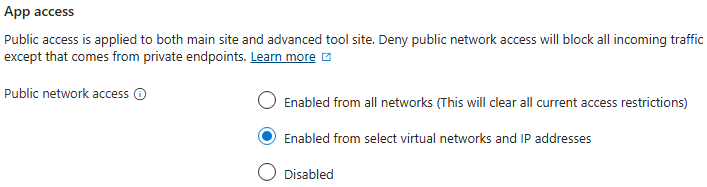
      2๏ธโƒฃ Change Public Access Mode

      1. Click on Public network access
      2. Select the option:

      ๐Ÿ‘‰ Enabled from select virtual networks and IP addresses

      This setting tells Azure:

      โ€œAllow access only from specific VNets or IP addresses, and block everyone else.โ€


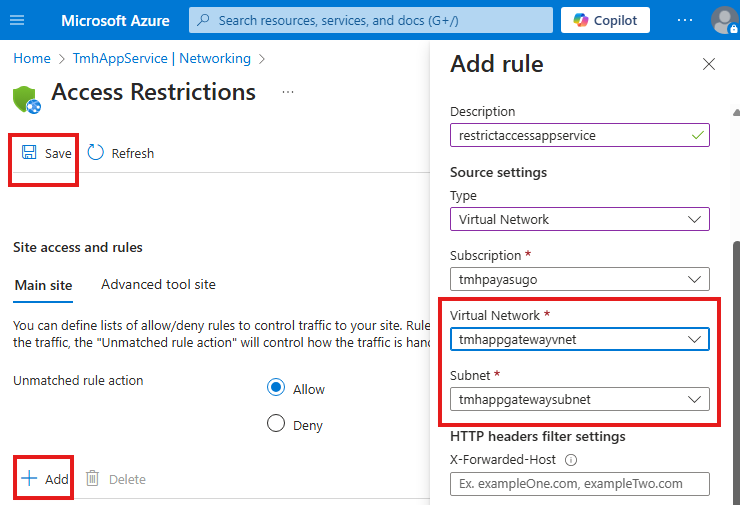
      3๏ธโƒฃ Add an Access Restriction Rule

      Now we create a rule that allows traffic only from the Application Gateway subnet.

      1. Open Access Restrictions
      2. Click + Add

      Enter the following details:

      • Type: Virtual Network
      • Virtual Network: the VNet where Application Gateway is deployed
      • Subnet: Application Gateway subnet
      • Description: e.g., restrictaccessappservice
      1. Click Save

      What This Configuration Achieves

      After applying this rule:

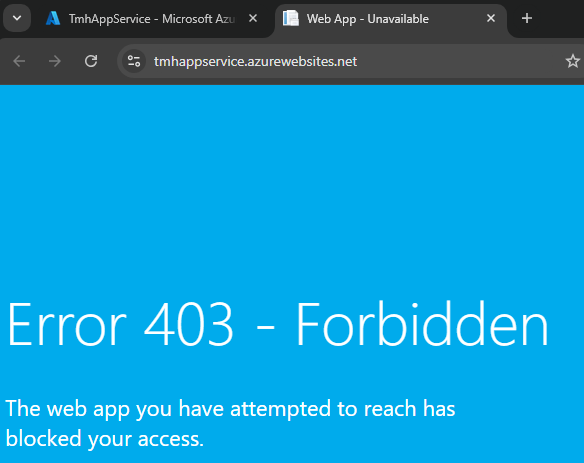
      • โŒ Direct access to
        https://myapp.azurewebsites.net โ†’ will be BLOCKED
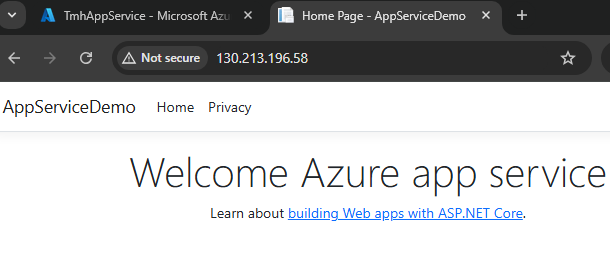
      • โœ… Access through
        http://<Application-Gateway-IP> โ†’ will be ALLOWED

      Because now:

      Only traffic coming from the trusted Application Gateway subnet is permitted.


      Step 4 โ€“ Add Access Restriction

      In App Service:

      • Networking โ†’ Public Access
      • Allow only:
        • Selected VNet
        • Gateway subnet

      ๐Ÿงช Result:

      • Direct App Service URL โ†’ BLOCKED
      • Gateway URL โ†’ WORKS โœ…

      ๐Ÿ’ก What We Understood from the Demo

      When creating the Application Gateway, we place it inside a specific VNet and subnet, and this subnet becomes the network that the gateway trusts.
      Next, we go to that same subnet and enable a Service Endpoint for Microsoft.Web. This step allows resources inside that subnetโ€”mainly the Application Gatewayโ€”to securely reach the Azure App Service over the Azure backbone network.

      After enabling the service endpoint, we configure Access Restrictions in the App Service to allow traffic only from this VNet/subnet. As a result:

      1. Application Gateway resides in a trusted subnet
      2. That subnet is authorized to communicate with App Service
      3. App Service accepts traffic only from that subnet and blocks all other public access

      ๐Ÿฐ Analogy Explanation

      Think of it like this:

      • The VNet/subnet is a walled housing community
      • The Application Gateway is the security guard at the gate
      • The App Service is a mansion located outside the wall

      Step 1 โ€“ Trust the Guard
      We first tell the system:

      โ€œPeople coming from this walled community can be trusted to visit the mansion.โ€

      Step 2 โ€“ Give a Special Pass
      By adding the Service Endpoint, we give members of that community a valid pass to reach the mansion through a secure path.

      Step 3 โ€“ Lock the Mansion
      Inside the mansion (App Service) we set up a rule:

      โ€œOnly people with that pass โ€” meaning traffic from the Application Gateway subnet โ€” are allowed to enter.โ€

      Everyone else from the public street is blocked ๐Ÿšซ


      ๐Ÿš‡ Better Approach โ€“ Private Endpoint

      Problem with Service Endpoint

      It still uses public IP internally.

      Private Endpoint = Underground Tunnel

      Benefits:

      • Uses Azure backbone
      • No public IP involved
      • Most secure option

      Steps for Private Endpoint

      1. Create Private Endpoint for App Service
      2. Use separate subnet (no service endpoint)
      3. Disable Public Network Access

      ๐Ÿ” Final Result
      App can ONLY be accessed via Application Gateway


      ๐Ÿ Final Architecture

      โœ” Internet โ†’ Application Gateway (WAF)
      โœ” Gateway โ†’ Private Endpoint
      โœ” Private Endpoint โ†’ App Service
      โŒ Direct internet โ†’ App Service


      โœ… Key Takeaways

      • NSG works for VMs, NOT App Service
      • App Service is public by default
      • Use:
        • Service Endpoint
        • Private Endpoint
        • Access Restrictions
        • Application Gateway

      ๐Ÿš€ Enterprise Best Practice
      Never expose App Service directly to internet

    1. ๐ŸŒ 2 – Web App In Virtual Network

      Table of Contents

      1. ๐ŸŽฏ What Youโ€™ll Learn in This Blog
      2. ๐Ÿ–ฅ๏ธ Hosting a Web App Inside a Virtual Machine
      3. ๐Ÿ’ป Creating the Web App in Visual Studio
      4. ๐Ÿš€ Hosting the App in IIS
      5. โ— Local Access vs Public Access
      6. ๐Ÿ” Securing the Web App in VM
      7. ๐Ÿ›ก๏ธ The Right Solution โ€“ Application Gateway
      8. ๐Ÿงฉ Final Thoughts

      ๐ŸŽฏ What Youโ€™ll Learn in This Blog

      In this blog, we will:

      • Deploy a web application inside an Azure Virtual Machine
      • Install and configure IIS + .NET 8 Hosting Bundle
      • Create an ASP.NET Core MVC app using Visual Studio
      • Publish the app and host it on the VM using IIS on port 8080
      • Understand why the app is accessible only locally and not via public IP
      • Learn the security risks of exposing VMs directly to the internet
      • See how Azure Application Gateway protects the web app

      By the end, youโ€™ll know how to host a real web app in a VMโ€”and more importantly, how to secure it ๐Ÿ”.


      ๐Ÿ–ฅ๏ธ Hosting a Web App Inside a Virtual Machine

      To run a web application inside a VM, we must first turn the VM into a web server.

      ๐Ÿงฐ Step 1 โ€“ Connect to the VM

      • Use Remote Desktop (RDP) to log in to your Azure VM
      • Open Server Manager

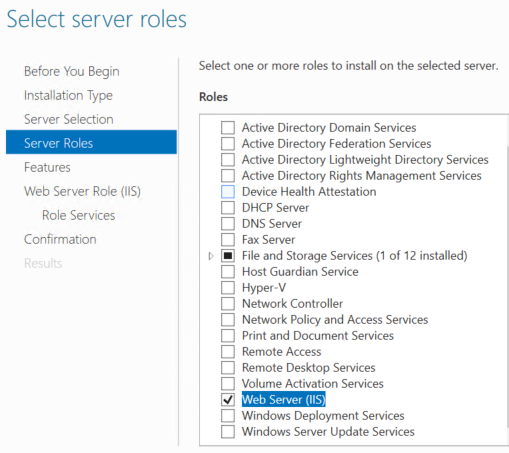
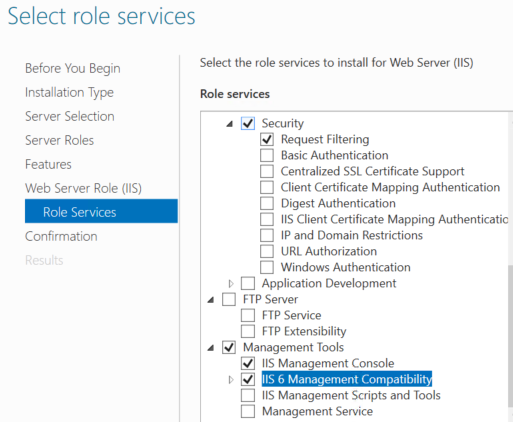
      ๐ŸŒ Step 2 โ€“ Install IIS (Web Server)

      1. Go to
        ๐Ÿ‘‰ Server Manager โ†’ Add Roles and Features
      2. Select:
        โœ” Web Server (IIS) role
        โœ” Under features, enable IIS 6 Management Compatibility
      3. Wait for installation to finish โณ

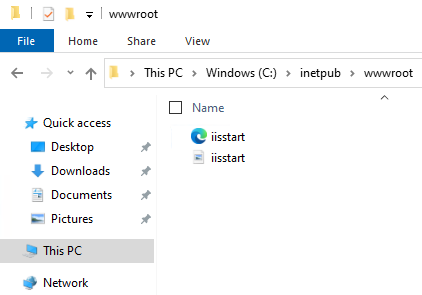
      After installation you will see:

      C:\inetpub\wwwroot
      

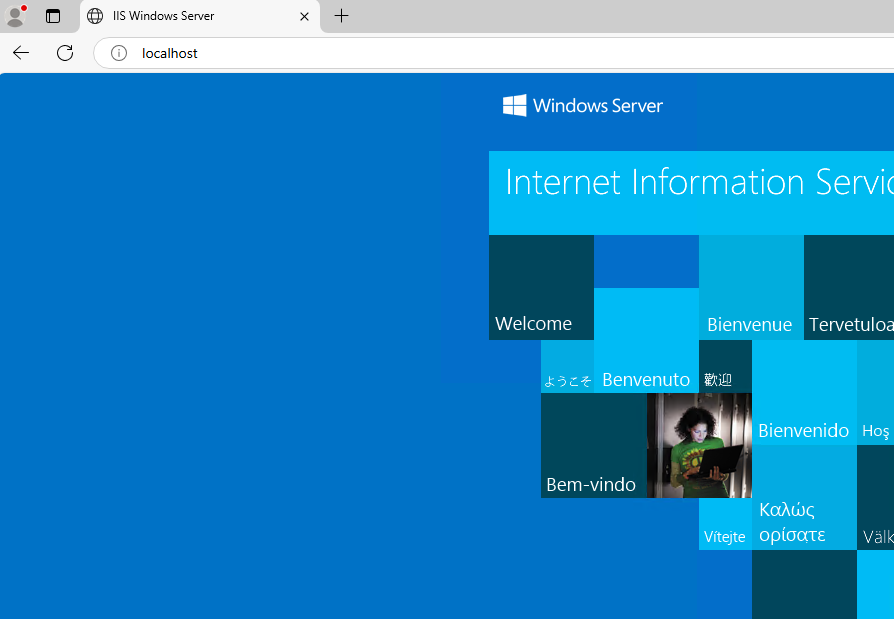
      This folder contains the default IIS landing page.

      โœ… You can test it inside the VM by opening:
      http://localhost


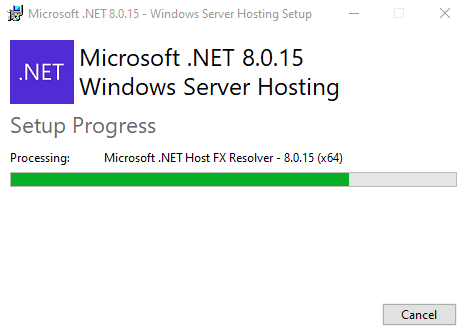
      โš™๏ธ Step 3 โ€“ Install .NET 8 Hosting Bundle

      Download and install the latest .NET 8 Hosting Bundle inside the VM so IIS can run ASP.NET Core apps.

      ๐Ÿ’ก Without this bundle, IIS cannot host .NET applications.


      ๐Ÿ’ป Creating the Web App in Visual Studio

      ๐Ÿงช Step 4 โ€“ Build an ASP.NET Core App

      1. Open Visual Studio
      2. Create a project:
        ๐Ÿ‘‰ ASP.NET Core Web App (Modelโ€“Viewโ€“Controller)
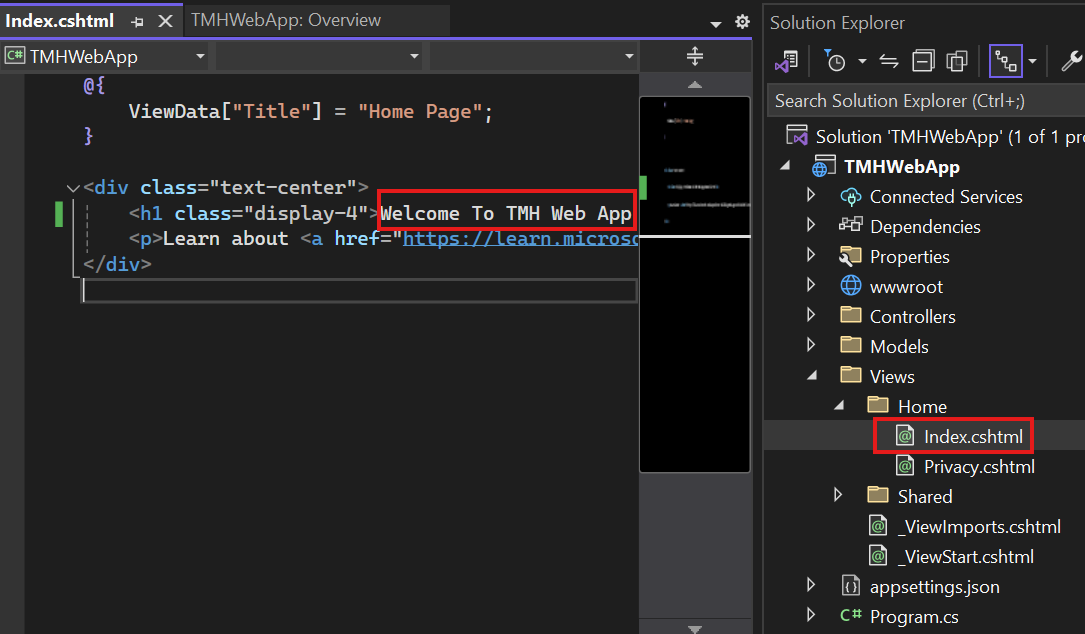
      3. Make a small UI change to:
        • Home โ†’ Index.cshtml
          (so you can recognize your app later)

      ๐Ÿ“ฆ Step 5 โ€“ Publish as Folder

      1. Right click project โ†’ Publish
      2. Choose โ†’ Publish to Folder

      In settings select:

      • โœ… Self-contained deployment
        (so app runs without external dependencies)
      1. Copy the published folder into the VM.

      ๐Ÿš€ Hosting the App in IIS

      ๐Ÿ› ๏ธ Step 6 โ€“ Configure IIS Website

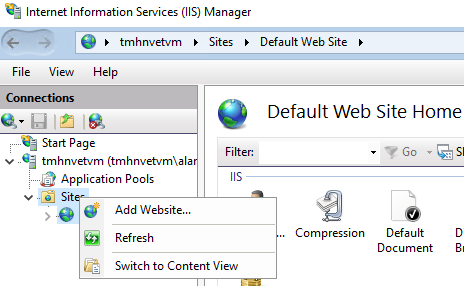
      1. Open IIS Manager in the VM
      2. Remove the default website
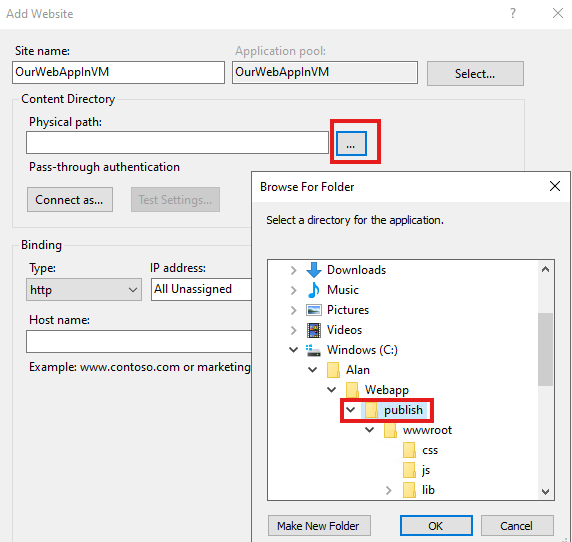
      3. Click Add Website

      Configure:

      • ๐Ÿ“ Physical path โ†’ your published folder
      • ๐ŸŒ Port โ†’ 8080

      ๐Ÿ“Œ The publish folder must be the parent of the wwwroot folder.


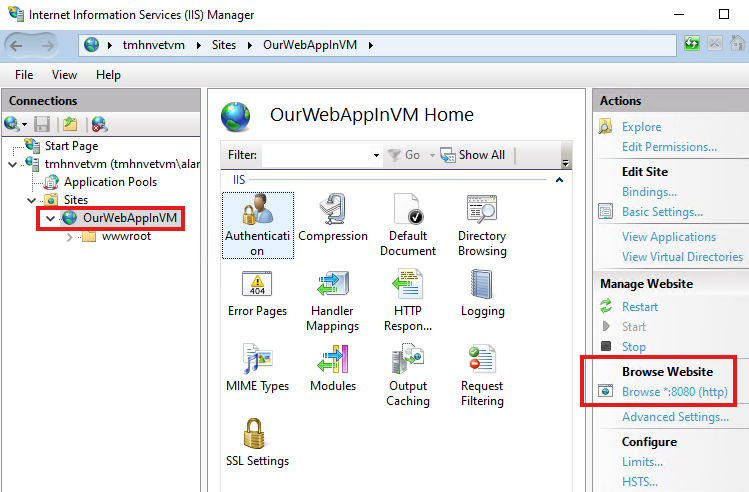
      ๐Ÿ‘€ Step 7 โ€“ Test Locally

      Click Browse :8080

      Your web app opens at:

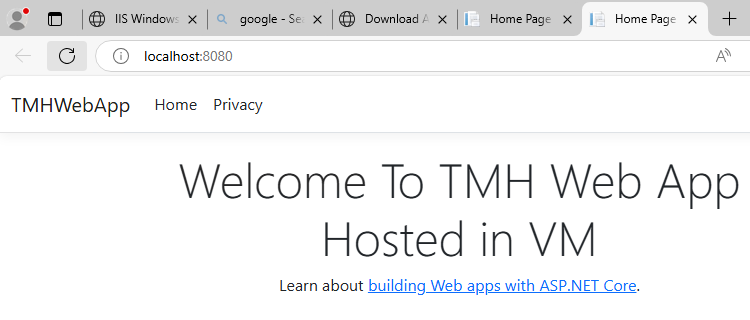
      ๐Ÿ‘‰ http://localhost:8080

      ๐ŸŽ‰ The app is now running inside the VM!


      โ— Local Access vs Public Access

      Right now:

      • โœ… App works inside the VM
      • โŒ App is NOT accessible using the VMโ€™s public IP

      You could open port 8080 to the internetโ€ฆ
      ๐Ÿ‘‰ But this is a BAD idea.


      ๐Ÿ” Securing the Web App in VM

      Exposing a VM directly to the internet introduces serious risks.

      โš ๏ธ Common Security Threats

      1. ๐Ÿšจ DDoS Attacks
        Bots flood your app with requests so real users cannot access it.
      2. ๐Ÿงจ Cross-Site Scripting (XSS)
        Malicious scripts injected into your pages.
      3. ๐Ÿ’‰ SQL Injection
        Attackers manipulate database queries.
      4. ๐Ÿ“‰ HTTP Protocol Violations
        Malformed requests to crash or exploit the app.

      โŒ Opening inbound port 8080 is NOT recommended
      Even RDP port should be closed in production.


      ๐Ÿ›ก๏ธ The Right Solution โ€“ Application Gateway

      Instead of exposing the VM:

      • All traffic should enter through Azure Application Gateway
      • Gateway validates and filters requests
      • Only safe traffic reaches the web app

      โœ… Benefits

      • Web Application Firewall (WAF)
      • DDoS protection
      • SSL termination
      • Central entry point
      • No direct VM exposure

      ๐Ÿง  Architecture Idea
      Internet โ†’ Application Gateway โ†’ VM Web App
      NOT โ†’ Internet โ†’ VM directly


      ๐Ÿงฉ Final Thoughts

      You have now learned:

      • How to convert a VM into a web server
      • Host an ASP.NET Core app in IIS
      • Why local access โ‰  public access
      • The dangers of exposing VMs
      • The importance of Application Gateway

      ๐Ÿš€ Real-world rule:
      Never expose VMs directlyโ€”always use a gateway!

    2. ๐ŸŒ 1 – Azure Virtual Network Basics

      Table of Contents

      1. ๐ŸŽฏ What Youโ€™ll Learn in This Blog
      2. ๐Ÿ“˜ Understanding Azure Virtual Network: Your Gateway to Secure Cloud Architecture
      3. ๐Ÿ˜๏ธ Virtual Network as a Gated Community โ€“ Simple Analogy
      4. ๐Ÿ”ข IP Address and CIDR Notation Explained
      5. ๐Ÿงฉ VNet vs Subnet
      6. ๐Ÿ› ๏ธ Creating VNets in Azure
      7. ๐Ÿ–ฅ๏ธ Adding a Virtual Machine to a VNet
      8. ๐ŸŒ Public IP vs Private IP
      9. ๐Ÿค” Why Do We Need Azure Virtual Network?
      10. โœ… Final Thoughts

      ๐ŸŽฏ What Youโ€™ll Learn in This Blog

      In this blog, we will:

      • Understand why Azure Virtual Network (VNet) is required in cloud environments
      • Learn how VNets provide isolation and security on shared Azure infrastructure
      • Use a simple gated community analogy to visualize networking concepts
      • Understand IP addressing and CIDR notation
      • Explore the difference between VNet and Subnet
      • See how to create VNets and attach Virtual Machines
      • Understand Public IP vs Private IP and real-world security best practices

      By the end, youโ€™ll clearly understand how Azure networking protects your resources and how traffic flows inside the cloud ๐Ÿš€.


      ๐Ÿ“˜ Understanding Azure Virtual Network: Your Gateway to Secure Cloud Architecture

      Azure resources such as Virtual Machines, databases, and applications run on shared physical servers. That means multiple organizations may be using the same underlying hardware.

      ๐Ÿ‘‰ So how does Azure keep your environment separate and secure?

      This is where Azure Virtual Network (VNet) comes in.

      VNets create a logically isolated network for your subscription so that:

      • Your data is separated from other organizations
      • Communication between your resources stays private
      • You can fully control inbound and outbound traffic

      ๐Ÿ” Key Idea:
      Even though the hardware is shared, VNet ensures your network behaves like your own private data center.


      ๐Ÿ˜๏ธ Virtual Network as a Gated Community โ€“ Simple Analogy

      Letโ€™s simplify Azure networking with a real-life example.

      Imagine a gated housing community:

      • ๐Ÿก Entire community โ†’ Virtual Network (VNet)
      • ๐Ÿงฑ Boundary wall โ†’ Firewall
      • ๐Ÿข Buildings โ†’ Subnets
      • ๐Ÿ  Apartments โ†’ Virtual Machines (VMs)
      • ๐Ÿ‘ฎ Main security guard โ†’ Application Gateway / Load Balancer
      • ๐Ÿ”‘ Buzzer system โ†’ Network Security Group (NSG)

      What does the main security guard do?

      The Application Gateway or Load Balancer performs three major tasks:

      1. โœ… Check ID โ€“ Authenticate & authorize traffic
      2. โœ… Check availability โ€“ Is the destination healthy?
      3. โœ… Find alternative โ€“ Route to another VM if needed

      Each building (subnet) can also have its own security systemโ€”just like an NSG that filters traffic at subnet or VM level.

      ๐Ÿง  Analogy Summary
      VNet = Community
      Subnet = Building
      VM = Apartment
      NSG = Door security
      Gateway = Main entrance guard


      ๐Ÿ”ข IP Address and CIDR Notation Explained

      Whenever we create a VNet or subnet, we must define an IP address range.

      IPv4 Basics

      An IPv4 address looks like:

      97.87.3.1
      
      • It has 4 parts
      • Each part = 8 bits
      • Value ranges from 0 to 255 (because 2โธ = 256)

      ๐Ÿ“ What is CIDR Notation?

      CIDR notation defines how big a network is.

      Example:

      ๐Ÿ‘‰ 100.8.0.0/24

      • /24 โ†’ first 24 bits = network portion
      • Remaining 8 bits = device addresses
      • Total addresses = 2โธ = 256

      ๐Ÿ“Œ Important Rule
      โž• More bits for network โ†’ โž– fewer devices
      โž– Fewer bits for network โ†’ โž• more devices


      ๐Ÿงฉ VNet vs Subnet

      • VNet = Full address space
      • Subnet = Smaller range inside the VNet

      Example

      • VNet โ†’ 100.8.0.0/24 โ†’ 256 possible IPs
      • Subnet โ†’ 100.8.0.0/28 โ†’ only 16 IPs (2โด)

      ๐Ÿ™๏ธ Think of it like:
      City = VNet
      Neighborhood = Subnet


      ๐Ÿ› ๏ธ Creating VNets in Azure

      ๐Ÿ› ๏ธ Steps to Create a Virtual Network and Subnet in Azure

      Follow these steps in the Azure Portal to set up your Virtual Network (VNet) and subnet.


      โœ… Step 1 โ€“ Sign in to Azure Portal

      1. Open https://portal.azure.com
      2. Log in with your Azure account
      3. Click Create a resource from the home page

      โœ… Step 2 โ€“ Locate the Virtual Network Service

      1. In the search bar, type Virtual Network
      2. Select Virtual Network from the results
      3. Click Create

      โœ… Step 3 โ€“ Provide Basic Details

      In the Basics tab, enter:

      • Subscription โ€“ Choose your Azure subscription
      • Resource Group โ€“ Select existing or create new
      • Name โ€“ Example: MyVNet
      • Region โ€“ Choose the closest region

      Then click Next: IP Addresses


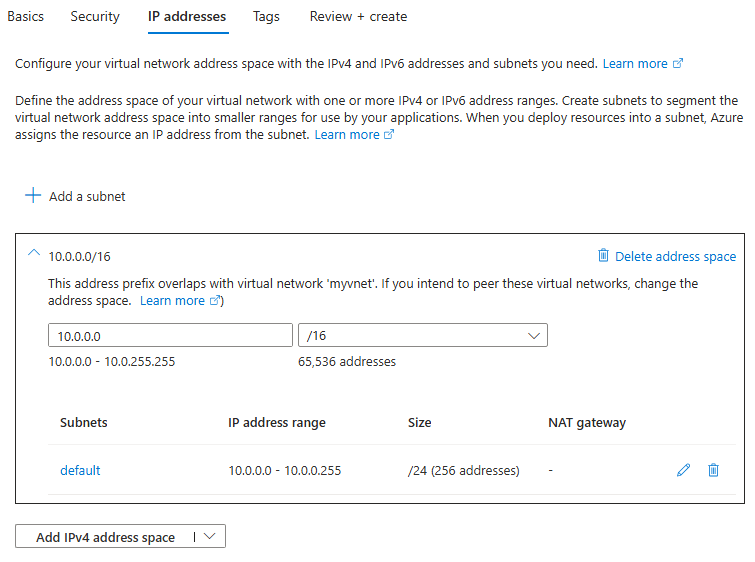
      โœ… Step 4 โ€“ Configure VNet Address Space

      Define the IP range for the whole network.

      • Default example: 10.0.0.0/16
      • Custom example: 100.8.0.0/24

      ๐Ÿ’ก The address range must not overlap with other VNets or on-prem networks.


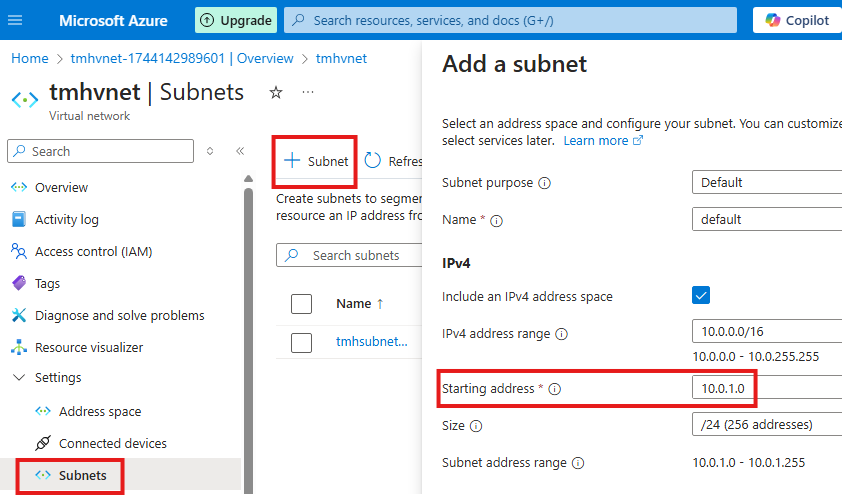
      โœ… Step 5 โ€“ Add a Subnet

      1. Click Add Subnet
      2. Enter:
      • Subnet name โ€“ e.g., WebSubnet
      • Address range โ€“ e.g., 100.8.0.0/28
      1. Click Add

      โš ๏ธ Azure automatically reserves the first 5 IP addresses in every subnet for internal use.


      โœ… Step 6 โ€“ Optional Security Settings

      You may enable:

      • Azure Firewall
      • DDoS Protection
      • Bastion Host

      These can also be configured later.

      Click Next: Tags โ†’ then Review + Create

      While creating a VNet in the Azure portal you can:

      • Choose the address range
      • Rename the default subnet
      • Add additional subnets
      • Let Azure handle non-overlapping ranges

      We can add more subnets to an existing virtual network.

      โš ๏ธ Azure Reserved IPs

      Azure automatically reserves the first 5 IP addresses in every subnet for internal management.

      So they cannot be assigned to your VMs.

      ๐Ÿ’ก Example
      If subnet starts at 10.0.0.0
      โ†’ 10.0.0.0 to 10.0.0.4 are reserved by Azure


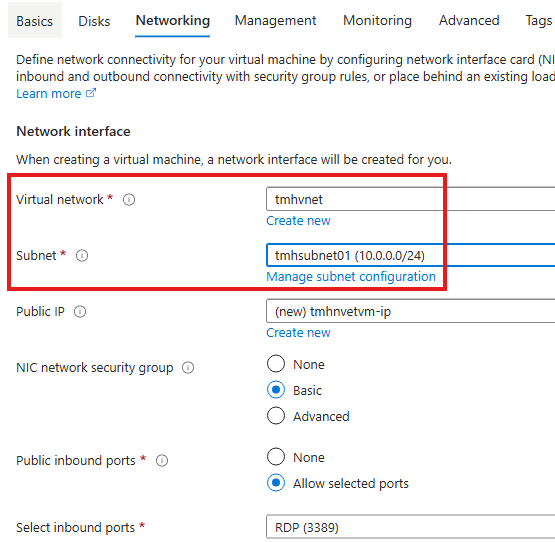
      ๐Ÿ–ฅ๏ธ Adding a Virtual Machine to a VNet

      When creating a VM, Azure asks you to select:

      • The Virtual Network
      • The Subnet

      This ensures the VM becomes part of your private cloud network and follows all NSG and routing rules.


      ๐ŸŒ Public IP vs Private IP

      ๐ŸŸข Private IP

      • Used for communication inside VNet
      • Not reachable from the internet
      • Unique within the VNet

      ๐Ÿ”ด Public IP

      • Used for global internet access
      • Exposes the resource to external traffic
      • Higher security risk

      โ“ Why Do We Need Both?

      To improve security:

      • โŒ Block public IP on individual VMs
      • โœ… Allow access only through Application Gateway
      • ๐ŸŒ Only the gateway gets a public IP

      ๐Ÿ” Best Practice
      In real environments, all requests should enter via Application Gateway, not directly to VMs.

      This minimizes attack surface and gives full control.


      ๐Ÿค” Why Do We Need Azure Virtual Network?

      Because in Azure:

      • Physical servers are shared
      • Multiple subscriptions coexist
      • Security and isolation are mandatory

      VNet ensures:

      • โœ… Organization-level isolation
      • โœ… Secure communication
      • โœ… Controlled internet exposure
      • โœ… Enterprise-grade networking

      ๐Ÿš€ Without VNet โ†’ open playground
      With VNet โ†’ secured private fortress


      โœ… Final Thoughts

      Azure Virtual Network is the foundation of cloud networking. Understanding:

      • VNets
      • Subnets
      • CIDR
      • NSG
      • Application Gateway
      • Public vs Private IP

      is essential for:

      • Azure administration
      • AZ-104 certification
      • Real-world cloud architecture

      Youโ€™ve now taken the first step toward mastering Azure networking ๐Ÿ’ช.