Author: Alan

  • 8 – 🚀 Deploy Azure Functions with Terraform — QR Code Generator Mini Project (Step-by-Step)

    In this post, I’ll walk you through a complete, working mini project where we deploy an Azure Linux Function App using Terraform and then deploy a Node.js QR Code Generator function using Azure Functions Core Tools.

    This is not just theory — this is exactly what I built, debugged, fixed, and verified end-to-end. I’ll also call out the gotchas I hit (especially in Step 2), so you don’t lose hours troubleshooting the same issues.

    Table of Contents

    1. 🔹 What We Are Building
    2. 🧱 Step 1: Create Core Azure Infrastructure with Terraform
    3. ⚙️ Step 2: Create the Linux Function App (Most Important Step)
    4. 📦 Step 3: Prepare the QR Code Generator App
    5. 🔐 Add local.settings.json (Local Only)
    6. 🚫 Add .funcignore
    7. 🛠 Install Azure Functions Core Tools (Windows)
    8. 🚀 Deploy the Function Code
    9. 🧪 Step 4: Test the Function End-to-End
    10. ✅ What This Demo Proves
    11. 🧠 Final Notes
    12. 🎯 Conclusion

    🔹 What We Are Building

    • Azure Resource Group
    • Azure Storage Account
    • Azure App Service Plan (Linux)
    • Azure Linux Function App (Node.js 18)
    • A Node.js HTTP-triggered Azure Function that:
      • Accepts a URL
      • Generates a QR code
      • Stores the QR image in Azure Blob Storage
      • Returns the QR image URL as JSON

    🧱 Step 1: Create Core Azure Infrastructure with Terraform

    In this step, we create the base infrastructure required for Azure Functions.

    Resource Group (rg.tf)

    resource "azurerm_resource_group" "rg" {
      name     = "rgminipro767676233"
      location = "Central US"
    }
    

    Storage Account (sa.tf)

    Azure Functions require a storage account for:

    • Function state
    • Logs
    • Triggers
    • Blob output (our QR codes)
    resource "azurerm_storage_account" "sa" {
      name                     = "saminipro7833430909"
      resource_group_name      = azurerm_resource_group.rg.name
      location                 = azurerm_resource_group.rg.location
      account_tier             = "Standard"
      account_replication_type = "LRS"
    }
    

    ⚠️ Storage account names must be globally unique and lowercase.

    App Service Plan (splan.tf)

    This defines the compute for the Function App.

    resource "azurerm_service_plan" "splan" {
      name                = "splanminipro8787"
      resource_group_name = azurerm_resource_group.rg.name
      location            = azurerm_resource_group.rg.location
      os_type             = "Linux"
      sku_name            = "B1"
    }
    

    Apply Terraform

    terraform apply
    

    ✅ Verify in Azure Portal:

    • Resource Group created
    • Storage Account exists
    • App Service Plan is Linux (B1)

    ⚙️ Step 2: Create the Linux Function App (Most Important Step)

    This step required multiple fixes for the app to actually run, so pay close attention.

    Linux Function App (linuxfa.tf)

    resource "azurerm_linux_function_app" "linuxfa" {
      name                = "linuxfaminipro8932340"
      resource_group_name = azurerm_resource_group.rg.name
      location            = azurerm_resource_group.rg.location
    
      storage_account_name       = azurerm_storage_account.sa.name
      storage_account_access_key = azurerm_storage_account.sa.primary_access_key
      service_plan_id            = azurerm_service_plan.splan.id
    
      app_settings = {
        FUNCTIONS_WORKER_RUNTIME = "node"
    
        # Required by Azure Functions runtime
        AzureWebJobsStorage = azurerm_storage_account.sa.primary_connection_string
    
        # Used by our application code
        STORAGE_CONNECTION_STRING = azurerm_storage_account.sa.primary_connection_string
    
        # Ensures package-based deployment
        WEBSITE_RUN_FROM_PACKAGE = "1"
      }
    
      site_config {
        application_stack {
          node_version = 18
        }
      }
    }
    

    Why Each Setting Matters

    • FUNCTIONS_WORKER_RUNTIME
      • Tells Azure this is a Node.js function app
    • AzureWebJobsStorage
      • Mandatory for Azure Functions to start
    • STORAGE_CONNECTION_STRING
      • Used by our QR code logic to upload images
    • WEBSITE_RUN_FROM_PACKAGE
      • Ensures consistent zip/package deployment
    • node_version = 18
      • Must match your app runtime

    Apply Terraform Again

    terraform apply
    

    ✅ Verify in Azure Portal:

    • Function App is Running
    • Runtime stack shows Node.js 18
    • No startup errors

    📦 Step 3: Prepare the QR Code Generator App

    Download the App

    Clone or download the QR code generator repository:

    git clone https://github.com/rishabkumar7/azure-qr-code
    

    Navigate to the function root directory (where host.json exists).

    Run npm install

    npm install
    

    This creates the node_modules folder — without this, the function will fail at runtime.

    Expected Folder Structure

    qrCodeGenerator/
    │
    ├── GenerateQRCode/
    │   ├── index.js
    │   └── function.json
    │
    ├── host.json
    ├── package.json
    ├── package-lock.json
    ├── node_modules/
    

    🔐 Add local.settings.json (Local Only)

    {
      "IsEncrypted": false,
      "Values": {
        "AzureWebJobsStorage": "<Storage Account Connection String>",
        "FUNCTIONS_WORKER_RUNTIME": "node"
      }
    }
    

    ❗ This file is NOT deployed to Azure and should never be committed.


    🚫 Add .funcignore

    This controls what gets deployed.

    .git*
    .vscode
    local.settings.json
    test
    getting_started.md
    *.js.map
    *.ts
    node_modules/@types/
    node_modules/azure-functions-core-tools/
    node_modules/typescript/
    

    ✅ We keep node_modules because this project depends on native Node packages.


    🛠 Install Azure Functions Core Tools (Windows)

    winget install Microsoft.Azure.FunctionsCoreTools
    

    Restart PowerShell and verify:

    func -v
    

    🚀 Deploy the Function Code

    Navigate to the directory where host.json exists:

    cd path/to/qrCodeGenerator
    

    Publish the function:

    func azure functionapp publish linuxfaminipro8932340 --javascript --force
    

    Successful Output Looks Like This

    Upload completed successfully.
    Deployment completed successfully.
    Functions in linuxfaminipro8932340:
        GenerateQRCode - [httpTrigger]
            Invoke url: https://linuxfaminipro8932340.azurewebsites.net/api/generateqrcode
    

    🧪 Step 4: Test the Function End-to-End

    Invoke the Function

    https://linuxfaminipro8932340.azurewebsites.net/api/generateqrcode?url=https://example.com
    

    Sample Response

    {
      "qr_code_url": "https://saminipro7833430909.blob.core.windows.net/qr-codes/example.com.png"
    }
    

    Download the QR Code

    Open the returned Blob URL in your browser:

    https://saminipro7833430909.blob.core.windows.net/qr-codes/example.com.png
    

    🎉 You’ll see the QR code image stored in Azure Blob Storage.


    ✅ What This Demo Proves

    • Terraform successfully provisions Azure Functions infrastructure
    • App settings are critical for runtime stability
    • Azure Functions Core Tools deploy code from the current directory
    • Missing npm install causes runtime failures
    • Blob Storage integration works end-to-end
    • Azure Functions can be tested via simple HTTP requests

    🧠 Final Notes

    • Warnings about extension bundle versions were intentionally ignored
    • This demo focuses on learning Terraform + Azure Functions, not production hardening
    • In real projects, code deployment is usually handled via CI/CD pipelines

    🎯 Conclusion

    This mini project demonstrates how Infrastructure as Code (Terraform) and Serverless (Azure Functions) work together in a practical, real-world scenario.

    If you can build and debug this, you’re well on your way to mastering Azure + Terraform.

    Happy learning 🚀

  • Managing Files in SharePoint

    Microsoft SharePoint provides a simple and powerful way to store, organize, and collaborate on files with your team. You can upload documents, create new ones directly in the site, edit files in your browser, and share them with others—all in one place.

    In this section, we’ll look at how to navigate the Documents library and how to work with files effectively, including organizing and opening them.

    Video Explanation


    The Documents library is the main area where files are stored and managed in a SharePoint site. It’s designed to make adding and organizing files easy.

    You can create new content or upload existing files from your computer.

    👉 How to add documents:

    1. Open your SharePoint site.
    2. Select Documents from the left menu.
    3. Click the New button at the top left.
    4. Choose one of the following:
      • Folder to create a new folder
      • A file type (Word, Excel, PowerPoint) to create a new document
      • Upload to add files from your computer
    5. When uploading, choose either:
      • Individual files
      • Entire folders

    Once uploaded, your files appear in the document library and are ready to use.

    ✨ Example: You might upload a Word file, an Excel sheet, and a PowerPoint file to quickly build your document library.


    Working with Files in SharePoint

    After files are added, you can work with them directly online. This allows quick collaboration without needing to download files first.

    👉 Common file actions:

    Open and Edit Online

    • Click a file to open it in the browser.
    • Edit it much like a desktop app.
    • Use Download if offline editing is needed.

    Share with Colleagues

    • Click the Share button next to a file.
    • Enter a colleague’s name.
    • Select them from suggestions and click Send.

    View File Details

    • Click the three dots () next to a file.
    • Select Details.
    • A right-side panel shows:
      • Activity
      • Version history
      • Permissions

    Quick Access from the Homepage

    • Many sites include a Documents web part on the homepage.
    • This provides fast access to recent or important files.

    ✨ This makes editing, sharing, and reviewing files smooth and collaborative.


    Creating Files and Folders

    You don’t always need to upload files—SharePoint lets you create them directly.

    • Create new files from the New menu
    • Create folders within the library
    • Drag and drop files into folders to move them

    However, relying only on folders is considered an older method of organization in SharePoint.


    Organizing with Metadata (Columns)

    SharePoint offers metadata features to organize files more effectively than folders alone.

    • You can add columns to files
    • Columns store information like category, department, or status
    • This makes sorting and filtering much easier

    Using metadata helps teams find files faster without deep folder structures.


    Opening and Reading Files

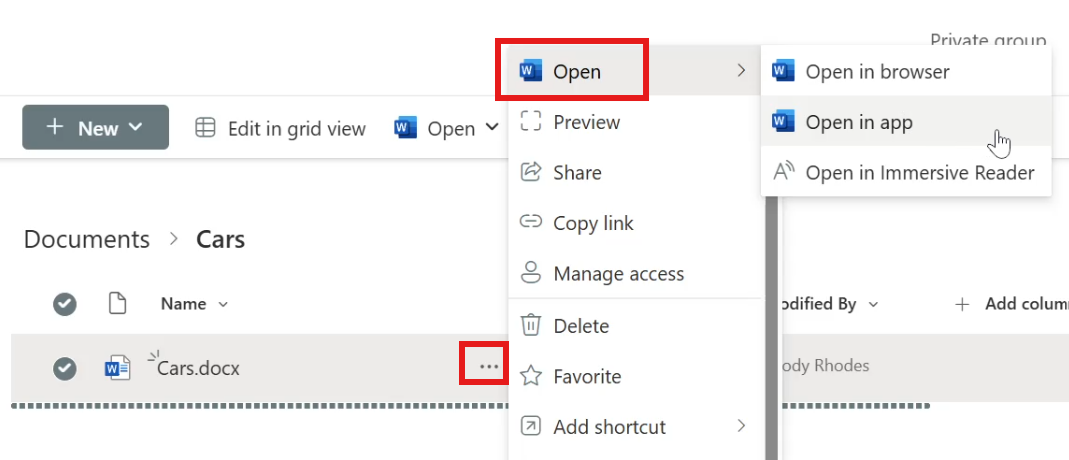
    SharePoint provides multiple ways to open and read files:

    1. Open in App
      • Opens the desktop version for offline editing
      • Changes sync back to the cloud
      • Availability depends on your plan
    2. Open in Browser
      • Edit and view directly online
      • No downloads required
    3. Immersive Reader
      • Larger, easier-to-read text
      • Can read content aloud
      • Helpful for accessibility and focus

    By using document libraries, online editing, sharing tools, and metadata, SharePoint makes file management organized and team-friendly.

    Editing Files and Using Version History in SharePoint

    Microsoft SharePoint makes file editing and collaboration simple by allowing you to work directly in your browser or in desktop apps. There’s no need to download and re-upload files after every change. Even better, SharePoint automatically saves your work and supports real-time collaboration, so teams can edit together without confusion.

    Another key feature is Version History, which quietly tracks changes and lets you restore earlier versions if needed. Together, these tools make file management safer and more efficient.

    Video Explanation


    Editing Files in SharePoint

    One of the biggest advantages of SharePoint is how easy it is to edit files. You can open a file and start working immediately, with changes saved automatically.

    How editing works:

    • Files open directly in your browser
    • Changes are auto-saved
    • Multiple people can edit at the same time
    • You can switch between browser and desktop apps

    👉 Steps to edit a file:

    1. Go to your Documents Library.
    2. Click the file name (for example, a Word or Excel file).
    3. The file opens in a new browser tab.
    4. Start typing or making changes — they save automatically.

    More editing options:

    • Click the three dots () next to a file.
    • Select:
      • Open in Browser for quick online edits
      • Open in App to use a desktop Office app

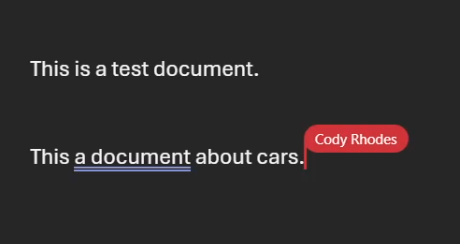
    When others are editing the same file, you’ll see their initials or cursors in real time. This makes teamwork smooth and avoids duplicate versions.


    File Version History in SharePoint

    Version History is a built-in safety feature. Every time a file is saved, SharePoint keeps a record of previous versions. This allows you to review or restore older copies if needed.

    Why Version History matters:

    • Protects against accidental changes or deletions
    • Lets you track how a file evolved
    • Makes restoring older content easy

    👉 Steps to access Version History:

    1. In the Documents Library, find your file.
    2. Click the three dots () next to it.
    3. Select Version History.
    4. A list of saved versions appears.

    Options for each version:

    • View → Open and review that version
    • Restore → Revert the file to that version
    • Delete → Remove a version if unnecessary

    If you restore a version, SharePoint rolls the file back while still keeping newer versions stored. This ensures you never permanently lose important work.

    Versioning and Check-In/Check-Out in SharePoint

    Versioning is one of the most valuable features in Microsoft SharePoint for managing files. It helps teams track edits, collaborate confidently, and restore earlier versions when needed. Instead of saving files as “v1,” “v2,” or “final-final,” SharePoint automatically keeps a history of changes for you.

    In this section, we’ll look at how versioning works, how check-out/check-in supports controlled editing, and how versioning applies to non-Office files.

    Video Explanation


    Understanding Versioning

    Versioning allows you to track and manage changes made to a file over time. Every time a file is edited and saved, SharePoint records a new version in the background.

    Why versioning is useful:

    • Tracks who made changes and when
    • Allows teams to collaborate on the same file
    • Lets you restore earlier versions if mistakes happen
    • Removes the need for manual version names in file titles

    SharePoint also supports simultaneous editing, meaning multiple users can work on the same file at the same time. You may see another user’s cursor or presence indicator while they are editing, which helps avoid conflicts.

    If unwanted edits are made, you can simply restore a previous version from the version history.


    Check-Out and Check-In

    Sometimes, you may want to prevent others from editing a file while you work on it. That’s where check-out and check-in come in.

    How it works:

    • Check-out locks the file so only you can edit it
    • Others can view but not modify the file
    • Check-in unlocks the file and saves your updates as a new version

    When checking a file back in, you can add comments describing your changes. These comments appear in the version history and help track what was updated.

    When to use check-out/check-in:

    • When working on sensitive documents
    • When making major revisions
    • When you want full control over edits

    Versioning for Non-Office Files

    Versioning also works for non-Office files such as videos, images, or PDFs. The main difference is that these files cannot be edited by multiple users at the same time in SharePoint.

    How versioning works for non-Office files:

    • Download and edit the file offline
    • Upload it again using the same file name
    • Choose the option to replace the existing file

    SharePoint recognizes this as a new version of the file.

    You can then:

    • View version history
    • Track previous versions
    • Restore older copies if needed

    This is especially helpful for files like videos or design assets that go through multiple revisions.


    Using versioning together with check-in and check-out gives teams strong control over file edits while still supporting collaboration. It ensures that changes are tracked, recoverable, and organized without extra manual effort.

    Accessing SharePoint Files Offline with OneDrive

    Working offline doesn’t mean you have to stop using SharePoint. With OneDrive integration, you can sync your SharePoint document libraries to your computer and access them directly from File Explorer—even without a constant internet connection. Any changes you make offline will automatically sync once you’re back online.

    In this section, you’ll learn how to add a SharePoint library shortcut to OneDrive and then access those files from your PC.

    Video Explanation


    Add a SharePoint Library Shortcut to OneDrive

    Adding a shortcut connects your SharePoint document library to your OneDrive. This lets you view and manage the same folders from both SharePoint and OneDrive.

    👉 Steps to add the shortcut:

    1. Open your SharePoint document library.
    2. At the top, click Add shortcut to OneDrive.
    3. Wait for the confirmation notification.

    👉 Verify in OneDrive:

    1. Sign in to the Microsoft 365 portal.
    2. Open OneDrive from the side navigation.
    3. Click the folder icon in the OneDrive menu to view your files.
    4. Look for a folder named after your SharePoint site followed by the library name.
    5. Open it to confirm the folder structure matches SharePoint.

    Key Point: The folder structure you see in OneDrive mirrors your SharePoint library.


    Access OneDrive from Your Windows PC

    Once synced, you can access your SharePoint files directly from your PC using OneDrive.

    👉 Steps to access files from a PC:

    1. Log into a Windows PC using your organizational account.
    2. Complete multi-factor authentication if prompted.
    3. Open File Explorer.
    4. Select OneDrive from the left sidebar.
    5. Sign in if requested.

    You’ll now see the same folders that appear in OneDrive on the web, including your SharePoint site folders.


    Creating and Syncing Files Offline

    You can create or edit files locally, and they will sync automatically.

    👉 Example workflow:

    • Open a synced SharePoint folder (for example, a folder named Test).
    • Create a new file, such as a text file named File from PC.
    • Save it normally.

    When you later open SharePoint in your browser and navigate to the same folder, you’ll see that file there.

    Key Point: Any changes made on your PC sync seamlessly to SharePoint, keeping files updated across devices.


    Using OneDrive with SharePoint gives you the flexibility to work from your desktop while still benefiting from cloud storage and collaboration features provided by Microsoft 365.

    Using Templates and Managing the New Menu in SharePoint

    Templates and the New menu in Microsoft SharePoint are simple features that can make a big difference in daily work. They help teams create consistent documents, save time, and reduce repetitive formatting. Instead of starting from scratch each time, users can begin with a ready-made structure.

    In this section, you’ll learn how to upload and use templates, and how to control what appears in the New menu so it fits your team’s needs.

    Video Explanation

    Why this matters:

    • Keeps documents consistent across the organization
    • Speeds up document creation
    • Reduces formatting errors
    • Makes the New menu cleaner and easier to use

    Upload and Use a Template File

    Templates are pre-formatted files that users can open, fill in, and save as new documents. They’re useful for quotes, forms, reports, or any document with a standard layout.

    A template can be almost any file type, such as Word, Excel, or PowerPoint.

    How templates help:

    • Include predefined fields (company name, address, etc.)
    • Ensure consistent structure
    • Save time for repeated document types

    👉 Steps to upload a template:

    1. Open any document library.
    2. Click the New button at the top.
    3. From the dropdown, select Add template (usually at the bottom).
    4. Upload your desired file.

    Once uploaded, your template appears as an option under the New button.

    👉 How it’s used in practice:

    • A user clicks New and selects the template.
    • The file opens with prefilled structure.
    • The user fills in the needed details.
    • The file is saved with a new name (for example, Quote 1).
    • The same template can be reused for other clients or scenarios.

    This keeps documents uniform and organized.


    Edit the New Menu

    The New menu appears in every document library and lets users quickly create files, folders, or template-based documents. If the menu shows options you don’t need, you can customize it.

    Why edit the New menu:

    • Remove unused options
    • Hide outdated templates
    • Simplify choices for users
    • Match the menu to team workflows

    👉 Steps to edit the New menu:

    1. Open your document library.
    2. Click the New button.
    3. Select the Edit option in the menu.
    4. A panel opens on the right with checkboxes.
    5. Check or uncheck items to show or hide them.
    6. Save your changes.

    If a template is no longer needed, simply uncheck it so it doesn’t appear in the New menu.


    Using templates together with a well-managed New menu helps teams work faster, stay consistent, and keep document creation simple.

    Associating Metadata with Uploaded Files in SharePoint

    Using metadata in SharePoint is a powerful way to organize files beyond simple folder structures. Instead of relying only on file names or deep folders, metadata lets you tag files with useful information like department, project, or document type. This makes searching, filtering, and managing documents much easier as your library grows.

    In this section, you’ll learn how to upload files and assign metadata so your documents stay organized and easy to find.

    Video Explanation

    Why metadata is important:

    • Makes files easier to search and filter
    • Reduces dependence on complex folder structures
    • Keeps libraries organized as they grow
    • Helps teams quickly identify file context

    Upload Files to a Document Library

    Before adding metadata, you first need files in your library.

    👉 Steps to upload files:

    1. Open any document library.
    2. (Optional) Open a folder if you want to upload there.
      • While folders can be used, SharePoint works best when organization relies on metadata.
    3. Click Upload.
    4. Choose Files or Folder from your computer.
    5. Wait for the upload to complete.

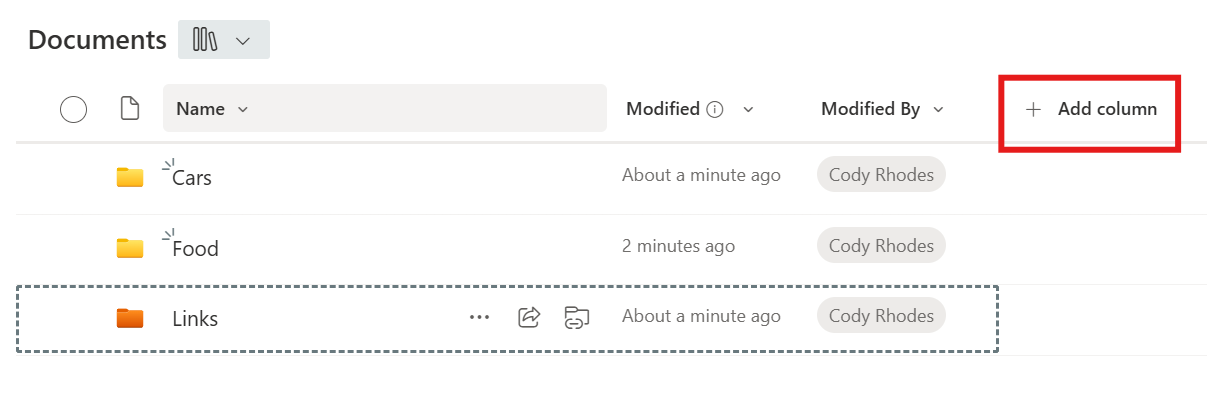
    Once uploaded, you’ll see files in the library with default columns such as:

    • Name
    • Modified
    • Modified By

    At this point, filenames may be the only clue about content—but metadata will improve that.


    Create a Metadata Column

    Metadata is added through columns in the document library. Each column stores a specific type of information.

    👉 Example: Create a “Department” column

    1. In the document library, click Add column.
    2. Choose a column type.
      • Select Choice when you want predefined options.
    3. Click Next.

    👉 Configure the column:

    • Column name: Department
    • Description: (optional)
    • Choices:
      • Accounting
      • Marketing
      • Sales
      • HR
    • Disable manual entry so users must pick from the list
    • Turn on Require this column if every file must have a value
    1. Click Save.

    Your new metadata column is now ready.


    Assign Metadata to Files

    After creating the column, you need to assign values to your files.

    Method 1: File Details Panel (One-by-One)

    Best for small updates.

    1. Click the three dots () next to a file.
    2. Select Details.
    3. In the panel, choose the correct department.

    Method 2: Edit in Grid View (Bulk Editing)

    Best for multiple files.

    1. Click Edit in Grid View from the top menu.
    2. The library switches to an Excel-like view.
    3. Click cells under the Department column.
    4. Assign departments to multiple files quickly.
    5. Exit grid view when finished.

    This method is much faster when tagging many files.


    Good Practice Tips

    • Use folders sparingly; rely more on metadata
    • Keep choice options limited and clear
    • Require important metadata fields
    • Use consistent naming for columns

    Adding metadata transforms a simple document library into a smart, searchable system. With the right columns in place, teams can quickly filter, group, and find files without digging through folders.

    Organize SharePoint Files Smarter with Metadata

    In Microsoft SharePoint, organizing documents doesn’t have to rely on folders alone. Instead, you can use metadata—custom fields such as Department or Expense Type—to tag files with meaningful information. This approach is far more flexible than traditional folders and makes it easier to search, filter, group, and manage large volumes of documents.

    Metadata helps you see your files from different perspectives without moving or duplicating them. The same document can belong to multiple logical views, something folders simply can’t handle well.

    Video Explanation


    Filtering Files Using Metadata

    Once files are tagged with metadata, you can quickly narrow down what you see.

    How filtering works:

    • Each metadata column has a dropdown menu.
    • You can filter files based on one or more values.
    • Only matching files are shown, while others are temporarily hidden.

    Steps to filter files:

    1. Go to the column header (for example, Department).
    2. Click the dropdown arrow.
    3. Select Filter.
    4. In the right-hand pane, check the values you want to see (for example, Accounting).
    5. Click Apply.

    Now, only files tagged with that department are displayed.

    To clear filters:

    • Open the filter pane again.
    • Click Clear all.
    • Select Apply to return to the full file list.

    Grouping Files by Metadata

    Grouping lets you visually organize files into expandable sections based on metadata values. This is especially useful when working with many related documents.

    How grouping helps:

    • Files are grouped by category (such as departments or expense types).
    • Groups can be expanded or collapsed.
    • Makes bulk actions easier.

    Steps to group files:

    1. Click the dropdown on a metadata column (for example, Department).
    2. Select Group by Department.

    Files are now grouped under headers like Accounting, Sales, or HR. Each group has an arrow that lets you collapse or expand it.

    You can also:

    • Select all files in a group at once
    • Perform bulk actions like delete, move, or download

    Switching Between Different Metadata Views

    You’re not limited to one way of grouping.

    • If you want to group by Expense Type instead of Department, repeat the same steps using that column.
    • Only one metadata field can be used for grouping at a time.

    At the top of the file list, you’ll also find:

    • Expand all – Opens all groups
    • Collapse all – Closes all groups

    These options help you quickly switch between a high-level overview and a detailed view.


    By using metadata with filtering and grouping, SharePoint turns a simple document library into a powerful, flexible file management system—making it much easier to find, organize, and work with your files at scale.

    Track and Analyze Expenses in SharePoint Using Currency Metadata

    Microsoft SharePoint can do much more than store documents—it can also help you track and analyze financial data using metadata. Instead of organizing expense files with folders or relying on filenames, you can use structured metadata such as Department, Expense Type, and Currency (Amount) to gain clear, real-time insights directly within a document library.

    This approach turns a standard SharePoint library into a lightweight financial tracking and reporting tool that’s easy for teams to use.

    Video Explanation


    Add a Currency Metadata Column

    To begin tracking expenses, you first need a currency-based metadata column.

    Steps to create a currency column:

    1. Open your SharePoint document library.
    2. Click Add column.
    3. Select Currency as the column type and click Next.
    4. Enter a column name such as Amount.
    5. Choose the currency format (for example, USD or EUR).
    6. Optionally set a default value or description.
    7. Click Save.

    The new Amount column will now appear alongside your files.


    Enter Financial Values

    Once the column exists, you can start adding values to your files.

    Efficient data entry:

    • Click Edit in grid view to switch to an Excel-like layout.
    • Enter amounts such as 450, 1200, or 2500 for each file.
    • Exit grid view when finished—SharePoint saves changes automatically.

    This method is ideal for entering or updating values across many files at once.


    Sort, Filter, and Group Expense Data

    With currency values in place, SharePoint’s built-in tools let you analyze the data quickly.

    Using the Amount column, you can:

    • Sort expenses from lowest to highest (or vice versa).
    • Filter files to show only specific ranges (for example, expenses above $500).
    • Group files by other metadata such as Department or Expense Type.

    Grouping makes it easy to compare expenses across teams or cost categories without exporting data.


    Use Totals for Instant Insights

    One of the most powerful features is Totals, which provides quick summaries directly in the library view.

    How to enable totals:

    1. Click the dropdown on the Amount column.
    2. Select Totals.
    3. Choose a calculation such as:
      • Sum – total expenses
      • Average
      • Minimum / Maximum
      • Count
      • Standard Deviation / Variance

    When combined with grouping, totals become even more valuable. For example:

    • Group by Department and show the sum to see total spend per department.
    • Group by Expense Type to identify major cost areas.
    • Use Count to see how many expense files exist per category.

    You can remove summaries at any time by setting totals back to None.


    Why This Approach Works

    Using currency metadata in SharePoint allows you to:

    • Avoid maintaining separate spreadsheets for tracking totals
    • Get instant financial overviews without exporting data
    • Enable non-technical users to analyze expenses visually
    • Combine document management with basic financial reporting

    With metadata, filtering, grouping, and totals, SharePoint becomes a practical and flexible solution for managing and analyzing expense-related documents.

    Visually Enhance SharePoint Lists with Conditional Formatting and Column Styling

    Microsoft SharePoint makes it easy to store and manage data—but good visual design makes that data far easier to understand and act on. By using view formatting and column styling, you can highlight important information such as high expenses, specific categories, or outliers directly within a list or document library.

    In this section, you’ll learn how to apply alternating row styles, conditional formatting, and column-level styling to make your SharePoint lists more readable, informative, and user-friendly.

    Video Explanation


    Open the Format Current View Panel

    All list-level formatting starts from the same place.

    Steps to open formatting options:

    1. Go to your SharePoint list or document library.
    2. In the top menu, click the All Documents (or current view) dropdown.
    3. Select Format current view.

    You’ll see two tabs:

    • Format view – styles entire rows
    • Format columns – styles individual columns

    Apply Alternating Row Styles

    Alternating row styles improve readability by visually separating rows.

    How to apply:

    1. In the Format view tab, choose Alternating row styles.
    2. Select background colors for:
      • Even rows (for example, light gray)
      • Odd rows (for example, white or light blue)
    3. Click Save to apply.

    ⚠️ This styling is purely visual and does not depend on data values.


    Use Conditional Formatting (Row-Level)

    Conditional formatting lets you style rows based on metadata values such as Expense Type or Department.

    Steps to apply conditional formatting:

    1. In Format view, select Conditional formatting.
    2. Reset any default styling by choosing No style.
    3. Click Add rule.
    4. Choose a column (for example, Expense Type).
    5. Set a condition (for example, equals Travel).
    6. Choose a background color.
    7. Save the rule.

    Only rows matching the condition will be highlighted, making important entries stand out instantly.


    Workaround: Enable Formatting for Currency Columns

    By default, Currency columns cannot be used in view-level conditional formatting. A simple workaround solves this.

    Steps to update the column:

    1. Click the dropdown on the Amount column.
    2. Select Column settings → Edit.
    3. Change the column type from Currency to Number.
    4. In More options, enable Require that this column contains information.
    5. Choose a currency symbol if needed.
    6. Click Save.

    The column will now be available for conditional formatting rules.


    Add Conditional Formatting Based on Amount

    Now you can highlight high-value items automatically.

    Example: highlight large expenses

    1. Open Format current view → Conditional formatting.
    2. Clear any default styles.
    3. Click Add rule.
    4. Choose the Amount column.
    5. Set a condition (for example, Amount is greater than 3000).
    6. Choose a strong color such as red.
    7. Save.

    Any row exceeding that amount will be visually emphasized—even when sorting or filtering the list.


    Use Column Formatting for Individual Cells

    If you prefer to highlight only one column instead of the entire row, use column formatting.

    Steps:

    1. Click the dropdown on the Amount column.
    2. Select Column settings → Format this column.

    You’ll see two powerful options:

    • Conditional formatting
      Apply color rules to individual cells based on values.
    • Data bars
      Display horizontal bars that visually represent numeric values.

    Data bars are especially useful for financial data:

    • Higher values show longer bars
    • Lower values show shorter bars
    • Makes comparisons instant without charts or exports

    Reset the View to Default

    If you want to remove all formatting and return to the standard view:

    1. Open Format current view.
    2. Disable Conditional formatting.
    3. Click Save.

    Your list will return to the default white-background layout.


    Why Formatting Matters

    Using conditional formatting and column styling in SharePoint helps you:

    • Quickly spot high-value or critical items
    • Improve readability of large lists
    • Reduce the need for filtering or exporting data
    • Create a clean, modern, and insightful user experience

    With the right formatting in place, SharePoint lists become easier to scan, analyze, and act on—right where your data lives.

    Customizing Columns in a SharePoint Document Library

    Microsoft SharePoint document libraries become far more useful when columns are arranged and displayed in a way that matches how people actually work. SharePoint provides simple, built-in options to move, hide, show, and pin columns—allowing users to personalize their views without writing code or changing advanced settings.

    In this section, you’ll learn how to adjust column layouts to create a cleaner, more productive document library experience.

    Video Explanation


    Reorder Columns (Move Left or Right)

    Reordering columns helps bring the most important information into focus.

    Method 1: Use Column Settings

    1. Click the dropdown arrow next to the column header.
    2. Select Column settings.
    3. Choose Move left or Move right.

    Method 2: Drag and Drop

    • Click and hold the column header.
    • Drag it to the desired position.
    • Release to drop it in place.

    Both methods instantly update the column order in the current view.


    Hide and Show Columns

    If certain columns are not relevant, hiding them reduces clutter and makes the list easier to read.

    Hide a column:

    1. Click the dropdown on the column header.
    2. Select Column settings → Hide this column.

    The column is removed from the view but not deleted.

    Show hidden columns:

    1. Click the dropdown on any visible column.
    2. Go to Column settings → Show/Hide columns.
    3. In the panel that appears, check the columns you want to display (for example, Modified or File size).
    4. Click Apply.

    This is a quick way to bring back hidden columns or add built-in ones.


    Pin Columns to the Filter Pane

    Pinning columns makes filtering faster and more intuitive for users.

    How to pin a column:

    1. Click the dropdown on the column header.
    2. Select Column settings → Pin to filter pane.

    Once pinned:

    • Open the Filter pane (top-right corner).
    • The pinned column appears prominently with a pin icon.
    • Users can quickly filter the library by that column’s values.

    To unpin a column:

    • Open the filter pane.
    • Click Unpin next to the pinned column.

    Why Column Customization Matters

    Customizing columns in SharePoint helps you:

    • Focus on the most important metadata
    • Reduce visual clutter
    • Make filtering faster and easier
    • Create user-friendly views without technical effort

    With just a few clicks, you can transform a crowded document library into a clean, organized, and highly usable workspace tailored to your team’s needs.

    Creating and Managing Custom Views in SharePoint Document Libraries

    Microsoft SharePoint document libraries can quickly become crowded as files and metadata grow. Views solve this by letting you present the same data in different ways—using filters, sorting, grouping, and totals—without changing the underlying files. Each view is simply a saved configuration, making it easy to tailor what different users see based on their needs.

    Video Explanation


    What Is a View in SharePoint?

    A view is a customized way to display files in a list or document library. With views, you can:

    • Show only files that meet specific criteria (for example, Department = Sales)
    • Sort files by any column (such as Amount or Modified date)
    • Group files by categories (like Department or Expense Type)
    • Display totals (sum, count, average) for numeric columns

    Views are especially useful for role-based work—finance, sales, or managers can all look at the same library through different lenses.


    Create and Save a Filtered View

    You can quickly turn a temporary filter into a reusable view.

    Steps:

    1. Open the document library.
    2. Click the dropdown arrow on a column header (for example, Department).
    3. Choose Filter by and select the value you want (for example, Sales).
    4. Once the list updates, open the view selector at the top (usually labeled All Documents).
    5. Select Save view as….
    6. Enter a name (for example, Sales Files) and click Save.

    The view is now saved and available in the view selector.


    Create a New View from Scratch

    For more control, you can build a view with detailed settings.

    Steps:

    1. Open the view selector and choose Create new view.
    2. Enter a name and click Create.
    3. Open the view selector again and choose Edit current view.

    From the configuration page, you can customize:

    • Columns: Choose which metadata fields appear.
    • Sort: Set the order (for example, sort by Amount descending).
    • Filter: Include or exclude data (for example, Department is not HR).
    • Group By: Organize files into expandable sections (for example, by Department).
    • Totals: Show calculations like Sum for numeric columns.
    1. Click OK to save the view.

    Switching Between Views

    All saved views appear in the view selector at the top of the library. You can switch between them at any time, and each view keeps its own layout, filters, grouping, and totals.

    Best practice: Use views where files are consistently tagged with metadata. Views rely on metadata to work correctly and are most effective in well-organized libraries.


    By using custom views strategically, you can transform a single SharePoint document library into multiple, purpose-built workspaces—each tailored to how different teams need to see and analyze the same information.

    Document Library Top Menu: A Quick Guide

    The top menu in a Microsoft SharePoint document library provides quick access to the most important file and metadata management actions. Understanding what each option does helps you work faster, keep files organized, and take full advantage of SharePoint’s document management capabilities.

    In this section, we’ll walk through the key options you’ll find in the document library’s top menu and when to use them.

    Video Explanation


    New, Upload, and Edit in Grid View

    These options focus on adding content and managing metadata.

    • New
      Create new folders or files (such as Word, Excel, or PowerPoint) directly in the document library.
    • Upload
      Upload existing files or entire folders from your computer into SharePoint.
    • Edit in Grid View
      Switches the library into a spreadsheet-style layout.
      This is especially useful for:
      • Bulk updating metadata
      • Quickly filling required columns
      • Editing multiple files at once

    These options help you share access without moving files.

    • Share
      Sends a link to the folder or file list to other users in your organization.
    • Copy Link
      Generates a direct URL to a specific file or folder.
      You can paste this link into emails, chats, or documents for quick access.

    Sync and Add Shortcut to OneDrive

    These options connect your document library to OneDrive and your local machine.

    • Sync
      Ensures your local OneDrive client is up to date with the latest library content.
    • Add shortcut to OneDrive
      Creates a shortcut to the SharePoint library inside your OneDrive.
      If OneDrive is synced on your Windows PC, the files also appear locally in File Explorer—making desktop access easy.

    Download vs. Export to Excel

    These options are often confused but serve different purposes.

    • Download
      Downloads only the files themselves.
      Metadata (such as Department or Amount) is not included.
    • Export to Excel
      Creates an Excel file containing:
      • File names
      • Metadata columns
      • File paths
      This option is ideal for reporting, audits, or analysis where metadata matters.

    View Options (List, Compact, Tiles)

    You can change how files are visually displayed.

    • List view
      Default view that shows files in rows along with metadata columns.
    • Compact list
      Reduces spacing to fit more files on the screen—useful for large libraries.
    • Tiles view
      Displays large icons and file names only.
      Metadata is hidden, so this view is not recommended when working with structured data.

    Files That Need Attention

    Sometimes you may see a red dot next to the All Documents (view selector) dropdown.

    • This indicates that some files are missing required metadata.
    • Clicking it shows which files need attention.

    This often happens when:

    • Metadata requirements differ across folders
    • Files were uploaded before required columns were enforced

    Best practice:
    If different document types require different metadata, place them in separate document libraries (for example, one for expense files and another for contracts).


    By using the document library top menu effectively, SharePoint becomes more than file storage—it becomes a structured, metadata-driven document management system that supports collaboration, reporting, and long-term organization.

    Organize Your SharePoint Site with a New Document Library

    When working with different types of files in Microsoft SharePoint, placing everything inside the default Documents library can quickly lead to clutter. Files with different purposes often require different metadata, views, and permissions. A much cleaner and more scalable approach is to create separate document libraries for distinct categories—such as one dedicated library for expense files.

    Using multiple document libraries keeps content organized, simplifies metadata management, and makes the site easier to maintain over time.

    Video Explanation


    Why Create a New Document Library?

    Creating a dedicated document library allows you to:

    • Keep unrelated files clearly separated
    • Apply purpose-specific metadata (for example, Expense Type, Department)
    • Improve navigation and performance
    • Manage permissions more cleanly
    • Avoid confusion caused by mixed file types in one library

    For example, storing all expense-related documents in an Expenses library keeps them isolated from contracts, project files, or general documents.


    Steps to Create a New Document Library

    Follow these steps to create a new document library in your SharePoint site:

    1. Go to Site Contents
      • From your SharePoint site, open the menu (gear icon or navigation)
      • Select Site Contents
      • This page shows all apps and libraries in the site
    2. Click New → App
      • Although you may see Document Library as an option, selecting App gives access to all built-in apps
      • A document library is technically a SharePoint app
    3. Switch to Classic Experience (if needed)
      • If built-in apps are not immediately visible
      • Click Classic experience to view the default SharePoint app list
    4. Select the Document Library App
      • Find and click Document Library
    5. Name Your Library
      • Choose a clear, purpose-based name
      • Example: Expenses, Project Files, or Contracts
    6. Click Create
      • SharePoint creates the new library and opens it
      • The library will be empty initially

    Set Up and Use the New Library

    Once the library is created, you can:

    • Upload files related to that category
    • Add metadata columns (Department, Expense Type, Amount, etc.)
    • Create views, formatting, and totals specific to that library
    • Apply permissions if access needs to be restricted

    The new library will always be available under Site Contents, making it easy to return to and manage.


    Best Practice for Long-Term Organization

    Instead of using folders to separate file types, use multiple document libraries with clear purposes. This approach scales better, keeps metadata clean, and makes SharePoint easier for users to understand and use.

    Creating dedicated document libraries is one of the most effective ways to keep a SharePoint site organized, structured, and ready for growth.

    Site navigation links in Microsoft SharePoint make it easy for users to move around a site and quickly access important resources such as document libraries, lists, pages, or even external websites. A well-organized navigation panel improves usability and helps users find what they need without searching.

    In this section, you’ll learn how to add, edit, and remove links from the left-hand site navigation.

    Video Explanation


    You can add links to both internal SharePoint content and external websites.

    Steps to add a navigation link:

    1. Open your SharePoint site.
    2. Go to the left-hand navigation panel.
    3. Scroll to the bottom and click Edit.
    4. Hover between two existing links until a “+” (plus) icon appears.
    5. Click the + icon and select Link.
    6. Enter the link details:
      • Address – Paste the URL (for example, a document library, a page, or an external site).
      • Display name – Enter a friendly name (such as Expenses or Google).
    7. Click OK.
    8. When finished adding links, click Save at the bottom of the navigation panel.

    The new link will now appear in the site navigation.


    If a link is no longer needed, you can remove it easily.

    Steps to remove a link:

    1. Click Edit at the bottom of the navigation panel.
    2. Locate the link you want to remove.
    3. Click the trash (delete) icon next to it.
    4. Click Save to apply the change.

    The link will be removed from the navigation.


    Tip: Get the URL for a Document Library

    To add a navigation link to a document library (for example, Expenses):

    1. Go to Site Contents.
    2. Click the document library you want to link to.
    3. Copy the URL from the browser’s address bar
      • Copy it up to and including the library name (for example, /Expenses).
    4. Use this URL when creating the navigation link.

    • Use clear, meaningful display names
    • Link to frequently used libraries and pages
    • Remove unused or duplicate links
    • Keep navigation concise to avoid clutter

    By customizing site navigation links, you create a cleaner, more intuitive SharePoint site that helps users access important content quickly and efficiently.

    Create and Use a Picture Library in SharePoint

    A Picture Library in Microsoft SharePoint is a specialized type of library designed specifically for storing and viewing images. Unlike a standard document library, it provides a more visual, gallery-style experience, making it ideal for photos, graphics, or any image-heavy content.

    In this section, you’ll learn how to create a picture library, upload images, browse them easily, and optionally add the library to your site navigation for quick access.

    Video Explanation


    What Is a Picture Library?

    A Picture Library is optimized for images and offers features such as:

    • Tile-based image display
    • Built-in image preview and slideshow navigation
    • Simple switching between different layout views

    It’s best used when the primary purpose of the library is to view and browse images, not documents.


    Steps to Create a Picture Library

    1. Go to Site Contents
      • Open your SharePoint site.
      • Navigate to Site Contents using the left navigation or settings menu.
    2. Create a New App
      • Click New at the top.
      • Select App (instead of Document Library).
    3. Switch to Classic Experience
      • In the apps page, scroll down and click Classic experience.
      • This displays SharePoint’s built-in apps.
    4. Select Picture Library
      • From the list, click Picture Library.
    5. Name the Library
      • Enter a meaningful name, such as Cars (or any name related to the images you’ll store).
      • Click Create.

    Your new picture library is now created and listed under Site Contents.


    Upload and View Images

    1. Open the picture library from Site Contents.
    2. Click Upload and select image files from your computer.
    3. After uploading, images appear as tiles by default.

    Viewing images:

    • Click any image to open a preview.
    • Use the left and right arrows to move through images like a slideshow.

    This gallery-style navigation is what makes picture libraries different from standard document libraries.


    Change the Display Layout

    You can change how images are displayed based on your preference:

    • Tile view – Best for visual browsing (default)
    • List view – Displays images in rows with details
    • Compact list – Shows more items on screen with minimal spacing

    These options let you balance visual appeal with organization.


    (Optional) Add the Picture Library to Site Navigation

    To make the picture library easy to access from anywhere on the site:

    1. Open the picture library and copy its URL (up to the library name, such as /Cars).
    2. Go to the left navigation menu.
    3. Click Edit at the bottom.
    4. Click the + (plus) icon where you want the link.
    5. Paste the URL and enter a display name (for example, Cars).
    6. Click OK, then Save.

    The picture library will now appear in the site navigation.


    When to Use a Picture Library

    A picture library is a great choice when:

    • Images are the main content
    • Visual browsing is more important than metadata
    • You want an easy gallery-style experience

    By using a picture library, you give users a clean, visual way to manage and explore images directly within SharePoint.

    A Quick Guide to SharePoint Library Settings

    In Microsoft SharePoint, document and picture libraries are more than just places to store files. Each library comes with a comprehensive Library Settings area that allows you to control behavior, structure, permissions, and user experience. Understanding these settings helps you design libraries that are secure, well-organized, and easy to use.

    This section provides a clear overview of how to access library settings and what each major area is used for.

    Video Explanation


    How to Access Library Settings

    Library settings are only available inside a library—they won’t appear if you’re on the site homepage.

    Steps to access:

    1. Open the document or picture library you want to manage (for example, Documents, Expenses, or Pictures).
    2. Click the Gear icon in the top-right corner.
    3. Select Library settings.
    4. On the settings page, click More library settings to open the full classic settings view.

    This classic page is where most configuration options live.


    General Settings

    General settings control the basic identity and behavior of the library.

    Common options include:

    • Name & Description
      Rename the library and add a helpful description.
    • Navigation Settings
      Decide whether the library appears in the site’s left-hand navigation.
    • Versioning Settings
      • Enable or disable version history
      • Choose major or minor versions
      • Set limits on the number of versions stored
      • Require content approval before publishing

    Versioning is especially important for collaboration, auditing, and rollback.


    Advanced Settings

    Advanced settings define how the library behaves behind the scenes.

    Key options include:

    • Content Types – Allow multiple content types in one library
    • Document Template – Set a default template for new files
    • Open Behavior – Choose whether files open in the browser or desktop app
    • Search Indexing – Include or exclude the library from search results
    • Offline Availability – Control OneDrive sync behavior
    • Reindex Library – Force search to re-crawl the library if results are outdated

    Most advanced settings can remain at their defaults unless you have specific requirements.


    Validation and Form Settings

    These settings help control how users enter data.

    • Validation Settings
      Add rules or formulas to validate column values (for example, numeric ranges or required logic).
    • Form Settings
      • Use the default SharePoint forms
      • Or connect a custom form built with Power Apps for a richer experience

    These options are useful when accuracy and consistency are critical.


    Permissions and Management

    This section controls access and lifecycle management.

    Includes:

    • Permission Settings – Grant or restrict access at the library level
    • Delete This Document Library – Permanently remove the library (use with caution)
    • Manage Check-Out Files – See and manage files checked out by users
    • Enterprise Metadata & Keywords – Enable centralized tagging
    • RSS Settings – Allow users to subscribe to library updates

    Library-level permissions are helpful when access needs differ from the rest of the site.


    Column and View Settings

    This area controls how metadata and views work.

    You can:

    • Create new columns or add from existing site columns
    • Change column order
    • Index frequently used columns to improve performance
    • Create and manage custom views with filters, sorting, grouping, and totals

    This is where libraries become structured, searchable, and user-friendly.


    Final Notes

    Library settings give you full control over how files are stored, accessed, and managed. Whether you’re building an HR document library, a finance repository, or a team knowledge base, properly configuring these settings ensures a secure, organized, and efficient SharePoint environment.

  • 1 – Creating and Familiarizing A Simple SharePoint Site

    Table of Contents

    1. Accessing SharePoint and Creating a Site
    2. Familiarizing Yourself with the SharePoint Site Interface
  • Accessing SharePoint and Creating a Site

    Microsoft 365 includes powerful tools for collaboration, and SharePoint is one of the most useful among them. It allows teams to share documents, organize information, and create dedicated spaces for projects or departments.

    In this section, you’ll learn how to log in to your Microsoft 365 portal and create a new SharePoint site. Even if you’re completely new, the process is simple and guided.

    Video Explanation


    Logging in to the Office Portal

    Before using SharePoint, you first need to sign in to your Microsoft 365 account. Once logged in, you can access all available apps from one place.

    Steps to log in:

    1. Open your browser and go to office.microsoft.com.
    2. Enter your work or school email and password.
    3. After signing in, you may be redirected to a different Microsoft 365 URL — this is normal.
    4. Use your organization account when prompted.
    5. After login, you’ll see the Microsoft 365 app launcher with apps like Outlook, Word, Teams, and SharePoint.
    6. Click SharePoint to open it.

    Key Point: SharePoint is included with Microsoft 365, so one login gives you access to all apps.


    Creating a SharePoint Site

    A SharePoint site acts as a central hub where your team can store files, share updates, and collaborate.

    Steps to create a site:

    1. On the SharePoint home page, click Create site (top-left corner).
    2. Choose Team site when asked for the site type.
    3. Select the default team template and click Use template.

    Configure your site:

    1. Click Create site.
    2. You can skip adding members for now and add them later.

    Key Point: A Private site keeps access limited to invited members, which is ideal for most teams and projects.


    Familiarizing Yourself with the SharePoint Site Interface

    A SharePoint site in Microsoft 365 is designed to make navigation and collaboration simple. Once you understand the layout, it becomes much easier to find information, manage files, and move between different areas of your site.

    In this section, we’ll walk through the main parts of a SharePoint site interface so you know what each area does and how it helps with daily work.


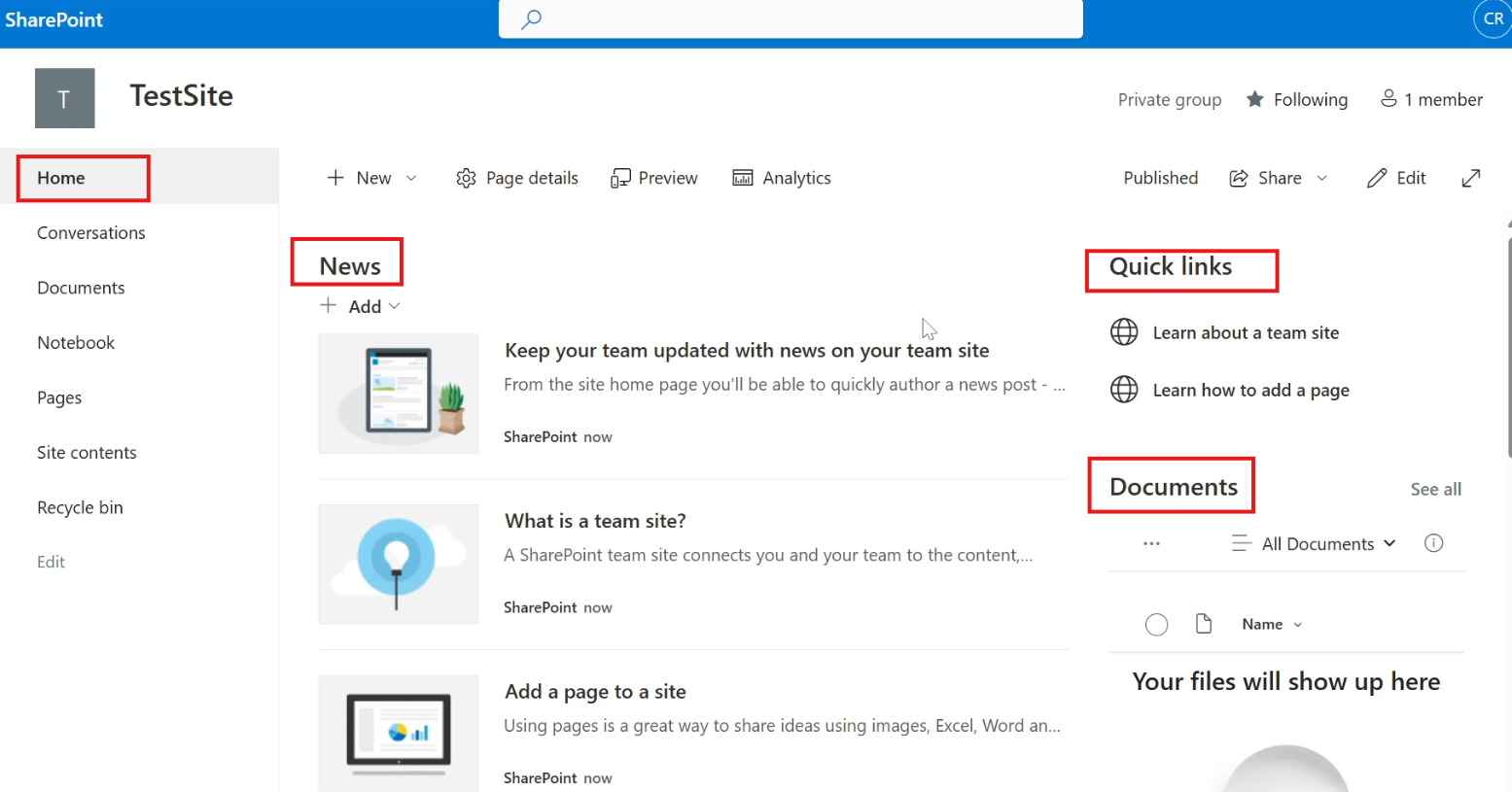
    Top Bar and Global Navigation

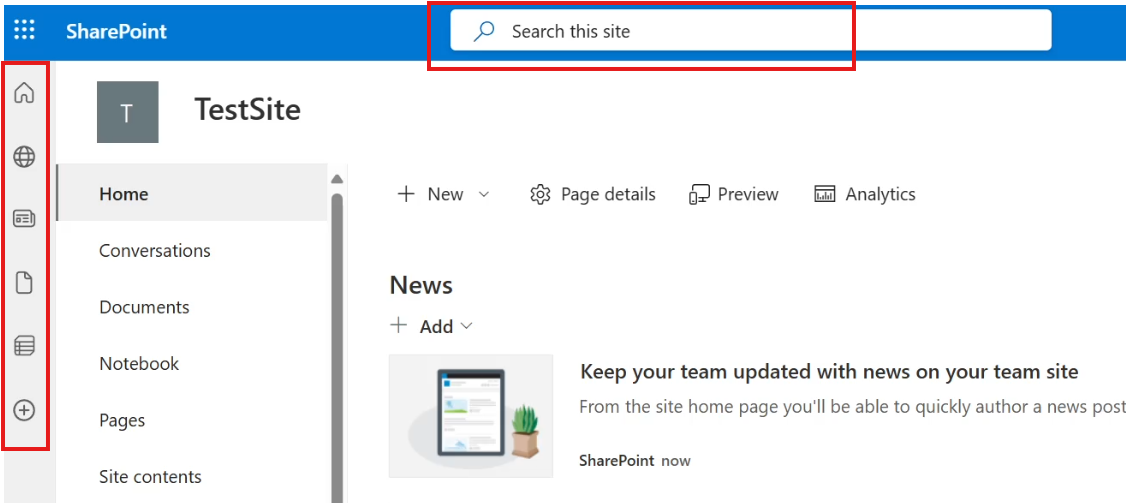
    At the very top of a SharePoint site, you’ll find tools that help you search and navigate across sites.

    Key areas:


    Site Home Page

    The site home page is made up of web parts, which you can think of as widgets that display different types of content.

    Common web parts include:

    1. News – Displays announcements and updates
    2. Quick Links – Provides shortcuts to important resources
    3. Documents – Shows recent or pinned documents
    4. Activity – Highlights recent actions on the site

    The home page acts like a dashboard where important information is grouped in one place.


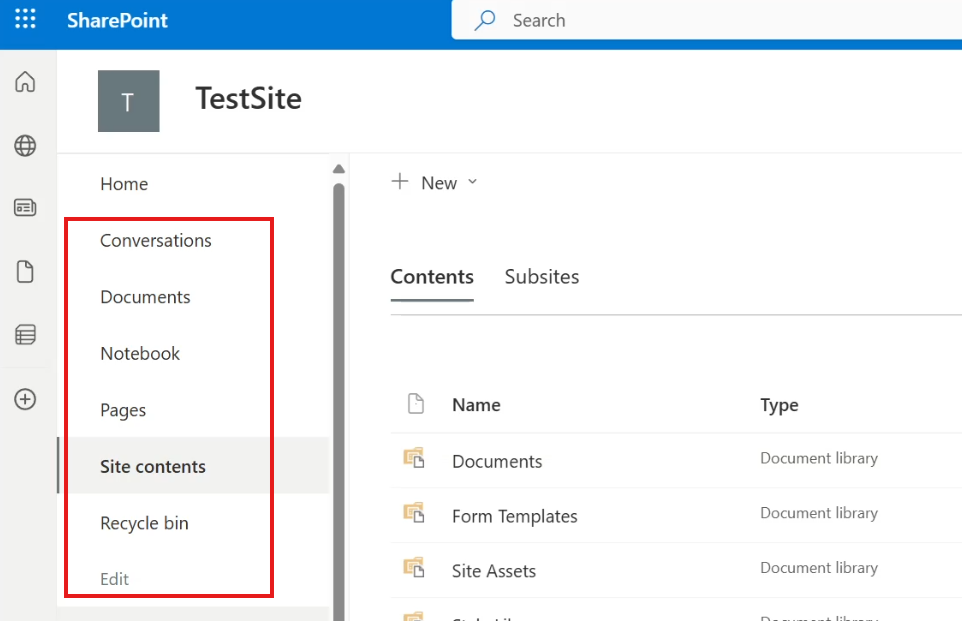
    Site Apps and Left Navigation

    A SharePoint site is essentially a collection of apps (also called site contents). Each app serves a specific purpose and has its own screen and menu.

    The left-side navigation menu helps you move between these apps.

    Common apps include:

    To explore available content types, you can click New inside Site Contents and see what can be created.


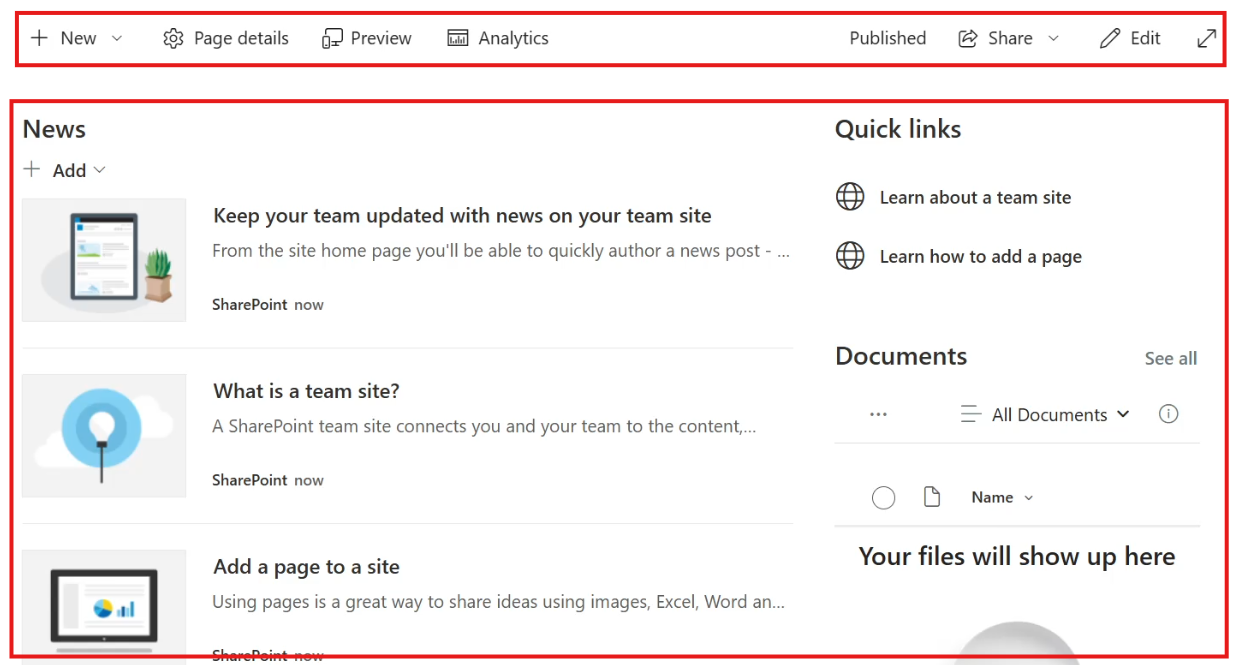
    How Apps Work

    Each app in SharePoint has:

    For example, the Home page itself is an app with a layout and menu options.

    Understanding that a SharePoint site is built from apps makes it easier to manage and customize your site as your needs grow.


    Once you’re familiar with these areas, navigating SharePoint becomes much more intuitive, helping you find information faster and work more efficiently.

  • 7 – 🚀 Azure App Service with Terraform — Blue-Green Deployment Step-by-Step

    Blue-green deployment is a release strategy that lets you ship new versions of your app with near-zero downtime and low risk. Instead of updating your live app directly, you run two environments side-by-side and switch traffic between them.

    In this guide, I’ll walk you through how I implemented blue-green deployment on Azure using Terraform and simple HTML apps. This is written for beginners and focuses on understanding why we do each step — not just what to type.

    Table of Contents


    🧠 What Is Blue-Green Deployment (Simple Explanation)

    Imagine:

    • Blue = current live version
    • Green = new version

    Users only see one version at a time.

    You:

    1. Deploy the new version to Green
    2. Test it safely
    3. Swap Green → Production
    4. Instantly roll back if needed

    No downtime. No risky in-place updates.

    Azure App Service deployment slots make this easy.


    🎯 What We Will Build

    We will:

    ✅ Create Azure infrastructure with Terraform
    ✅ Create a staging slot
    ✅ Deploy two app versions (Blue & Green)
    ✅ Swap them using Terraform
    ✅ Understand how real companies do this


    📌 Prerequisites

    You should have:

    • Azure subscription
    • Terraform (by HashiCorp) installed
    • Azure CLI installed
    • Logged in using az login
    • Basic Terraform knowledge

    🏗️ Step 1 — Create Resource Group, App Service Plan & App Service

    Why these resources?

    Resource Group
    Container that holds everything.

    App Service Plan
    Defines pricing tier, performance, and features.
    Deployment slots require Standard tier or higher.

    App Service
    Your actual web app.


    rg.tf

    resource "azurerm_resource_group" "rg" {
      name = "rgminipro87897"
      location = "Central US"
    }
    

    asplan.tf

    resource "azurerm_app_service_plan" "asp" {
      name = "aspminipro8972"
      location = azurerm_resource_group.rg.location
      resource_group_name = azurerm_resource_group.rg.name
    
      sku {
        tier = "Standard"
        size = "S1"
      }
    }
    

    👉 Why S1?
    Slots are unavailable in Free/Basic tiers.


    appservice.tf

    resource "azurerm_app_service" "as" {
      name = "appserviceminipro87897987233"
      location = azurerm_resource_group.rg.location
      resource_group_name = azurerm_resource_group.rg.name
      app_service_plan_id = azurerm_app_service_plan.asp.id
    }
    

    ▶ Run Terraform

    terraform init
    terraform apply
    

    ✅ Verify

    Open the app URL in a browser.
    You’ll see a default Azure page — that means infrastructure works.


    🔁 Step 2 — Create a Staging Slot

    A deployment slot is a second live version of your app with its own URL.

    Think of it as a testing environment running inside the same App Service.


    slot.tf

    resource "azurerm_app_service_slot" "slot" {
      name = "slotstagingminipro78623"
      location = azurerm_resource_group.rg.location
      resource_group_name = azurerm_resource_group.rg.name
      app_service_plan_id = azurerm_app_service_plan.asp.id
      app_service_name = azurerm_app_service.as.name
    }
    

    ▶ Apply

    terraform apply
    

    ✅ Verify in Azure

    You will see:

    • Production slot
    • Staging slot
    • Traffic: 100% production, 0% staging

    👉 This is normal — staging is for testing.


    🌈 Step 3 — Deploy Blue & Green Apps

    Terraform builds infrastructure.
    We use Azure CLI to deploy app code.

    (That’s also how real companies separate infra and app deployments.)


    Blue Version (Production)

    Create:

    <h1 style="background:blue;color:white;">BLUE VERSION</h1>
    

    Zip with index.html at root → blueapp.zip


    Green Version (Staging)

    <h1 style="background:green;color:white;">GREEN VERSION</h1>
    

    Zip → greenapp.zip


    Deploy Using Microsoft Azure CLI

    Blue → Production

    az webapp deploy \
      --resource-group rgminipro87897 \
      --name appserviceminipro87897987233 \
      --src-path blueapp.zip \
      --type zip
    

    Green → Staging

    az webapp deploy \
      --resource-group rgminipro87897 \
      --name appserviceminipro87897987233 \
      --slot slotstagingminipro78623 \
      --src-path greenapp.zip \
      --type zip
    

    ✅ Verify

    Production URL → Blue
    Staging URL → Green

    Perfect setup!


    🔄 Step 4 — Slot Swapping (The Core of Blue-Green)

    Now we swap environments.


    swap.tf

    resource "azurerm_web_app_active_slot" "swap" {
      slot_id = azurerm_app_service_slot.slot.id
    }
    

    ▶ Apply

    terraform apply
    

    🎉 Result

    Now:

    Production → Green
    Staging → Blue

    You just performed a blue-green deployment!


    🔙 How to Swap Back

    Terraform won’t auto-reverse swaps.

    Use Azure CLI:

    az webapp deployment slot swap \
      --resource-group rgminipro87897 \
      --name appserviceminipro87897987233 \
      --slot slotstagingminipro78623 \
      --target-slot production
    

    🏢 How Companies Do This in Real Life

    In real projects:

    Terraform
    → Creates infrastructure

    CI/CD pipelines
    → Deploy apps & swap slots

    Why?

    Because swapping affects real users and needs:

    • Testing
    • Approval
    • Monitoring
    • Rollback strategy

    Common tools:

    • GitHub Actions
    • Azure DevOps
    • Jenkins

    📌 Key Lessons

    You learned:

    ✔ App Service basics
    ✔ Deployment slots
    ✔ Blue-green strategy
    ✔ Terraform infrastructure setup
    ✔ CLI deployment
    ✔ Slot swapping logic
    ✔ Real-world DevOps workflow


    🧹 Cleanup

    Avoid charges:

    terraform destroy
    

    🚀 Final Thoughts

    Blue-green deployment is a core DevOps skill.
    Mastering it early gives you a big advantage.

    This small demo mirrors how production systems reduce risk during releases.

  • 6 – Terraform + Azure Entra ID Mini Project: Step-by-Step Beginner Guide (Users & Groups from CSV)

    Table of Contents

    1. Terraform + Azure Entra ID Mini Project: Step-by-Step Beginner Guide (Users & Groups from CSV)
    2. 🎯 What We’re Building
    3. 🟢 Step 1 — Configure Provider & Fetch Domain
    4. 🟢 Step 2 — Test CSV Reading
    5. 🟢 Step 3 — Create ONE Test User
    6. 🟢 Step 4 — Create Users from CSV
    7. 🟢 Step 5 — Create Group & Add Members
    8. 🧠 Key Beginner Lessons
    9. 🚀 What You Can Try Next
    10. 🎉 Final Thoughts

    Terraform + Azure Entra ID Mini Project: Step-by-Step Beginner Guide (Users & Groups from CSV)

    In this mini project, I automated user and group management in Microsoft Entra ID using Terraform.

    Instead of creating infrastructure like VMs or VNets, we manage:

    • 👤 Users
    • 👥 Groups
    • 🔗 Group memberships

    I followed my instructor’s tutorial but implemented it in my own small, testable steps. This blog shows exactly how you can do the same and debug easily as a beginner.


    🎯 What We’re Building

    We will:

    ✅ Fetch our tenant domain
    ✅ Read users from a CSV file
    ✅ Create Entra ID users from CSV
    ✅ Detect duplicate usernames
    ✅ Create a group
    ✅ Add users to the group based on department


    🟢 Step 1 — Configure Provider & Fetch Domain

    azadprovider.tf

    terraform {
      required_providers {
        azuread = {
          source  = "hashicorp/azuread"
          version = "2.41.0"
        }
      }
    }
    

    👉 This tells Terraform to use the Azure AD provider.


    domainfetch.tf

    data "azuread_domains" "tenant" {
      only_initial = true
    }
    
    output "domain" {
      value = data.azuread_domains.tenant.domains.0.domain_name
    }
    

    Run

    terraform init
    terraform apply
    

    Verify

    You should see:

    domain = "yourtenant.onmicrosoft.com"
    

    ✅ Now Terraform can build valid usernames.


    🟢 Step 2 — Test CSV Reading

    locals {
      users = csvdecode(file("users.csv"))
    }
    
    output "users_debug" {
      value = local.users
    }
    

    Why?

    Before creating users, confirm Terraform reads the CSV correctly.

    Run

    terraform plan
    

    You should see structured user data printed.

    ✅ If this fails → your CSV format is wrong.


    🟢 Step 3 — Create ONE Test User

    Always test with one user first.

    resource "azuread_user" "testuserminipro867" {
      user_principal_name = "testuserminipro867@yourdomain.onmicrosoft.com"
      display_name = "Test User"
      password = "Password123!"
    }
    

    Verify in Portal

    Entra ID → Users → Confirm creation.

    ✅ Works? Good.
    Then comment it out.


    🟢 Step 4 — Create Users from CSV

    Now we automate.


    Generate UPNs

    locals {
      upns = [
        for u in local.users :
        lower("${u.first_name}.${u.last_name}@${data.azuread_domains.tenant.domains[0].domain_name}")
      ]
    }
    

    👉 Creates usernames like:

    michael.scott@tenant.onmicrosoft.com
    

    Detect Duplicates

    output "duplicate_check" {
      value = length(local.upns) != length(distinct(local.upns))
        ? "❌ DUPLICATES FOUND"
        : "✅ No duplicates"
    }
    

    💡 Beginner Tip:
    Duplicate usernames will break Terraform — always check first!


    Preview Planned Users

    output "planned_users" {
      value = local.upns
    }
    

    Create Users

    resource "azuread_user" "users" {
    
      for_each = {
        for idx, user in local.users :
        local.upns[idx] => user
      }
    
      user_principal_name = each.key
      display_name = "${each.value.first_name} ${each.value.last_name}"
      mail_nickname = lower("${each.value.first_name}${each.value.last_name}")
    
      department = each.value.department
      password = "Password123!"
    }
    

    Apply

    terraform apply
    

    Verify

    Check Entra ID → Users.

    ✅ Users created automatically!


    🔥 Important Learning

    If you change the CSV later:

    Terraform will
    ✔ create new users
    ✔ update existing users
    ✔ remove deleted users

    👉 This is Terraform’s desired state model in action.


    🟢 Step 5 — Create Group & Add Members


    Create Group

    resource "azuread_group" "test_group" {
      display_name = "Test Group"
      security_enabled = true
    }
    

    Add Members by Department

    resource "azuread_group_member" "education" {
    
      for_each = {
        for u in azuread_user.users :
        u.mail_nickname => u
        if u.department == "Education"
      }
    
      group_object_id = azuread_group.test_group.id
      member_object_id = each.value.id
    }
    

    Apply

    terraform apply
    

    Verify

    Portal → Groups → Members tab

    ✅ Only Education department users added.


    🧠 Key Beginner Lessons

    ✅ Work in Small Steps

    Don’t deploy everything at once.


    ✅ Always Check Data First

    Validate CSV before creating resources.


    ✅ Use Outputs for Debugging

    Outputs save hours of troubleshooting.


    ✅ Terraform is Declarative

    It maintains the desired state automatically.


    🚀 What You Can Try Next

    👉 Add more users to CSV
    👉 Create groups by job title
    👉 Use Service Principal authentication
    👉 Generate random passwords
    👉 Assign roles to groups


    🎉 Final Thoughts

    This project shows how powerful Terraform is beyond infrastructure — it can manage identity too.

    If you’re learning cloud or DevOps, this skill is extremely valuable because real organizations manage thousands of users and groups.

    Start small, test often, and build confidence step-by-step — exactly like you did here.

  • 5 – Azure VNet Peering: A Real-World Terraform Mini Project to Build a Secure Cloud Network

    In this mini project, I implemented Azure VNet peering using Terraform, but instead of applying everything at once, I deliberately broke the setup into small, testable steps.
    This approach makes it much easier to understand what’s happening, catch mistakes early, and build real confidence with Terraform and Azure networking.

    Below is the exact flow I followed — and you can follow the same steps as a beginner.

    Table of Contents

    1. Step 1: Create the Resource Group, Virtual Networks, and Subnets
    2. Step 2: Create VM1 in Subnet 1 (via a NIC)
    3. Step 3: Create VM2 in Subnet 2
    4. Step 4: Test Connectivity Before Peering (Expected to Fail)
    5. Step 5: Add VNet Peering (Both Directions)
    6. Step 6: Test Connectivity After Peering (Expected to Work)
    7. Key Takeaways for Beginners
    8. Why This Step-by-Step Approach Matters

    Step 1: Create the Resource Group, Virtual Networks, and Subnets

    We start by creating the network foundation:

    • One resource group
    • Two separate virtual networks
    • One subnet inside each virtual network

    At this stage, there is no connectivity between the networks.

    What we created

    • vnet1 → address space 10.0.0.0/16
    • vnet2 → address space 10.1.0.0/16
    • One /24 subnet in each VNet
    resource "azurerm_resource_group" "rg" {
      name     = "rgminipro76876"
      location = "Central US"
    }
    
    resource "azurerm_virtual_network" "vnet1" {
      name                = "vnet1minipro8768"
      location            = azurerm_resource_group.rg.location
      address_space       = ["10.0.0.0/16"]
      resource_group_name = azurerm_resource_group.rg.name
    }
    
    resource "azurerm_subnet" "sn1" {
      name                 = "subnet1minipro878"
      resource_group_name  = azurerm_resource_group.rg.name
      virtual_network_name = azurerm_virtual_network.vnet1.name
      address_prefixes     = ["10.0.0.0/24"]
    }
    
    resource "azurerm_virtual_network" "vnet2" {
      name                = "vnet2minipro8768"
      location            = azurerm_resource_group.rg.location
      address_space       = ["10.1.0.0/16"]
      resource_group_name = azurerm_resource_group.rg.name
    }
    
    resource "azurerm_subnet" "sn2" {
      name                 = "subnet2minipro878"
      resource_group_name  = azurerm_resource_group.rg.name
      virtual_network_name = azurerm_virtual_network.vnet2.name
      address_prefixes     = ["10.1.0.0/24"]
    }
    

    How to verify

    • Run terraform apply
    • Open Azure Portal
    • Confirm:
      • Both VNets exist
      • Each VNet has its own subnet
      • Address spaces do not overlap

    At this point, nothing can talk to anything else yet — and that’s expected.


    Step 2: Create VM1 in Subnet 1 (via a NIC)

    In Azure, VMs don’t live directly inside subnets.
    Instead, a Network Interface (NIC) is placed inside a subnet, and the VM attaches to that NIC.

    Here, we:

    • Create a NIC attached to subnet1
    • Create a VM that uses that NIC

    VM1 and NIC1

    resource "azurerm_network_interface" "nic1" {
      name                = "nic1minipro8789"
      location            = azurerm_resource_group.rg.location
      resource_group_name = azurerm_resource_group.rg.name
    
      ip_configuration {
        name                          = "ipconfignic1minipro989"
        subnet_id                     = azurerm_subnet.sn1.id
        private_ip_address_allocation = "Dynamic"
      }
    }
    
    resource "azurerm_virtual_machine" "vm1" {
      name                = "vm1minipro98908"
      location            = azurerm_resource_group.rg.location
      resource_group_name = azurerm_resource_group.rg.name
      network_interface_ids = [
        azurerm_network_interface.nic1.id
      ]
      vm_size = "Standard_D2s_v3"
    
      delete_os_disk_on_termination = true
    
      storage_image_reference {
        publisher = "Canonical"
        offer     = "0001-com-ubuntu-server-jammy"
        sku       = "22_04-lts"
        version   = "latest"
      }
    
      storage_os_disk {
        name              = "storageosdisk1"
        caching           = "ReadWrite"
        create_option     = "FromImage"
        managed_disk_type = "Standard_LRS"
      }
    
      os_profile {
        computer_name  = "peer1vm"
        admin_username = "testadmin"
        admin_password = "Password1234!"
      }
    
      os_profile_linux_config {
        disable_password_authentication = false
      }
    }
    

    How to verify

    • Run terraform apply
    • In Azure Portal:
      • VM1 exists
      • NIC is attached
      • NIC is in subnet1
      • VM has no public IP

    Step 3: Create VM2 in Subnet 2

    Now we repeat the same pattern for the second network:

    • NIC attached to subnet2
    • VM attached to that NIC
    resource "azurerm_network_interface" "nic2" {
      name                = "nic2minipro8789"
      location            = azurerm_resource_group.rg.location
      resource_group_name = azurerm_resource_group.rg.name
    
      ip_configuration {
        name                          = "ipconfignic2minipro989"
        subnet_id                     = azurerm_subnet.sn2.id
        private_ip_address_allocation = "Dynamic"
      }
    }
    
    resource "azurerm_virtual_machine" "vm2" {
      name                = "vm2minipro98908"
      location            = azurerm_resource_group.rg.location
      resource_group_name = azurerm_resource_group.rg.name
      network_interface_ids = [
        azurerm_network_interface.nic2.id
      ]
      vm_size = "Standard_D2s_v3"
    
      delete_os_disk_on_termination = true
    
      storage_image_reference {
        publisher = "Canonical"
        offer     = "0001-com-ubuntu-server-jammy"
        sku       = "22_04-lts"
        version   = "latest"
      }
    
      storage_os_disk {
        name              = "storageosdisk2"
        caching           = "ReadWrite"
        create_option     = "FromImage"
        managed_disk_type = "Standard_LRS"
      }
    
      os_profile {
        computer_name  = "peer2vm"
        admin_username = "testadmin"
        admin_password = "Password1234!"
      }
    
      os_profile_linux_config {
        disable_password_authentication = false
      }
    }
    

    How to verify

    • Run terraform apply
    • Confirm:
      • VM2 exists
      • NIC2 is attached
      • NIC2 belongs to subnet2
      • VM2 also has no public IP

    Step 4: Test Connectivity Before Peering (Expected to Fail)

    Now we test whether the two VMs can communicate without peering.

    Because:

    • They are in different VNets
    • There is no peering
    • No public IPs

    They should not be able to communicate.

    How I tested

    Using Azure Run Command (no SSH or Bastion needed):

    • VM1 → Operations → Run command → RunShellScript
    • Command:
    ping -c 4 10.1.0.x
    

    Result

    4 packets transmitted, 0 received, 100% packet loss
    

    ✅ This is the correct and expected behavior


    Step 5: Add VNet Peering (Both Directions)

    VNet peering in Azure is not automatic.
    You must create two peering connections:

    • VNet1 → VNet2
    • VNet2 → VNet1
    resource "azurerm_virtual_network_peering" "peer1to2" {
      name                      = "peer1to2minipro455"
      resource_group_name       = azurerm_resource_group.rg.name
      virtual_network_name      = azurerm_virtual_network.vnet1.name
      remote_virtual_network_id = azurerm_virtual_network.vnet2.id
    }
    
    resource "azurerm_virtual_network_peering" "peer2to1" {
      name                      = "peer2to1minipro455"
      resource_group_name       = azurerm_resource_group.rg.name
      virtual_network_name      = azurerm_virtual_network.vnet2.name
      remote_virtual_network_id = azurerm_virtual_network.vnet1.id
    }
    

    How to verify

    • Run terraform apply
    • Azure Portal → Virtual Networks → Peering
    • Status should show Connected

    Step 6: Test Connectivity After Peering (Expected to Work)

    Now we repeat the same test as before.

    ping -c 4 10.1.0.x
    

    Result

    4 packets transmitted, 4 received, 0% packet loss
    

    🎉 Success!

    This proves:

    • VNet peering is working
    • Traffic stays on Azure’s private backbone
    • No public IPs are required

    Key Takeaways for Beginners

    • VMs communicate via NICs, not directly via subnets
    • VNets are isolated by default
    • Peering must be created in both directions
    • Always test:
      • ❌ Before peering
      • ✅ After peering
    • Applying Terraform in small steps makes debugging much easier

    Why This Step-by-Step Approach Matters

    Instead of running one giant terraform apply and hoping for the best, this method:

    • Builds real understanding
    • Makes Azure networking concepts visual
    • Helps you debug like a real DevOps engineer

    If you can do this project, you already understand:

    • VNets
    • Subnets
    • NICs
    • VM placement
    • VNet peering
    • Real-world network isolation

    That’s solid progress 👏

  • 🔐 SSH, Keys, .pem, .ppk, PuTTY, and Windows vs Linux VMs — Explained Clearly

    When working with cloud virtual machines, authentication is often the most confusing topic for beginners:

    • Why do we need SSH keys before a VM exists?
    • What exactly is a .pem file in AWS?
    • Why does Windows EC2 require password decryption?
    • What is PuTTY, and why does it use .ppk files?
    • Why can’t we just use PowerShell or a normal terminal?

    This blog explains all of it from first principles, without assuming prior knowledge.


    1. Does my laptop really support SSH?

    Yes — your laptop already has SSH support.

    Modern operating systems ship with OpenSSH, a standard cryptographic and networking tool:

    • Windows 10 / 11 → OpenSSH included
    • Linux → OpenSSH included
    • macOS → OpenSSH included

    That’s why commands like these work out of the box:

    ssh
    ssh-keygen
    

    👉 SSH is not provided by AWS or Azure.
    It’s an operating system feature.


    2. What is an SSH key pair?

    When you generate an SSH key, your OS creates two mathematically linked files:

    FileExample nameLives wherePurpose
    Private keykey, id_rsa, .pemYour laptop onlyProves your identity
    Public keykey.pubGiven to the VMVerifies your identity

    ⚠️ The private key must never be shared.
    The public key is safe to distribute.


    3. Why must SSH keys exist before the VM is created?

    Cloud VMs do not generate their own SSH keys.

    Instead, the flow is:

    1. You create an SSH key pair locally
    2. You give the public key to the cloud provider
    3. The provider injects it into the VM during creation

    On Linux VMs, the public key is stored in:

    ~/.ssh/authorized_keys
    

    This file defines who is allowed to log in.


    4. Where is the private key actually used?

    This is a common misunderstanding.

    The private key is never sent to the cloud.

    It is used only on your laptop, later, when you connect:

    ssh -i private_key user@vm-ip
    

    At login time:

    1. SSH client uses your private key
    2. VM checks the stored public key
    3. Cryptographic proof succeeds
    4. Access is granted

    The cloud platform is not involved in this step.


    5. AWS EC2 .pem files — what are they really?

    In AWS, when you create a key pair:

    • AWS generates an SSH key pair
    • AWS keeps the public key
    • You download the private key as a .pem file

    So a .pem file is simply:

    An SSH private key

    Nothing more.


    6. Why Linux EC2 uses .pem directly

    Linux EC2 instances:

    • Use SSH
    • Use key-based authentication
    • Do not allow passwords by default

    That’s why this works:

    ssh -i mykey.pem ec2-user@<public-ip>
    

    The private key is used directly for authentication.


    7. Why Windows EC2 is different

    Windows EC2 instances:

    • Do not use SSH for login
    • Use RDP (Remote Desktop Protocol)
    • RDP requires a username and password

    But AWS does not want to send passwords insecurely.

    So AWS does this instead:

    1. Generates a random Administrator password
    2. Encrypts it using your public key
    3. Stores the encrypted password
    4. You download the .pem (private key)
    5. You decrypt the password locally
    6. You log in via RDP using that password

    Important distinction

    Linux EC2Windows EC2
    SSHRDP
    Key-based loginPassword-based login
    .pem used directly.pem used to decrypt password

    So the .pem file is not used to log in directly to Windows.


    8. What exactly is PuTTY?

    PuTTY is not just a terminal.

    PuTTY is:

    A Windows-native SSH client

    Before Windows 10:

    • Windows had no built-in SSH
    • PuTTY was the standard way to:
      • SSH into Linux servers
      • Manage SSH keys
      • Save sessions

    That’s why PuTTY became popular.


    9. Is PuTTY the same as PowerShell or CMD?

    No.

    ToolWhat it is
    CMDShell
    PowerShellShell
    Windows TerminalTerminal UI
    PuTTYSSH client

    PuTTY:

    • Opens a terminal window
    • Handles network authentication
    • Manages SSH sessions

    10. Can PuTTY log into Linux VMs?

    ✔ Yes — very commonly.

    PuTTY is widely used to:

    • SSH into Linux EC2
    • SSH into Azure Linux VMs
    • SSH into on-prem Linux servers

    11. Can PuTTY log into Windows VMs?

    ❌ No.

    Windows login uses RDP, not SSH.

    For Windows VMs you use:

    • Remote Desktop Connection (mstsc)

    PuTTY does not support RDP.


    12. Why does PuTTY use .ppk files?

    PuTTY does not use OpenSSH key formats.

    ToolPrivate key format
    OpenSSH.pem, .key
    PuTTY.ppk

    A .ppk file is simply:

    PuTTY’s private key format

    Same cryptographic key, different encoding.


    13. Why do we convert .pem.ppk?

    Because PuTTY cannot read OpenSSH private keys.

    Conversion is done using PuTTYgen:

    .pem / .key  ──▶ puttygen ──▶ .ppk
    

    This conversion:

    • Does not change the key
    • Only changes the file format

    14. Why not just use PowerShell today?

    You absolutely can.

    Modern Windows supports:

    ssh user@ip
    

    So PuTTY is no longer required for most users.

    Why PuTTY still exists

    • Legacy environments
    • Saved SSH sessions
    • Serial console access
    • Enterprise standardization
    • Habit and familiarity

    15. One unified mental model

            YOUR LAPTOP
     ┌─────────────────────┐
     │ Private Key         │  ◀── Never shared
     └─────────────────────┘
                │
                │ proves identity
                ▼
          SSH Authentication
                ▲
                │ matches
     ┌─────────────────────┐
     │ Public Key          │  ◀── Stored on VM
     └─────────────────────┘
    

    16. Final key takeaways

    • SSH comes from your operating system
    • Keys are created before VM creation
    • Public key goes to the VM
    • Private key stays on your machine
    • .pem is always a private key
    • Linux uses SSH directly
    • Windows uses RDP and passwords
    • PuTTY is an SSH client, not a Windows login tool
    • .ppk is just a different key format

    Closing thought

    Once you understand that identity is proven locally and verified remotely, SSH authentication stops being confusing and starts feeling elegant.

    This single concept unlocks:

    • Secure cloud access
    • Passwordless infrastructure
    • Bastion hosts
    • Zero-trust architectures
    • Safer operations at scale
  • 4 – 🚀 Terraform Mini Project: Building a Scalable Web App with VMSS, Load Balancer, NSG, and NAT Gateway(in Azure)

    Table of Contents

    1. What We Are Building (End Architecture Overview)
    2. Step 1: Resource Group, Virtual Network, and Subnet
    3. Step 2: Network Security Group (NSG)
    4. Step 3: Public IP (Inbound Traffic)
    5. Step 4: Load Balancer and Backend Pool
    6. Step 5: Health Probe and Load Balancing Rule
    7. Step 6: NAT Gateway (Outbound Traffic)
    8. Step 7: Virtual Machine Scale Set (VMSS)
    9. Step 8: Add Autoscaling (Last Step)
    10. Step 8.1: Add a Scale-Out Rule (CPU > 80%)
    11. Step 8.2: Add a Scale-In Rule (CPU < 10%)
    12. Step 8.3: Apply and Verify
    13. How to Test Autoscaling (Optional but Powerful)
    14. Final Result
    15. Why This Project Is Important for Beginners

    This mini project demonstrates how to build a real-world Azure infrastructure step by step using Terraform.
    The goal is not just to deploy resources, but to understand why each Azure service exists, how it fits into the architecture, and what each Terraform block actually does.

    Instead of creating everything in one go, we intentionally build the infrastructure incrementally. This makes it easier for beginners to:

    • Verify resources in the Azure Portal
    • Understand dependencies between services
    • Debug errors without feeling overwhelmed
    • Build a strong mental model of Azure networking and compute

    What We Are Building (End Architecture Overview)

    By the end of this project, we will have:

    • A Resource Group to logically contain all resources
    • A Virtual Network (VNet) with a defined private IP space
    • A Subnet to host compute resources
    • A Network Security Group (NSG) acting as a firewall
    • A Public IP for inbound internet access
    • A Standard Load Balancer to distribute traffic
    • A NAT Gateway to manage outbound internet traffic
    • A Virtual Machine Scale Set (VMSS) running a web application

    This architecture closely resembles how production web applications are deployed on Azure.


    Step 1: Resource Group, Virtual Network, and Subnet

    Why this step is required

    In Azure, nothing can exist without a Resource Group.
    Similarly, no virtual machine can exist outside a Virtual Network.

    This step lays the networking foundation for everything that follows.


    Resource Group (rg.tf)

    resource "azurerm_resource_group" "rg" {
      name     = "rgminipro345"
      location = "Central US"
    }
    

    Explanation:

    • azurerm_resource_group
      Creates a logical container for Azure resources.
    • name
      Used for management, billing, and cleanup.
    • location
      Determines the Azure region where resources are deployed.

    After applying, this can be verified in:
    Azure Portal → Resource Groups


    Virtual Network (vnet.tf)

    resource "azurerm_virtual_network" "vnet" {
      name                = "vnetminipro8979879"
      address_space       = ["10.0.0.0/16"]
      location            = azurerm_resource_group.rg.location
      resource_group_name = azurerm_resource_group.rg.name
    }
    

    Explanation:

    • address_space defines the private IP range for the entire VNet.
    • 10.0.0.0/16 provides ~65,536 private IPs.
    • VNets are isolated by default and cannot access the internet without configuration.

    Subnet

    resource "azurerm_subnet" "subnet" {
      name                 = "subnetminipro89"
      resource_group_name  = azurerm_resource_group.rg.name
      virtual_network_name = azurerm_virtual_network.vnet.name
      address_prefixes     = ["10.0.0.0/20"]
    }
    

    Explanation:

    • Subnets divide a VNet into smaller IP ranges.
    • /20 provides ~4,096 IPs.
    • This subnet will host:
      • VM Scale Set instances
      • NAT Gateway association
      • Network interfaces

    At this point, the subnet has no security rules applied.


    Step 2: Network Security Group (NSG)

    Why NSGs are needed

    A Network Security Group (NSG) is Azure’s primary network firewall.
    It controls what traffic is allowed or denied at the subnet or NIC level.


    NSG Definition (nsg.tf)

    resource "azurerm_network_security_group" "nsg" {
      name                = "nsgminipro76786"
      location            = azurerm_resource_group.rg.location
      resource_group_name = azurerm_resource_group.rg.name
    

    This creates an empty firewall that we populate with rules.


    Security Rules

    security_rule {
      name                       = "allow-http"
      priority                   = 100
      direction                  = "Inbound"
      access                     = "Allow"
      protocol                   = "Tcp"
      destination_port_range     = "80"
    }
    

    What this rule means:

    • Allows inbound HTTP traffic
    • Uses TCP protocol
    • Priority determines evaluation order (lower number = higher priority)

    Similar rules are added for HTTPS (443) and SSH (22).

    ⚠️ SSH is allowed here for learning purposes only.


    Associating NSG with Subnet

    resource "azurerm_subnet_network_security_group_association" "myNSG" {
      subnet_id                 = azurerm_subnet.subnet.id
      network_security_group_id = azurerm_network_security_group.nsg.id
    }
    

    Why this matters:

    • NSGs do nothing unless attached.
    • Subnet-level attachment applies rules to all resources inside the subnet.

    Verify in:
    Azure Portal → VNet → Subnets


    Step 3: Public IP (Inbound Traffic)

    Why a Public IP is required

    To expose an application to the internet, Azure requires a Public IP resource.


    resource "azurerm_public_ip" "pubip" {
      allocation_method = "Static"
      sku               = "Standard"
      zones             = ["1", "2", "3"]
    }
    

    Key points:

    • Static IP does not change
    • Standard SKU is required for Standard Load Balancer
    • Zone-redundant for high availability
    • Used only for inbound traffic

    Step 4: Load Balancer and Backend Pool

    Why a Load Balancer is needed

    The Load Balancer distributes incoming traffic across multiple VMs, enabling:

    • High availability
    • Fault tolerance
    • Horizontal scaling

    Load Balancer

    resource "azurerm_lb" "lb" {
      sku = "Standard"
    

    Frontend IP Configuration

    frontend_ip_configuration {
      public_ip_address_id = azurerm_public_ip.pubip.id
    }
    

    This connects the public IP to the Load Balancer frontend.


    Backend Pool

    resource "azurerm_lb_backend_address_pool" "bpool" {
      loadbalancer_id = azurerm_lb.lb.id
    }
    

    VMSS instances will later register here automatically.


    Step 5: Health Probe and Load Balancing Rule

    Health Probe

    resource "azurerm_lb_probe" "lbprobe" {
      protocol = "Http"
      port     = 80
    }
    

    Azure uses this probe to determine VM health.


    Load Balancing Rule

    resource "azurerm_lb_rule" "lbrule" {
      frontend_port = 80
      backend_port  = 80
      probe_id      = azurerm_lb_probe.lbprobe.id
    }
    

    Defines how traffic flows from the frontend to backend VMs.


    Step 6: NAT Gateway (Outbound Traffic)

    Why NAT Gateway is needed

    Inbound and outbound traffic should be separated.

    • Load Balancer → inbound
    • NAT Gateway → outbound

    resource "azurerm_nat_gateway" "natgw" {}
    

    Associated with:

    resource "azurerm_subnet_nat_gateway_association" "example" {
      subnet_id = azurerm_subnet.subnet.id
    }
    

    All outbound traffic from the subnet now uses a fixed public IP.


    Step 7: Virtual Machine Scale Set (VMSS)

    Why VMSS is used

    VMSS allows:

    • Running multiple identical VMs
    • Automatic scaling
    • Seamless Load Balancer integration

    SSH Authentication

    disable_password_authentication = true
    admin_ssh_key {
      public_key = file(".ssh/key.pub")
    }
    
    • Passwords are disabled
    • SSH key authentication is enforced
    • Keys are injected at creation time

    Network Integration

    load_balancer_backend_address_pool_ids = [
      azurerm_lb_backend_address_pool.bpool.id
    ]
    

    Automatically registers VM instances with the Load Balancer.


    user-data.sh (Cloud Init)

    The startup script:

    • Installs Apache and PHP
    • Deploys a test application
    • Displays instance metadata

    Every VM runs this script on first boot.


    Step 8: Add Autoscaling (Last Step)

    Finally, add autoscale.tf.

    Apply.

    What is happening here?

    • Autoscale profile is created
    • VMSS can scale between 1 and 10 instances

    Verify

    • Open VMSS
    • Go to Scaling
    • Confirm autoscale rules exist

    Step 8.1: Add a Scale-Out Rule (CPU > 80%)

    Add this inside the same profile {} block:

    rule {
      metric_trigger {
        metric_name        = "Percentage CPU"
        metric_resource_id = azurerm_orchestrated_virtual_machine_scale_set.vmss.id
        time_grain         = "PT1M"
        statistic          = "Average"
        time_window        = "PT5M"
        time_aggregation   = "Average"
        operator           = "GreaterThan"
        threshold          = 80
      }
    
      scale_action {
        direction = "Increase"
        type      = "ChangeCount"
        value     = "1"
        cooldown  = "PT5M"
      }
    }
    

    Line-by-line explanation (beginner friendly)

    • Percentage CPU → Azure’s built-in VMSS CPU metric
    • PT1M → Check CPU every 1 minute
    • PT5M → Evaluate average over 5 minutes
    • GreaterThan 80 → Trigger when CPU > 80%
    • Increase by 1 → Add one VM
    • Cooldown 5 min → Prevent rapid scaling

    Step 8.2: Add a Scale-In Rule (CPU < 10%)

    Add this below the scale-out rule:

    rule {
      metric_trigger {
        metric_name        = "Percentage CPU"
        metric_resource_id = azurerm_orchestrated_virtual_machine_scale_set.vmss.id
        time_grain         = "PT1M"
        statistic          = "Average"
        time_window        = "PT5M"
        time_aggregation   = "Average"
        operator           = "LessThan"
        threshold          = 10
      }
    
      scale_action {
        direction = "Decrease"
        type      = "ChangeCount"
        value     = "1"
        cooldown  = "PT5M"
      }
    }
    

    What this does

    • If CPU stays below 10% for 5 minutes
    • Azure removes one VM
    • But never below your minimum = 1

    Step 8.3: Apply and Verify

    Run:

    terraform plan
    terraform apply
    

    Then go to:

    Azure Portal → VM Scale Set → Scaling → JSON

    You should now see:

    • rules array populated
    • minimum = 1, maximum = 10
    • ✅ Autoscale logic visible in UI

    How to Test Autoscaling (Optional but Powerful)

    To actually see autoscaling happen:

    1. SSH into one VM using NAT rule
    2. Generate CPU load: sudo apt install stress -y stress --cpu 2 --timeout 600
    3. Wait ~5–10 minutes
    4. Watch VMSS instance count increase

    Final Result

    Access the application using:

    http://<load-balancer-public-ip>/index.php
    

    Traffic is:

    • Load balanced
    • Secured by NSG
    • Scaled via VMSS
    • Outbound traffic controlled by NAT Gateway

    Why This Project Is Important for Beginners

    This project teaches:

    • Core Azure networking concepts
    • Secure traffic flow design
    • Stateless compute patterns
    • Infrastructure-as-Code fundamentals

    If you understand this setup, you understand how most Azure web platforms are built.

  • 3 – Terraform Advanced

    Terraform Built-in Functions (Part 1): Learning Functions Through Hands-on Assignments

    In this section, we begin exploring Terraform built-in functions through practical, hands-on assignments.
    Instead of only reading documentation, the focus here is on:

    • Practicing functions directly in terraform console
    • Applying them in real Terraform files
    • Solving common problems such as:
      • Formatting names
      • Enforcing naming rules
      • Merging maps
      • Validating resource constraints
      • Generating dynamic values

    This approach helps beginners understand why functions exist and how to use them correctly.


    Practicing Functions Using terraform console

    Before writing full Terraform files, we can experiment with functions interactively.

    terraform console
    

    Inside the console, you can directly test functions.

    Example:

    max(2, 4, 1)
    

    Result:

    4
    

    This shows:

    • You do not need to write a full Terraform file
    • You can quickly test function behavior
    • This is the fastest way to learn functions safely

    Terraform only supports built-in functions.
    You cannot create custom functions in Terraform.


    Assignment 1: Formatting Resource Names with lower and replace

    Requirement:

    • Resource names must:
      • Be lowercase
      • Replace spaces with hyphens

    Input example:

    Project Alpha Resource
    

    Expected output:

    project-alpha-resource
    

    Step 1: Define the Variable

    variable "project_name" {
      type        = string
      description = "Name of the project"
      default     = "Project Alpha Resource"
    }
    

    Step 2: Format the Name Using Functions

    locals {
      formatted_name = lower(replace(var.project_name, " ", "-"))
    }
    

    Explanation:

    • replace(var.project_name, " ", "-")
      Replaces all spaces with hyphens
    • lower(...)
      Converts the entire string to lowercase

    Step 3: Use It in a Resource

    resource "azurerm_resource_group" "rg" {
      name     = "${local.formatted_name}-rg"
      location = "West US 2"
    }
    

    Now:

    • "Project Alpha Resource"
      Becomes:
      project-alpha-resource-rg

    This ensures consistent, policy-compliant naming.


    Assignment 2: Merging Tags Using merge

    Scenario:

    You have:

    • Default tags
    • Environment-specific tags

    You want to combine both maps into one.

    Step 1: Define the Tag Maps

    variable "default_tags" {
      type = map(string)
      default = {
        owner   = "team-a"
        project = "demo"
      }
    }
    
    variable "environment_tags" {
      type = map(string)
      default = {
        environment = "dev"
        costcenter  = "1001"
      }
    }
    

    Step 2: Merge Them Using merge

    locals {
      merged_tags = merge(var.default_tags, var.environment_tags)
    }
    

    Explanation:

    • merge(map1, map2)
      Combines both maps
    • If the same key exists in both, the last one wins

    Step 3: Apply to a Resource

    resource "azurerm_resource_group" "rg" {
      name     = "${local.formatted_name}-rg"
      location = "West US 2"
      tags     = local.merged_tags
    }
    

    This avoids repeating the same merge logic in multiple places.


    Assignment 3: Formatting Storage Account Names with Multiple Functions

    Azure Storage Account Rules:

    • Only lowercase letters and numbers
    • Length between 3 and 24 characters
    • No spaces
    • No special characters

    Step 1: Define an Invalid Input

    variable "storage_account_name" {
      type    = string
      default = "Tech Tutorials @ Demo 2024!!!"
    }
    

    This input:

    • Has spaces
    • Has uppercase
    • Has special characters
    • Is longer than allowed

    Step 2: Format the Name Using Nested Functions

    locals {
      formatted_storage_name = lower(
        replace(
          substr(var.storage_account_name, 0, 23),
          " ",
          ""
        )
      )
    }
    

    Explanation:

    • substr(var.storage_account_name, 0, 23)
      Limits length to 23 characters
    • replace(..., " ", "")
      Removes spaces
    • lower(...)
      Converts to lowercase

    This produces a valid Azure storage account name.


    Step 3: Use It in the Resource

    resource "azurerm_storage_account" "example" {
      name                     = local.formatted_storage_name
      resource_group_name      = azurerm_resource_group.rg.name
      location                 = azurerm_resource_group.rg.location
      account_tier             = "Standard"
      account_replication_type = "LRS"
    }
    

    This shows how multiple functions can be nested to enforce strict provider rules.


    Assignment 4: Generating NSG Rule Names Using split, for, and String Interpolation

    Scenario:

    You start with a comma-separated list of ports:

    "80,443,3306"
    

    You want to generate rule names like:

    • Port-80
    • Port-443
    • Port-3306

    Step 1: Define the Variable

    variable "allowed_ports" {
      type    = string
      default = "80,443,3306"
    }
    

    Step 2: Split the String into a List

    locals {
      formatted_ports = split(",", var.allowed_ports)
    }
    

    Explanation:

    • split(",", var.allowed_ports)
      Converts "80,443,3306" into:
    ["80", "443", "3306"]
    

    Step 3: Build a Map of NSG Rules Using a for Expression

    locals {
      nsg_rules = {
        for port in local.formatted_ports :
        "Port-${port}" => {
          name        = "Port-${port}"
          port        = port
          description = "Allow traffic on port ${port}"
        }
      }
    }
    

    Explanation:

    • for port in local.formatted_ports
      Loops through each port
    • "Port-${port}"
      Dynamically builds the rule name
    • Each iteration creates a map entry for one rule

    Step 4: Use the Map in a Dynamic Block

    resource "azurerm_network_security_group" "example" {
      name                = "${local.formatted_name}-nsg"
      location            = azurerm_resource_group.rg.location
      resource_group_name = azurerm_resource_group.rg.name
    
      dynamic "security_rule" {
        for_each = local.nsg_rules
    
        content {
          name                       = security_rule.value.name
          priority                   = 100
          direction                  = "Inbound"
          access                     = "Allow"
          protocol                   = "Tcp"
          source_port_range          = "*"
          destination_port_range     = security_rule.value.port
          source_address_prefix      = "*"
          destination_address_prefix = "*"
          description                = security_rule.value.description
        }
      }
    }
    

    Now Terraform automatically creates:

    • One rule per port
    • With correct names and descriptions
    • Without manually writing each rule

    Summary

    In this first part of Terraform functions, you learned how to:

    • Practice functions using terraform console
    • Format names using:
      • lower
      • replace
      • substr
    • Merge maps using:
      • merge
    • Enforce provider naming rules using nested functions
    • Convert strings to lists using:
      • split
    • Generate multiple blocks using:
      • for expressions
      • Dynamic maps

    These assignments show how Terraform functions help you write:

    • Cleaner code
    • Fewer hardcoded values
    • More reusable configurations
    • Provider-compliant resource definitions

    This forms the foundation for writing dynamic, production-ready Terraform code.

    Terraform Built-in Functions (Part 2): Practical Demos with Lookup, Validation, Sets, Math, Time, and Files

    In this section, we continue learning Terraform built-in functions through a set of hands-on assignments.
    The focus here is on how functions are used in real Terraform code to solve practical problems such as:

    • Selecting values dynamically
    • Validating user input
    • Enforcing naming rules
    • Removing duplicates
    • Performing math on lists
    • Working with timestamps
    • Handling sensitive data and files

    All examples below are written in a beginner-friendly, step-by-step way.


    Using lookup to Select Values from an Environment Map

    Instead of writing long conditional expressions, we use a map + lookup function to select the correct VM size based on the environment.

    Defining the Environment Variable with Validation

    variable "environment" {
      type        = string
      description = "Environment name"
    
      validation {
        condition     = contains(["dev", "staging", "prod"], var.environment)
        error_message = "Enter a valid value for environment: dev, staging, or prod"
      }
    }
    

    Explanation:

    • contains(["dev", "staging", "prod"], var.environment)
      Ensures the value is only one of the allowed environments
    • If the value is invalid, Terraform stops with the custom error message

    This prevents accidental typos like prods or testing.


    Mapping Environments to VM Sizes

    variable "vm_sizes" {
      type = map(string)
      default = {
        dev     = "Standard_D2s_v3"
        staging = "Standard_D4s_v3"
        prod    = "Standard_D8s_v3"
      }
    }
    

    This map defines which VM size should be used in each environment.


    Using lookup with a Fallback Value

    locals {
      selected_vm_size = lookup(var.vm_sizes, var.environment, "Standard_D2s_v3")
    }
    

    Explanation:

    • First argument → the input map
    • Second argument → the key to search (var.environment)
    • Third argument → fallback value if the key does not exist

    This means:

    • devStandard_D2s_v3
    • prodStandard_D8s_v3
    • Missing key → default VM size

    Printing the Result with an Output

    output "vm_size" {
      value = local.selected_vm_size
    }
    

    Running:

    terraform plan
    

    Shows the VM size selected based on the environment.


    Validating VM Size Using length and strcontains

    Now we add validation rules to a VM size string.

    Rules:

    • Length must be between 2 and 20 characters
    • It must contain the word “standard”
    variable "vm_size" {
      type    = string
      default = "Standard_D2s_v3"
    
      validation {
        condition = length(var.vm_size) >= 2 && length(var.vm_size) <= 20
        error_message = "VM size should be between 2 and 20 characters"
      }
    
      validation {
        condition = strcontains(lower(var.vm_size), "standard")
        error_message = "VM size should contain the word 'standard'"
      }
    }
    

    Explanation:

    • length(var.vm_size) checks the string length
    • lower(...) converts to lowercase
    • strcontains(...) checks if "standard" exists in the string

    Terraform throws a validation error if either rule fails.


    Marking Sensitive Variables with sensitive

    To protect secrets:

    variable "credential" {
      type      = string
      default   = "XYZ123"
      sensitive = true
    }
    

    And in the output:

    output "credential" {
      value     = var.credential
      sensitive = true
    }
    

    Terraform will display:

    credential = <sensitive>
    

    This prevents secrets from being printed in logs.


    Enforcing Naming Rules with endswith

    We ensure backup names end with _backup.

    variable "backup_name" {
      type    = string
      default = "test_backup"
    
      validation {
        condition     = endswith(var.backup_name, "_backup")
        error_message = "Backup name must end with _backup"
      }
    }
    

    If the name does not end with _backup, Terraform stops with an error.


    Combining Lists and Removing Duplicates with concat and toset

    locals {
      user_locations    = ["East US", "West US", "East US"]
      default_locations = ["Central US"]
    
      unique_locations = toset(concat(local.user_locations, local.default_locations))
    }
    

    Explanation:

    • concat(...) joins both lists
    • toset(...) removes duplicate values

    Result:

    ["East US", "West US", "Central US"]
    

    Working with Numbers Using abs and max

    locals {
      monthly_costs = [-50, 75, -200, 100]
    
      positive_costs = [for c in local.monthly_costs : abs(c)]
      max_cost       = max(local.positive_costs...)
    }
    

    Explanation:

    • abs(c) converts negative numbers to positive
    • for expression applies it to every element
    • max(... ) finds the largest number
    • ... expands the list into arguments

    Result:

    • positive_costs[50, 75, 200, 100]
    • max_cost200

    Working with Time Using timestamp and formatdate

    locals {
      current_time  = timestamp()
      resource_name = formatdate("YYYYMMDD", local.current_time)
      tag_date      = formatdate("DD-MM-YYYY", local.current_time)
    }
    

    Explanation:

    • timestamp() returns the current UTC time
    • formatdate() converts it into readable formats

    These values are commonly used in:

    • Resource names
    • Tags
    • Audit metadata

    Handling File Content with file, jsondecode, and sensitive

    locals {
      config_content = sensitive(file("config.json"))
      decoded_config = jsondecode(file("config.json"))
    }
    

    Explanation:

    • file("config.json") reads file content as a string
    • sensitive(...) hides it from output
    • jsondecode(...) converts JSON into a Terraform object

    This allows you to safely load structured configuration from files.


    Summary

    In this section, you learned how to use Terraform built-in functions to:

    • Select values dynamically with lookup
    • Validate inputs using:
      • contains
      • length
      • strcontains
      • endswith
    • Protect secrets with sensitive
    • Combine and deduplicate lists with:
      • concat
      • toset
    • Process numbers using:
      • abs
      • max
    • Work with time using:
      • timestamp
      • formatdate
    • Safely read and decode files using:
      • file
      • jsondecode

    These examples show how Terraform functions transform static configuration into intelligent, validated, and production-ready Infrastructure as Code.

    Terraform Data Sources: Using Existing Infrastructure in Your Terraform Code

    In this section, we learn about Terraform Data Sources — what they are, why we need them, and how to use them in a real Azure example.

    This is a very important concept for real-world projects, because in most organizations:

    • You do not create everything yourself
    • Many core resources (networks, subnets, security) are already managed by other teams
    • Your Terraform code must reuse existing infrastructure, not recreate it

    Let’s understand this step by step.


    Why Do We Need Terraform Data Sources?

    Imagine this common enterprise setup:

    • A central network team manages:
      • A shared Virtual Network (VNet)
      • Multiple subnets for different teams and environments
    • Each team is not allowed to create their own VNet or subnet
    • You only get permission to:
      • Create your own Resource Group
      • Create your own Virtual Machine
      • But you must place it inside an existing subnet

    Without data sources:

    • Terraform would try to create a new VNet and subnet
    • This would:
      • Break governance rules
      • Duplicate infrastructure
      • Cause conflicts

    With data sources:

    • Terraform can read existing resources
    • And attach new resources to them

    This is exactly what data sources are for:

    Data sources allow Terraform to read information about resources that already exist, without creating or modifying them.


    What Is a Terraform Data Source?

    A data source:

    • Starts with the data keyword
    • Reads an existing resource from the provider
    • Makes its attributes available in your configuration

    It does not create anything.
    It only fetches information.

    Basic pattern:

    data "provider_resource_type" "local_name" {
      name                = "existing-resource-name"
      resource_group_name = "existing-rg-name"
    }
    

    You then use it like:

    data.provider_resource_type.local_name.attribute
    

    Scenario Used in This Demo

    Already existing in Azure:

    • Resource Group: shared-network-rg
    • Virtual Network: shared-network-vnet
    • Subnet: shared-primary-sn

    Our goal:

    • Create a new Resource Group
    • Create a new Virtual Machine
    • Attach it to:
      • The existing VNet
      • The existing Subnet

    Without creating any new network resources.


    Step 1: Create a Data Source for the Existing Resource Group

    data "azurerm_resource_group" "rg_shared" {
      name = "shared-network-rg"
    }
    

    Line-by-line explanation:

    • data "azurerm_resource_group"
      Tells Terraform this is a data source, not a resource
    • "rg_shared"
      Local name to reference this data source
    • name = "shared-network-rg"
      The exact name of the existing Resource Group in Azure

    This lets us read:

    • Location
    • ID
    • Name
      From the existing resource group.

    Step 2: Create a Data Source for the Existing Virtual Network

    data "azurerm_virtual_network" "vnet_shared" {
      name                = "shared-network-vnet"
      resource_group_name = data.azurerm_resource_group.rg_shared.name
    }
    

    Explanation:

    • name
      Name of the existing VNet
    • resource_group_name
      We do not hardcode it
      We reuse it from the previous data source:
    data.azurerm_resource_group.rg_shared.name
    

    This creates a dependency chain:

    • First read Resource Group
    • Then read VNet from that Resource Group

    Step 3: Create a Data Source for the Existing Subnet

    data "azurerm_subnet" "subnet_shared" {
      name                 = "shared-primary-sn"
      resource_group_name  = data.azurerm_resource_group.rg_shared.name
      virtual_network_name = data.azurerm_virtual_network.vnet_shared.name
    }
    

    Explanation:

    • name
      Name of the existing subnet
    • resource_group_name
      Taken from the Resource Group data source
    • virtual_network_name
      Taken from the VNet data source

    Now Terraform knows exactly:

    • Which subnet
    • In which VNet
    • In which Resource Group

    Step 4: Use Data Sources in Your Own Resources

    Now we create our own Resource Group, but we align its location with the shared network.

    resource "azurerm_resource_group" "example" {
      name     = "day13-rg"
      location = data.azurerm_resource_group.rg_shared.location
    }
    

    Why this matters:

    • We are not hardcoding "East US" or "Canada Central"
    • We are reusing the same location as the shared network
    • This avoids region mismatch errors

    Step 5: Attach the VM to the Existing Subnet

    Inside the network interface configuration:

    subnet_id = data.azurerm_subnet.subnet_shared.id
    

    Explanation:

    • data.azurerm_subnet.subnet_shared.id
      Fetches the ID of the existing subnet

    This ensures:

    • Terraform does not create a new subnet
    • The VM is placed inside the shared subnet

    What Happens When We Run terraform plan?

    Terraform shows:

    • It will create:
      • Resource Group
      • Network Interface
      • Virtual Machine
    • It will not create:
      • Virtual Network
      • Subnet

    This confirms:

    • Data sources are being used correctly
    • Existing infrastructure is reused

    Verifying in Azure Portal

    After terraform apply:

    • The new VM appears in your new Resource Group
    • In Networking settings, you can see:
      • Virtual Network: shared-network-vnet
      • Subnet: shared-primary-sn

    This proves:

    The VM was created in your Resource Group,
    but connected to shared infrastructure managed by another team.


    Key Takeaways

    • Use data sources when:
      • A resource already exists
      • You are not allowed to recreate it
      • You need to reference it safely
    • Data sources:
      • Read existing resources
      • Do not create or modify them
      • Help enforce enterprise governance
    • Common use cases:
      • Shared VNets and subnets
      • Existing Resource Groups
      • Existing images
      • Existing Key Vaults
      • Existing Load Balancers

    This pattern is essential for working in real enterprise Terraform environments.

  • 2 – Terraform Intermediate

    Table of Contents

    1. Terraform File and Directory Structure Best Practices
    2. Terraform Type Constraints Explained (Through an Azure VM Example)
    3. Terraform Resource Meta-Arguments: count and for_each
    4. Terraform Lifecycle Rules: create_before_destroy
    5. Terraform Lifecycle ignore_changes
    6. Terraform Lifecycle prevent_destroy: What It Is and How to Demo It
    7. Terraform Lifecycle replace_triggered_by: What It Is and How to Demo It
    8. Terraform Custom Conditions: What They Are and How to Demo Them
    9. Terraform Dynamic Expressions: Why We Need Dynamic Blocks and How They Work with Azure NSG
    10. Terraform Conditional Expressions: Dynamically Naming an NSG Based on Environment
    11. Terraform Splat Expression: Collecting Values from Multiple Resources
    12. Terraform Built-in Functions: Useful String, List & Map Helpers
  • Terraform File and Directory Structure Best Practices

    As your Terraform projects grow, keeping everything in a single file becomes messy and hard to maintain.
    In this section, we’ll learn how to structure Terraform files properly and how Terraform decides the order in which resources are created using dependencies.

    This will help you write clean, scalable, and error-free Terraform code.


    Splitting Terraform Code into Multiple Files

    Terraform allows you to split your configuration into multiple .tf files.

    ✔ You can move each block (provider, resources, variables, outputs, etc.) into different files
    ✔ Terraform automatically loads all .tf files in a directory
    ✔ File names can be anything meaningful

    Example of a Clean File Structure

    You might organize your project like this:

    ⚠️ Important: File names don’t control execution order — dependencies do.


    Some Blocks Must Be Inside Parent Blocks

    Certain Terraform configurations must be nested inside parent blocks, such as the backend.

    Terraform Backend Block Example

    terraform {
      backend "azurerm" {
        resource_group_name  = ""  
        storage_account_name = ""                      
        container_name       = ""                      
        key                  = ""        
      }
    }
    

    Line-by-line Explanation

    👉 This ensures Terraform stores its state remotely instead of locally, which is crucial for team projects.


    Understanding Terraform Load Sequence

    Terraform does not execute resources based on file order.

    Instead, it determines the order using dependencies.

    Some resources must exist before others, for example:

    To handle this, Terraform supports:


    Implicit Dependency (Automatic)

    Terraform automatically understands dependencies when a resource uses values from another resource.

    Example: Implicit Dependency

    resource "azurerm_storage_account" "example" {
      name                     = "mytmhstorageaccount10021"
      resource_group_name      = azurerm_resource_group.example.name
      location                 = azurerm_resource_group.example.location
      account_tier             = "Standard"
      account_replication_type = "GRS"
    
      tags = {
        environment = local.common_tags.environment
      }
    }
    

    Line-by-line Explanation

    ✅ Terraform automatically knows that the resource group must be created first.


    Explicit Dependency (Manual)

    Sometimes Terraform cannot automatically detect a dependency, especially when:

    In those cases, we use depends_on.

    Example: Explicit Dependency

    resource "azurerm_storage_account" "example" {
      name                     = "mytmhstorageaccount10021"
      resource_group_name      = azurerm_resource_group.example.name
      location                 = azurerm_resource_group.example.location
      account_tier             = "Standard"
      account_replication_type = "GRS"
    
      tags = {
        environment = local.common_tags.environment
      }
    
      depends_on = [ azurerm_resource_group.example ]
    }
    

    Line-by-line Explanation

    Everything above is the same as before, plus:

    ⚠️ Use explicit dependency only when necessary — implicit is preferred.


    Best Practices Summary

    To keep your Terraform projects clean and reliable:

    ✔ Split code into meaningful files
    ✔ Don’t rely on file name order for execution
    ✔ Always use resource references to create implicit dependencies
    ✔ Use depends_on only when required
    ✔ Keep backend configuration inside the terraform block
    ✔ Organize directories logically as projects grow

    Terraform Type Constraints Explained (Through an Azure VM Example)

    In this section, we’ll understand Terraform Type Constraints by actually creating an Azure Virtual Machine step by step.
    Instead of theory alone, we’ll see how each data type is used in real Terraform code.

    We’ll cover:


    Starting Point: Azure VM Terraform Documentation

    To understand which fields expect which types, we first look at the official Azure VM resource documentation:

    https://registry.terraform.io/providers/hashicorp/azurerm/latest/docs/resources/virtual_machine

    From here, we copy the sample VM code and then replace hardcoded values with typed variables.


    Primitive Types

    Primitive types hold only one value.

    String Variable Example

    variable "prefix" {
      default = "tfvmex"
    }
    

    Line-by-line Explanation

    This variable is commonly used to build resource names.


    Number Variable Example

    From the Azure VM documentation, inside storage_os_disk, we see:

    We define a number variable:

    variable "storage_disk_size" {
      type        = number
      description = "size of storage disk"
      default     = 80
    }
    

    Line-by-line Explanation

    Now we use it in the VM resource:

    storage_os_disk {
      name              = "myosdisk1"
      caching           = "ReadWrite"
      create_option     = "FromImage"
      managed_disk_type = "Standard_LRS"
      disk_size_gb      = var.storage_disk_size
    }
    

    Explanation


    Boolean Variable Example

    Azure VM has this property:

    delete_os_disk_on_termination = true
    

    This controls whether the OS disk is deleted when the VM is deleted.

    We replace this with a boolean variable.

    variable "is_disk_delete" {
      type        = bool
      description = "delete the OS disk automatically when deleting the VM"
      default     = true
    }
    

    Line-by-line Explanation

    Now use it:

    delete_os_disk_on_termination = var.is_disk_delete
    

    Important Note

    If you want to preserve data, set this to:

    default = false
    

    Verifying with Terraform Plan

    Run:

    terraform init
    terraform plan
    

    To see only the resources that will be created:

    terraform plan | Select-String "will be created"
    

    Example output:

    # azurerm_network_interface.main will be created
    # azurerm_resource_group.example will be created
    # azurerm_subnet.internal will be created
    # azurerm_virtual_machine.main will be created
    # azurerm_virtual_network.main will be created
    

    This confirms Terraform is reading your types correctly.


    List Type (Collection Type)

    A list holds multiple values of the same type, in a fixed order.

    Original Hardcoded Resource Group

    resource "azurerm_resource_group" "example" {
      name     = "${var.prefix}-resources"
      location = "West Europe"
    }
    

    We replace the hardcoded location with a list variable.

    Defining a List Variable

    variable "allowed_locations" {
      type        = list(string)
      description = "allowed locations for the creation of resources"
      default     = ["West Europe", "East Europe", "East US"]
    }
    

    Line-by-line Explanation

    Now use it:

    resource "azurerm_resource_group" "example" {
      name     = "${var.prefix}-resources"
      location = var.allowed_locations[0]
    }
    

    Explanation


    Map Type

    A map is a set of key-value pairs.

    We’ll use a map to define resource tags.

    Defining a Map Variable

    variable "allowed_tags" {
      type        = map(string)
      description = "allowed tags for resources"
      default = {
        "environment" = "staging"
        "department"  = "devops"
      }
    }
    

    Line-by-line Explanation

    Now use the map:

    tags = {
      environment = var.allowed_tags["environment"]
      department  = var.allowed_tags["department"]
    }
    

    Explanation


    Tuple Type

    A tuple can hold multiple values of different types in a fixed order.

    We define network configuration as a tuple.

    Defining a Tuple Variable

    variable "my_network_config" {
      type        = tuple([string, string, number, bool])
      description = "VNet address, subnet address, subnet mask, a test flag"
      default     = ["10.0.0.0/16", "10.0.2.0/24", 24, true]
    }
    

    Line-by-line Explanation

    Original Virtual Network Code

    address_space = ["10.0.0.0/16"]
    

    We replace it with tuple value:

    address_space = [element(var.my_network_config, 0)]
    

    Explanation

    ⚠️ Important:
    Even though the tuple gives a string, address_space requires a list, so we must use [].


    Set Type

    A set is like a list, but:

    We define allowed VM sizes as a set.

    Defining a Set Variable

    variable "allowed_vm_sizes" {
      type        = set(string)
      description = "allowed VM sizes"
      default     = ["Standard_DS1_v2", "Standard_DS2_v2"]
    }
    

    Line-by-line Explanation

    Accessing a Set Value

    We cannot do:

    var.allowed_vm_sizes[1]   # ❌ Invalid
    

    We must convert it to a list first:

    vm_size = tolist(var.allowed_vm_sizes)[1]
    

    Explanation

    ⚠️ Note: Order is not guaranteed when converting a set.


    Object Type

    An object groups multiple named fields of any type, like a configuration object.

    We define a VM configuration object.

    Defining an Object Variable

    variable "vm_config" {
      type = object({
        size      = string
        publisher = string
        offer     = string
        sku       = string
        version   = string
      })
      description = "VM Configuration"
      default = {
        size      = "Standard_DS1_v2"
        publisher = "Canonical"
        offer     = "0001-com-ubuntu-server-jammy"
        sku       = "22_04-lts"
        version   = "latest"
      }
    }
    

    Line-by-line Explanation

    Using the Object in VM Resource

    storage_image_reference {
      publisher = var.vm_config.publisher
      offer     = var.vm_config.offer
      sku       = var.vm_config.sku
      version   = var.vm_config.version
    }
    

    Explanation

    This keeps VM image configuration clean and centralized.


    Summary

    In this section, you learned how Terraform type constraints work by using:

    Understanding these types is essential to avoid type mismatch errors and to write robust, reusable Terraform code.

    Terraform Resource Meta-Arguments: count and for_each

    In this section, we’ll learn about Terraform Resource Meta-Arguments, specifically:

    These meta-arguments allow you to create multiple resources in a loop using collections like lists, sets, and maps.

    We’ll use a practical example: creating multiple Azure Storage Accounts, and we’ll also see how to output the names of created resources, which is a very common real-world requirement.


    Why Meta-Arguments Are Needed

    Without count or for_each, you would have to:

    With meta-arguments, you can:

    This makes your Terraform code:


    Using count to Create Multiple Resources

    count is best suited when:


    Defining a List of Storage Account Names

    variable "storage_account_names" {
      type        = list(string)
      description = "storage account names for creation"
      default     = ["myteststorageacc222j22", "myteststorageacc444l44"]
    }
    

    Line-by-line Explanation


    Creating Resources Using count

    resource "azurerm_storage_account" "example" {
      count = length(var.storage_account_names)
    
      name                     = var.storage_account_names[count.index]
      resource_group_name      = azurerm_resource_group.example.name
      location                 = azurerm_resource_group.example.location
      account_tier             = "Standard"
      account_replication_type = "GRS"
    
      tags = {
        environment = "staging"
      }
    }
    

    Line-by-line Explanation

    This ensures:


    Output with count

    Because count creates a list of resources, we can use the splat expression ([*]) to collect attributes from all instances.

    output "created_storage_account_names" {
      value = azurerm_storage_account.example[*].name
    }
    

    Line-by-line Explanation

    If two storage accounts are created, the output will be:

    [
      "myteststorageacc222j22",
      "myteststorageacc444l44"
    ]
    

    ⚠️ This syntax works only because count creates a list.


    Using for_each to Create Multiple Resources

    for_each is best suited when:


    Why for_each Does Not Work with Lists

    Lists:

    for_each requires:


    Defining a Set of Storage Account Names

    variable "storage_account_names" {
      type        = set(string)
      description = "storage account names for creation"
      default     = ["myteststorageacc222j22", "myteststorageacc444l44"]
    }
    

    Line-by-line Explanation


    Creating Resources Using for_each

    resource "azurerm_storage_account" "example" {
      for_each = var.storage_account_names
    
      name                     = each.key
      resource_group_name      = azurerm_resource_group.example.name
      location                 = azurerm_resource_group.example.location
      account_tier             = "Standard"
      account_replication_type = "GRS"
    
      tags = {
        environment = "staging"
      }
    }
    

    Line-by-line Explanation

    If this were a map:


    Output with for_each (Important Difference)

    With for_each, this will not work:

    azurerm_storage_account.example[*].name   # ❌ Invalid
    

    Why?

    So we must use a for expression.


    Correct Output with for_each

    output "created_storage_account_names" {
      value = [for sa in azurerm_storage_account.example : sa.name]
    }
    

    Line-by-line Explanation

    This produces:

    [
      "myteststorageacc222j22",
      "myteststorageacc444l44"
    ]
    

    Key Differences: count vs for_each

    Featurecountfor_each
    Input typeNumber / ListSet / Map
    Resource collectionList of resourcesMap of resources
    Access patterncount.indexeach.key, each.value
    Output with [*]✅ Works❌ Does not work
    Stable identity❌ Index-based✅ Key-based
    Handles duplicates❌ Yes✅ No (unique only)

    Summary

    In this section, you learned:

    This section gives you a strong foundation for writing dynamic, scalable Terraform configurations.

    Terraform Lifecycle Rules: create_before_destroy

    In this section, we’ll focus only on the Terraform lifecycle rule create_before_destroy:

    This lifecycle rule is essential for building safe, zero-downtime infrastructure changes.


    What Is create_before_destroy?

    By default, when a Terraform change requires a resource replacement, Terraform follows this order:

    1. Destroy the old resource
    2. Create the new resource

    This is called destroy-before-create.

    For many critical resources, this can cause:

    The lifecycle rule:

    lifecycle {
      create_before_destroy = true
    }
    

    Changes the behavior to:

    1. Create the new resource first
    2. Then destroy the old resource

    This is called create-before-destroy.


    Why create_before_destroy Is Important

    You should use create_before_destroy when:

    Common scenarios:


    When Does Terraform Replace a Resource?

    Terraform replaces a resource when:

    Examples:

    In such cases, Terraform shows:

    -/+ resource_name (replace)
    

    This means:


    Demo create_before_destroy

    A very important learning point:

    You cannot see the difference in terraform plan.
    The difference appears only during terraform apply, in the execution order.

    We demo this by:


    Step 1: Create a Simple Azure Storage Account

    resource "azurerm_resource_group" "example" {
      name     = "rg-lifecycle-demo"
      location = "West Europe"
    }
    
    resource "azurerm_storage_account" "example" {
      name                     = "lifecycledemoacc01abc"
      resource_group_name      = azurerm_resource_group.example.name
      location                 = azurerm_resource_group.example.location
      account_tier             = "Standard"
      account_replication_type = "LRS"
    }
    

    Apply once:

    terraform apply
    

    This creates the initial infrastructure.


    Step 2: Force a Replacement (Without Lifecycle Rule)

    Now change the storage account name:

    name = "lifecycledemoacc02abc"
    

    Run:

    terraform apply
    

    You will see logs like:

    Destroying azurerm_storage_account.example
    Destruction complete
    Creating azurerm_storage_account.example
    Creation complete
    

    What This Shows

    Order is:

    1. Destroy old resource
    2. Create new resource

    This is the default Terraform behavior.


    Step 3: Add create_before_destroy

    Now add the lifecycle rule:

    resource "azurerm_storage_account" "example" {
      name                     = "lifecycledemoacc02abc"
      resource_group_name      = azurerm_resource_group.example.name
      location                 = azurerm_resource_group.example.location
      account_tier             = "Standard"
      account_replication_type = "LRS"
    
      lifecycle {
        create_before_destroy = true
      }
    }
    

    Change the name again:

    name = "lifecycledemoacc03abc"
    

    Run:

    terraform apply
    

    Now you will see:

    Creating azurerm_storage_account.example
    Creation complete
    Destroying azurerm_storage_account.example
    Destruction complete
    

    What This Shows

    Order is now:

    1. Create new resource
    2. Destroy old resource

    This proves that create_before_destroy changes the execution order.


    Making the Demo Clearer with Sequential Execution

    Terraform may run operations in parallel, which can hide the order.

    To make the demo very clear, run:

    terraform apply -parallelism=1
    

    This forces Terraform to:

    This is ideal for:


    Important Azure Limitation

    Azure storage account names must be:

    So for this demo:

    Example sequence:

    If you try to reuse the same name, Azure will block creation and the demo will fail.


    Key Points to Remember


    Summary

    In this section, you learned:

    This lifecycle rule is a core building block for writing safe, production-ready Terraform configurations.

    Terraform Lifecycle ignore_changes

    In this section, we’ll learn about another very important Terraform lifecycle rule: ignore_changes.

    We’ll cover:

    This rule is essential when you want Terraform to stop managing certain attributes of a resource.


    What Is ignore_changes?

    By default, Terraform continuously tries to make the real infrastructure match exactly what is written in your configuration.

    If someone changes a resource manually in the Azure Portal, Terraform will:

    The lifecycle rule:

    lifecycle {
      ignore_changes = [ ... ]
    }
    

    Tells Terraform:

    “If this specific attribute changes outside Terraform,
    do not treat it as drift and do not try to fix it.”

    In simple words:


    Why ignore_changes Is Useful

    You should use ignore_changes when:

    Common real-world examples:


    How to Demo ignore_changes

    We will demo this using:

    We will:

    1. Create the resource
    2. Change the tag manually in Azure
    3. Run terraform plan
    4. Observe the difference:

    Step 1: Create a Storage Account with a Tag

    resource "azurerm_resource_group" "example" {
      name     = "rg-ignore-demo"
      location = "West Europe"
    }
    
    resource "azurerm_storage_account" "example" {
      name                     = "ignoredemostore01abc"
      resource_group_name      = azurerm_resource_group.example.name
      location                 = azurerm_resource_group.example.location
      account_tier             = "Standard"
      account_replication_type = "LRS"
    
      tags = {
        environment = "staging"
      }
    }
    

    Apply it:

    terraform apply
    

    This creates a storage account with:

    environment = "staging"
    

    Step 2: Change the Tag Manually in Azure

    Go to:

    Change:

    environment = "staging"
    

    To:

    environment = "production"
    

    Save the change.

    Now Terraform state and real infrastructure are out of sync.


    Step 3: Run terraform plan (Without ignore_changes)

    Run:

    terraform plan
    

    You will see something like:

    ~ azurerm_storage_account.example
      tags.environment: "production" => "staging"
    

    What This Shows

    Terraform is saying:

    This is normal default behavior.


    Step 4: Add ignore_changes

    Now update the resource with a lifecycle block:

    resource "azurerm_storage_account" "example" {
      name                     = "ignoredemostore01abc"
      resource_group_name      = azurerm_resource_group.example.name
      location                 = azurerm_resource_group.example.location
      account_tier             = "Standard"
      account_replication_type = "LRS"
    
      tags = {
        environment = "staging"
      }
    
      lifecycle {
        ignore_changes = [
          tags.environment
        ]
      }
    }
    

    Line-by-line Explanation

    Terraform will still manage:

    But it will stop managing this one field.


    Step 5: Run terraform plan Again

    Run:

    terraform plan
    

    Now you will see:

    Even though:

    Terraform stays silent.


    Ignoring Multiple Attributes

    You can ignore multiple fields:

    lifecycle {
      ignore_changes = [
        tags,
        access_tier,
        account_replication_type
      ]
    }
    

    This tells Terraform to ignore changes to:


    Important Rules About ignore_changes


    When Not to Use ignore_changes

    Avoid using it when:

    ignore_changes should be:


    Key Takeaway

    You can summarize this clearly in your blog:

    This is how you allow controlled manual changes without fighting Terraform.


    Summary

    In this section, you learned:

    This lifecycle rule is essential for handling partial ownership and real-world drift scenarios in Terraform.

    Terraform Lifecycle prevent_destroy: What It Is and How to Demo It

    In this section, we’ll learn about the Terraform lifecycle rule prevent_destroy:

    This rule is designed to protect important resources from accidental deletion.


    What Is prevent_destroy?

    By default, Terraform allows you to:

    The lifecycle rule:

    lifecycle {
      prevent_destroy = true
    }
    

    Tells Terraform:

    “This resource must never be destroyed by Terraform.”

    If any plan or apply would destroy this resource, Terraform will:

    This acts as a safety lock on critical infrastructure.


    Why prevent_destroy Is Important

    You should use prevent_destroy when:

    Common real-world examples:

    In short:

    It protects you from human mistakes.


    How to Demo prevent_destroy

    We will demo this using:

    We will:

    1. Create the resource
    2. Enable prevent_destroy
    3. Try to destroy it
    4. Observe how Terraform blocks the operation

    Step 1: Create a Basic Storage Account

    resource "azurerm_resource_group" "example" {
      name     = "rg-prevent-destroy-demo"
      location = "West Europe"
    }
    
    resource "azurerm_storage_account" "example" {
      name                     = "preventdestroydemo01abc"
      resource_group_name      = azurerm_resource_group.example.name
      location                 = azurerm_resource_group.example.location
      account_tier             = "Standard"
      account_replication_type = "LRS"
    }
    

    Apply it:

    terraform apply
    

    This creates the resource normally.


    Step 2: Add prevent_destroy

    Now protect the storage account with a lifecycle block:

    resource "azurerm_storage_account" "example" {
      name                     = "preventdestroydemo01abc"
      resource_group_name      = azurerm_resource_group.example.name
      location                 = azurerm_resource_group.example.location
      account_tier             = "Standard"
      account_replication_type = "LRS"
    
      lifecycle {
        prevent_destroy = true
      }
    }
    

    Apply again:

    terraform apply
    

    No changes occur, but the resource is now protected.


    Step 3: Try to Destroy the Resource

    Now attempt to destroy the infrastructure:

    terraform destroy
    

    Terraform will fail with an error similar to:

    Error: Instance cannot be destroyed
    
    Resource azurerm_storage_account.example has lifecycle.prevent_destroy set,
    but the plan calls for this resource to be destroyed.
    

    What This Shows

    Terraform is telling you:

    This proves that prevent_destroy is working.


    Step 4: How to Intentionally Destroy a Protected Resource

    To destroy a resource with prevent_destroy, you must explicitly remove the protection first.

    1. Remove the lifecycle block:
    lifecycle {
      prevent_destroy = true
    }
    
    1. Run:
    terraform apply
    
    1. Then run:
    terraform destroy
    

    Only now will Terraform allow the resource to be deleted.

    This ensures:


    Important Rules About prevent_destroy


    When Not to Use prevent_destroy

    Avoid using it when:

    Overusing prevent_destroy can:

    Use it only for truly critical resources.


    Summary

    In this section, you learned:

    This lifecycle rule is Terraform’s strongest safety mechanism for preventing catastrophic accidental deletions in production environments.

    Terraform Lifecycle replace_triggered_by: What It Is and How to Demo It

    In this section, we’ll learn about the Terraform lifecycle rule replace_triggered_by:

    This rule is used when you want Terraform to force replacement of a resource when some other resource or attribute changes.


    What Is replace_triggered_by?

    By default, Terraform replaces a resource only when:

    The lifecycle rule:

    lifecycle {
      replace_triggered_by = [ ... ]
    }
    

    Tells Terraform:

    “If this other resource or attribute changes,
    then recreate this resource as well,
    even if this resource itself did not change.”

    In simple words:


    Why replace_triggered_by Is Important

    You should use replace_triggered_by when:

    Common real-world examples:

    In short:

    It gives you explicit control over replacement behavior.


    How to Demo replace_triggered_by

    We will demo this using:

    We will:

    1. Create the resources
    2. Link them using replace_triggered_by
    3. Change only the trigger
    4. Observe that Terraform replaces the storage account

    Step 1: Create a Basic Resource Group

    resource "azurerm_resource_group" "example" {
      name     = "rg-replace-trigger-demo"
      location = "West Europe"
    }
    

    Apply once:

    terraform apply
    

    This creates the resource group.


    Step 2: Create a Trigger Resource

    We use a null_resource as a simple trigger.

    resource "null_resource" "trigger" {
      triggers = {
        version = "v1"
      }
    }
    
    Explanation

    This will act as our replacement trigger.

    Apply:

    terraform apply
    

    Step 3: Create a Storage Account Without Any Direct Dependency

    resource "azurerm_storage_account" "example" {
      name                     = "replacetriggerdemo01abc"
      resource_group_name      = azurerm_resource_group.example.name
      location                 = azurerm_resource_group.example.location
      account_tier             = "Standard"
      account_replication_type = "LRS"
    }
    

    Apply again:

    terraform apply
    

    At this point:


    Step 4: Add replace_triggered_by

    Now link the storage account lifecycle to the trigger.

    resource "azurerm_storage_account" "example" {
      name                     = "replacetriggerdemo01abc"
      resource_group_name      = azurerm_resource_group.example.name
      location                 = azurerm_resource_group.example.location
      account_tier             = "Standard"
      account_replication_type = "LRS"
    
      lifecycle {
        replace_triggered_by = [
          null_resource.trigger
        ]
      }
    }
    

    Apply:

    terraform apply
    

    No changes occur, but the dependency is now registered.


    Step 5: Change Only the Trigger

    Now change only the trigger value:

    resource "null_resource" "trigger" {
      triggers = {
        version = "v2"
      }
    }
    

    Note:

    Run:

    terraform plan
    

    You will see:

    -/+ azurerm_storage_account.example (replace)
    

    What This Shows

    This proves that:

    This is exactly what replace_triggered_by is designed for.


    Using Real Resources as Triggers

    Instead of null_resource, in real projects you often use:

    Example:

    lifecycle {
      replace_triggered_by = [
        azurerm_subnet.example.id
      ]
    }
    

    This means:

    If the subnet changes, recreate this resource.


    Important Rules About replace_triggered_by

    Use it carefully and only when replacement is truly required.


    Summary

    In this section, you learned:

    This lifecycle rule is a powerful tool for handling intentional, dependency-driven replacements in production Terraform configurations.

    Terraform Custom Conditions: What They Are and How to Demo Them

    In this section, we’ll learn about Terraform Custom Conditions, also called:

    These allow you to validate assumptions about your infrastructure and fail early if something is wrong.

    We’ll cover:

    This feature is extremely useful for building safe, self-validating Terraform code.


    What Are Custom Conditions?

    Terraform custom conditions let you attach logical checks to:

    There are two types:

    precondition  # Checked before creating or updating a resource
    postcondition # Checked after the resource is created or read
    

    If the condition is false, Terraform will:

    In simple words:

    Custom conditions let you say:
    “This must be true, otherwise Terraform should fail.”


    Why Custom Conditions Are Important

    You should use custom conditions when:

    Common real-world examples:

    In short:

    They turn Terraform into a self-validating system.


    Difference Between precondition and postcondition

    Most beginner demos start with precondition, because it is easier to understand.


    How to Demo Custom Conditions

    We will demo this using:

    We will:

    1. Create a resource with a valid name
    2. Add a precondition
    3. Change the name to an invalid value
    4. Observe Terraform failing with a custom error

    Step 1: Create a Basic Storage Account

    resource "azurerm_resource_group" "example" {
      name     = "rg-condition-demo"
      location = "West Europe"
    }
    
    resource "azurerm_storage_account" "example" {
      name                     = "democonditionacc01"
      resource_group_name      = azurerm_resource_group.example.name
      location                 = azurerm_resource_group.example.location
      account_tier             = "Standard"
      account_replication_type = "LRS"
    }
    

    Apply once:

    terraform apply
    

    This works normally.


    Step 2: Add a precondition

    Now add a custom condition to the storage account.

    resource "azurerm_storage_account" "example" {
      name                     = "democonditionacc01"
      resource_group_name      = azurerm_resource_group.example.name
      location                 = azurerm_resource_group.example.location
      account_tier             = "Standard"
      account_replication_type = "LRS"
    
      lifecycle {
        precondition {
          condition     = startswith(self.name, "demo")
          error_message = "Storage account name must start with 'demo'."
        }
      }
    }
    
    Line-by-line Explanation

    Apply again:

    terraform apply
    

    No change occurs, because the condition is satisfied.


    Step 3: Break the Condition Intentionally

    Now change the name to an invalid value:

    name = "invalidacc01"
    

    Run:

    terraform plan
    

    You will see an error like:

    Error: Resource precondition failed
    
    Storage account name must start with 'demo'.
    

    What This Shows

    This proves that:

    This is the core power of custom conditions.


    Demo Using postcondition

    Now let’s see a simple postcondition.

    We will check that the storage account location is really "West Europe".

    resource "azurerm_storage_account" "example" {
      name                     = "democonditionacc01"
      resource_group_name      = azurerm_resource_group.example.name
      location                 = azurerm_resource_group.example.location
      account_tier             = "Standard"
      account_replication_type = "LRS"
    
      lifecycle {
        postcondition {
          condition     = self.location == "West Europe"
          error_message = "Storage account was not created in West Europe."
        }
      }
    }
    

    What This Does

    This validates the real result, not just the input.


    Where Else Can You Use Custom Conditions?

    You can use custom conditions in:

    Example on output:

    output "storage_account_name" {
      value = azurerm_storage_account.example.name
    
      precondition {
        condition     = length(self) > 3
        error_message = "Storage account name is too short."
      }
    }
    

    This validates outputs before showing them.


    Important Rules About Custom Conditions


    When Not to Use Custom Conditions

    Avoid using them when:

    Use them mainly for:


    Summary

    In this section, you learned:

    Custom conditions turn Terraform from a simple provisioning tool into a rule-enforcing, self-validating infrastructure platform.

    Terraform Dynamic Expressions: Why We Need Dynamic Blocks and How They Work with Azure NSG

    In this section, we’ll understand why Terraform dynamic blocks are needed, how NSG rules look without dynamic blocks, and why in this demo we store rule values in locals and use them inside a dynamic block instead of looping through a simple list.

    This explanation is based on your exact Azure Network Security Group demo code.

    Official documentation for Azure NSG using terraform:

    https://registry.terraform.io/providers/hashicorp/azurerm/latest/docs/resources/network_security_group


    The Core Problem: Repeated Nested Blocks

    In Azure, an NSG can contain many security_rule blocks.

    Without dynamic blocks, Terraform code looks like this:

    resource "azurerm_network_security_group" "example" {
    
      security_rule {
        name                   = "Allow-SSH"
        priority               = 100
        destination_port_range = "22"
        description            = "Allow SSH"
      }
    
      security_rule {
        name                   = "Allow-HTTP"
        priority               = 200
        destination_port_range = "80"
        description            = "Allow HTTP"
      }
    
      security_rule {
        name                   = "Allow-HTTPS"
        priority               = 300
        destination_port_range = "443"
        description            = "Allow HTTPS"
      }
    }
    

    Problems with This Approach

    In simple words:

    This is manual configuration, not scalable Infrastructure as Code.


    Why We Need Dynamic Blocks

    A dynamic block allows Terraform to:

    In simple words:

    Instead of writing rules as code,
    we write rules as data,
    and let Terraform generate the code.

    This is the main reason dynamic blocks exist.


    Why Store Values in locals Instead of Hardcoding?

    In your demo, you defined NSG rules in locals:

    locals {
      nsg_rules = {
        "allow_http" = {
          priority = 100
          destination_port_range = "80"
          description = "Allow HTTP"
        },
    
        "allow_https" = {
          priority = 110
          destination_port_range = "443"
          description = "Allow HTTPS"
        }
      }
    }
    

    This design is intentional and very important.


    Why Not Hardcode Rules in the Resource?

    If rules are hardcoded:

    By moving rules to locals:


    Why Not Use a Simple List?

    A simple list might look like this:

    [
      {
        name = "allow_http"
        priority = 100
        port = "80"
      },
      {
        name = "allow_https"
        priority = 110
        port = "443"
      }
    ]
    

    This works, but it has drawbacks:


    Why Use a Map in locals?

    Your nsg_rules is a map, not a list:

    nsg_rules = {
      "allow_http"  = { ... }
      "allow_https" = { ... }
    }
    

    This gives important advantages:

    In short:

    Maps give stable, predictable behavior
    Lists give fragile, index-based behavior

    This is why maps are preferred for dynamic blocks.


    How the Dynamic Block Uses the Local Map

    From your main.tf:

    dynamic "security_rule" {
      for_each = local.nsg_rules
    
      content {
        name                   = security_rule.key
        priority               = security_rule.value.priority
        destination_port_range = security_rule.value.destination_port_range
        description            = security_rule.value.description
      }
    }
    

    How the Loop Works

    For each iteration:


    Why Use security_rule.key for the Name?

    name = security_rule.key
    

    This ensures:

    This is much safer than using list indexes.


    What Terraform Generates Internally

    From your two rules in locals, Terraform generates:

    security_rule {
      name                   = "allow_http"
      priority               = 100
      destination_port_range = "80"
      description            = "Allow HTTP"
    }
    
    security_rule {
      name                   = "allow_https"
      priority               = 110
      destination_port_range = "443"
      description            = "Allow HTTPS"
    }
    

    But:


    Why This Design Is Better Than Without Dynamic Blocks

    With locals + dynamic blocks:

    Without dynamic blocks:


    Summary

    In this section, you learned:

    This pattern — maps in locals + dynamic blocks in resources — is a key step from basic Terraform to clean, scalable, production-grade Infrastructure as Code.

    Terraform Conditional Expressions: Dynamically Naming an NSG Based on Environment

    In this section, we’ll learn how to use a Terraform conditional expression to dynamically set the name of an Azure Network Security Group (NSG) based on the value of an environment variable.

    This is a practical beginner example that shows how:

    We’ll explain this using the exact code and CLI output from your demo.


    The Problem We Are Solving

    In real projects, you rarely deploy only one environment.

    You usually have:

    Each environment must have:

    Without conditional logic, you would need:

    Terraform conditional expressions solve this cleanly.


    The Conditional Expression in Your Code

    From your NSG resource:

    resource "azurerm_network_security_group" "example" {
      name = var.environment == "dev" ? "mytestnsg10001dev" : "mytestnsg10001test"
      location            = azurerm_resource_group.example.location
      resource_group_name = azurerm_resource_group.example.name
    

    This single line controls the NSG name:

    name = var.environment == "dev" ? "mytestnsg10001dev" : "mytestnsg10001test"
    

    Understanding the Syntax

    Terraform conditional expressions follow this format:

    condition ? value_if_true : value_if_false
    

    In your case:

    var.environment == "dev" ? "mytestnsg10001dev" : "mytestnsg10001test"
    

    This reads as:

    This decision is made during terraform plan, before any resource is created.


    The Environment Variable That Drives the Logic

    From your code:

    variable "environment" {
      type        = string
      default     = "staging"
      description = "Environmnet"
    }
    

    This means:

    This variable is the input that controls the conditional expression.


    Case 1: Running Without Passing Any Variable

    You ran:

    terraform plan
    

    Since no -var was provided, Terraform used the default:

    environment = "staging"
    

    Now evaluate the condition:

    var.environment == "dev" ? "mytestnsg10001dev" : "mytestnsg10001test"
    

    So Terraform selected the false branch:

    mytestnsg10001test
    

    This is exactly what your plan output showed:

    + name = "mytestnsg10001test"
    

    This proves:

    The default value "staging" caused Terraform to use
    the test-style NSG name.


    Case 2: Running with -var=environment=dev

    Next, you ran:

    terraform plan -var=environment=dev
    

    Now Terraform used:

    environment = "dev"
    

    Evaluate the condition again:

    var.environment == "dev" ? "mytestnsg10001dev" : "mytestnsg10001test"
    

    So Terraform selected the true branch:

    mytestnsg10001dev
    

    And your plan output showed:

    + name = "mytestnsg10001dev"
    

    This clearly demonstrates that:

    Changing only the variable value
    Changed only the resource name,
    Without changing any Terraform code.


    Why This Pattern Is Important

    With this one conditional expression, you achieved:

    This pattern is widely used for:


    A More Scalable Naming Pattern

    Your current logic handles two cases: dev and “not dev”.

    In real projects, a more scalable pattern is:

    name = "mytestnsg10001-${var.environment}"
    

    This automatically produces:

    This avoids long conditional chains and scales naturally to many environments.


    Summary

    In this section, you learned:

    var.environment == "dev" ? "mytestnsg10001dev" : "mytestnsg10001test"
    

    This is a simple but very powerful example of how Terraform conditional expressions make your infrastructure flexible, automated, and production-ready.

    Terraform Splat Expression: Collecting Values from Multiple Resources

    In this section, we’ll learn about the Terraform splat expression and how it is used to collect values from multiple instances of a resource into a single list.

    We’ll cover:

    Splat expressions are a key concept when you start working with multiple resource instances in Terraform.


    What Is a Splat Expression?

    A splat expression is a shortcut syntax used to:

    Extract the same attribute
    From all instances of a resource
    And return them as a list.

    Basic syntax:

    resource_type.resource_name[*].attribute
    

    Example:

    azurerm_storage_account.example[*].name
    

    This means:


    Why We Need Splat Expressions

    Splat expressions are useful when:

    Without splat:

    With splat:

    One expression
    Collects everything automatically.


    Splat Expression with count

    Consider this resource created using count:

    resource "azurerm_storage_account" "example" {
      count = 2
    
      name                     = "mystorage${count.index}"
      resource_group_name      = azurerm_resource_group.example.name
      location                 = azurerm_resource_group.example.location
      account_tier             = "Standard"
      account_replication_type = "LRS"
    }
    

    This creates:

    Now, to collect all storage account names:

    output "storage_account_names" {
      value = azurerm_storage_account.example[*].name
    }
    

    Line-by-line Explanation

    azurerm_storage_account.example[*].name
    

    The result is a list like:

    [
      "mystorage0",
      "mystorage1"
    ]
    

    Splat Expression with for_each

    Now consider a resource created using for_each:

    variable "storage_names" {
      type    = set(string)
      default = ["stor1", "stor2"]
    }
    
    resource "azurerm_storage_account" "example" {
      for_each = var.storage_names
    
      name                     = each.key
      resource_group_name      = azurerm_resource_group.example.name
      location                 = azurerm_resource_group.example.location
      account_tier             = "Standard"
      account_replication_type = "LRS"
    }
    

    Here:

    To collect all names, splat still works:

    output "storage_account_names" {
      value = [for sa in azurerm_storage_account.example : sa.name]
    }
    

    In this case, we often prefer a for expression because:

    But conceptually, this is still the same idea as splat:

    Collect one attribute from all instances.


    When Splat Expressions Are Most Commonly Used

    Splat expressions are frequently used for:

    Example:

    backend_address_pool_ids = azurerm_network_interface.example[*].id
    

    This passes all NIC IDs into another resource.


    Full vs Legacy Splat Syntax

    Modern Terraform uses the full splat syntax:

    resource[*].attribute
    

    Older Terraform versions used:

    resource.*.attribute
    

    Example:

    azurerm_storage_account.example.*.name   # Legacy
    azurerm_storage_account.example[*].name  # Modern (recommended)
    

    You should always use the modern [*] syntax.


    Important Rules About Splat Expressions


    A Simple Real-World Example

    Create two NSGs:

    resource "azurerm_network_security_group" "example" {
      count = 2
      name  = "nsg-${count.index}"
      ...
    }
    

    Collect all NSG IDs:

    output "nsg_ids" {
      value = azurerm_network_security_group.example[*].id
    }
    

    Terraform returns:

    [
      "/subscriptions/.../nsg-0",
      "/subscriptions/.../nsg-1"
    ]
    

    This list can now be passed to another resource.


    Summary

    In this section, you learned:

    Splat expressions are one of the most important tools for working with multiple resource instances and building data flows between Terraform resources.

    Terraform Built-in Functions: Useful String, List & Map Helpers

    Terraform comes with a set of built-in functions you can use inside expressions to transform values, manipulate strings, work with lists or maps, and more. These functions are extremely helpful when you want to process values dynamically in a module, variable, local, or resource attribute.
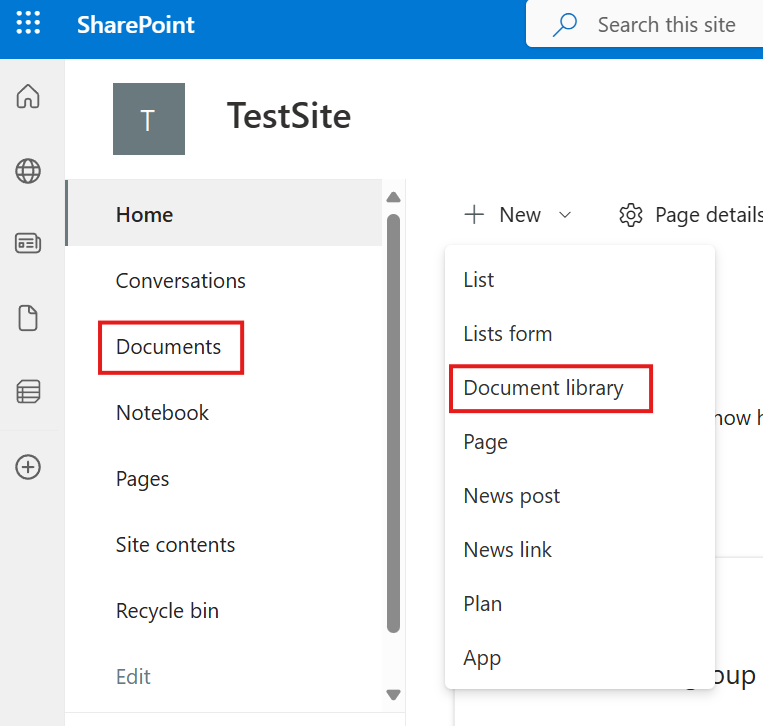
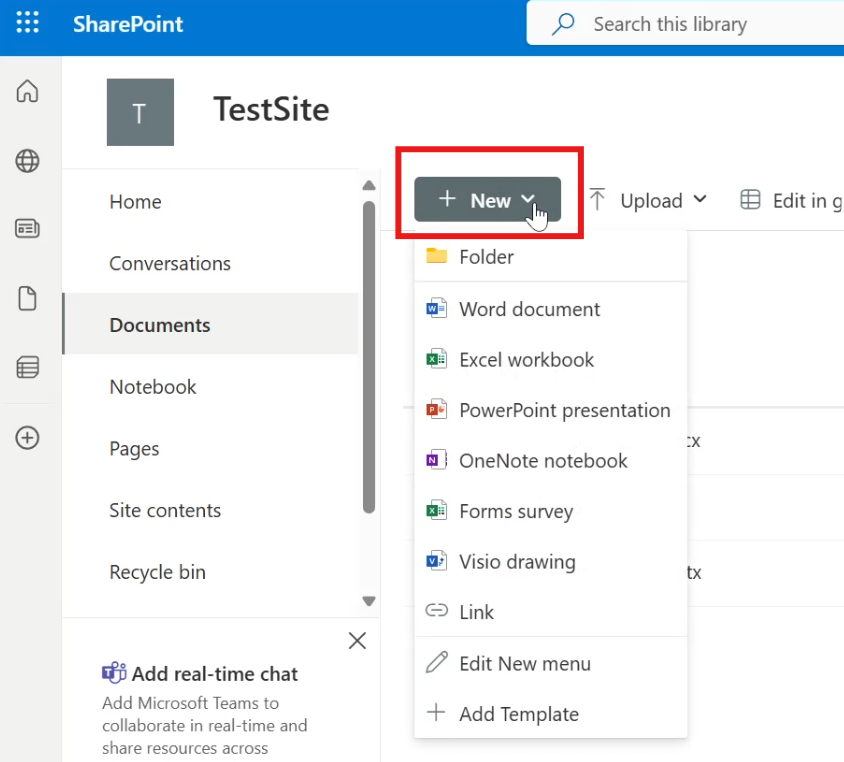
    Below are some commonly used functions with simple explanations and examples so you can start using them in your code confidently. For full reference, see the official docs: https://developer.hashicorp.com/terraform/language/functions


    trim

    What it does:
    Removes whitespace from the start and end of a string.

    Example:

    locals {
      messy = "  hello world  "
      clean = trim(local.messy)
    }
    

    Result:

    "hello world"
    

    Use this when your values might have extra spaces you don’t want.


    chomp

    What it does:
    Removes a trailing newline (end-of-line) from a string.

    Example:

    locals {
      text_with_newline = "hello\n"
      fixed_text        = chomp(local.text_with_newline)
    }
    

    Result:

    "hello"
    

    This is useful when reading output that may include newline characters.


    max

    What it does:
    Returns the largest numeric or alphabetic value from a list.

    Example (numbers):

    locals {
      numbers = [10, 32, 5, 18]
      largest = max(local.numbers...)
    }
    

    Result:

    32
    

    Example (strings):

    locals {
      words = ["apple", "banana", "grape"]
      highest = max(local.words...)
    }
    

    Result:

    "grape"
    

    Note: You need ... to expand list into separate arguments.


    lower

    What it does:
    Converts a string to all lowercase.

    Example:

    locals {
      mixed = "HELLoTerraform"
      lowercased = lower(local.mixed)
    }
    

    Result:

    "helloterraform"
    

    Great for normalizing strings when case doesn’t matter.


    reverse

    What it does:
    Reverses a list (flips order).

    Example:

    locals {
      numbers = [1, 2, 3, 4]
      backwards = reverse(local.numbers)
    }
    

    Result:

    [4, 3, 2, 1]
    

    Works only on lists, not on maps or strings.


    merge

    What it does:
    Combines two or more maps into one.

    Example:

    locals {
      tags1 = { env = "dev" }
      tags2 = { project = "blog" }
      merged_tags = merge(local.tags1, local.tags2)
    }
    

    Result:

    { env = "dev", project = "blog" }
    

    If maps have the same key, the last one wins.


    substr

    What it does:
    Returns a part of a string given a start index and length.

    Syntax:

    substr(string, start, length)
    

    Example:

    locals {
      full = "terraform"
      part = substr(local.full, 0, 4)
    }
    

    Result:

    "terr"
    

    Indices start at 0 (first character).


    replace

    What it does:
    Replaces all occurrences of a substring with another string.

    Example:

    locals {
      original = "prod-environment"
      fixed = replace(local.original, "prod", "production")
    }
    

    Result:

    "production-environment"
    

    Useful for transforming naming conventions.


    split

    What it does:
    Splits a single string into a list based on a separator.

    Syntax:

    split(separator, string)
    

    Example:

    locals {
      raw = "80,443,22"
      ports = split(",", local.raw)
    }
    

    Result:

    ["80", "443", "22"]
    

    You can then loop over this list in a dynamic block or for expression.


    When To Use These in Real Terraform

    These functions are most commonly used in:

    By combining conditions and functions, you can make your Terraform configurations more flexible, less repetitive, and more maintainable.


    Summary

    FunctionWhat It Does
    trimRemoves leading/trailing spaces
    chompRemoves trailing newline
    maxReturns the largest numeric/string value
    lowerConverts string to lowercase
    reverseReverses a list
    mergeCombines maps
    substrExtracts part of a string
    replaceReplaces substrings
    splitSplits a string into a list