Author: Alan

  • ๐Ÿ“‹ Creating Lists in SharePoint

    SharePoint Lists are like smart, collaborative tables where teams can store, track, and manage information. Think of them as an upgraded version of Excelโ€”built directly into SharePoint with powerful features like filtering, automation, and integration with Microsoft 365 tools.

    In this section, youโ€™ll learn the different ways to create a list:

    • From Excel data
    • From scratch
    • By copying an existing list
    • Using ready-made templates

    Video Explanation


    ๐Ÿš€ Why Use SharePoint Lists?

    Before jumping into the steps, hereโ€™s why lists are so useful:

    • ๐Ÿ—‚ Centralized Data โ€“ everyone works from the same source
    • ๐ŸŽ› Custom Columns โ€“ text, choice, number, date, people, and more
    • ๐Ÿค– Automation Ready โ€“ works with Power Automate & Power Apps
    • ๐Ÿ“ˆ Scalable โ€“ perfect for small trackers or large systems

    ๐Ÿงฑ Method 1 โ€“ Create a List from Excel

    If you already have data in Excel, you donโ€™t need to retype anything.

    Step-by-Step

    1. Prepare Excel Data
      • Ensure your data has proper column headers
      • Select the range
      • Use Format as Table in Excel
    2. Import to SharePoint
      • Click New โ†’ List โ†’ From Excel
      • Upload the file
      • Preview the table
    3. Configure Columns
      • Set the correct data type for each column
      • Choose which column should act as Title / Primary Key
      • Use Choice type for fields like Department or Location
    4. Create the List
      • Give it a name (e.g., Customers)
      • Click Create

    โœ… Your Excel data is now a fully functional SharePoint list!


    ๐Ÿงฑ Method 2 โ€“ Create a List from Scratch

    Perfect when starting fresh.

    Steps

    1. Go to New โ†’ List โ†’ Blank List
    2. Give your list a name
    3. By default, youโ€™ll get a Title column
    4. Add custom columns:
    • โž• Add Column โ†’ Single line of text โ†’ Name
    • โž• Add Column โ†’ Choice โ†’ Department
      • Options: Accounting, Sales, HR, etc.
    1. Add items using New Item

    ๐Ÿ’ก Tip: You can rename the Title column to something meaningful like Employee ID.


    ๐Ÿงฑ Method 3 โ€“ Create from an Existing List

    Reuse structure without rebuilding everything.

    1. Click New โ†’ List โ†’ From Existing List
    2. Choose a list to copy
    3. Give the new list a name
    4. Click Create

    ๐Ÿ‘‰ The new list will contain the same columns and settings.


    ๐Ÿงฑ Method 4 โ€“ Use SharePoint Templates

    SharePoint includes ready-made list templates like:

    • ๐Ÿž Issue Tracker
    • ๐Ÿ‘ฅ Employee Onboarding
    • ๐Ÿ“ฆ Asset Manager
    • ๐Ÿ“ Event Itinerary

    Just:

    1. Select New โ†’ List
    2. Scroll to Templates
    3. Pick one
    4. Name it โ†’ Create

    Instant professional structure! ๐ŸŽ‰


    ๐ŸŽฏ What Youโ€™ve Learned

    You can now create SharePoint lists:

    • From Excel imports
    • From scratch with custom columns
    • By copying existing lists
    • Using built-in templates

    These lists can become the backbone of tracking customers, employees, assets, projects, and more.

    โœ๏ธ Editing Lists in SharePoint

    SharePoint lists arenโ€™t just for storing dataโ€”theyโ€™re meant to be edited, updated, and customized as your team works. SharePoint gives you multiple ways to modify list items: quick single-item edits, bulk updates using grid view, and even advanced customization through content types and form layouts.

    Letโ€™s walk through the most practical ways to edit and manage your SharePoint lists.

    Video Explanation


    ๐Ÿ“ Edit a Single List Item

    This is the most common method when you need to update one record or attach supporting files.

    How to edit an item:

    1. Go to your list from Site Contents
    2. Click the item you want to update
    3. Select Edit from the top menu (or from the three dots โ‹ฏ menu)
    4. Update the fields in the form
    5. (Optional) Upload files in the Attachments section
    6. Click Save

    ๐Ÿ’ก Best for: Quick corrections, adding documents, or updating one record at a time.


    ๐Ÿ”“ Enable โ€œAllow Management of Content Typesโ€

    Sometimes you may find that certain items canโ€™t be edited. This usually happens because content type management is turned off.

    Enable it like this:

    • Open List Settings (gear icon โ†’ List Settings)
    • Go to Advanced Settings
    • Set Allow management of content types = Yes
    • Click OK

    After this:

    • A new Content Types section appears
    • You can view and edit the default โ€œItemโ€ content type
    • Add extra columns from site or list columns

    ๐Ÿ’ก Why this matters:
    It unlocks deeper control over list structure and ensures full editing flexibility.


    ๐Ÿ“Š Edit in Grid View (Excel-Style Editing)

    Need to update many rows fast? Grid view turns your list into a spreadsheet.

    Steps:

    1. Open the list
    2. Click Edit in grid view
    3. Update cells directly like Excel
    4. Click Exit grid view to save

    โšก Best for: Bulk updates, data cleanup, and fast entry.


    ๐Ÿงฉ Powerful Features in the Edit Form

    The SharePoint edit form includes more than just fields:

    • ๐Ÿ’ฌ Comments โ€“ discuss changes right on the item
    • ๐Ÿ•’ Activity Log โ€“ view history of edits
    • โœ๏ธ Edit Columns โ€“ choose which fields appear
    • ๐ŸŽจ Configure Layout โ€“ customize header/body/footer (even with JSON)
    • ๐Ÿ”— Copy Link โ€“ share a direct link to the item

    These tools help you turn a simple list into a collaborative workspace.


    ๐ŸŽฏ Key Takeaways

    • Use basic edit mode for quick updates & attachments
    • Enable content type management for advanced control
    • Use grid view for bulk, Excel-like editing
    • Customize the edit form for better user experience

    With these options, SharePoint lists become flexible tools that adapt to how your team worksโ€”not the other way around. ๐Ÿš€

    ๐Ÿงฉ Working with SharePoint List Features

    SharePoint lists are more than simple tablesโ€”theyโ€™re interactive tools designed to help you explore, organize, and collaborate on data. In this section, weโ€™ll look at some of the most useful built-in list features: sharing individual items, sorting and grouping, using the filter pane, and calculating column totals.

    These features make large datasets easier to understand and help teams work smarter together. ๐Ÿš€

    Video Explanation


    ๐Ÿ”— 1. Item Page in a SharePoint List

    Every list item has its own dedicated page where you can view details, track activity, and collaborate through comments.

    What you can do:

    • ๐Ÿ“Ž Copy Link โ€“ share a direct URL to a single item
    • ๐Ÿ’ฌ Comments & Activity โ€“ discuss updates in context
    • ๐Ÿ‘ฅ User Presence โ€“ see when others are viewing the same item

    How to share an item link:

    1. Open your list and select an item
    2. Click the three dots โ‹ฏ next to it
    3. Choose Copy Link
    4. Share the URL with teammates

    ๐Ÿ’ก Perfect for: Sending someone directly to one record instead of the whole list.


    ๐Ÿ“Š 2. Sort and Group Your Data

    Large lists can feel overwhelmingโ€”sorting and grouping help bring order.

    Benefits

    • Sorting organizes alphabetically or numerically
    • Grouping clusters similar items into collapsible sections

    Try this:

    • Click any column header
    • Choose Sort Aโ†’Z or Sort Zโ†’A
    • Select Group by to create categories
    • Use the arrows to expand or collapse groups

    ๐Ÿ‘‰ To return to normal view, open the column menu again and uncheck Group by.


    ๐ŸŽฏ 3. Use the Filter Pane

    The filter pane lets you narrow results across multiple columns at onceโ€”great for big datasets.

    Steps

    1. Click the filter icon (top right)
    2. Select values from one or more columns
    3. Click Apply
    4. Use Clear All to reset

    Example:
    Filter Office = Toronto AND Brand = Mercedes to see only matching records.

    ๐Ÿ’ก Ideal for: Finding exactly what you need in seconds.


    โž• 4. Column Totals

    Need quick calculations? SharePoint can show them directly in the list view.

    Available options

    • ๐Ÿ”ข Count โ€“ works on any column
    • โž— Sum & Average โ€“ available for numeric fields

    How to enable totals:

    • Click a column header
    • Select Totals โ†’ Count / Sum / Average
    • View results at the bottom of the list
    • Combine with Group by to see subtotals per category

    โœ… Key Takeaways

    • Copy Link to share individual records instantly
    • Sort & Group to make long lists readable
    • Filter Pane to zero in on the right data
    • Totals for quick insights without Excel

    With these features, SharePoint lists become a powerful dashboard for everyday teamworkโ€”no technical skills required! ๐Ÿ’ช

    โš™๏ธ Working with Advanced Column Types in SharePoint Lists

    SharePoint lists become truly powerful when you move beyond simple text columns. By using advanced column types, you can tag items, assign ownership, and manage dates with precisionโ€”making your data easier to organize, search, and analyze.

    Letโ€™s explore three essential column types:

    • ๐Ÿท Multi-select Choice columns for tagging
    • ๐Ÿ‘ค Person or Group columns for assigning responsibility
    • ๐Ÿ“… Date columns for accurate time-based data

    Video Explanation


    ๐Ÿท 1. Multi-Select Choice Column โ€“ Smart Tagging

    Tags help categorize records so you can filter and group them later. A Choice column with multi-select lets users assign multiple labels to the same item.

    How to create it:

    1. Open your list โ†’ Add Column โ†’ Choice
    2. Name the column (e.g., Tags)
    3. Enter options such as:
      • Loyal
      • Price Driven
      • Buy Zone
    4. Enable Allow multiple selections
    5. (Optional) Turn on Allow values to be added manually
    6. Click Save

    What users see:
    When editing an item, they can pick multiple tags from a dropdownโ€”perfect for flexible categorization.

    ๐Ÿ’ก Great for: Customer segmentation, project labels, priority flags.


    ๐Ÿ‘ค 2. Person or Group Column โ€“ Assign Ownership

    Need to assign a record to someone in your organization? The Person/Group column connects directly to your company directory.

    Steps to add:

    1. Click Add Column โ†’ Person or Group
    2. Name it (e.g., Associate)
    3. Enable Show profile photos (optional)
    4. Click Save

    How it works:

    • Users can search by name or email
    • The field pulls real profiles from Microsoft 365
    • Ideal for task ownership and accountability

    ๐Ÿ’ก Perfect for: Assigning cases, owners, reviewers, or contacts.


    ๐Ÿ“… 3. Date Column โ€“ Convert Text to Real Dates

    If dates are stored as plain text, you lose sorting, filtering, and validation. Converting to a Date and Time column unlocks powerful features.

    Convert an existing column:

    1. Click the column header
    2. Select Column Settings โ†’ Edit
    3. Change type to Date and Time
    4. Optional:
      • Enable Include Time
      • Turn on Friendly Format
    5. Click Save

    Result:
    Your dates can now be sorted chronologically, filtered by range, and used in automation.

    ๐Ÿ’ก Essential for: Birthdays, deadlines, renewals, and schedules.


    โœ… Why These Columns Make a Difference

    Column TypeBusiness Benefit
    Multi-Select ChoiceFlexible tagging & filtering
    Person/GroupClear ownership & collaboration
    DateAccurate time-based operations

    ๐ŸŽฏ Final Thoughts

    Using the right column types transforms a basic SharePoint list into a smart information hub. Youโ€™ll get:

    • Better organization
    • Faster filtering
    • Clear accountability
    • Reliable date handling

    Start upgrading your lists today and watch your data come to life! ๐Ÿš€

    ๐Ÿงฎ Working with Calculated Columns in SharePoint

    Ever wished SharePoint could do the math for you? Thatโ€™s exactly what calculated columns are for! Instead of manually entering values like age, totals, or status messages, SharePoint can generate them automatically using formulas.

    For example, if your list has a Date of Birth column, you can create an Age column that updates itselfโ€”no manual updates needed. Letโ€™s dive in!

    Video Explanation


    โœ… What Are Calculated Columns?

    A calculated column generates its value using data from other columns in the same list. Itโ€™s perfect for:

    • ๐ŸŽ‚ Calculating age from Date of Birth
    • ๐Ÿงพ Combining First Name + Last Name into Full Name
    • ๐Ÿ“Š Performing math on numeric fields
    • ๐Ÿšฆ Displaying status messages like Completed / Pending

    ๐Ÿ›  How to Create a Calculated Column

    Step 1 โ€“ Add a New Column

    1. Open your SharePoint list
    2. Click Add Column
    3. Choose See all column types โ†’ click Next

    Step 2 โ€“ Select Calculated Type

    • Name your column (e.g., Age)
    • Choose Calculated (calculation based on other columns)

    Step 3 โ€“ Enter the Formula

    To calculate age from Date of Birth:

    =DATEDIF([Date of Birth], TODAY(), "Y")
    
    • DATEDIF finds the difference between two dates
    • "Y" returns the result in years

    Step 4 โ€“ Set Return Type

    • Choose Number
    • Set Decimal Places = 0 (age should be a whole number)

    Step 5 โ€“ Save ๐ŸŽ‰

    Click OKโ€”your Age column will now calculate automatically!


    ๐Ÿ’ก Tips for Writing Formulas

    • Always use column names in square brackets โ†’ [Column Name]
    • Calculated columns work only with data inside the same list
    • You can use logic like IF statements, math, and text functions

    ๐Ÿ“Œ Useful Calculated Column Examples

    1. Create Full Name

    =[First Name] & " " & [Last Name]
    

    โžก Combines two text fields with a space.

    2. Status Based on Percentage

    =IF([Completion] >= 100, "Completed", "In Progress")
    

    3. Add Price + Tax

    =[Price] + [Tax]
    

    4. Overdue Check

    =IF([Due Date] < TODAY(), "Overdue", "On Track")
    

    5. Days Remaining

    =[Due Date] - TODAY()
    

    6. Value Category

    =IF([Amount] >= 1000, "High Value", "Standard")
    

    7. Discounted Price

    =[Price] - ([Price] * [Discount]/100)
    

    8. Show Month Name

    =TEXT([Order Date], "mmmm")
    

    9. Time-Based Greeting

    =IF(HOUR(NOW())<12,"Good Morning","Good Afternoon")
    

    ๐Ÿš€ Why Calculated Columns Are Awesome

    • โฑ Save timeโ€”no manual updates
    • ๐ŸŽฏ Reduce human error
    • ๐Ÿ“ˆ Create smarter, dynamic lists
    • ๐Ÿ” Enable better filtering & reporting

    ๐ŸŽฏ Final Thoughts

    Calculated columns turn a simple SharePoint list into a mini application. Whether youโ€™re calculating age, totals, statuses, or messagesโ€”SharePoint does the heavy lifting while you focus on insights.

    Start experimenting with formulas and make your lists work smarter, not harder! ๐Ÿ’ช

    ๐Ÿ”— Creating and Using Lookup Columns in SharePoint Lists

    Lookup columns are one of the most powerful features in SharePoint lists. They allow you to connect two lists together, so data can be reused instead of duplicated.

    For example, instead of typing the same repair shop details for every customer, you can maintain a separate Repair Shops list and simply link customers to it. Any updates to the shop details will automatically reflect in the Customers list. Smart, right? ๐Ÿ˜Ž

    Video Explanation


    โœ… Why Use Lookup Columns?

    • ๐Ÿ” Reduce Data Duplication โ€“ Enter data once, reuse everywhere
    • ๐ŸŽฏ Maintain Consistency โ€“ Updates in one list reflect in others
    • ๐Ÿงญ Better Navigation โ€“ Jump easily between related records
    • ๐Ÿ“Š Cleaner Reports โ€“ Structured relationships between lists

    1๏ธโƒฃ Create a Source List (Repair Shops)

    Before creating a lookup column, we need a list that will act as the data source.

    ๐Ÿ›  Steps

    1. Go to your SharePoint site โ†’ New โ†’ List
    2. Choose Blank List and name it Repair Shops
    3. Add these columns:
      • Shop Name โ€“ Single line of text
      • Email โ€“ Single line of text
      • City โ€“ Single line of text
    4. Rename the Title column โ†’ Shop ID (acts as unique identifier)

    โœ Add Sample Data

    Shop IDShop NameEmailCity
    101QuickFix Repairsinfo@quickfix.comToronto

    ๐ŸŽ‰ This list will now be used as the lookup source.


    2๏ธโƒฃ Create Lookup Column in Customers List

    Now weโ€™ll connect the Customers list to Repair Shops.

    ๐Ÿ›  Steps

    1. Open the Customers list
    2. Click Add Column โ†’ See all column types โ†’ Next
    3. Configure:
      • Name: Repair Shop
      • Type: Lookup
      • Get information from: Repair Shops
      • Display column: Shop Name
    4. Under Add additional columns, select:
      โœ” Shop Name
      โœ” Email
    5. Click OK

    ๐ŸŽฏ Result

    Your Customers list will now show:

    • Repair Shop (dropdown)
    • Shop Name (auto-filled)
    • Email (auto-filled)

    3๏ธโƒฃ Test the Lookup Relationship

    ๐Ÿงช Steps

    1. Edit a customer record
    2. In Repair Shop, choose a shop from dropdown
    3. Click Save

    โœ… The related Shop Name & Email appear automatically!


    ๐Ÿ”„ What Happens When Source Data Changes?

    ๐Ÿ‘‰ If you update the email in Repair Shops,
    ๐Ÿ‘‰ The change instantly reflects in Customers list!

    Also:

    • Clicking the shop name in Customers opens the Repair Shop item page
    • Users can view or edit details (based on permissions)

    ๐Ÿš€ Key Benefits Recap

    • ๐Ÿงฉ Builds real relationships between lists
    • ๐Ÿ” Single source of truth
    • โšก Real-time updates across lists
    • ๐Ÿ—‚ Cleaner, more professional data structure

    ๐Ÿ’ก Pro Tip

    Use lookup columns for:

    • Assigning vendors to orders
    • Linking employees to departments
    • Connecting projects to clients
    • Any scenario where the same data repeats!

    Lookup columns transform SharePoint from simple lists into a mini relational databaseโ€”without any coding. Start connecting your lists and make your data smarter today! ๐Ÿš€

    ๐Ÿ’ฌ Adding Comments and Tracking Version History in SharePoint Lists

    SharePoint lists arenโ€™t just for storing dataโ€”theyโ€™re built for team collaboration and accountability. Two standout features make this possible:

    • ๐Ÿ—จ Comments โ€“ discuss items directly inside the list
    • ๐Ÿ•“ Version History โ€“ track every change and restore older versions

    Letโ€™s see how these tools help keep communication clear and your data safe.

    Video Explanation


    ๐Ÿ—จ Comments in SharePoint Lists โ€” Collaborate in Context

    Comments let your team talk about a list item right where the data lives. No more hunting through emails or chats to find updates!

    ๐ŸŒŸ Why Comments Are So Useful

    • Keep discussions tied to the exact item
    • Tag teammates with @mentions
    • Build a timeline of decisions and notes
    • Perfect for customer lists, tasks, approvals, and projects

    ๐Ÿงญ How to Add a Comment

    1. Open your SharePoint list
    2. Click the item you want to discuss
    3. Select Edit to open the item form
    4. On the right side, find the Comments section
    5. Type your message
    6. Use @Name to mention a colleague
    7. Click Send

    ๐Ÿ’ก Tip: When you @mention someone, they get a notificationโ€”great for quick follow-ups!


    ๐Ÿ•“ Version History โ€” Never Lose Track of Changes

    Version History records every update made to a list item:

    • Who changed it
    • When it was changed
    • What the previous values were

    If something goes wrong, you can easily roll back to an earlier version.


    ๐ŸŽฏ Why Use Version History?

    • ๐Ÿ›ก Protect against accidental edits
    • ๐Ÿ“‹ Meet auditing/compliance needs
    • ๐Ÿ‘€ See exactly who modified what
    • โช Restore previous information in seconds

    ๐Ÿงญ How to View Version History

    1. Go to your list
    2. Click the three dots (โ€ฆ) next to an item
    3. Select Version History

    Youโ€™ll see:

    • Version number
    • Modified date/time
    • Modified by

    ๐Ÿ” What You Can Do from Here

    For any version, you can:

    • View โ€“ open details of that version
    • Restore โ€“ bring it back as the current version
    • Delete โ€“ remove that version from history

    โœ… Restoring doesnโ€™t erase newer versionsโ€”it simply creates a new โ€œlatestโ€ version based on the old one.


    โš™ Pro Tip: Enable Versioning

    Make sure version history is turned on:

    List Settings โ†’ Versioning Settings โ†’ Enable versioning

    This ensures SharePoint keeps a full timeline of edits.


    ๐Ÿš€ Key Takeaways

    • Comments keep conversations organized and visible
    • @mentions notify the right people instantly
    • Version History protects your data
    • You can always roll back mistakes

    Together, these features turn SharePoint lists into a true collaboration workspace, not just a spreadsheet replacement ๐Ÿ‘

    ๐Ÿงฉ Working with Columns and Conditional Fields in SharePoint Lists

    SharePoint lists become truly powerful when you start customizing columns and adding smart conditional logic. Instead of overwhelming users with unnecessary fields, you can show only whatโ€™s relevantโ€”keeping forms clean, accurate, and easy to use ๐Ÿ‘.

    In this section, weโ€™ll cover:

    • โž• Adding new columns to an existing list
    • โœ Filling values for current items
    • ๐ŸŽฏ Showing fields conditionally based on user selection

    Letโ€™s build this step by step!

    Video Explanation


    โž• Adding Additional Columns to a List

    As your business grows, your lists often need to capture more information. Adding new columns lets you expand without breaking existing data.

    ๐Ÿงช Example Scenario

    You have a Repair Shops list with:

    • Shop ID
    • Shop Name
    • Email
    • City

    Now you want to track:

    • Shop Type โ€“ Independent or Affiliated
    • Affiliation Name โ€“ Only for affiliated shops

    ๐Ÿงญ Steps to Add New Columns

    1. Open your SharePoint list
    2. Click + Add column
    3. Choose Choice
    4. Name it Shop Type
    5. Add choices:
      • Independent
      • Affiliated
    6. Enable: Require that this column contains information
    7. Click Save

    Now add the second column:

    1. Click + Add column
    2. Select Single line of text
    3. Name it Affiliation
    4. Click Save

    โœ… Your list now includes two new structured fields!


    โœ Adding Values to Existing Items

    After creating columns, update current rows so they follow the new structure.

    ๐Ÿงญ How to Update an Item

    1. Select a row โ†’ Click Edit
    2. For an independent shop:
      • Shop Type โ†’ Independent
      • Affiliation โ†’ NA
    3. For an affiliated shop:
      • Shop Type โ†’ Affiliated
      • Affiliation โ†’ Mega Repairs (or real partner name)
    4. Click Save

    โš  Problem:
    Even when Independent is selected, users can still type an affiliation.
    Letโ€™s fix that with conditional logic!


    ๐ŸŽฏ Applying Conditional Visibility to Columns

    We can make the form smarter:

    ๐Ÿ‘‰ Show Affiliation field ONLY when
    Shop Type = Affiliated


    ๐Ÿงญ Steps to Add a Condition

    1. Click Add new item
    2. In the form, open:
      Edit Form โ†’ Edit Columns
    3. Find Affiliation column
    4. Click โ‹ฏ โ†’ Edit conditional formula
    5. Enter a formula like:
    =if([$ShopType] == "Affiliated", true, false)
    
    1. Save all changes

    ๐Ÿงช Test the Behavior

    Shop Type SelectedAffiliation Field
    IndependentโŒ Hidden
    Affiliatedโœ… Visible

    ๐ŸŽ‰ Now your form stays clean and error-free!


    ๐Ÿš€ Why This Matters

    • โœ” Users see only relevant fields
    • โœ” Data stays consistent
    • โœ” Fewer mistakes during entry
    • โœ” Professional, guided experience

    ๐Ÿง  Quick Recap

    • Add new columns to expand your list
    • Update existing rows with structured values
    • Use conditional formulas to show/hide fields
    • Keep forms simple and intuitive

    โœ… Ensuring Proper Form Validation in SharePoint Lists

    When users enter data into a SharePoint list, thereโ€™s always a risk of missing or incorrect information. Without validation, important fields can be skippedโ€”leading to incomplete records and messy data ๐Ÿ˜ฌ.

    Thankfully, SharePoint provides built-in validation tools that let you:

    • Enforce rules across multiple fields
    • Prevent saving invalid entries
    • Show friendly error messages to guide users

    Letโ€™s walk through a real-world example:
    ๐Ÿ‘‰ If a repair shop is marked as โ€œAffiliated,โ€ the Affiliation name must be required.

    Video Explanation


    โš  What Happens Without Validation?

    Imagine your list has:

    • Shop Type โ†’ Independent / Affiliated
    • Affiliation โ†’ Name of parent company

    By default, SharePoint allows this:

    โŒ User selects Affiliated
    โŒ Leaves Affiliation blank
    โœ” The form still saves!

    This creates confusing, incomplete dataโ€”exactly what we want to avoid.


    ๐Ÿ›  Adding Row Validation in SharePoint

    Row validation lets you define rules that must be satisfied before an item can be saved.


    ๐Ÿงญ Steps to Add Validation

    1. Open your SharePoint list
    2. Click the โš™ Settings icon
    3. Select List settings
    4. Click Validation settings

    Youโ€™ll see two fields:

    • Formula โ€“ where the rule logic goes
    • User Message โ€“ what users see if validation fails

    โœ Example Validation Formula

    Rule:

    If Shop Type = โ€œAffiliatedโ€, then Affiliation must not be blank

    =IF([Shop Type]="Affiliated", NOT(ISBLANK([Affiliation])), TRUE)
    

    ๐Ÿ’ฌ User-Friendly Error Message

    In the User Message box, add something like:

    โ— โ€œAffiliation is required when Shop Type is set to Affiliated.โ€

    This helps users understand exactly what to fix ๐Ÿ‘.


    ๐Ÿงช Test the Validation

    Try these scenarios:

    Shop TypeAffiliationResult
    AffiliatedBlankโŒ Error โ€“ cannot save
    Affiliatedโ€œMega Repairsโ€โœ… Saves
    IndependentBlankโœ… Saves

    ๐ŸŽฏ Perfect! The rule only applies when needed.


    ๐ŸŽฏ Key Benefits of Validation

    • โœ” Prevents incomplete records
    • โœ” Improves data quality
    • โœ” Guides users with clear messages
    • โœ” Reduces admin cleanup work

    ๐Ÿง  Quick Recap

    • Use Validation Settings to enforce rules
    • Write formulas that depend on other fields
    • Show helpful error messages
    • Keep your lists structured and reliable

    ๐Ÿ“… Calendar View in a SharePoint List

    SharePoint lists donโ€™t have to stay as rows and columns! With Calendar View, you can transform date-based data into a visual calendar layoutโ€”making it easier to track events, deadlines, and milestones at a glance.

    Instead of scrolling through long tables, youโ€™ll see items displayed on days, weeks, or monthsโ€”just like a real calendar ๐Ÿ—“๏ธ.

    ๐Ÿ’ก Important: Calendar View only works if your list has at least one Date-type column. Without a date field, SharePoint wonโ€™t know what to plot on the calendar.

    Video Explanation


    ๐Ÿ”‘ Why Use Calendar View?

    Calendar View is perfect when your list contains time-based information. It helps you:

    • ๐Ÿ‘€ Visualize data instead of reading raw rows
    • โฑ Track deadlines, events, and schedules
    • ๐Ÿ“ˆ Spot busy days or trends quickly
    • ๐Ÿงญ Navigate items by month/week/day

    Great for scenarios like:

    • Customer sign-up dates
    • Project deadlines
    • Training schedules
    • Employee leave tracking
    • Event management

    ๐Ÿ›  How to Create a Calendar View

    Follow these simple steps to turn your list into a calendar:

    1. Open your SharePoint list
      Go to the list that contains a date column (e.g., Sign-up Date, Due Date, Event Date).
    2. Add a New View
      At the top rightโ€”just above the column headingsโ€”click โž• Add View.
    3. Name the View
      In the pop-up window, give it a name like:
      ๐Ÿ‘‰ Calendar View
    4. Select a Date Column
      Choose which date field should drive the calendar.
      Examples:
      • โœ” Sign-up Date
      • โœ” Deadline
      • โœ” Event Date
      • โŒ Date of Birth (not ideal for real tracking)
    5. Choose a Layout
      Set the default display:
      • Month โ€“ best for overall planning
      • Week โ€“ detailed short-term view
      • Day โ€“ focused daily schedule
    6. Click Create
      ๐ŸŽ‰ Your list now appears in a calendar format!

    ๐Ÿ–ผ Practical Example

    Imagine you have a Customer Sign-up Date column:

    • You can instantly see how many customers joined in a month
    • Identify peak sign-up days
    • Spot quiet periods for marketing focus

    Much more intuitive than reading dates in a table!


    ๐ŸŽฏ Best Use Cases

    ScenarioWhy Calendar View Helps
    Project deadlinesSee upcoming tasks visually
    Event planningAvoid date clashes
    Support ticketsTrack SLA dates
    Employee leaveView overlaps easily

    โœ… Key Takeaways

    • Calendar View = visual, time-based perspective
    • Requires at least one Date column
    • Great for planning and trend spotting
    • Switch anytime between table and calendar views

    ๐Ÿ”” Working with Alerts in Microsoft SharePoint

    SharePoint alerts help you stay updated without constantly checking your lists. Once configured, SharePoint automatically notifies you whenever important changes occurโ€”whether to a single item or the entire list. This is perfect for tracking updates like status changes, new entries, or edits made by team members.

    Video Explanation


    ๐Ÿ“Œ Create an Alert for a Specific List Item

    Sometimes you only need to monitor one critical record instead of the whole list. SharePoint lets you set alerts at the item level, so you get notified only when that particular item changes.

    How to create an alert:

    1. Open your SharePoint list and locate the item.
    2. Click the three dots (โ€ฆ) next to the item.
    3. Select Alert me from the menu.

    You can then configure:

    • Alert Title โ€“ a meaningful name
    • Send Alerts To โ€“ one or more email recipients
    • Trigger Conditions โ€“ e.g., Anything changes or Someone else changes the item
    • Notification Timing โ€“ immediately, daily summary, or weekly summary

    Click OK to activate the alert.


    โœ‰ What Happens After an Update

    Whenever that item is modified, SharePoint sends an email containing:

    • What was changed
    • Who made the change
    • The date and time of the update

    This keeps everyone informed without manual follow-ups.


    ๐Ÿงฐ Manage or Remove Alerts

    As your project grows, you may want to review or clean up alerts.

    To manage alerts:

    1. Open the list
    2. Click Manage my alerts from the top menu
    3. From here you can:
      • โœ Edit existing alerts
      • ๐Ÿ—‘ Delete outdated ones
      • โž• Create alerts for the entire list

    ๐Ÿ’ก Tip: List-level alerts are great when you need to track new items or bulk changes instead of one record.


    ๐ŸŽฏ Why Use Alerts?

    • Saves time by automating notifications
    • Reduces missed updates
    • Improves collaboration and accountability
    • Works for both items and whole lists

    โœ… Quick Recap

    • Alerts notify you automatically via email
    • Can be set on individual items or entire lists
    • Fully customizable with conditions and schedules
    • Easy to edit or delete anytime

    ๐Ÿ“ค Working with SharePoint Lists: Exporting and Deleting Data

    Managing SharePoint lists isnโ€™t just about adding dataโ€”youโ€™ll often need to export information for reports or clean up outdated records. SharePoint makes both tasks simple with built-in tools, no extra software required.

    In this section, weโ€™ll cover:

    • Exporting list data to Excel, CSV, or Power BI
    • Deleting individual items (with restore options)
    • Removing an entire list safely

    Video Explanation


    ๐Ÿ“ฅ Export a SharePoint List

    Need to analyze your data in Excel or build dashboards in Power BI? Exporting lets you take your SharePoint list outside the platform in seconds.

    ๐Ÿš€ Why Export?

    • Create reports and summaries
    • Share data with external teams
    • Perform advanced analysis in Excel
    • Build visual dashboards in Power BI

    โœ… Export Formats Available

    • Excel (.xlsx) โ€“ best for analysis and formulas
    • CSV โ€“ perfect for importing into other systems
    • Power BI โ€“ ideal for interactive reports

    ๐Ÿงญ Steps to Export

    1. Open your SharePoint list
    2. Click the Export dropdown at the top
    3. Choose your preferred format
    4. The file downloads instantly to your device

    ๐Ÿ’ก Tip: Export to Excel keeps column structure intact, making it easy to continue working with the data offline.


    ๐Ÿ—‘ Delete a SharePoint List Item (With Restore Option)

    Cleaning up old or incorrect records keeps your list accurate and relevant. The good news? Deleted items arenโ€™t gone foreverโ€”they go to the Recycle Bin first.

    ๐Ÿงน How to Delete an Item

    1. Select the item from the list
    2. Click Delete from the top menu
    3. Confirm the action

    The item disappears from the listโ€”but stays recoverable.

    โ™ป How to Restore a Deleted Item

    1. Open the Recycle Bin (left navigation)
    2. Find your deleted item
    3. Click Restore

    The item returns exactly to its original location ๐ŸŽ‰

    ๐Ÿ›ก Safety Net: SharePointโ€™s recycle bin protects you from accidental deletions.


    โš  Delete an Entire SharePoint List

    If a list is no longer needed, you can remove it completely.

    Steps to Delete a List

    1. Open the list
    2. Click the Settings gear icon
    3. Select List Settings
    4. Choose Delete this list
    5. Confirm the action

    โ— Important: Deleting a list removes all items inside itโ€”double-check before proceeding.


    โœ… Quick Summary

    TaskBest For
    Export to ExcelReports & calculations
    Export to CSVSystem integrations
    Export to Power BIDashboards
    Delete ItemData cleanup
    Restore ItemUndo mistakes
    Delete ListRemoving unused data
  • 3 – Understanding SharePoint Pages: A Complete Guide with Video Explanation

    Table of Contents

    1. Introduction to SharePoint Pages
    2. ๐Ÿ“„ How to Create a Wiki Page in SharePoint โ€” Step-by-Step Guide
    3. ๐Ÿ“ Embedding a Document Library into a SharePoint Page
    4. ๐Ÿ”ง Customizing an Embedded Document Library (App Part) in SharePoint Pages
    5. ๐Ÿ“„ How to Add Images and Links in a SharePoint Wiki Page
    6. ๐Ÿ”„ Viewing Page History and Embedding Content in SharePoint Pages
    7. ๐Ÿ“„ How to Create a Modern Site Page in SharePoint
    8. ๐Ÿ–Œ๏ธ How to Enhance a SharePoint Site Page with Layout Edits & an Embedded Picture Library
    9. ๐Ÿง‘โ€๐Ÿคโ€๐Ÿง‘ How to Add People to a SharePoint Site Page
    10. ๐Ÿ•’ How to Add a Countdown Timer to a SharePoint Site Page
    11. ๐Ÿงญ How to Add Navigation Elements to a SharePoint Page
    12. ๐Ÿ  How to Create and Customize a SharePoint Home Page
    13. ๐Ÿงฐ Useful Menu Items on SharePoint Site Pages
  • Introduction to SharePoint Pages

    In SharePoint, pages are the foundation of how content is presented and shared across a site. They allow you to display documents, announcements, dashboards, and project information in a structured and visually organized way. Whether youโ€™re building an internal knowledge base, a team portal, or a company intranet, pages determine how users experience and interact with your content.

    SharePoint offers several types of pages, each designed for different scenarios and levels of customization.


    Types of SharePoint Pages

    Site Pages (Modern Pages)

    These are the default and recommended page type in todayโ€™s SharePoint. Site pages are built using web parts, making it easy to add text, images, document libraries, news, and more without technical skills.

    Best features:

    Site pages are ideal for team homepages, announcements, dashboards, and general communication.


    Wiki Pages (Classic)

    Wiki pages provide more free-form editing, similar to a word processor. Users can add formatted text, tables, links, and images directly on the page without structured web parts.

    Good for:

    Although still supported, wiki pages belong to the classic SharePoint experience and are gradually being replaced by modern site pages.


    Web Part Pages (Legacy)

    Web part pages come from older versions of SharePoint and allow detailed layout control using zones and classic web parts. However, they are now considered outdated.

    Limitations:

    These pages should only be used when required for legacy systems or older integrations.


    When to Use Each Page Type


    Understanding the different SharePoint page types helps you design sites that are easy to navigate, visually appealing, and aligned with modern collaboration needs. By selecting the right page type for the right purpose, you create a better experience for everyone who uses your SharePoint site.

    ๐Ÿ“„ How to Create a Wiki Page in SharePoint โ€” Step-by-Step Guide

    Wiki pages may be part of SharePointโ€™s classic experience, but theyโ€™re still useful when you need free-form editing similar to a Word document. Theyโ€™re great for quick documentation, internal notes, or simple knowledge-base pages where structure matters less than flexibility.

    Letโ€™s walk through how to create, edit, and publish a wiki page in a clear and easy way.

    Video Explanation


    ๐Ÿ›  Step-by-Step: Creating Your Wiki Page

    โžค 1. Go to the Pages Library

    โžค 2. Create a New Page

    ๐Ÿ’ก Tip: Site Pages are the modern default, but Wiki Pages are perfect when you want a simple, document-style layout.

    โžค 3. Name Your Page

    A good name helps users find the page easily later.

    โžค 4. Add Your Content

    Youโ€™ll now see an editor that feels a lot like Microsoft Word:

    This flexibility is what makes wiki pages great for informal documentation.

    โžค 5. Save & Publish


    ๐Ÿ“‚ How to Find Your Page Later

    To reopen or edit the page:

    1. Go back to Pages in the site menu.
    2. Click the page name (for example, Expense Page).
    3. Choose Edit if you need to make updates.

    Easy and always accessible ๐Ÿ‘


    ๐Ÿ’ฌ When Should You Use a Wiki Page?

    ScenarioGood Fit?
    Quick internal documentationโœ… Yes
    Knowledge base articlesโœ… Yes
    Modern dashboardsโŒ Better with Site Pages
    Mobile-friendly layoutsโŒ Use Site Pages

    ๐Ÿ“Œ Remember: Wiki pages are classic technology. For modern, responsive designs, Site Pages are recommendedโ€”but wiki pages remain handy for simple, text-focused content.


    ๐ŸŽฏ Summary

    ๐Ÿ“ Embedding a Document Library into a SharePoint Page

    One of the smartest ways to make SharePoint easier for users is to bring the tools to the page instead of sending users around the site. By embedding a document library directly into a page, you can combine instructions, context, and file management in a single, friendly interface.

    This approach is perfect for scenarios like expense submissions, project file uploads, or team collaboration spaces.

    Video Explanation


    ๐ŸŽฏ Why Embed a Document Library?

    Adding a library to a page gives you several advantages:

    Think of it like building a mini workspace inside a page instead of just a blank information screen.


    ๐Ÿ›  Step-by-Step: Add a Library to a Page

    1๏ธโƒฃ Open the Page


    2๏ธโƒฃ Switch to Edit Mode


    3๏ธโƒฃ Choose a Layout

    This gives you:


    4๏ธโƒฃ Add Helpful Instructions

    In the header and left column, add guidance such as:

    ๐Ÿ’ฌ โ€œUpload your expense reports using the panel on the right.โ€
    ๐Ÿ’ฌ โ€œUse this file naming format: Department_Date.pdfโ€

    Clear instructions = fewer mistakes ๐Ÿ‘


    5๏ธโƒฃ Insert the Document Library (App Part)

    Now for the magic part โœจ

    1. Click inside the right column
    2. Open the Insert tab
    3. Select App Part
    4. Choose your library (e.g., Expenses)
    5. Click Add

    Your live document library now appears inside the page!


    6๏ธโƒฃ Save & Publish


    ๐Ÿš€ What Users Can Do Now

    From this single page, users can:

    ๐Ÿ‘‰ No more jumping between Pages, Site Contents, and Libraries!


    ๐Ÿ’ก Best Use Cases

    ScenarioPerfect Fit?
    Expense submissionsโœ… Yes
    Project file collectionโœ… Yes
    HR document uploadsโœ… Yes
    Simple read-only infoโŒ Use normal page

    ๐Ÿง  Final Thought

    Embedding a document library turns a simple SharePoint page into a functional workspace. It combines guidance + action in one place โ€” exactly what end users need to stay productive without confusion.

    Give it a try on your next SharePoint page and watch how much smoother your team workflows become ๐Ÿš€

    ๐Ÿ”ง Customizing an Embedded Document Library (App Part) in SharePoint Pages

    Embedding a document library inside a SharePoint page is powerfulโ€”but the real magic happens when you customize how that library appears and behaves. You can group files, hide unnecessary columns, or even turn the library into a read-only viewer so users canโ€™t upload or modify content.

    Letโ€™s walk through how to fine-tune your embedded library for a cleaner and more user-friendly experience.

    Video Explanation


    ๐ŸŽฏ What You Can Achieve

    With App Part customization, you can:


    โœ… Step 1: Create a Custom View in the Library

    The embedded library will display whatever view you choose, so start by creating one tailored for your page.

    โžค Create the View

    1. Open your Expenses document library
    2. Click the view dropdown (e.g., All Documents)
    3. Select Create new view
    4. Name it something clear like:
      ๐Ÿ‘‰ Expense Page View

    โžค Customize the View

    After creating it:

    1. Open the view dropdown again
    2. Click Edit current view

    Now configure:

    Click OK to save.

    ๐Ÿ‘€ This is exactly how the library will look when embedded in the page.


    โœ… Step 2: Apply That View to the Page

    Now connect the page to this new view.

    โžค Open the Page

    1. Go to Pages from site navigation
    2. Open your page (e.g., Expense Page)
    3. Click Edit โœ๏ธ

    โžค Configure the App Part

    1. Click once on the embedded document library
    2. A Web Part tab appears at the top
    3. Select Web Part Properties

    In the right panel:

    Optional tweaks:

    Click Apply.


    โœ… Step 3: Make It Read-Only (Optional)

    Want users to only view files โ€” not upload or edit?

    โžค Turn Off the Toolbar

    In Web Part Properties:

    1. Find Toolbar Type
    2. Select ๐Ÿ‘‰ No Toolbar

    โœจ Result:


    ๐Ÿง  Final Result

    Your page now:


    ๐Ÿš€ Why This Matters

    This setup is perfect for:

    You get the best of both worlds:
    ๐Ÿ‘‰ Guided page experience + live library functionality


    ๐ŸŽ‰ Summary

    By customizing the embedded App Part, you transform a basic page into a purpose-built workspace thatโ€™s clear, controlled, and easy for users to navigate.

    Ready to level up your SharePoint pages? This technique is a game changer ๐Ÿ’ช

    Adding images and links to a SharePoint wiki page transforms plain text into a visual, easy-to-navigate workspace. A banner image can make your page look professional, while links guide users directly to the right documents or libraries.

    Letโ€™s walk through how to do bothโ€”step by step ๐Ÿ‘‡

    Video Explanation


    ๐Ÿ–ผ๏ธ Insert an Image into a Wiki Page

    1. Open the Page

    2. Add the Image

    3. Adjust the Image

    ๐Ÿ’ก Tip: Use a wide, lightweight image for a clean banner look.


    1. Insert the Link

    2. Open in a New Tab (Recommended)


    ๐Ÿงญ Update Site Navigation

    Add the Page to Navigation

    Optional Cleanup


    ๐ŸŽฏ Result

    Your wiki page now includes:

    This structure helps users understand the page quickly and reach the right content with minimal effort ๐Ÿš€

    ๐Ÿ”„ Viewing Page History and Embedding Content in SharePoint Pages

    SharePoint pages evolve over time, and itโ€™s important to track what changes have been made and by whom. SharePoint provides a built-in Page History feature for this purpose. In addition, you can enrich your pages by embedding external content such as YouTube videos, dashboards, or other web resources using embed code.

    Video Explanation


    ๐Ÿ“– Viewing Page History

    Page History allows you to review previous versions of a page and compare edits.

    Steps to view history:

    1. Open the SharePoint page you want to review (for example, Expense Page).
    2. Click Edit at the top-right corner.
    3. From the Page tab, select Page History.

    A panel will appear listing all saved versions of the page.

    What you can do:

    This feature is extremely useful for auditing edits or restoring previous content if needed.


    ๐ŸŽฅ Embedding a YouTube Video or Other Content

    You can make your SharePoint pages more engaging by embedding content from external sources.

    How to embed a video:

    1. Open the YouTube video (or another service that provides embed code).
    2. Click Share โ†’ Embed and copy the HTML code.
    3. Return to your SharePoint page in Edit mode.
    4. Place the cursor where you want the video to appear.
    5. Go to the Insert tab and choose Embed Code.
    6. Paste the copied code and click Insert.
    7. Click Save and Publish to make the changes live.

    The video will now appear directly on your page and can be played without leaving SharePoint.


    โœ… Benefits

    Using these features together helps you:

    With Page History and embedding, SharePoint pages become powerful communication tools rather than simple static documents.

    ๐Ÿ“„ How to Create a Modern Site Page in SharePoint

    Modern Site Pages are the heart of todayโ€™s SharePoint experience. They let you create clean, visually appealing pages using drag-and-drop web partsโ€”no technical skills required. Compared to older Wiki pages, Site Pages feel more like building a modern website: responsive, flexible, and easy for everyone to use.

    In this section, youโ€™ll learn how to create a Site Page from scratch and customize it to fit your teamโ€™s needs.

    Video Explanation


    ๐Ÿงญ Step-by-Step: Create Your First Site Page

    Follow these simple steps to get started:

    1. Open the Pages library
    2. Create a new page
    3. Add a page title
    4. Customize the banner
    5. Add content sections
    6. Publish the page

    ๐Ÿš€ After You Publish

    SharePoint gives you helpful options right away:


    โœจ Why Use Modern Site Pages?

    Modern Site Pages are perfect for:

    They combine professional design + easy editing + powerful integration with the rest of Microsoft 365.

    ๐Ÿ–Œ๏ธ How to Enhance a SharePoint Site Page with Layout Edits & an Embedded Picture Library

    Modern SharePoint Site Pages are designed to look clean, visual, and professional without any technical skills. With just a few clicks, you can transform a simple page into an engaging space that combines banners, structured layouts, and live image galleries.

    In this section, youโ€™ll learn how to upgrade an existing Site Page by customizing the banner, adjusting the layout, and embedding a picture library so users can view images directly from the page.

    Video Explanation


    โœ๏ธ Step 1 โ€“ Open the Page in Edit Mode

    ๐Ÿ’ก Tip: Use the full-screen โ†— icon to hide navigation and focus only on the page while editing.


    ๐Ÿ–ผ๏ธ Step 2 โ€“ Customize the Banner

    The banner sets the mood of your page โ€” make it informative and attractive.

    You can also:

    ๐ŸŽจ A well-designed banner gives instant context to your page visitors.


    ๐Ÿงฉ Step 3 โ€“ Add a Structured Section

    To organize content neatly:

    1. Scroll below the banner
    2. Click the โž• Add section icon
    3. Choose a layout such as Two Columns

    For better balance:


    ๐Ÿ“ธ Step 4 โ€“ Embed the Picture Library

    Now letโ€™s bring images directly onto the page:

    1. Inside the column, click โž• Add web part
    2. Select Document Library
    3. Choose your Cars picture library

    โœจ Instantly, thumbnails from the library appear on the page โ€” no manual uploads required!

    This is ideal for:


    ๐Ÿš€ Step 5 โ€“ Publish the Page

    When everything looks good:


    โœ… What You Get

    After these updates, your page now includes:

    This approach turns SharePoint pages into interactive visual hubs instead of plain text screens, making content easier and more enjoyable to explore.

    ๐Ÿง‘โ€๐Ÿคโ€๐Ÿง‘ How to Add People to a SharePoint Site Page

    Adding people profiles to a SharePoint page is a great way to make your site feel more human and connected. Whether youโ€™re building a team directory, highlighting project owners, or showing key contacts, the People web part lets you display names, photos, roles, and contact details in a professional layout.

    In this section, youโ€™ll learn how to insert and customize a People section so visitors can easily recognize and reach the right person.

    Video Explanation


    โœ… Step-by-Step: Add the People Web Part

    1๏ธโƒฃ Open the Page in Edit Mode

    2๏ธโƒฃ Choose Where to Place It

    3๏ธโƒฃ Insert the People Web Part

    4๏ธโƒฃ Add Team Members

    ๐Ÿ’ก SharePoint automatically pulls profile photos and contact info from Microsoft 365.


    ๐ŸŽจ Customize the Look

    Click on the People web part and open Properties โš™๏ธ to adjust:

    Layout options:

    Optional descriptions:


    ๐Ÿš€ Publish the Changes


    ๐Ÿ‘€ What Visitors Will See

    Your page will now show:

    This is perfect for:


    ๐ŸŒŸ Why Use the People Web Part?

    ๐Ÿ•’ How to Add a Countdown Timer to a SharePoint Site Page

    A countdown timer is a simple but powerful way to grab attention on your SharePoint site. Whether youโ€™re counting down to a product launch, company event, project deadline, or registration closing date, this web part creates urgency and keeps everyone focused on what matters next.

    The best part? SharePoint includes a built-in Countdown Timer web partโ€”no coding or third-party tools needed ๐Ÿ‘.

    In this section, youโ€™ll learn how to add, customize, and publish a live countdown timer on any modern SharePoint page.

    Video Explanation


    ๐Ÿ”ง Step-by-Step: Add the Countdown Timer

    1๏ธโƒฃ Open the Page in Edit Mode


    2๏ธโƒฃ Add a New Section


    3๏ธโƒฃ Insert the Countdown Web Part


    โš™๏ธ Customize Your Timer

    Click on the timer and open Properties โš™๏ธ on the right to configure:

    ๐ŸŽฏ Set the Basics

    โฑ Choose What to Display

    Select which units to show:

    You can keep it simple (days + hours) or ultra-precise with seconds ticking away!


    ๐Ÿ”— Add a Call to Action (Optional)

    Want users to take action before time runs out?


    ๐Ÿ–ผ Make It Visually Engaging

    Give your timer more impact with a background:

    This helps the timer stand out instead of looking like plain text.


    ๐Ÿš€ Publish the Page


    ๐ŸŽ‰ What You Get

    Your SharePoint page will now feature:


    ๐Ÿ’ก Great Use Cases

    ๐Ÿงญ How to Add Navigation Elements to a SharePoint Page

    Adding navigation elements like Call to Action (CTA) blocks and buttons makes your SharePoint pages easier to use and more interactive. Instead of forcing users to hunt through menus, you can guide them directly to key areas such as the Home page, Expense page, or any important resource.

    These elements act like signposts on your siteโ€”helping visitors move smoothly from one section to another.

    Video Explanation


    ๐Ÿš€ Why Add Navigation Elements?

    Using CTAs and buttons on your pages helps to:


    ๐Ÿ”ง Step-by-Step: Add Navigation Elements

    1๏ธโƒฃ Open the Page in Edit Mode

    2๏ธโƒฃ Add a New Section

    3๏ธโƒฃ Insert a Call to Action (CTA)

    Then configure it in the properties panel:

    4๏ธโƒฃ Add a Navigation Button

    5๏ธโƒฃ Publish and Test


    ๐Ÿ’ก Tips for Better Navigation


    ๐ŸŽฏ What You Achieve

    With these additions your page will:

    A few well-placed navigation elements can transform a basic SharePoint page into a user-friendly hub ๐Ÿ‘.

    ๐Ÿ  How to Create and Customize a SharePoint Home Page

    Your SharePoint Home Page is the front door to your site. Itโ€™s where users land first, so it should be informative, organized, and easy to navigate. With modern SharePoint, you can build a custom homepage using web parts like News, Calendar, Quick Links, and Activity โ€” all without any coding.

    In this section, youโ€™ll learn how to design a professional homepage from scratch and set it as the default landing page for your site.

    Video Explanation


    โœจ What Makes a Good SharePoint Home Page?

    A well-designed homepage should:

    Letโ€™s build one step by step ๐Ÿ‘‡


    ๐Ÿ›  Step-by-Step: Build Your Custom Home Page

    1๏ธโƒฃ Create a New Site Page

    2๏ธโƒฃ Customize the Banner


    ๐Ÿงฉ Add Useful Web Parts

    3๏ธโƒฃ Add News & Calendar Section

    In the left column:

    In the right column:

    ๐Ÿ‘‰ This gives users a quick snapshot of whatโ€™s happening.


    4๏ธโƒฃ Add Quick Navigation Cards

    Add another section with One Column layout and insert:

    For each CTA you can configure:

    These act like visual shortcuts across your site.


    5๏ธโƒฃ Add Site Activity Feed

    At the bottom of the page:

    This shows:

    Great for keeping the homepage โ€œaliveโ€ ๐Ÿ”„


    ๐Ÿš€ Publish & Set as Home Page

    When youโ€™re happy with the design:

    1. Click Publish
    2. Go back to the Pages library
    3. Find your new page
    4. Click the three dots (โ€ฆ) โ†’ select Make homepage

    โœ… Now this page becomes the default landing page when users click the Home icon.


    ๐ŸŽฏ Final Result

    Your custom homepage now includes:

    This transforms SharePoint from just a file storage space into a real digital workplace hub.

    ๐Ÿงฐ Useful Menu Items on SharePoint Site Pages

    SharePoint Site Pages include several built-in tools that help you understand page performance, promote content, and manage page detailsโ€”all from the top menu. These features make it easy to turn a simple page into a well-managed, high-impact resource.

    Letโ€™s explore the three most useful options ๐Ÿ‘‡

    Video Explanation


    ๐Ÿ“Š 1. Page Analytics โ€” Understand Your Audience

    The Analytics option gives you valuable insights into how users interact with your page.

    When you click Analytics, you can see:

    ๐Ÿ’ก Great for:
    Checking whether important pages are actually being used and identifying the best time to post updates.


    ๐Ÿ“ฃ 2. Promote โ€” Share Your Page with the Team

    The Promote button helps you surface your page in different places without extra effort.

    From the promote panel you can:

    ๐Ÿ’ก Great for:
    Turning a normal page into a highlighted announcement or reusable template.


    ๐Ÿ—‚ 3. Page Details โ€” Manage Metadata

    The Page Details option opens a side panel with important information about the page.

    Here you can:

    ๐Ÿ’ก Great for:
    Keeping pages structured and searchable across your SharePoint site.


    ๐ŸŽฏ Why These Tools Matter

    Using these menu features helps you:

    With just a few clicks, you can manage your SharePoint pages like a pro ๐Ÿ‘.

  • 11 – Azure SQL Database Server Terraform Mini Project โ€” Step-by-Step Guide

    In this hands-on tutorial, we will build a complete Azure SQL Server + SQL Database using Terraform, then securely connect to it from our local machine and run real SQL commands โ€” without installing SSMS or Azure Data Studio.

    This mini project is perfect if you are learning:

    • Terraform Infrastructure as Code
    • Azure SQL PaaS services
    • Networking security with firewall rules
    • Database connectivity using Azure CLI and sqlcmd

    Letโ€™s build everything step by step.

    Table of Contents

    1. What We Will Build
    2. Step 1 โ€“ Create Resource Group, SQL Server and Database
    3. Step 2 โ€“ Add Firewall Rule to Allow Local PC
    4. Step 3 โ€“ Test SQL Using CLI (No GUI Needed)
    5. Step 4 โ€“ Connect to Database Using sqlcmd
    6. Step 5 โ€“ Create Table and Insert Data
    7. What We Learned

    What We Will Build

    By the end of this demo, we will have:

    • An Azure Resource Group
    • Azure SQL Server
    • Azure SQL Database
    • Firewall rule to allow our PC to connect
    • Real database table with data
    • Full connectivity test using CLI

    Step 1 โ€“ Create Resource Group, SQL Server and Database

    First we define the core infrastructure using Terraform.

    Resource Group โ€” rg.tf

    resource "azurerm_resource_group" "rg" {
      name     = "rgminipro98989"
      location = "Central US"
    }
    

    The resource group is a logical container that will hold our SQL server and database.


    SQL Server โ€” sqlserver.tf

    resource "azurerm_mssql_server" "sql_server" {
      name                         = "sqlserverminipro876811"
      resource_group_name          = azurerm_resource_group.rg.name
      location                     = azurerm_resource_group.rg.location
      version                      = "12.0"
      administrator_login          = "sqladmin"
      administrator_login_password = "StrongPassword@123"
    }
    

    This creates:

    • Azure SQL logical server
    • Admin user and password
    • Hosted in Central US

    In real projects, never hardcode passwords โ€” use Azure Key Vault or Terraform variables.


    SQL Database โ€” sqldb.tf

    resource "azurerm_mssql_database" "sqldb" {
      name      = "sqldbminipro81829"
      server_id = azurerm_mssql_server.sql_server.id
    }
    

    This database is created inside the SQL server defined earlier.


    Deploy Infrastructure

    Run:

    terraform init
    terraform apply
    

    After apply completes:

    • Open Azure Portal
    • Navigate to your resource group
    • Verify SQL Server and Database exist

    Step 2 โ€“ Add Firewall Rule to Allow Local PC

    By default, Azure SQL blocks all external connections.
    We must allow our own IP address.

    Firewall Rule โ€” firewallrule.tf

    resource "azurerm_mssql_firewall_rule" "firewall_rule" {
      name             = "sqlfirewallruleminipro909122"
      server_id        = azurerm_mssql_server.sql_server.id
      start_ip_address = ""
      end_ip_address   = ""
    }
    

    ๐Ÿ‘‰ Replace the empty IP values with your public IP.

    You can find your IP from:

    https://whatismyipaddress.com

    Example:

    start_ip_address = "203.0.113.10"
    end_ip_address   = "203.0.113.10"
    

    Apply again:

    terraform apply
    

    Step 3 โ€“ Test SQL Using CLI (No GUI Needed)

    We will connect using:

    • Azure CLI
    • sqlcmd tool

    List SQL Servers

    az sql server list -o table
    

    List Databases in Our Server

    az sql db list --server sqlserverminipro876811 --resource-group rgminipro98989 -o table
    

    Check Firewall Rules

    az sql server firewall-rule list --server sqlserverminipro876811 --resource-group rgminipro98989 -o table
    

    Step 4 โ€“ Connect to Database Using sqlcmd

    No SSMS required!

    Connect

    sqlcmd -S sqlserverminipro876811.database.windows.net -U sqladmin -P "StrongPassword@123" -d sqldbminipro81829
    

    IMPORTANT:
    Use full DNS name โ†’
    sqlserverminipro876811.database.windows.net


    Verify Databases

    SELECT name FROM sys.databases;
    GO
    

    Every SQL command must end with:

    GO
    

    Step 5 โ€“ Create Table and Insert Data

    Create Table

    CREATE TABLE employees(
      id INT PRIMARY KEY,
      name VARCHAR(50),
      tech VARCHAR(30)
    );
    GO
    

    Insert Sample Data

    INSERT INTO employees VALUES
    (1, 'Alice', 'Terraform'),
    (2, 'Bob', 'Azure'),
    (3, 'Charlie', 'SQL');
    GO
    

    Query Data

    SELECT * FROM employees;
    GO
    

    ๐ŸŽ‰ You should see real output from Azure SQL Database!


    What We Learned

    In this mini project you successfully:

    • Provisioned Azure SQL using Terraform
    • Understood logical SQL server vs database
    • Configured network security via firewall
    • Connected securely from local PC
    • Executed real SQL queries using CLI

    This is exactly how cloud engineers deploy database environments in real projects โ€” automated, repeatable, and infrastructure as code.

  • 10 – Azure Policy and Governance โ€“ Terraform Mini Project

    Table of Contents

    1. Step 1 โ€“ Create Resource Group and Base Terraform Setup
    2. Step 2 โ€“ Create Mandatory Tag Policy
    3. Step 3 โ€“ Create Allowed VM Size Policy
    4. Step 4 โ€“ Create Allowed Location Policy
    5. Final Outcome of This Mini Project

    In this mini project, we implement Azure governance using Terraform. The goal is to enforce organizational standards at the subscription level using Azure Policyโ€”so that resources follow rules for:

    • Mandatory tags
    • Allowed VM sizes
    • Allowed deployment locations

    Everything is automated using Terraform infrastructure as code.


    Step 1 โ€“ Create Resource Group and Base Terraform Setup

    We start by creating:

    • A resource group
    • Variables for locations, VM sizes, and allowed tags
    • Output to display current subscription ID

    Resource Group โ€“ rg.tf

    resource "azurerm_resource_group" "rg" {
      name     = "rgminipro7878"
      location = "Central US"
    }
    

    Read Current Subscription โ€“ main.tf

    data "azurerm_subscription" "subscriptioncurrent" {}
    

    Output Subscription ID โ€“ output.tf

    output "subscription_id" {
      value = data.azurerm_subscription.subscriptioncurrent.id
    }
    

    Variables โ€“ variables.tf

    variable "location" {
      type    = list(string)
      default = ["eastus", "westus"]
    }
    
    variable "vm_sizes" {
      type    = list(string)
      default = ["Standard_B2s", "Standard_B2ms"]
    }
    
    variable "allowed_tags" {
      type    = list(string)
      default = ["department", "project"]
    }
    

    After running:

    terraform apply
    

    โœ” Resource group was created
    โœ” Subscription ID output was verified


    Step 2 โ€“ Create Mandatory Tag Policy

    Next, we enforce that every resource must contain two tags:

    • department
    • project

    If either tag is missing โ†’ resource creation is denied.

    Policy Definition โ€“ policy1.tf

    resource "azurerm_policy_definition" "tagpolicy" {
    
      name         = "allowed-tag"
      policy_type  = "Custom"
      mode         = "All"
      display_name = "Allowed tags policy"
    
      policy_rule = jsonencode({
        if = {
          anyOf = [
            {
              field  = "tags[${var.allowed_tags[0]}]"
              exists = false
            },
            {
              field  = "tags[${var.allowed_tags[1]}]"
              exists = false
            }
          ]
        }
    
        then = {
          effect = "deny"
        }
      })
    }
    

    Assign Policy to Subscription

    resource "azurerm_subscription_policy_assignment" "tag_assign" {
    
      name = "tag-assignment"
    
      policy_definition_id = azurerm_policy_definition.tagpolicy.id
    
      subscription_id = data.azurerm_subscription.subscriptioncurrent.id
    }
    

    โš  Important
    To create and assign policies, your account must have:
    Resource Policy Contributor role.

    Testing the Policy โ€“ testrg.tf

    resource "azurerm_resource_group" "bad" {
      name     = "bad-rg"
      location = "Central US"
    
      tags = {
        department = "IT"
        project    = "Demo"
      }
    }
    

    โœ” Without tags โ†’ RG creation blocked
    โœ” With tags โ†’ RG creation allowed


    Step 3 โ€“ Create Allowed VM Size Policy

    Now we restrict which VM sizes can be used.

    Allowed sizes:

    • Standard_B2s
    • Standard_B2ms

    Policy Definition โ€“ policy2.tf

    resource "azurerm_policy_definition" "vm_size" {
    
      name         = "vm-size"
      policy_type  = "Custom"
      mode         = "All"
      display_name = "Allowed vm policy"
    
      policy_rule = jsonencode({
        if = {
          field = "Microsoft.Compute/virtualMachines/sku.name"
    
          notIn = [
            var.vm_sizes[0],
            var.vm_sizes[1]
          ]
        }
    
        then = {
          effect = "deny"
        }
      })
    }
    

    Assign VM Size Policy

    resource "azurerm_subscription_policy_assignment" "vm_assign" {
    
      name = "size-assignment"
    
      policy_definition_id = azurerm_policy_definition.vm_size.id
    
      subscription_id = data.azurerm_subscription.subscriptioncurrent.id
    }
    

    โœ” Any VM outside allowed list โ†’ blocked
    โœ” Governance enforced at subscription level


    Step 4 โ€“ Create Allowed Location Policy

    Finally, we restrict deployments only to:

    • eastus
    • westus

    Policy Definition โ€“ policy3.tf

    resource "azurerm_policy_definition" "location" {
    
      name         = "location"
      policy_type  = "Custom"
      mode         = "All"
      display_name = "Allowed location policy"
    
      policy_rule = jsonencode({
        if = {
          field = "location"
    
          notIn = [
            var.location[0],
            var.location[1]
          ]
        }
    
        then = {
          effect = "deny"
        }
      })
    }
    

    Assign Location Policy

    resource "azurerm_subscription_policy_assignment" "loc_assign" {
    
      name = "location-assignment"
    
      policy_definition_id = azurerm_policy_definition.location.id
    
      subscription_id = data.azurerm_subscription.subscriptioncurrent.id
    }
    

    โœ” Resources in other regions โ†’ denied
    โœ” Standardized deployment geography


    Final Outcome of This Mini Project

    Using Terraform + Azure Policy we achieved:

    โœ” Mandatory tagging for all resources
    โœ” Standard VM sizes enforced
    โœ” Controlled allowed regions
    โœ” Governance at subscription level
    โœ” Fully automated with IaC

    This approach is ideal for:

    • Enterprise governance
    • Cost control
    • Security compliance
    • Standardization across teams
  • 4 – Application Gateway In Detail

    Table of Contents

    1. ๐ŸŽฏ What Youโ€™ll Learn
    2. STEP 1 : ๐Ÿ–ฅ๏ธ Creating Two Ubuntu Web Servers
    3. STEP 2:๐Ÿšฆ Implement URL Routing Using Application Gateway
    4. ๐Ÿ›ก๏ธ Web Application Firewall (WAF)
  • ๐ŸŽฏ What Youโ€™ll Learn

    In this blog, we dive deeper into Azure Application Gateway and explore how it can be used as a smart and secure entry point for multiple web applications. By the end of this guide, you will understand how to design real-world traffic routing and protect your applications from common web attacks.

    Hereโ€™s what we will be doing:

    By the end of this blog, you will have a clear, hands-on understanding of how Application Gateway can:

    โœ… Route traffic intelligently
    โœ… Secure multiple apps with one public IP
    โœ… Protect web applications using enterprise-grade WAF

    Letโ€™s get started ๐Ÿš€

    STEP 1 : ๐Ÿ–ฅ๏ธ Creating Two Ubuntu Web Servers

    To demonstrate URL-based routing with Application Gateway, we first need two separate web servers. Each server will handle a different type of content, and later the gateway will decide where to send traffic based on the request URL.

    ๐ŸŽฏ Goal of This Setup

    ๐Ÿ’ก We do NOT attach NSG directly to each VM.
    Instead, we attach a single NSG to the subnet for centralized control.


    ๐Ÿ” Network & NSG Configuration

    While creating the VMs:

    Modify NSG Rules

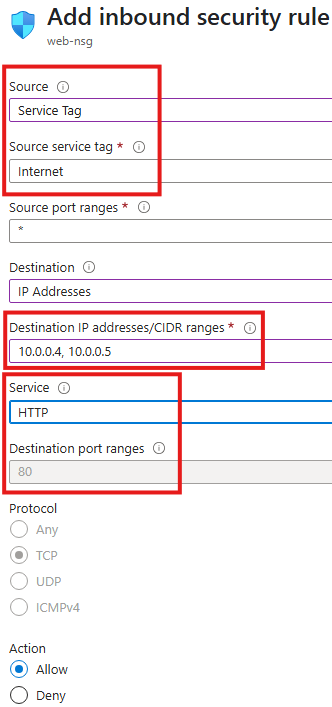
    We need two inbound rules:

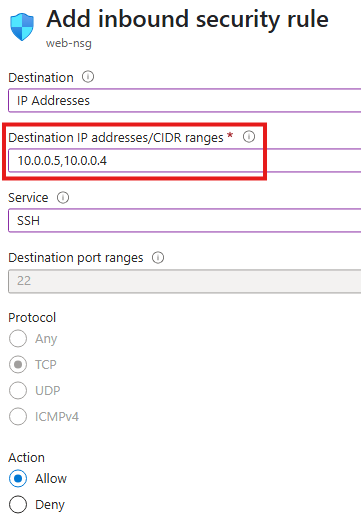
    1๏ธโƒฃ Allow SSH to the VMs

    2๏ธโƒฃ Allow HTTP Traffic

    Since these VMs will act as web servers:

    This allows users to browse the pages hosted on the servers.


    ๐Ÿงฐ Install Nginx on Both VMs

    Now we turn both Ubuntu machines into web servers.

    SSH into each VM and run:

    sudo apt update
    sudo apt install nginx
    

    After installation, Nginx starts serving files from:

    /var/www/html
    

    ๐ŸŽฌ Configure First VM โ€“ Video Web Server

    On VM 1, we create content for videos:

    cd /var/www/html
    sudo chmod 777 /var/www/html
    mkdir videos
    cd videos
    echo "Videos for you" > Default.html
    

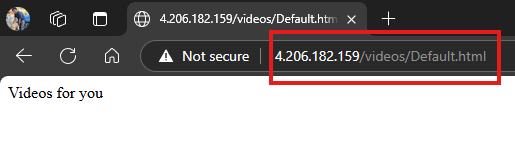
    Now this server responds to:

    ๐Ÿ‘‰ http://<VM1-Public-IP>/videos/Default.html

    and shows:

    Videos for you


    ๐Ÿ–ผ๏ธ Configure Second VM โ€“ Image Web Server

    On VM 2, repeat the same steps but for images:

    cd /var/www/html
    sudo chmod 777 /var/www/html
    mkdir images
    cd images
    echo "Images for you" > Default.html
    

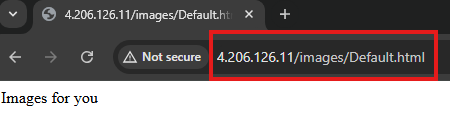
    This server is available at:

    ๐Ÿ‘‰ http://<VM2-Public-IP>/images/Default.html

    and displays:

    Images for you


    โœ… What We Have Achieved So Far

    At this stage:

    โœ” Two independent Ubuntu web servers are running
    โœ” Both are in the same subnet
    โœ” NSG allows SSH and HTTP access
    โœ” Each server serves different content
    โœ” We can browse them directly using their IPs

    But users currently need to remember two different IP addresses โŒ

    In the next step, we will:

    Use Application Gateway to provide a single entry point and route traffic automatically based on URL ๐Ÿšฆ

    STEP 2:๐Ÿšฆ Implement URL Routing Using Application Gateway

    Now that we have two web servers readyโ€”one for videos and one for imagesโ€”itโ€™s time to place Application Gateway in front of them.
    The goal is simple:

    Users will access a single public IP, and the gateway will decide which VM should handle the request based on the URL.


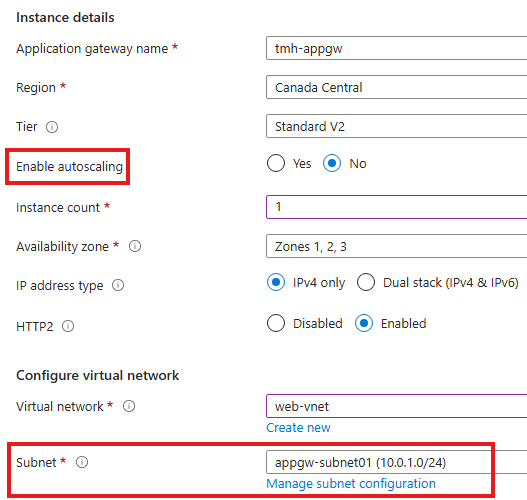
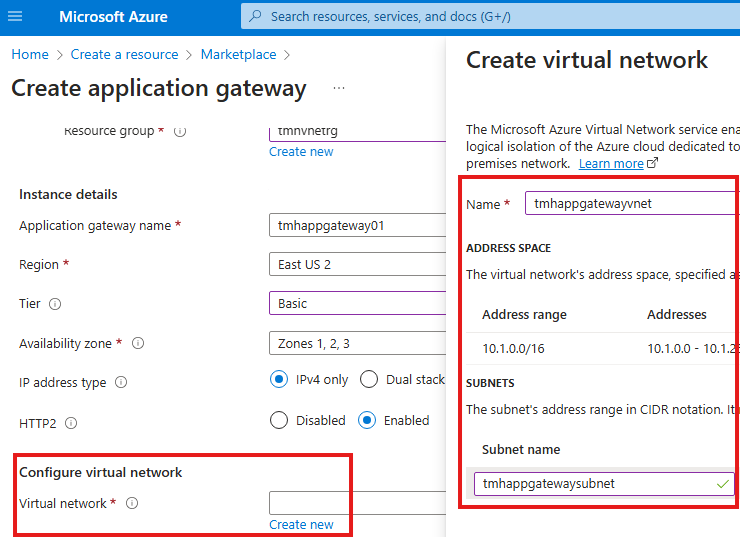
    ๐Ÿงฑ Prerequisite โ€“ Empty Subnet for Application Gateway

    Application Gateway must be deployed in its own dedicated subnet.
    It cannot share a subnet with VMs or other resources.

    So first ensure:

    โœ” A separate subnet exists (e.g., appgw-subnet01)
    โœ” No VMs or other services are inside this subnet


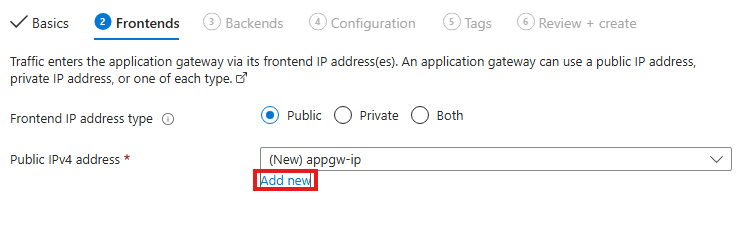
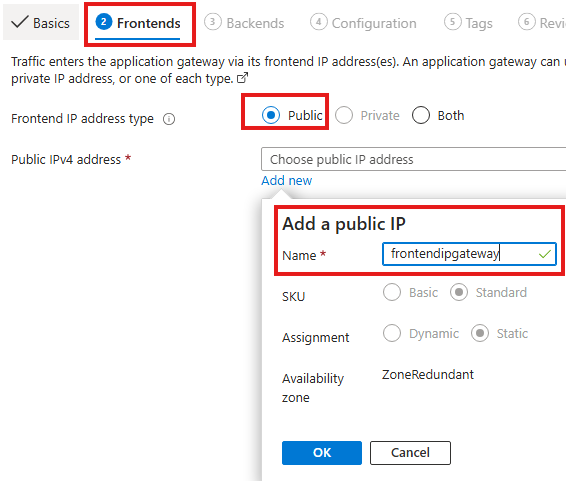
    ๐ŸŒ Create Frontend IP

    While creating the Application Gateway:

    1. Add a new Public IP address
    2. This IP becomes the single entry point for all users

    ๐Ÿ’ก After this setup, users will no longer connect directly to the web serversโ€”only to this frontend IP.


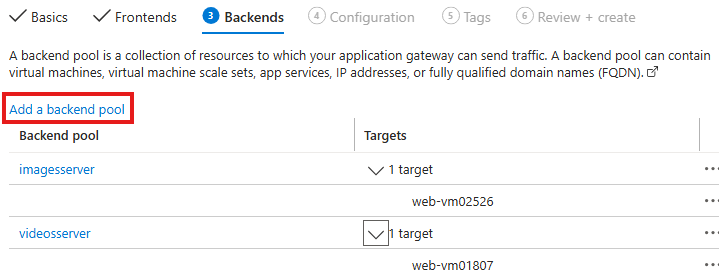
    ๐Ÿงฉ Create Backend Pools

    We need two backend pools, one for each server:

    Each pool contains the private IP of the corresponding Ubuntu VM.


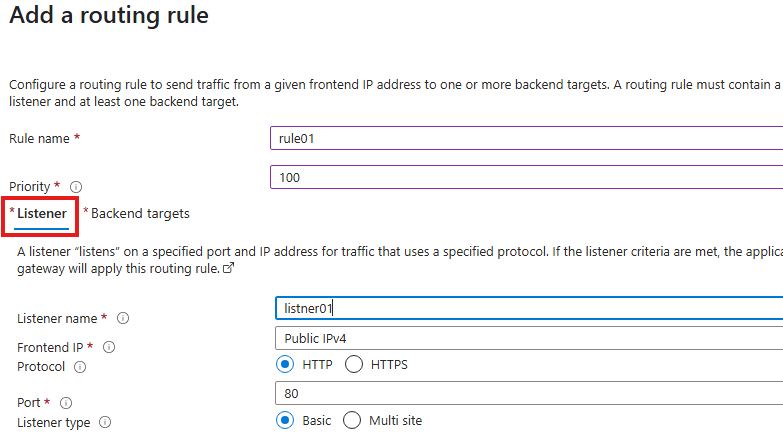
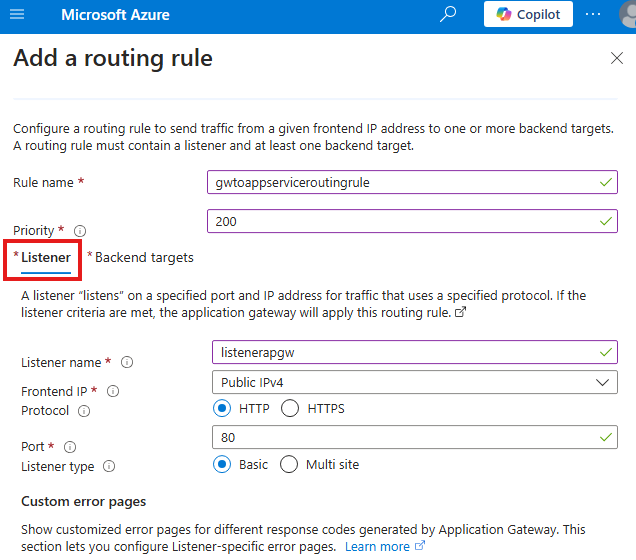
    ๐ŸŽง Configure Listener

    The Listener decides when routing rules should be applied.

    We create a listener with:

    ๐Ÿ“Œ Listener = โ€œWait for requests on this IP and port before applying any routing logic.โ€


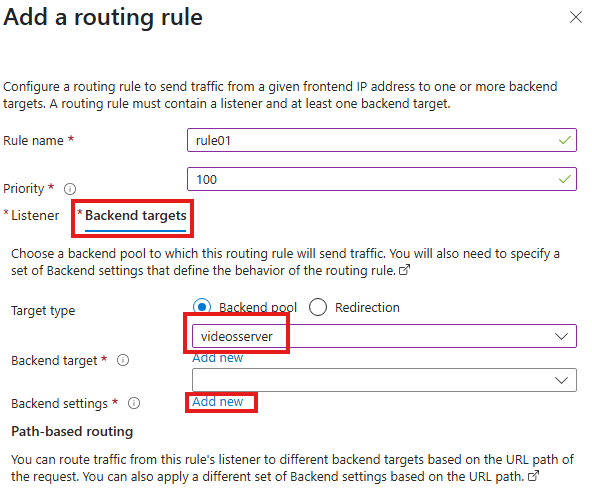
    ๐ŸŽฏ Configure Backend Targets

    Next we connect the listener to a backend pool:

    1. Select a backend pool (e.g., videoserver)
    2. Create Backend Settings

    Backend settings define how the gateway communicates with the servers.


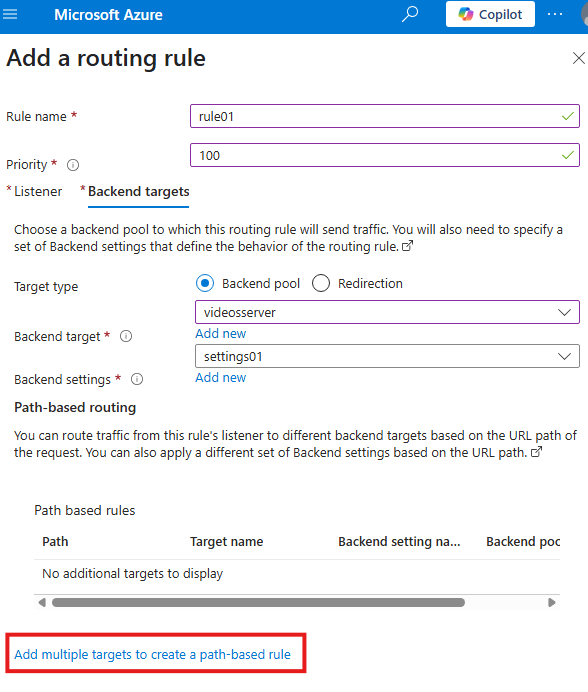
    ๐Ÿ”€ Add Path-Based Routing Rules

    This is the heart of the demo ๐Ÿ”ฅ.

    We click:

    ๐Ÿ‘‰ Add multiple targets to create a path-based rule

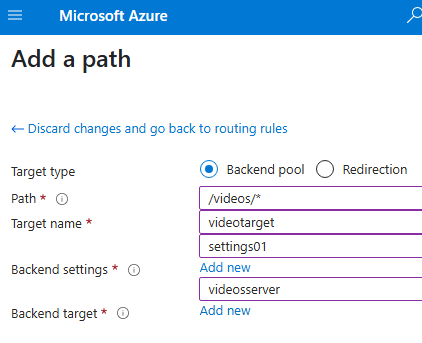
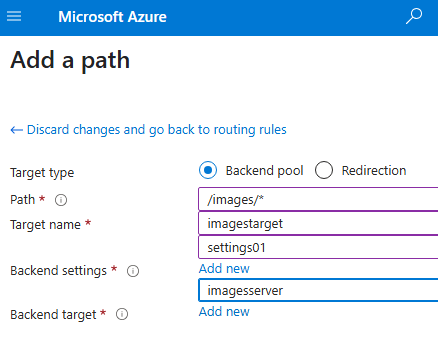
    Then create two paths:

    Rule 1 โ€“ Videos

    Rule 2 โ€“ Images

    ๐Ÿง  Now the gateway can read the URL and decide where to send the request.


    ๐Ÿงช Test the Setup

    Access the Application Gateway public IP:

    ๐Ÿ‘‰ http://<appgw-ip>/videos/Default.html
    โžก Shows โ€œVideos for youโ€

    ๐Ÿ‘‰ http://<appgw-ip>/images/Default.html
    โžก Shows โ€œImages for youโ€

    ๐ŸŽ‰ URL-based routing is working!


    ๐Ÿ” Final Architecture Result

    โœ” Only Application Gateway needs a public IP
    โœ” Web servers can stay private
    โœ” Users access one endpoint
    โœ” Traffic is routed intelligently by URL

    URLDestination
    /videosVideo VM
    /imagesImage VM

    ๐Ÿ’ก What We Achieved

    In the next section, we will:

    Enable Web Application Firewall (WAF) to protect these applications from real attacks ๐Ÿ›ก๏ธ.

    ๐Ÿ›ก๏ธ Web Application Firewall (WAF)

    So far, we have used Application Gateway for routing traffic intelligently.
    Now we add the most important layer โ€” Web Application Firewall (WAF).

    ๐Ÿ’ก WAF is enabled and managed directly from the Application Gateway resource, not from the backend VMs or App Service.

    WAF protects web applications from common and dangerous attacks such as:

    Instead of exposing our web servers directly to the internet, WAF acts like a smart shield in front of them.


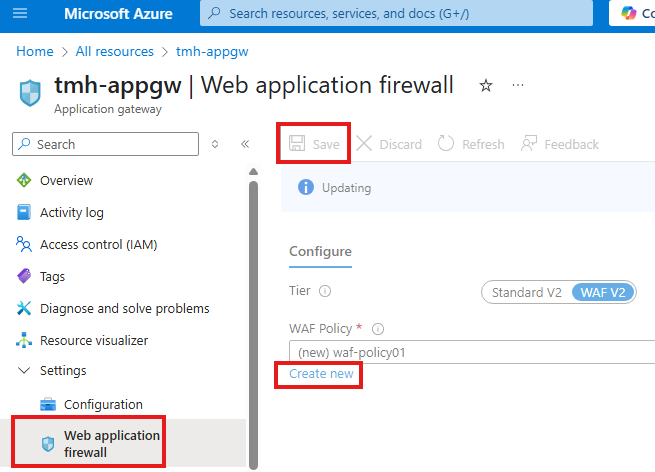
    ๐Ÿ†• Creating a WAF Policy

    To enable WAF on the Application Gateway:

    1. Open the Application Gateway resource
    2. Go to the Web Application Firewall blade
    3. Click Create new to create a WAF policy

    This policy will be attached to the gateway and will inspect all incoming requests.


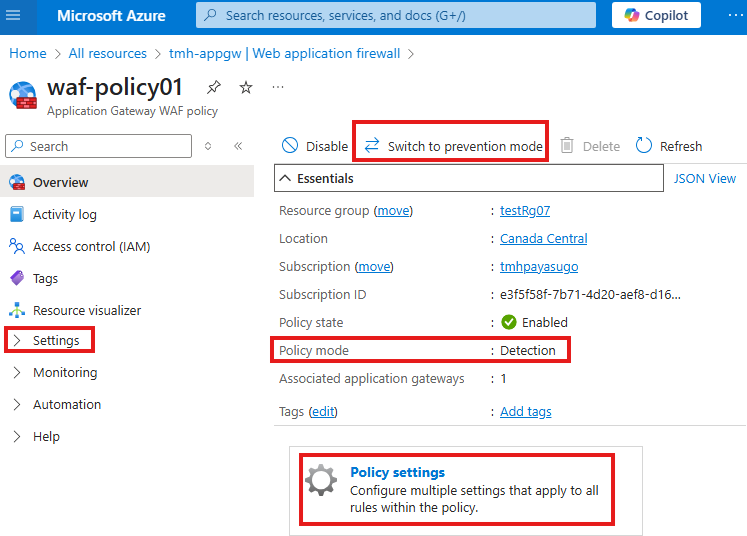
    ๐Ÿ” Detection Mode vs Prevention Mode

    After the policy is created, its default mode is:

    ๐Ÿ‘‰ Detection Mode

    You can switch to:

    ๐Ÿ‘‰ Prevention Mode

    ๐Ÿ’ก Best Practice
    Start with Detection, monitor logs, then move to Prevention.


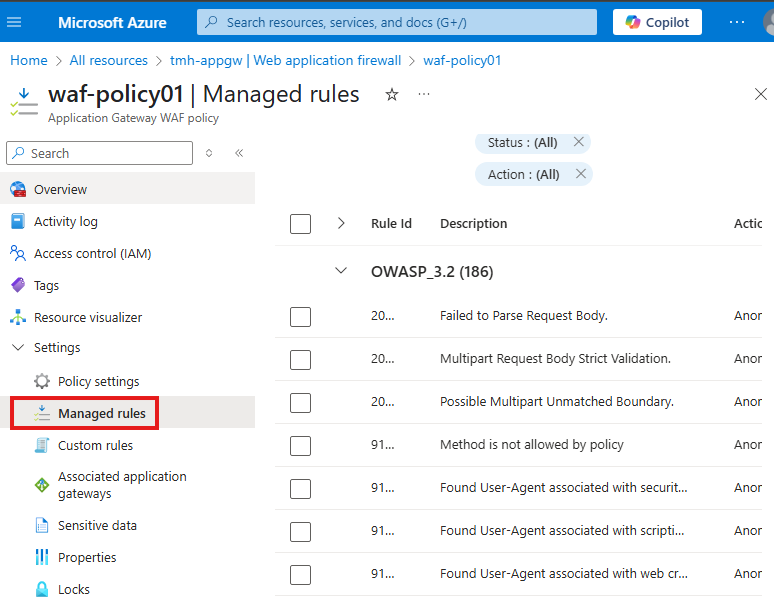
    ๐Ÿ“ฆ Managed Rules

    Inside the WAF policy:

    1. Go to Policy settings โ†’ Managed rules

    Here you will see a large set of built-in rules provided by Microsoft (based on OWASP standards).

    These rules automatically detect:

    โœ… No need to write complex security logic โ€” WAF handles it for you.


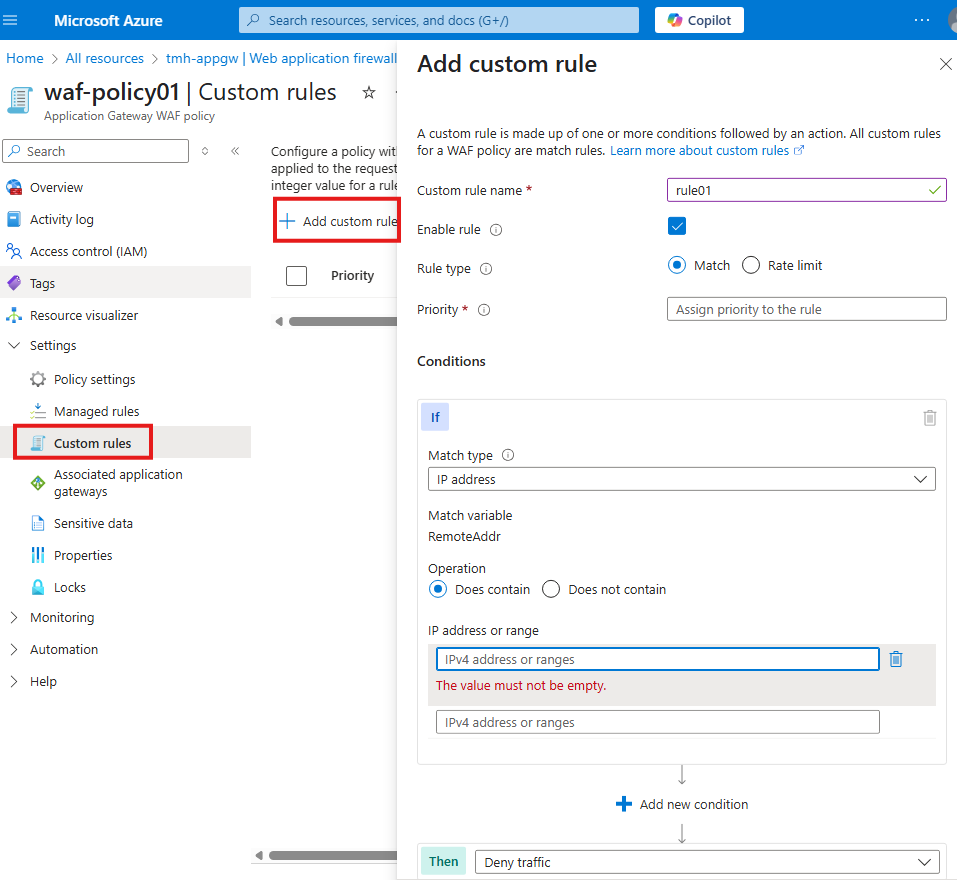
    โœ Adding Custom Rules

    Apart from managed rules, we can create our own logic.

    From the Custom rules blade:

    1. Click + Add custom rule
    2. Define conditions such as:

    Example:

    Block traffic if request comes from a specific IP range โ†’ Deny traffic

    This gives full control over application security.


    ๐Ÿง  What We Achieved

    By enabling WAF:

    โœ” Application Gateway inspects every request
    โœ” Common attacks are detected and blocked
    โœ” Security is centralized
    โœ” Backend VMs stay protected


    ๐Ÿ Final Architecture

    User โ†’ Internet
    โžก Application Gateway + WAF
    โžก URL Routing
    โžก Video / Image Web Servers

    Our web apps are now not just reachable โ€” they are secure and enterprise-ready ๐Ÿ”.

  • ๐Ÿ” 3- Security For Web App Hosted in App Service

    Table of Contents

    1. ๐ŸŽฏ What Youโ€™ll Learn in This Blog
    2. ๐Ÿง  Core Security Concepts
    3. โš ๏ธ Insecure Way: Exposing VM Web App
    4. ๐Ÿข NSG at NIC vs Subnet
    5. โ˜๏ธ Azure Web App Service
    6. ๐Ÿ†š VM Hosting vs App Service Hosting
    7. ๐Ÿ›ก๏ธ How to Secure App Service
    8. ๐Ÿฐ Analogy โ€“ The Mansion Outside the Gate
    9. ๐Ÿšฆ Application Gateway โ€“ The Smart Security Guard
    10. ๐Ÿงช Demo: Protect App Service with Application Gateway
    11. ๐Ÿ’ก What We Understood from the Demo
    12. ๐Ÿš‡ Better Approach โ€“ Private Endpoint
    13. ๐Ÿ Final Architecture
    14. โœ… Key Takeaways

    ๐ŸŽฏ What Youโ€™ll Learn in This Blog

    In this guide we will:

    • Understand how Network Security Groups (NSG) protect Azure resources
    • Learn how IP addresses, protocols, and ports control network traffic
    • Compare security between:
      • Web app hosted in Virtual Machine
      • Web app hosted in Azure App Service
    • Explore why NSG cannot be used for App Service
    • Implement security using:
      • โœ… Service Endpoints
      • โœ… Private Endpoints
      • โœ… Access Restrictions
    • Protect apps using Azure Application Gateway + WAF

    By the end, youโ€™ll know how to secure an App Service web app like an enterprise architect ๐Ÿ›ก๏ธ.


    ๐Ÿง  Core Security Concepts

    ๐Ÿ”’ Network Security Group (NSG)

    An NSG is a set of rules that decide:

    • Who can access a VM or subnet
    • Which traffic should be allowed or denied

    NSG can be attached to:

    • ๐Ÿ–ฅ๏ธ A VMโ€™s Network Interface (NIC)
    • ๐Ÿข An entire Subnet

    ๐ŸŒ How Data Travels on a Network

    To send data from System A โ†’ System B we need:

    1. IP Address โ€“ where to send
    2. Protocol โ€“ how to send (TCP/IP)

    ๐Ÿ“ฌ What Are Ports?

    Just like physical ports:

    • USB
    • HDMI
    • Ethernet

    Computers also have virtual ports identified by numbers.

    PortPurpose
    80HTTP
    443HTTPS
    22SSH
    3389RDP
    25SMTP

    NSG rules filter traffic using:

    • Source IP
    • Destination IP
    • Port
    • Protocol

    ๐Ÿ’ก Think of NSG as a digital security guard checking:
    โ€œWhere are you coming from? Which door are you using?โ€


    โš ๏ธ Insecure Way: Exposing VM Web App

    To make a VM-hosted app public, people usually:

    1. Add NSG rule to allow port 8080
    2. Disable VM firewall

    โŒ This is extremely risky and NOT recommended.


    ๐Ÿข NSG at NIC vs Subnet

    Option 1 โ€“ Attach NSG to NIC

    • Works per VM
    • Hard to manage at scale

    Option 2 โ€“ Attach NSG to Subnet

    • Centralized control
    • Best practice

    ๐Ÿ“ Note:
    NSG cannot be applied to the entire VNetโ€”only to subnets or NICs.


    โ˜๏ธ Azure Web App Service

    Azure App Service lets you host apps without managing VMs.

    โœ” No OS patching
    โœ” No IIS management
    โœ” Auto scaling
    โœ” Managed platform

    Butโ€ฆ

    โ— You donโ€™t control its VNet or subnet
    โ— NSG is NOT applicable
    โ— App is public by default


    ๐Ÿ†š VM Hosting vs App Service Hosting

    FeatureVM HostedApp Service
    Infrastructure controlFullLimited
    NSG supportYesNo
    Public by defaultNoYes
    Management effortHighLow

    So we need different security methods for App Service.


    ๐Ÿ›ก๏ธ How to Secure App Service

    Two main approaches:

    1. โœ… Service Endpoint + Access Restriction
    2. โœ… Private Endpoint + Access Restriction

    And on top of that:

    ๐Ÿ‘‰ Application Gateway + WAF


    ๐Ÿฐ Analogy โ€“ The Mansion Outside the Gate

    • VNet = Gated community
    • Subnet = Building
    • App Service = Mansion outside the gate

    By default โ†’ anyone can enter the mansion ๐Ÿ˜ฑ

    We must:

    1. Restrict public access
    2. Allow only members of our VNet
    3. Create a private tunnel

    ๐Ÿšฆ Application Gateway โ€“ The Smart Security Guard

    Application Gateway is:

    • Layer 7 load balancer
    • Web traffic inspector
    • Security filter

    Capabilities

    โœ… URL-based routing โ€“ Direct traffic to different back-end resources based on the requested URL
    โœ… Multi-site hosting โ€“ Host multiple websites behind a single gateway
    โœ… SSL termination โ€“ Handle HTTPS encryption at the gateway level
    โœ… WAF protection โ€“ Block common web attacks using Web Application Firewall

    Key Components of Application Gateway

    1. Front-end IP

    This is the public or private IP address exposed by the Application Gateway.
    All external users connect to this IP first.

    2. HTTP Listener

    The listener receives HTTP or HTTPS requests from users and passes them to routing rules for further processing.

    3. Back-end Pool

    This contains the actual resources where web apps are hosted, such as:

    • Virtual Machines running IIS
    • Azure App Service web apps
    • Or a combination of both

    These resources remain protected behind the Application Gateway and are not directly exposed to the internet.

    4. Routing Rules

    Routing rules decide which back-end resource should handle a particular request based on:

    • URL path
    • Host name
    • Listener configuration

    5. Backend Settings

    These settings define:

    • Whether traffic to the backend should be HTTP or HTTPS
    • Port number
    • Session affinity
    • Health probe configuration

    ๐Ÿงฑ Architecture
    Internet โ†’ Application Gateway โ†’ App Service
    NOT โ†’ Internet โ†’ App Service directly


    ๐Ÿงช Demo: Protect App Service with Application Gateway

    ๐Ÿ› ๏ธ Step 1 โ€“ Create Application Gateway

    To secure the App Service web app, we first deploy an Application Gateway that will act as the single, controlled entry point from the internet to our application.

    Basic Details

    While creating the Application Gateway, provide the following:

    • Name โ€“ for example: appgw-webapp
    • Region โ€“ same region as the App Service
    • Tier โ€“ Standard v2 or WAF v2 (recommended for security)
    • Virtual Network โ€“ the VNet that the Application Gateway will trust and operate within

    ๐Ÿ’ก The selected VNet is important because only resources inside this VNet can communicate privately with the Application Gateway.


    Frontend Configuration

    In the Frontend tab, choose:

    • Public IP address โ€“ for internet-facing applications
    • Private IP โ€“ only for internal applications

    Since our web app must be accessed from the internet, we select Public IP.


    Backend Pool Configuration

    In the Backend tab:

    • Choose App Service as the backend target
    • Select the App Service created earlier

    โœ… This configuration tells the gateway:
    โ€œForward incoming requests to this App Service.โ€


    Routing Rule Configuration

    The routing rule defines how traffic flows through the gateway.
    It has two main parts:

    1. Listener โ€“ receives incoming requests
    2. Backend Target โ€“ forwards requests to the destination

    Listener Settings Explained

    The listener controls how the gateway accepts traffic.

    • Frontend IP โ€“ public IP exposed by the gateway
    • Protocol โ€“ HTTP or HTTPS
    • Port โ€“ 80 for HTTP, 443 for HTTPS
    • Listener Type โ€“ Basic or Multi-site

    For this demo we used:

    • Protocol: HTTP
    • Port: 80
    • Listener Type: Basic

    ๐Ÿ“Œ Use Multi-site listener when hosting multiple websites behind one gateway.

    1๏ธโƒฃ Listener (Port 80) โ€“ How Users Talk to Application Gateway

    The listener defines how users on the internet connect to the Application Gateway. When we choose HTTP on port 80, we are saying that public users will access the gateway using a normal web request like http://22.22.22.22. At this stage, the App Service is not involved yetโ€”the listener only handles traffic between the user and the gateway.


    Backend Target Settings Explained

    This section links the listener to the App Service.

    1. Backend Pool

    Select the pool containing the App Service:

    ๐Ÿ‘‰ backendpoolappservice

    This means all requests from the listener will be sent to this App Service.


    2. Backend Settings

    Key values used:

    • Backend protocol: HTTPS โ€“ App Service requires secure communication
    • Port: 443 โ€“ default HTTPS port
    • Trusted certificate: Yes โ€“ App Service uses Microsoft-issued certificates

    2๏ธโƒฃ Backend Settings (Port 443) โ€“ How Gateway Talks to App Service

    After receiving the request, the Application Gateway must forward it to the App Service. Azure App Service only accepts HTTPS traffic on port 443, so the backend settings use protocol HTTPS and port 443. This means there are two separate connections: one from the user to the gateway on port 80, and another secure connection from the gateway to the App Service on port 443.


    3. Host Name Override (Critical Setting)

    Enabled options:

    • โœ… Override with new host name โ€“ Yes
    • โœ… Pick host name from backend target
    Why this is important?

    3๏ธโƒฃ Host Name Override โ€“ Why It Is Required

    Think of the App Service like a person whose real name is โ€œmyapp.azurewebsites.net.โ€
    When a user visits the Application Gateway IP, the gateway originally calls the app like:

    โ€œHey 22.22.22.22, give me the website!โ€

    But the App Service replies:

    โ€œThatโ€™s not my name โ€” I donโ€™t recognize you!โ€ โŒ

    When we enable Host Name Override, the gateway changes the message to:

    โ€œHey myapp.azurewebsites.net, give me the website!โ€

    Now the App Service says:

    โ€œYes, thatโ€™s me!โ€ โœ…

    and it returns the page correctly.
    So Host Name Override simply makes the gateway call the App Service by its real domain name instead of the gateway IP.

    App Service expects requests with its original domain such as:

    myapp.azurewebsites.net
    

    Without host name override, the request comes with the gateway IP and App Service may return:

    โŒ 404 error
    โŒ Host not recognized

    ๐Ÿ’ก This setting ensures Application Gateway sends the correct host header to the App Service.

    Now the app is reachable via:

    ๐Ÿ‘‰ Application Gateway public IP


    ๐Ÿ› ๏ธ Step 2 โ€“ Add Service Endpoint

    Before we can restrict access to the App Service, the Application Gateway subnet must be authorized to talk to Microsoft Web services.
    This is done using a Service Endpoint.

    ๐Ÿ’ก If we skip this step and try to add access restrictions first, Azure will show:
    โŒ โ€œNo service endpoint is present for this subnet.โ€


    1๏ธโƒฃ Open the Virtual Network of Application Gateway

    1. Go to the Virtual Network where your Application Gateway is deployed
    2. From the left menu, select Service endpoints

    This page shows which Azure platform services are allowed to be accessed from this VNet.


    2๏ธโƒฃ Add the Microsoft.Web Service Endpoint

    1. Click + Add
    2. In the Service dropdown, select:

    ๐Ÿ‘‰ Microsoft.Web

    This option represents Azure App Service and other web-related PaaS services.


    3๏ธโƒฃ Select the Application Gateway Subnet

    1. Choose the Subnet in which your Application Gateway is located
    2. Confirm and save the configuration

    This tells Azure:

    โ€œDevices inside this subnet (Application Gateway) are allowed to securely access Azure Web App services.โ€


    What This Step Actually Does

    After adding the service endpoint:

    • The App Service can now recognize the Application Gateway subnet
    • Traffic from this subnet is treated as trusted Azure backbone traffic
    • We are allowed to create access restriction rules referencing this subnet

    Without this:

    Before we can restrict access to the App Service, the Application Gateway subnet must be authorized to talk to Microsoft Web services.
    This is done using a Service Endpoint.

    ๐Ÿ’ก If we skip this step and try to add access restrictions first, Azure will show:
    โŒ โ€œNo service endpoint is present for this subnet.โ€


    1๏ธโƒฃ Open the Virtual Network of Application Gateway

    1. Go to the Virtual Network where your Application Gateway is deployed
    2. From the left menu, select Service endpoints

    This page shows which Azure platform services are allowed to be accessed from this VNet.


    2๏ธโƒฃ Add the Microsoft.Web Service Endpoint

    1. Click + Add
    2. In the Service dropdown, select:

    ๐Ÿ‘‰ Microsoft.Web

    This option represents Azure App Service and other web-related PaaS services.


    3๏ธโƒฃ Select the Application Gateway Subnet

    1. Choose the Subnet in which your Application Gateway is located
    2. Confirm and save the configuration

    This tells Azure:

    โ€œDevices inside this subnet (Application Gateway) are allowed to securely access Azure Web App services.โ€


    What This Step Actually Does

    After adding the service endpoint:

    • The App Service can now recognize the Application Gateway subnet
    • Traffic from this subnet is treated as trusted Azure backbone traffic
    • We are allowed to create access restriction rules referencing this subnet

    Without this:

    • App Service cannot be locked down to the gateway
    • Access restriction configuration will fail

      ๐Ÿ› ๏ธ Step 3 โ€“ Block Direct Access to App Service

      Right now, the web app hosted in App Service is publicly accessible by default.
      Anyone on the internet can open the app directly using:

      ๐Ÿ‘‰ https://myapp.azurewebsites.net

      Our goal is:

      โŒ Users must NOT access the App Service directly
      โœ… Users should access it ONLY through the Application Gateway

      To achieve this, we configure Access Restrictions in the App Service.


      1๏ธโƒฃ Check Current Access Status

      1. Open your App Service in the Azure Portal
      2. Go to the Networking blade
      3. Under Inbound traffic configuration, you will see:

      Public network access: Enabled with no access restrictions

      This means the web app is currently open to the entire internet, which is not secure.


      2๏ธโƒฃ Change Public Access Mode

      1. Click on Public network access
      2. Select the option:

      ๐Ÿ‘‰ Enabled from select virtual networks and IP addresses

      This setting tells Azure:

      โ€œAllow access only from specific VNets or IP addresses, and block everyone else.โ€


      3๏ธโƒฃ Add an Access Restriction Rule

      Now we create a rule that allows traffic only from the Application Gateway subnet.

      1. Open Access Restrictions
      2. Click + Add

      Enter the following details:

      • Type: Virtual Network
      • Virtual Network: the VNet where Application Gateway is deployed
      • Subnet: Application Gateway subnet
      • Description: e.g., restrictaccessappservice
      1. Click Save

      What This Configuration Achieves

      After applying this rule:

      • โŒ Direct access to
        https://myapp.azurewebsites.net โ†’ will be BLOCKED
      • โœ… Access through
        http://<Application-Gateway-IP> โ†’ will be ALLOWED

      Because now:

      Only traffic coming from the trusted Application Gateway subnet is permitted.


      Step 4 โ€“ Add Access Restriction

      In App Service:

      • Networking โ†’ Public Access
      • Allow only:
        • Selected VNet
        • Gateway subnet

      ๐Ÿงช Result:

      • Direct App Service URL โ†’ BLOCKED
      • Gateway URL โ†’ WORKS โœ…

      ๐Ÿ’ก What We Understood from the Demo

      When creating the Application Gateway, we place it inside a specific VNet and subnet, and this subnet becomes the network that the gateway trusts.
      Next, we go to that same subnet and enable a Service Endpoint for Microsoft.Web. This step allows resources inside that subnetโ€”mainly the Application Gatewayโ€”to securely reach the Azure App Service over the Azure backbone network.

      After enabling the service endpoint, we configure Access Restrictions in the App Service to allow traffic only from this VNet/subnet. As a result:

      1. Application Gateway resides in a trusted subnet
      2. That subnet is authorized to communicate with App Service
      3. App Service accepts traffic only from that subnet and blocks all other public access

      ๐Ÿฐ Analogy Explanation

      Think of it like this:

      • The VNet/subnet is a walled housing community
      • The Application Gateway is the security guard at the gate
      • The App Service is a mansion located outside the wall

      Step 1 โ€“ Trust the Guard
      We first tell the system:

      โ€œPeople coming from this walled community can be trusted to visit the mansion.โ€

      Step 2 โ€“ Give a Special Pass
      By adding the Service Endpoint, we give members of that community a valid pass to reach the mansion through a secure path.

      Step 3 โ€“ Lock the Mansion
      Inside the mansion (App Service) we set up a rule:

      โ€œOnly people with that pass โ€” meaning traffic from the Application Gateway subnet โ€” are allowed to enter.โ€

      Everyone else from the public street is blocked ๐Ÿšซ


      ๐Ÿš‡ Better Approach โ€“ Private Endpoint

      Problem with Service Endpoint

      It still uses public IP internally.

      Private Endpoint = Underground Tunnel

      Benefits:

      • Uses Azure backbone
      • No public IP involved
      • Most secure option

      Steps for Private Endpoint

      1. Create Private Endpoint for App Service
      2. Use separate subnet (no service endpoint)
      3. Disable Public Network Access

      ๐Ÿ” Final Result
      App can ONLY be accessed via Application Gateway


      ๐Ÿ Final Architecture

      โœ” Internet โ†’ Application Gateway (WAF)
      โœ” Gateway โ†’ Private Endpoint
      โœ” Private Endpoint โ†’ App Service
      โŒ Direct internet โ†’ App Service


      โœ… Key Takeaways

      • NSG works for VMs, NOT App Service
      • App Service is public by default
      • Use:
        • Service Endpoint
        • Private Endpoint
        • Access Restrictions
        • Application Gateway

      ๐Ÿš€ Enterprise Best Practice
      Never expose App Service directly to internet

    1. ๐ŸŒ 2 – Web App In Virtual Network

      Table of Contents

      1. ๐ŸŽฏ What Youโ€™ll Learn in This Blog
      2. ๐Ÿ–ฅ๏ธ Hosting a Web App Inside a Virtual Machine
      3. ๐Ÿ’ป Creating the Web App in Visual Studio
      4. ๐Ÿš€ Hosting the App in IIS
      5. โ— Local Access vs Public Access
      6. ๐Ÿ” Securing the Web App in VM
      7. ๐Ÿ›ก๏ธ The Right Solution โ€“ Application Gateway
      8. ๐Ÿงฉ Final Thoughts

      ๐ŸŽฏ What Youโ€™ll Learn in This Blog

      In this blog, we will:

      • Deploy a web application inside an Azure Virtual Machine
      • Install and configure IIS + .NET 8 Hosting Bundle
      • Create an ASP.NET Core MVC app using Visual Studio
      • Publish the app and host it on the VM using IIS on port 8080
      • Understand why the app is accessible only locally and not via public IP
      • Learn the security risks of exposing VMs directly to the internet
      • See how Azure Application Gateway protects the web app

      By the end, youโ€™ll know how to host a real web app in a VMโ€”and more importantly, how to secure it ๐Ÿ”.


      ๐Ÿ–ฅ๏ธ Hosting a Web App Inside a Virtual Machine

      To run a web application inside a VM, we must first turn the VM into a web server.

      ๐Ÿงฐ Step 1 โ€“ Connect to the VM

      • Use Remote Desktop (RDP) to log in to your Azure VM
      • Open Server Manager

      ๐ŸŒ Step 2 โ€“ Install IIS (Web Server)

      1. Go to
        ๐Ÿ‘‰ Server Manager โ†’ Add Roles and Features
      2. Select:
        โœ” Web Server (IIS) role
        โœ” Under features, enable IIS 6 Management Compatibility
      3. Wait for installation to finish โณ

      After installation you will see:

      C:\inetpub\wwwroot
      

      This folder contains the default IIS landing page.

      โœ… You can test it inside the VM by opening:
      http://localhost


      โš™๏ธ Step 3 โ€“ Install .NET 8 Hosting Bundle

      Download and install the latest .NET 8 Hosting Bundle inside the VM so IIS can run ASP.NET Core apps.

      ๐Ÿ’ก Without this bundle, IIS cannot host .NET applications.


      ๐Ÿ’ป Creating the Web App in Visual Studio

      ๐Ÿงช Step 4 โ€“ Build an ASP.NET Core App

      1. Open Visual Studio
      2. Create a project:
        ๐Ÿ‘‰ ASP.NET Core Web App (Modelโ€“Viewโ€“Controller)
      3. Make a small UI change to:
        • Home โ†’ Index.cshtml
          (so you can recognize your app later)

      ๐Ÿ“ฆ Step 5 โ€“ Publish as Folder

      1. Right click project โ†’ Publish
      2. Choose โ†’ Publish to Folder

      In settings select:

      • โœ… Self-contained deployment
        (so app runs without external dependencies)
      1. Copy the published folder into the VM.

      ๐Ÿš€ Hosting the App in IIS

      ๐Ÿ› ๏ธ Step 6 โ€“ Configure IIS Website

      1. Open IIS Manager in the VM
      2. Remove the default website
      3. Click Add Website

      Configure:

      • ๐Ÿ“ Physical path โ†’ your published folder
      • ๐ŸŒ Port โ†’ 8080

      ๐Ÿ“Œ The publish folder must be the parent of the wwwroot folder.


      ๐Ÿ‘€ Step 7 โ€“ Test Locally

      Click Browse :8080

      Your web app opens at:

      ๐Ÿ‘‰ http://localhost:8080

      ๐ŸŽ‰ The app is now running inside the VM!


      โ— Local Access vs Public Access

      Right now:

      • โœ… App works inside the VM
      • โŒ App is NOT accessible using the VMโ€™s public IP

      You could open port 8080 to the internetโ€ฆ
      ๐Ÿ‘‰ But this is a BAD idea.


      ๐Ÿ” Securing the Web App in VM

      Exposing a VM directly to the internet introduces serious risks.

      โš ๏ธ Common Security Threats

      1. ๐Ÿšจ DDoS Attacks
        Bots flood your app with requests so real users cannot access it.
      2. ๐Ÿงจ Cross-Site Scripting (XSS)
        Malicious scripts injected into your pages.
      3. ๐Ÿ’‰ SQL Injection
        Attackers manipulate database queries.
      4. ๐Ÿ“‰ HTTP Protocol Violations
        Malformed requests to crash or exploit the app.

      โŒ Opening inbound port 8080 is NOT recommended
      Even RDP port should be closed in production.


      ๐Ÿ›ก๏ธ The Right Solution โ€“ Application Gateway

      Instead of exposing the VM:

      • All traffic should enter through Azure Application Gateway
      • Gateway validates and filters requests
      • Only safe traffic reaches the web app

      โœ… Benefits

      • Web Application Firewall (WAF)
      • DDoS protection
      • SSL termination
      • Central entry point
      • No direct VM exposure

      ๐Ÿง  Architecture Idea
      Internet โ†’ Application Gateway โ†’ VM Web App
      NOT โ†’ Internet โ†’ VM directly


      ๐Ÿงฉ Final Thoughts

      You have now learned:

      • How to convert a VM into a web server
      • Host an ASP.NET Core app in IIS
      • Why local access โ‰  public access
      • The dangers of exposing VMs
      • The importance of Application Gateway

      ๐Ÿš€ Real-world rule:
      Never expose VMs directlyโ€”always use a gateway!

    2. ๐ŸŒ 1 – Azure Virtual Network Basics

      Table of Contents

      1. ๐ŸŽฏ What Youโ€™ll Learn in This Blog
      2. ๐Ÿ“˜ Understanding Azure Virtual Network: Your Gateway to Secure Cloud Architecture
      3. ๐Ÿ˜๏ธ Virtual Network as a Gated Community โ€“ Simple Analogy
      4. ๐Ÿ”ข IP Address and CIDR Notation Explained
      5. ๐Ÿงฉ VNet vs Subnet
      6. ๐Ÿ› ๏ธ Creating VNets in Azure
      7. ๐Ÿ–ฅ๏ธ Adding a Virtual Machine to a VNet
      8. ๐ŸŒ Public IP vs Private IP
      9. ๐Ÿค” Why Do We Need Azure Virtual Network?
      10. โœ… Final Thoughts

      ๐ŸŽฏ What Youโ€™ll Learn in This Blog

      In this blog, we will:

      • Understand why Azure Virtual Network (VNet) is required in cloud environments
      • Learn how VNets provide isolation and security on shared Azure infrastructure
      • Use a simple gated community analogy to visualize networking concepts
      • Understand IP addressing and CIDR notation
      • Explore the difference between VNet and Subnet
      • See how to create VNets and attach Virtual Machines
      • Understand Public IP vs Private IP and real-world security best practices

      By the end, youโ€™ll clearly understand how Azure networking protects your resources and how traffic flows inside the cloud ๐Ÿš€.


      ๐Ÿ“˜ Understanding Azure Virtual Network: Your Gateway to Secure Cloud Architecture

      Azure resources such as Virtual Machines, databases, and applications run on shared physical servers. That means multiple organizations may be using the same underlying hardware.

      ๐Ÿ‘‰ So how does Azure keep your environment separate and secure?

      This is where Azure Virtual Network (VNet) comes in.

      VNets create a logically isolated network for your subscription so that:

      • Your data is separated from other organizations
      • Communication between your resources stays private
      • You can fully control inbound and outbound traffic

      ๐Ÿ” Key Idea:
      Even though the hardware is shared, VNet ensures your network behaves like your own private data center.


      ๐Ÿ˜๏ธ Virtual Network as a Gated Community โ€“ Simple Analogy

      Letโ€™s simplify Azure networking with a real-life example.

      Imagine a gated housing community:

      • ๐Ÿก Entire community โ†’ Virtual Network (VNet)
      • ๐Ÿงฑ Boundary wall โ†’ Firewall
      • ๐Ÿข Buildings โ†’ Subnets
      • ๐Ÿ  Apartments โ†’ Virtual Machines (VMs)
      • ๐Ÿ‘ฎ Main security guard โ†’ Application Gateway / Load Balancer
      • ๐Ÿ”‘ Buzzer system โ†’ Network Security Group (NSG)

      What does the main security guard do?

      The Application Gateway or Load Balancer performs three major tasks:

      1. โœ… Check ID โ€“ Authenticate & authorize traffic
      2. โœ… Check availability โ€“ Is the destination healthy?
      3. โœ… Find alternative โ€“ Route to another VM if needed

      Each building (subnet) can also have its own security systemโ€”just like an NSG that filters traffic at subnet or VM level.

      ๐Ÿง  Analogy Summary
      VNet = Community
      Subnet = Building
      VM = Apartment
      NSG = Door security
      Gateway = Main entrance guard


      ๐Ÿ”ข IP Address and CIDR Notation Explained

      Whenever we create a VNet or subnet, we must define an IP address range.

      IPv4 Basics

      An IPv4 address looks like:

      97.87.3.1
      
      • It has 4 parts
      • Each part = 8 bits
      • Value ranges from 0 to 255 (because 2โธ = 256)

      ๐Ÿ“ What is CIDR Notation?

      CIDR notation defines how big a network is.

      Example:

      ๐Ÿ‘‰ 100.8.0.0/24

      • /24 โ†’ first 24 bits = network portion
      • Remaining 8 bits = device addresses
      • Total addresses = 2โธ = 256

      ๐Ÿ“Œ Important Rule
      โž• More bits for network โ†’ โž– fewer devices
      โž– Fewer bits for network โ†’ โž• more devices


      ๐Ÿงฉ VNet vs Subnet

      • VNet = Full address space
      • Subnet = Smaller range inside the VNet

      Example

      • VNet โ†’ 100.8.0.0/24 โ†’ 256 possible IPs
      • Subnet โ†’ 100.8.0.0/28 โ†’ only 16 IPs (2โด)

      ๐Ÿ™๏ธ Think of it like:
      City = VNet
      Neighborhood = Subnet


      ๐Ÿ› ๏ธ Creating VNets in Azure

      ๐Ÿ› ๏ธ Steps to Create a Virtual Network and Subnet in Azure

      Follow these steps in the Azure Portal to set up your Virtual Network (VNet) and subnet.


      โœ… Step 1 โ€“ Sign in to Azure Portal

      1. Open https://portal.azure.com
      2. Log in with your Azure account
      3. Click Create a resource from the home page

      โœ… Step 2 โ€“ Locate the Virtual Network Service

      1. In the search bar, type Virtual Network
      2. Select Virtual Network from the results
      3. Click Create

      โœ… Step 3 โ€“ Provide Basic Details

      In the Basics tab, enter:

      • Subscription โ€“ Choose your Azure subscription
      • Resource Group โ€“ Select existing or create new
      • Name โ€“ Example: MyVNet
      • Region โ€“ Choose the closest region

      Then click Next: IP Addresses


      โœ… Step 4 โ€“ Configure VNet Address Space

      Define the IP range for the whole network.

      • Default example: 10.0.0.0/16
      • Custom example: 100.8.0.0/24

      ๐Ÿ’ก The address range must not overlap with other VNets or on-prem networks.


      โœ… Step 5 โ€“ Add a Subnet

      1. Click Add Subnet
      2. Enter:
      • Subnet name โ€“ e.g., WebSubnet
      • Address range โ€“ e.g., 100.8.0.0/28
      1. Click Add

      โš ๏ธ Azure automatically reserves the first 5 IP addresses in every subnet for internal use.


      โœ… Step 6 โ€“ Optional Security Settings

      You may enable:

      • Azure Firewall
      • DDoS Protection
      • Bastion Host

      These can also be configured later.

      Click Next: Tags โ†’ then Review + Create

      While creating a VNet in the Azure portal you can:

      • Choose the address range
      • Rename the default subnet
      • Add additional subnets
      • Let Azure handle non-overlapping ranges

      We can add more subnets to an existing virtual network.

      โš ๏ธ Azure Reserved IPs

      Azure automatically reserves the first 5 IP addresses in every subnet for internal management.

      So they cannot be assigned to your VMs.

      ๐Ÿ’ก Example
      If subnet starts at 10.0.0.0
      โ†’ 10.0.0.0 to 10.0.0.4 are reserved by Azure


      ๐Ÿ–ฅ๏ธ Adding a Virtual Machine to a VNet

      When creating a VM, Azure asks you to select:

      • The Virtual Network
      • The Subnet

      This ensures the VM becomes part of your private cloud network and follows all NSG and routing rules.


      ๐ŸŒ Public IP vs Private IP

      ๐ŸŸข Private IP

      • Used for communication inside VNet
      • Not reachable from the internet
      • Unique within the VNet

      ๐Ÿ”ด Public IP

      • Used for global internet access
      • Exposes the resource to external traffic
      • Higher security risk

      โ“ Why Do We Need Both?

      To improve security:

      • โŒ Block public IP on individual VMs
      • โœ… Allow access only through Application Gateway
      • ๐ŸŒ Only the gateway gets a public IP

      ๐Ÿ” Best Practice
      In real environments, all requests should enter via Application Gateway, not directly to VMs.

      This minimizes attack surface and gives full control.


      ๐Ÿค” Why Do We Need Azure Virtual Network?

      Because in Azure:

      • Physical servers are shared
      • Multiple subscriptions coexist
      • Security and isolation are mandatory

      VNet ensures:

      • โœ… Organization-level isolation
      • โœ… Secure communication
      • โœ… Controlled internet exposure
      • โœ… Enterprise-grade networking

      ๐Ÿš€ Without VNet โ†’ open playground
      With VNet โ†’ secured private fortress


      โœ… Final Thoughts

      Azure Virtual Network is the foundation of cloud networking. Understanding:

      • VNets
      • Subnets
      • CIDR
      • NSG
      • Application Gateway
      • Public vs Private IP

      is essential for:

      • Azure administration
      • AZ-104 certification
      • Real-world cloud architecture

      Youโ€™ve now taken the first step toward mastering Azure networking ๐Ÿ’ช.

    3. 1 โ€“ Explore identity in Microsoft Entra ID ๐Ÿ”โ˜๏ธ

      Table of Contents

    4. 1.1 โ€“ Explain the identity landscape ๐ŸŒ

      Before diving into Microsoft Entra ID features, itโ€™s important to understand how Microsoft views identity in modern security.

      The Identity Lifecycle Model

      Identity in Microsoft is built around five pillars:

      1๏ธโƒฃ Zero Trust โ€“ Verify Explicitly | Use Least Privilege | Assume Breach
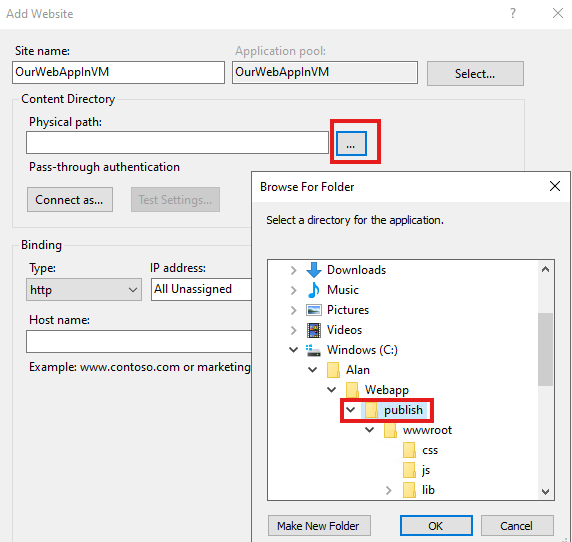
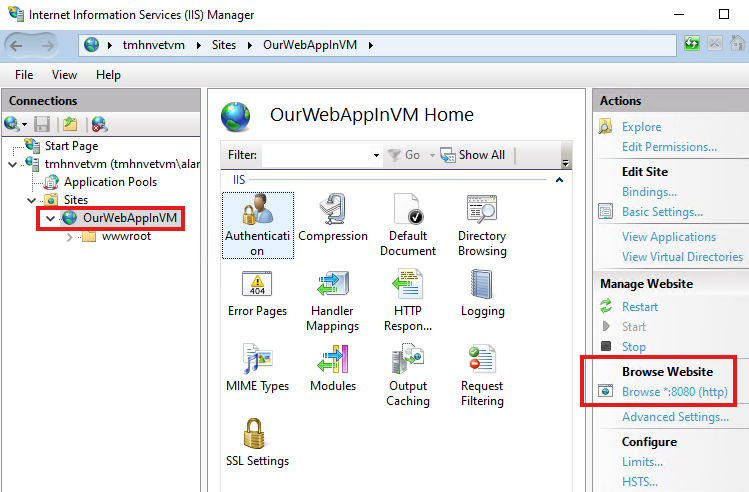
      2๏ธโƒฃ Identity Sources โ€“ B2B, B2C, Verifiable Credentials
      3๏ธโƒฃ Actions โ€“ Authenticate (AuthN), Authorize (AuthZ), Administer, Audit
      4๏ธโƒฃ Usage โ€“ Access apps & data, security, licensing
      5๏ธโƒฃ Maintain โ€“ Protect โ†’ Detect โ†’ Respond

      ๐Ÿ‘‰ The key message:

      Never grant access just because it was granted yesterday โ€“ always confirm again.

      Classic Identity vs Zero Trust ๐Ÿ†š

      Classic Model โŒZero Trust Model โœ…
      Everything inside network is trustedNothing is trusted by default
      One password = full accessContinuous verification
      Firewall focusedIdentity & policy focused

      In todayโ€™s world, one stolen credential can destroy everything. Zero Trust protects assets anywhere with central policy.


      1.2 โ€“ Explore Zero Trust with identity ๐Ÿ›ก๏ธ

      Organizations now work in hybrid and multicloud environments. Users connect from home, mobile, and unmanaged devices. Zero Trust assumes:

      โ€œNever trust, always verify.โ€

      Three Core Principles

      Six Pillars of Zero Trust

      ๐Ÿง‘ Identity โ€ข ๐Ÿ“ฑ Endpoints โ€ข ๐Ÿ“‚ Data โ€ข ๐Ÿงฉ Apps โ€ข ๐Ÿ—๏ธ Infrastructure โ€ข ๐ŸŒ Network

      Identity is the control plane that decides access to all others.

      Modern Architecture

      ๐ŸŽฏ Goal: Only the right people get the right access at the right time.


      1.3 โ€“ Discuss identity as a control plane ๐ŸŽ›๏ธ

      A control plane decides how access flowsโ€”just like a traffic controller.

      In modern IT:

      ๐Ÿ‘ค Identity is the common denominator.

      Every user, device, app, and service has an identity.
      If we donโ€™t know who the user is โ†’ no other security matters.

      Once verified, access can be enforced across:


      1.4 โ€“ Explore why we have identity ๐Ÿค”

      Identity enables four major capabilities:

      What is an Identity Provider (IdP)?

      An IdP is a trusted system that:

      ๐Ÿ‘‰ Example: Microsoft Entra ID

      Common Protocols


      1.5 โ€“ Define identity administration ๐Ÿ› ๏ธ

      Identity administration manages accounts from birth to retirement.

      Real-World Risk Story ๐Ÿšจ

      Juan leaves company โ†’ account not removed โ†’
      password reused โ†’ phishing โ†’ breach using โ€œvalidโ€ account!

      Core Administration Tasks

      Automation Options ๐Ÿค–

      ๐Ÿ‘‰ Microsoft Graph = single endpoint to manage identities programmatically.


      1.6 โ€“ Contrast decentralized identity with central identity systems ๐Ÿ”„

      Centralized Identity ๐Ÿข

      Benefits:

      Decentralized Identity ๐Ÿ†”


      1.7 โ€“ Discuss identity management solutions ๐Ÿงฉ

      IAM controls:

      Key Microsoft Entra Terms


      1.8 โ€“ Explain Microsoft Entra Business to Business ๐Ÿค

      Microsoft Entra External Identities

      Allows collaboration with partners using their own accounts.

      B2B Collaboration

      B2B Direct Connect

      Microsoft Entra B2C ๐Ÿ‘ฅ


      1.9 โ€“ Compare Microsoft identity providers ๐Ÿ†š

      ServicePurpose
      Microsoft Entra IDCloud identity for SaaS
      AD DSOn-prem directory
      Entra Domain ServicesManaged AD in Azure

      ๐Ÿ‘‰ Entra ID can sync with AD DS for hybrid identity.


      1.10 โ€“ Define identity licensing ๐Ÿ’ณ

      Important licenses:

      Subscription vs License


      1.11 โ€“ Explore authentication ๐Ÿ”‘

      Authentication validates identity with:

      Federation

      Use on-prem AD as trusted source.

      Protocols

      Tokens ๐ŸŽŸ๏ธ

      Claims = key/value info about user.


      1.12 โ€“ Discuss authorization ๐Ÿšฆ

      Authorization = what you can do.

      Models

      New Feature

      Authentication Context โ€“ require stronger controls for sensitive data.


      1.13 โ€“ Explain auditing in identity ๐Ÿ“Š

      Auditing helps:

      Logs

      Governance is Critical ๐Ÿง 

      Check:

      Lifecycle: Join โ†’ Move โ†’ Leave โ™ป๏ธ

      Monitoring Tools

    5. 9 – Terraform Provisioners in Azure : Local-Exec vs Remote-Exec vs File Provisioner (Hands-On Guide)

      When I started learning Terraform, I wondered:

      Terraform can create infrastructureโ€ฆ but how do we run scripts, install software, or copy files after a VM is created?

      That is where Terraform Provisioners come into the picture.

      In this hands-on mini project I implemented:

      • Local-Exec Provisioner
      • Remote-Exec Provisioner
      • File Provisioner

      and understood their real purpose, limitations, and practical usage.

      Table of Contents

      1. Project Goal
      2. Architecture Overview
      3. Step 1 โ€“ Create Core Azure Infrastructure
      4. Step 2 โ€“ Create VM and Verify SSH
      5. Step 3 โ€“ Local-Exec Provisioner
      6. Step 4 โ€“ Remote-Exec Provisioner
      7. Debug Steps and Errors Faced
      8. Step 5 โ€“ File Provisioner
      9. Understanding Provisioners
      10. Important Reality
      11. Final Learning Outcome

      Project Goal

      Build an Azure Linux VM using Terraform and:

      1. Run a command on my local PC during deployment
      2. Install Nginx inside the VM automatically
      3. Copy a configuration file from my laptop to the VM

      Architecture Overview

      The infrastructure consists of:

      • Resource Group
      • Virtual Network and Subnet
      • Network Security Group (SSH + HTTP)
      • Public IP
      • Network Interface
      • Linux Virtual Machine

      Step 1 โ€“ Create Core Azure Infrastructure

      Resource Group

      resource "azurerm_resource_group" "rg" {
        name     = "rgminipro878933"
        location = "Central US"
      }
      

      Virtual Network & Subnet

      resource "azurerm_virtual_network" "vnet" {
        name                = "vnetminipro7678678"
        address_space       = ["10.0.0.0/16"]
        location            = azurerm_resource_group.rg.location
        resource_group_name = azurerm_resource_group.rg.name
      }
      

      Network Security Group

      Inbound rules were added to allow:

      • Port 22 โ†’ SSH
      • Port 80 โ†’ HTTP

      Step 2 โ€“ Create VM and Verify SSH

      Generate SSH Keys

      ssh-keygen -t rsa -b 4096
      

      Create Linux VM

      The VM was created using azurerm_linux_virtual_machine with SSH key authentication.

      Test Connection

      ssh -i key1 azureuser@<public-ip>
      

      โœ” SSH login successful.


      Step 3 โ€“ Local-Exec Provisioner

      What Local-Exec Means

      Local-exec runs a command on:

      The machine where Terraform is executed
      NOT inside the Azure VM.

      Implementation

      provisioner "local-exec" {
        command = "echo Deployment started at ${timestamp()} > deployment.log"
      }
      

      Result

      A file deployment.log was created on my laptop โ€” proof that the command executed locally.

      Real-World Uses

      • Trigger Ansible after Terraform
      • Call REST API or webhook
      • Notify Slack/Email
      • Generate inventory files
      • Write audit logs

      Step 4 โ€“ Remote-Exec Provisioner

      Purpose

      Run commands inside the VM after creation.

      Goal

      Install Nginx and deploy a simple webpage automatically.

      Implementation

      provisioner "remote-exec" {
        inline = [
          "while [ ! -f /var/lib/cloud/instance/boot-finished ]; do sleep 2; done",
          "sudo apt-get update -y",
          "sudo apt-get install -y nginx",
          "echo '<h1>Terraform Provisioner Demo Working!</h1>' | sudo tee /var/www/html/index.html",
          "sudo systemctl restart nginx"
        ]
      }
      

      Result

      Opening:

      ๐Ÿ‘‰ http://<public-ip>/

      displayed the custom webpage โœ”

      Debug Lesson

      Initially nginx was not installed because:

      • VM was not fully ready
      • apt was locked by cloud-init

      Adding a wait for:

      /var/lib/cloud/instance/boot-finished
      

      fixed the issue.

      Debug Steps and Errors Faced

      While implementing this project, I faced several real-world issues. These are the exact steps that helped me troubleshoot.

      SSH Key Permission Issue on Windows

      Azure SSH login failed initially because Windows was treating the private key as insecure.

      Fix: Restrict key permissions in PowerShell

      icacls <key file path> /inheritance:r
      icacls <key file path> /grant:r "$($env:USERNAME):(R)"
      icacls <key file path> /remove "Authenticated Users" "BUILTIN\Users" "Everyone"
      

      After this, SSH worked correctly:

      ssh -i <key file path> azureuser@<public ip>
      

      Important: The key must be stored on an NTFS formatted drive (not FAT/external USB) for permissions to work.


      Web Page Not Loading After Remote-Exec

      Even though Terraform apply was successful, the browser showed:

      ERR_CONNECTION_REFUSED

      Debug Steps Inside VM

      1. SSH into the VM
      ssh -i key1 azureuser@<public-ip>
      
      1. Check if nginx is installed
      which nginx
      sudo systemctl status nginx
      
      1. Test locally inside VM
      curl http://localhost
      

      Root Cause

      • Remote-exec ran before the VM was fully ready
      • cloud-init was still configuring the system
      • apt was locked at the time of execution

      Fix Implemented

      Added wait for cloud-init before installing nginx:

      while [ ! -f /var/lib/cloud/instance/boot-finished ]; do sleep 2; done
      

      After this change, the webpage loaded correctly.


      Lesson Learned

      Terraform showing โ€œApply completeโ€ does not always mean:

      • Software is installed
      • Services are running
      • VM is fully ready

      Provisioners need proper waiting and validation logic.


      Step 5 โ€“ File Provisioner

      Purpose

      Copy files from local machine โ†’ VM.

      Implementation

      provisioner "file" {
        source      = "configs/sample.conf"
        destination = "/home/azureuser/sample.conf"
      }
      

      Verification in VM

      ls -l /home/azureuser
      cat sample.conf
      

      โœ” File successfully transferred.


      Understanding Provisioners

      Local-Exec

      • Runs on local computer
      • Used for logs, notifications, triggers

      Remote-Exec

      • Runs inside the VM
      • Installs software, configures OS

      File Provisioner

      • Copies files to remote system

      Important Reality

      Terraform provisioners are:

      • โŒ Not guaranteed
      • โŒ Not idempotent
      • โŒ Not recommended for production

      Better Alternatives

      • cloud-init
      • Custom VM images
      • Ansible
      • Azure VM Extensions

      Final Learning Outcome

      This mini project helped me understand:

      • How Terraform builds infrastructure
      • Difference between the 3 provisioners
      • Debugging real deployment issues
      • Basic Linux + Azure networking

      It connected multiple skills:

      Terraform + Azure + Linux + Automation