
Table of Contents
- 🎯 What You’ll Learn in This Blog
- 🧠 Core Security Concepts
- ⚠️ Insecure Way: Exposing VM Web App
- 🏢 NSG at NIC vs Subnet
- ☁️ Azure Web App Service
- 🆚 VM Hosting vs App Service Hosting
- 🛡️ How to Secure App Service
- 🏰 Analogy – The Mansion Outside the Gate
- 🚦 Application Gateway – The Smart Security Guard
- 🧪 Demo: Protect App Service with Application Gateway
- 💡 What We Understood from the Demo
- 🚇 Better Approach – Private Endpoint
- 🏁 Final Architecture
- ✅ Key Takeaways
🎯 What You’ll Learn in This Blog
In this guide we will:
- Understand how Network Security Groups (NSG) protect Azure resources
- Learn how IP addresses, protocols, and ports control network traffic
- Compare security between:
- Web app hosted in Virtual Machine
- Web app hosted in Azure App Service
- Explore why NSG cannot be used for App Service
- Implement security using:
- ✅ Service Endpoints
- ✅ Private Endpoints
- ✅ Access Restrictions
- Protect apps using Azure Application Gateway + WAF
By the end, you’ll know how to secure an App Service web app like an enterprise architect 🛡️.
🧠 Core Security Concepts
🔒 Network Security Group (NSG)
An NSG is a set of rules that decide:
- Who can access a VM or subnet
- Which traffic should be allowed or denied
NSG can be attached to:
- 🖥️ A VM’s Network Interface (NIC)
- 🏢 An entire Subnet
🌐 How Data Travels on a Network
To send data from System A → System B we need:
- IP Address – where to send
- Protocol – how to send (TCP/IP)
📬 What Are Ports?
Just like physical ports:
- USB
- HDMI
- Ethernet
Computers also have virtual ports identified by numbers.
| Port | Purpose |
|---|---|
| 80 | HTTP |
| 443 | HTTPS |
| 22 | SSH |
| 3389 | RDP |
| 25 | SMTP |
NSG rules filter traffic using:
- Source IP
- Destination IP
- Port
- Protocol
💡 Think of NSG as a digital security guard checking:
“Where are you coming from? Which door are you using?”
⚠️ Insecure Way: Exposing VM Web App
To make a VM-hosted app public, people usually:
- Add NSG rule to allow port 8080
- Disable VM firewall
❌ This is extremely risky and NOT recommended.
🏢 NSG at NIC vs Subnet
Option 1 – Attach NSG to NIC
- Works per VM
- Hard to manage at scale
Option 2 – Attach NSG to Subnet
- Centralized control
- Best practice
📝 Note:
NSG cannot be applied to the entire VNet—only to subnets or NICs.
☁️ Azure Web App Service
Azure App Service lets you host apps without managing VMs.
✔ No OS patching
✔ No IIS management
✔ Auto scaling
✔ Managed platform
But…
❗ You don’t control its VNet or subnet
❗ NSG is NOT applicable
❗ App is public by default
🆚 VM Hosting vs App Service Hosting
| Feature | VM Hosted | App Service |
|---|---|---|
| Infrastructure control | Full | Limited |
| NSG support | Yes | No |
| Public by default | No | Yes |
| Management effort | High | Low |
So we need different security methods for App Service.
🛡️ How to Secure App Service
Two main approaches:
- ✅ Service Endpoint + Access Restriction
- ✅ Private Endpoint + Access Restriction
And on top of that:
👉 Application Gateway + WAF
🏰 Analogy – The Mansion Outside the Gate
- VNet = Gated community
- Subnet = Building
- App Service = Mansion outside the gate
By default → anyone can enter the mansion 😱
We must:
- Restrict public access
- Allow only members of our VNet
- Create a private tunnel
🚦 Application Gateway – The Smart Security Guard
Application Gateway is:
- Layer 7 load balancer
- Web traffic inspector
- Security filter
Capabilities
✅ URL-based routing – Direct traffic to different back-end resources based on the requested URL
✅ Multi-site hosting – Host multiple websites behind a single gateway
✅ SSL termination – Handle HTTPS encryption at the gateway level
✅ WAF protection – Block common web attacks using Web Application Firewall
Key Components of Application Gateway
1. Front-end IP
This is the public or private IP address exposed by the Application Gateway.
All external users connect to this IP first.
2. HTTP Listener
The listener receives HTTP or HTTPS requests from users and passes them to routing rules for further processing.
3. Back-end Pool
This contains the actual resources where web apps are hosted, such as:
- Virtual Machines running IIS
- Azure App Service web apps
- Or a combination of both
These resources remain protected behind the Application Gateway and are not directly exposed to the internet.
4. Routing Rules
Routing rules decide which back-end resource should handle a particular request based on:
- URL path
- Host name
- Listener configuration
5. Backend Settings
These settings define:
- Whether traffic to the backend should be HTTP or HTTPS
- Port number
- Session affinity
- Health probe configuration
🧱 Architecture
Internet → Application Gateway → App Service
NOT → Internet → App Service directly
🧪 Demo: Protect App Service with Application Gateway
🛠️ Step 1 – Create Application Gateway
To secure the App Service web app, we first deploy an Application Gateway that will act as the single, controlled entry point from the internet to our application.
Basic Details
While creating the Application Gateway, provide the following:
- Name – for example:
appgw-webapp - Region – same region as the App Service
- Tier – Standard v2 or WAF v2 (recommended for security)
- Virtual Network – the VNet that the Application Gateway will trust and operate within
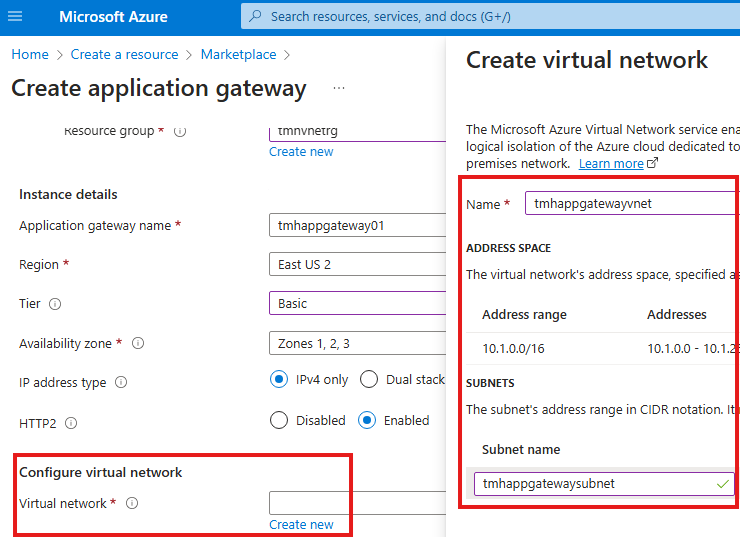
💡 The selected VNet is important because only resources inside this VNet can communicate privately with the Application Gateway.
Frontend Configuration
In the Frontend tab, choose:
- Public IP address – for internet-facing applications
- Private IP – only for internal applications
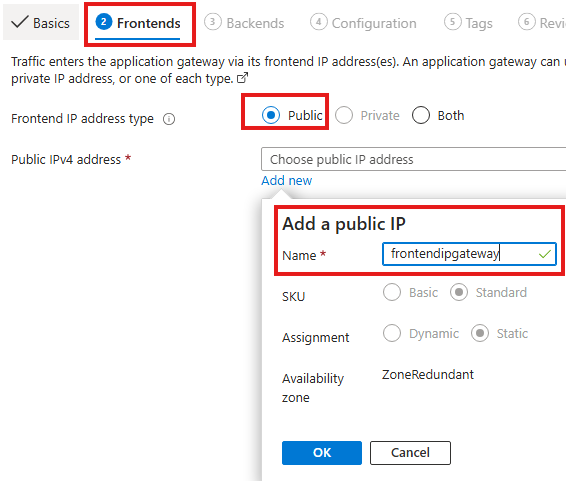
Since our web app must be accessed from the internet, we select Public IP.
Backend Pool Configuration
In the Backend tab:
- Choose App Service as the backend target
- Select the App Service created earlier
✅ This configuration tells the gateway:
“Forward incoming requests to this App Service.”

Routing Rule Configuration
The routing rule defines how traffic flows through the gateway.
It has two main parts:
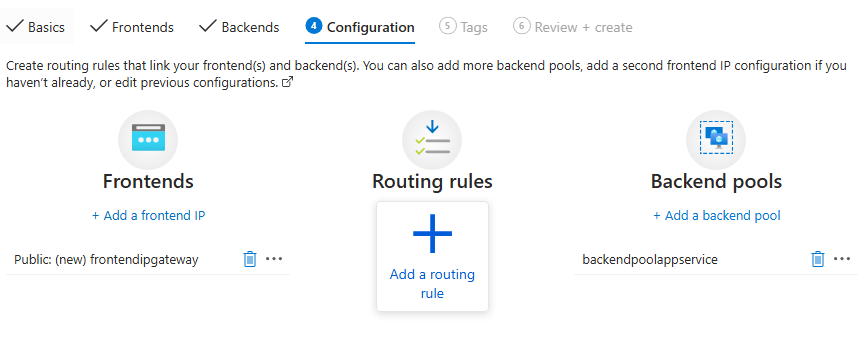
- Listener – receives incoming requests
- Backend Target – forwards requests to the destination
Listener Settings Explained
The listener controls how the gateway accepts traffic.
- Frontend IP – public IP exposed by the gateway
- Protocol – HTTP or HTTPS
- Port – 80 for HTTP, 443 for HTTPS
- Listener Type – Basic or Multi-site
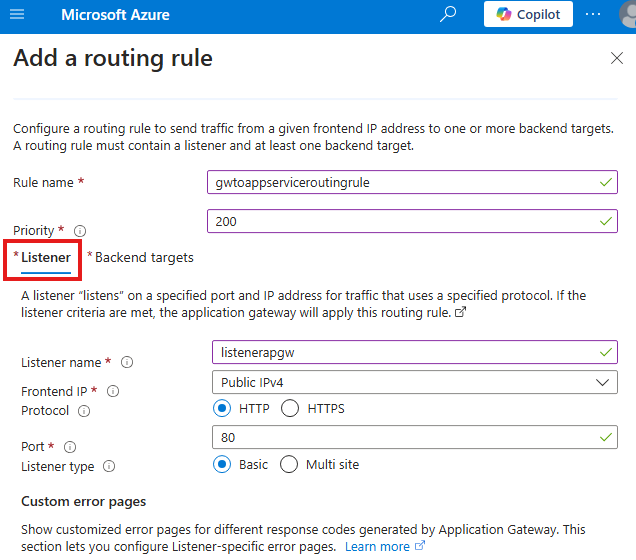
For this demo we used:
- Protocol: HTTP
- Port: 80
- Listener Type: Basic
📌 Use Multi-site listener when hosting multiple websites behind one gateway.
1️⃣ Listener (Port 80) – How Users Talk to Application Gateway
The listener defines how users on the internet connect to the Application Gateway. When we choose HTTP on port 80, we are saying that public users will access the gateway using a normal web request like http://22.22.22.22. At this stage, the App Service is not involved yet—the listener only handles traffic between the user and the gateway.
Backend Target Settings Explained
This section links the listener to the App Service.
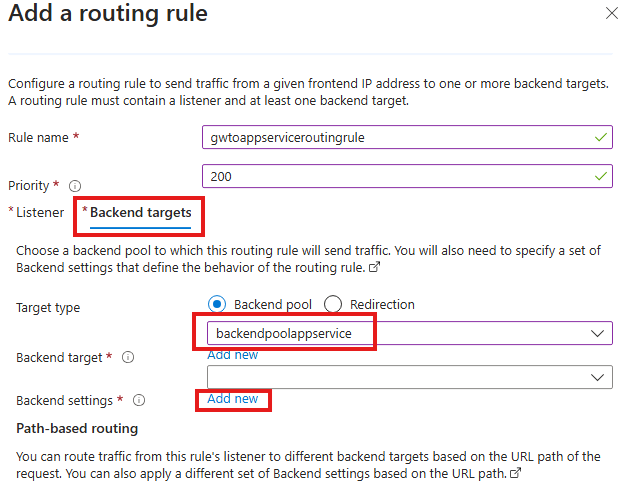
1. Backend Pool
Select the pool containing the App Service:
👉 backendpoolappservice
This means all requests from the listener will be sent to this App Service.
2. Backend Settings
Key values used:
- Backend protocol: HTTPS – App Service requires secure communication
- Port: 443 – default HTTPS port
- Trusted certificate: Yes – App Service uses Microsoft-issued certificates
2️⃣ Backend Settings (Port 443) – How Gateway Talks to App Service
After receiving the request, the Application Gateway must forward it to the App Service. Azure App Service only accepts HTTPS traffic on port 443, so the backend settings use protocol HTTPS and port 443. This means there are two separate connections: one from the user to the gateway on port 80, and another secure connection from the gateway to the App Service on port 443.
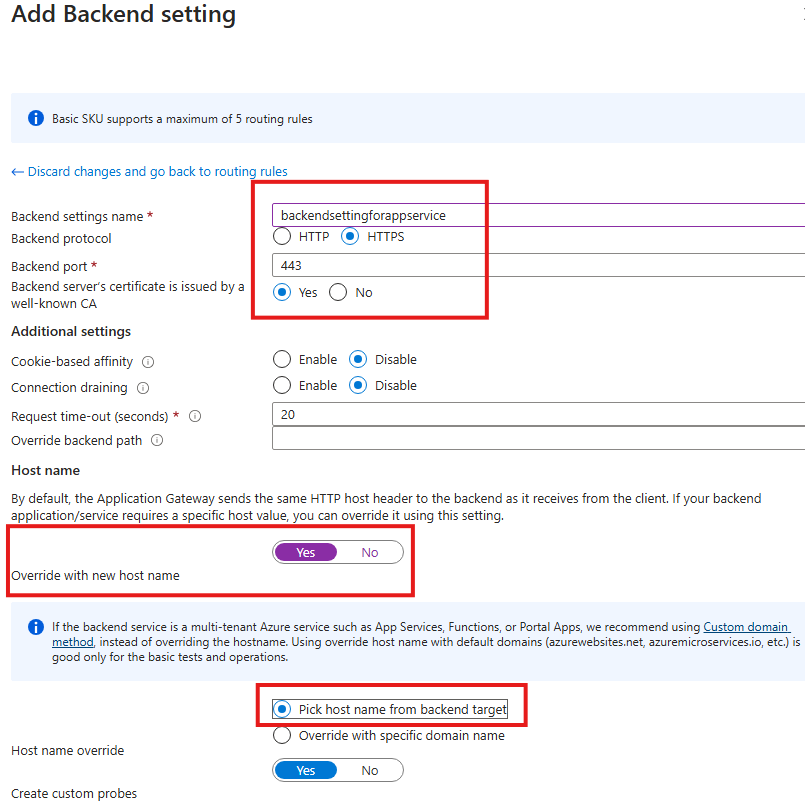
3. Host Name Override (Critical Setting)
Enabled options:
- ✅ Override with new host name – Yes
- ✅ Pick host name from backend target
Why this is important?
3️⃣ Host Name Override – Why It Is Required
Think of the App Service like a person whose real name is “myapp.azurewebsites.net.”
When a user visits the Application Gateway IP, the gateway originally calls the app like:
“Hey 22.22.22.22, give me the website!”
But the App Service replies:
“That’s not my name — I don’t recognize you!” ❌
When we enable Host Name Override, the gateway changes the message to:
“Hey myapp.azurewebsites.net, give me the website!”
Now the App Service says:
“Yes, that’s me!” ✅
and it returns the page correctly.
So Host Name Override simply makes the gateway call the App Service by its real domain name instead of the gateway IP.
App Service expects requests with its original domain such as:
myapp.azurewebsites.net
Without host name override, the request comes with the gateway IP and App Service may return:
❌ 404 error
❌ Host not recognized
💡 This setting ensures Application Gateway sends the correct host header to the App Service.
Now the app is reachable via:
👉 Application Gateway public IP
🛠️ Step 2 – Add Service Endpoint
Before we can restrict access to the App Service, the Application Gateway subnet must be authorized to talk to Microsoft Web services.
This is done using a Service Endpoint.
💡 If we skip this step and try to add access restrictions first, Azure will show:
❌ “No service endpoint is present for this subnet.”
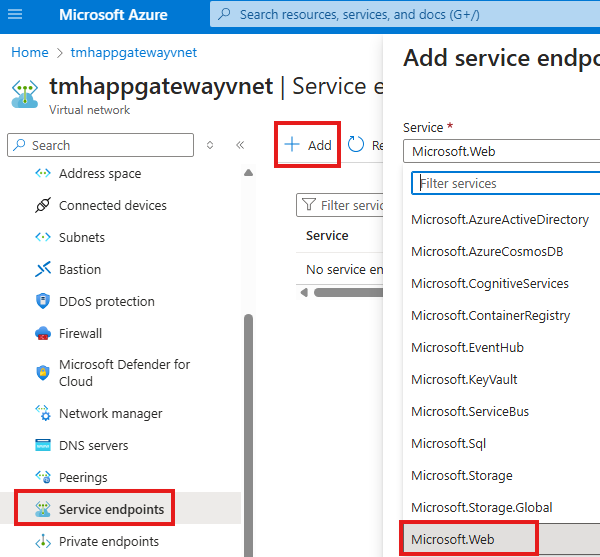
1️⃣ Open the Virtual Network of Application Gateway
- Go to the Virtual Network where your Application Gateway is deployed
- From the left menu, select Service endpoints
This page shows which Azure platform services are allowed to be accessed from this VNet.
2️⃣ Add the Microsoft.Web Service Endpoint
- Click + Add
- In the Service dropdown, select:
👉 Microsoft.Web
This option represents Azure App Service and other web-related PaaS services.
3️⃣ Select the Application Gateway Subnet
- Choose the Subnet in which your Application Gateway is located
- Confirm and save the configuration
This tells Azure:
“Devices inside this subnet (Application Gateway) are allowed to securely access Azure Web App services.”
What This Step Actually Does
After adding the service endpoint:
- The App Service can now recognize the Application Gateway subnet
- Traffic from this subnet is treated as trusted Azure backbone traffic
- We are allowed to create access restriction rules referencing this subnet
Without this:
Before we can restrict access to the App Service, the Application Gateway subnet must be authorized to talk to Microsoft Web services.
This is done using a Service Endpoint.
💡 If we skip this step and try to add access restrictions first, Azure will show:
❌ “No service endpoint is present for this subnet.”
1️⃣ Open the Virtual Network of Application Gateway
- Go to the Virtual Network where your Application Gateway is deployed
- From the left menu, select Service endpoints
This page shows which Azure platform services are allowed to be accessed from this VNet.
2️⃣ Add the Microsoft.Web Service Endpoint
- Click + Add
- In the Service dropdown, select:
👉 Microsoft.Web
This option represents Azure App Service and other web-related PaaS services.
3️⃣ Select the Application Gateway Subnet
- Choose the Subnet in which your Application Gateway is located
- Confirm and save the configuration
This tells Azure:
“Devices inside this subnet (Application Gateway) are allowed to securely access Azure Web App services.”
What This Step Actually Does
After adding the service endpoint:
- The App Service can now recognize the Application Gateway subnet
- Traffic from this subnet is treated as trusted Azure backbone traffic
- We are allowed to create access restriction rules referencing this subnet
Without this:
- App Service cannot be locked down to the gateway
- Access restriction configuration will fail
🛠️ Step 3 – Block Direct Access to App Service
Right now, the web app hosted in App Service is publicly accessible by default.
Anyone on the internet can open the app directly using:
👉 https://myapp.azurewebsites.net
Our goal is:
❌ Users must NOT access the App Service directly
✅ Users should access it ONLY through the Application Gateway
To achieve this, we configure Access Restrictions in the App Service.
1️⃣ Check Current Access Status
- Open your App Service in the Azure Portal
- Go to the Networking blade
- Under Inbound traffic configuration, you will see:
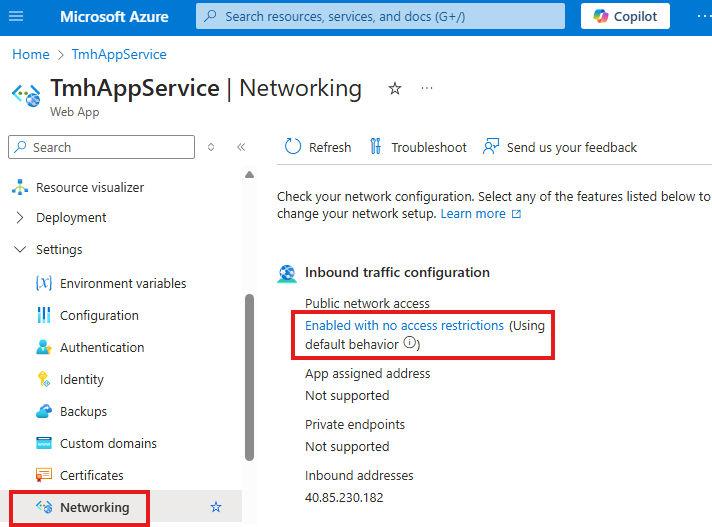
Public network access: Enabled with no access restrictions
This means the web app is currently open to the entire internet, which is not secure.
2️⃣ Change Public Access Mode
- Click on Public network access
- Select the option:
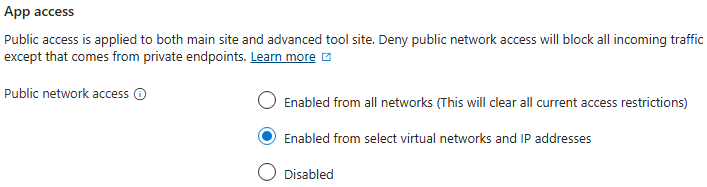
👉 Enabled from select virtual networks and IP addresses
This setting tells Azure:
“Allow access only from specific VNets or IP addresses, and block everyone else.”
3️⃣ Add an Access Restriction Rule
Now we create a rule that allows traffic only from the Application Gateway subnet.
- Open Access Restrictions
- Click + Add
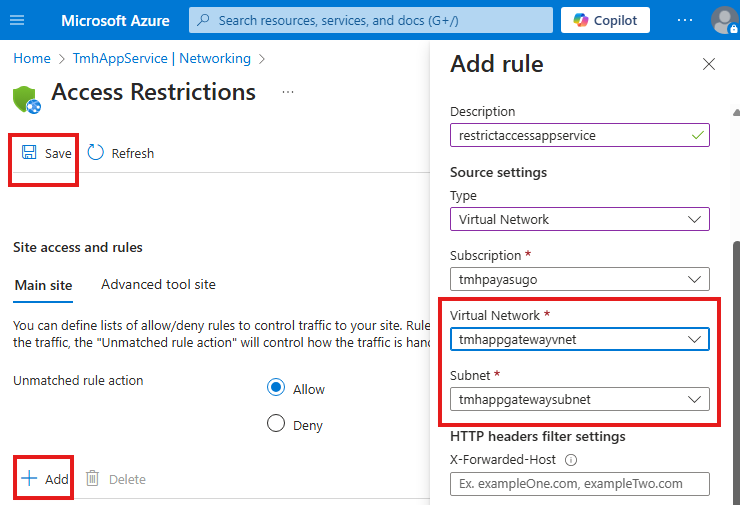
Enter the following details:
- Type: Virtual Network
- Virtual Network: the VNet where Application Gateway is deployed
- Subnet: Application Gateway subnet
- Description: e.g.,
restrictaccessappservice
- Click Save
What This Configuration Achieves
After applying this rule:
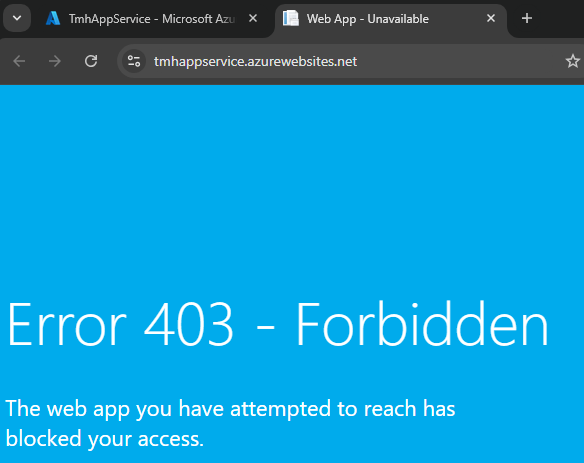
- ❌ Direct access to
https://myapp.azurewebsites.net→ will be BLOCKED - ✅ Access through
http://<Application-Gateway-IP>→ will be ALLOWED
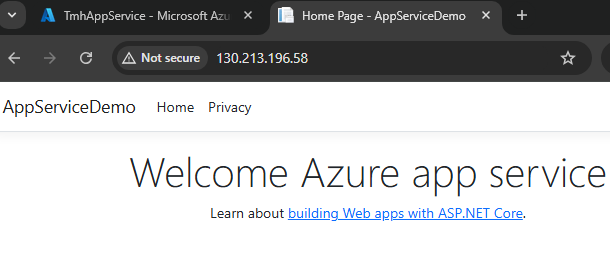
Because now:
Only traffic coming from the trusted Application Gateway subnet is permitted.
Step 4 – Add Access Restriction
In App Service:
- Networking → Public Access
- Allow only:
- Selected VNet
- Gateway subnet
🧪 Result:
- Direct App Service URL → BLOCKED
- Gateway URL → WORKS ✅
💡 What We Understood from the Demo
When creating the Application Gateway, we place it inside a specific VNet and subnet, and this subnet becomes the network that the gateway trusts.
Next, we go to that same subnet and enable a Service Endpoint for Microsoft.Web. This step allows resources inside that subnet—mainly the Application Gateway—to securely reach the Azure App Service over the Azure backbone network.
After enabling the service endpoint, we configure Access Restrictions in the App Service to allow traffic only from this VNet/subnet. As a result:
- Application Gateway resides in a trusted subnet
- That subnet is authorized to communicate with App Service
- App Service accepts traffic only from that subnet and blocks all other public access
🏰 Analogy Explanation
Think of it like this:
- The VNet/subnet is a walled housing community
- The Application Gateway is the security guard at the gate
- The App Service is a mansion located outside the wall
Step 1 – Trust the Guard
We first tell the system:
“People coming from this walled community can be trusted to visit the mansion.”
Step 2 – Give a Special Pass
By adding the Service Endpoint, we give members of that community a valid pass to reach the mansion through a secure path.
Step 3 – Lock the Mansion
Inside the mansion (App Service) we set up a rule:
“Only people with that pass — meaning traffic from the Application Gateway subnet — are allowed to enter.”
Everyone else from the public street is blocked 🚫
🚇 Better Approach – Private Endpoint
Problem with Service Endpoint
It still uses public IP internally.
Private Endpoint = Underground Tunnel
Benefits:
- Uses Azure backbone
- No public IP involved
- Most secure option
Steps for Private Endpoint
- Create Private Endpoint for App Service
- Use separate subnet (no service endpoint)
- Disable Public Network Access
🔐 Final Result
App can ONLY be accessed via Application Gateway
🏁 Final Architecture
✔ Internet → Application Gateway (WAF)
✔ Gateway → Private Endpoint
✔ Private Endpoint → App Service
❌ Direct internet → App Service
✅ Key Takeaways
- NSG works for VMs, NOT App Service
- App Service is public by default
- Use:
- Service Endpoint
- Private Endpoint
- Access Restrictions
- Application Gateway
🚀 Enterprise Best Practice
Never expose App Service directly to internet
Leave a Reply