
Table of Contents
- Managing Files in SharePoint
- Editing Files and Using Version History in SharePoint
- Versioning and Check-In/Check-Out in SharePoint
- Accessing SharePoint Files Offline with OneDrive
- Using Templates and Managing the New Menu in SharePoint
- Associating Metadata with Uploaded Files in SharePoint
- Organize SharePoint Files Smarter with Metadata
- Track and Analyze Expenses in SharePoint Using Currency Metadata
- Visually Enhance SharePoint Lists with Conditional Formatting and Column Styling
- Customizing Columns in a SharePoint Document Library
- Creating and Managing Custom Views in SharePoint Document Libraries
- Document Library Top Menu: A Quick Guide
- Organize Your SharePoint Site with a New Document Library
- Create and Manage Site Navigation Links in SharePoint
- Create and Use a Picture Library in SharePoint
- A Quick Guide to SharePoint Library Settings
Managing Files in SharePoint
Microsoft SharePoint provides a simple and powerful way to store, organize, and collaborate on files with your team. You can upload documents, create new ones directly in the site, edit files in your browser, and share them with others—all in one place.
In this section, we’ll look at how to navigate the Documents library and how to work with files effectively, including organizing and opening them.
Video Explanation
Site Navigation and Document Library
The Documents library is the main area where files are stored and managed in a SharePoint site. It’s designed to make adding and organizing files easy.
You can create new content or upload existing files from your computer.
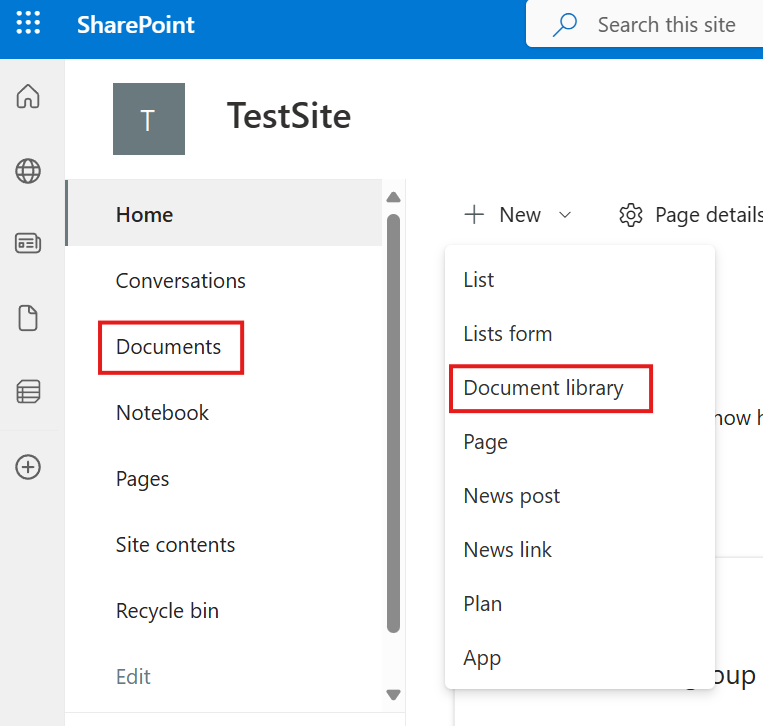
👉 How to add documents:
- Open your SharePoint site.
- Select Documents from the left menu.
- Click the New button at the top left.
- Choose one of the following:
- Folder to create a new folder
- A file type (Word, Excel, PowerPoint) to create a new document
- Upload to add files from your computer
- When uploading, choose either:
- Individual files
- Entire folders
Once uploaded, your files appear in the document library and are ready to use.
✨ Example: You might upload a Word file, an Excel sheet, and a PowerPoint file to quickly build your document library.
Working with Files in SharePoint
After files are added, you can work with them directly online. This allows quick collaboration without needing to download files first.
👉 Common file actions:
Open and Edit Online
- Click a file to open it in the browser.
- Edit it much like a desktop app.
- Use Download if offline editing is needed.
Share with Colleagues
- Click the Share button next to a file.
- Enter a colleague’s name.
- Select them from suggestions and click Send.
View File Details
- Click the three dots (…) next to a file.
- Select Details.
- A right-side panel shows:
- Activity
- Version history
- Permissions
Quick Access from the Homepage
- Many sites include a Documents web part on the homepage.
- This provides fast access to recent or important files.
✨ This makes editing, sharing, and reviewing files smooth and collaborative.
Creating Files and Folders
You don’t always need to upload files—SharePoint lets you create them directly.
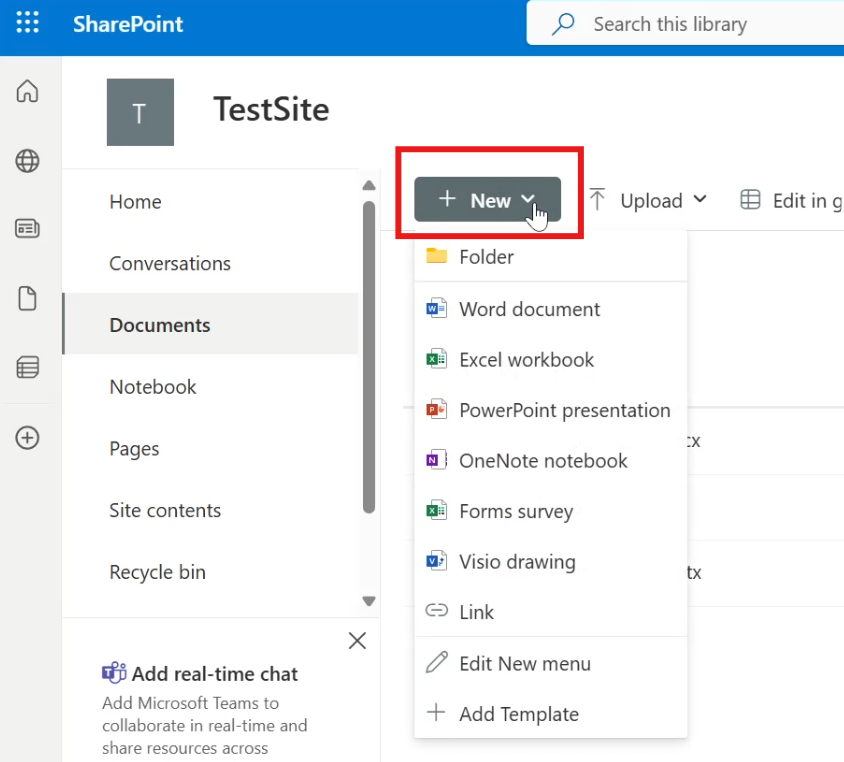
- Create new files from the New menu
- Create folders within the library
- Drag and drop files into folders to move them
However, relying only on folders is considered an older method of organization in SharePoint.
Organizing with Metadata (Columns)
SharePoint offers metadata features to organize files more effectively than folders alone.
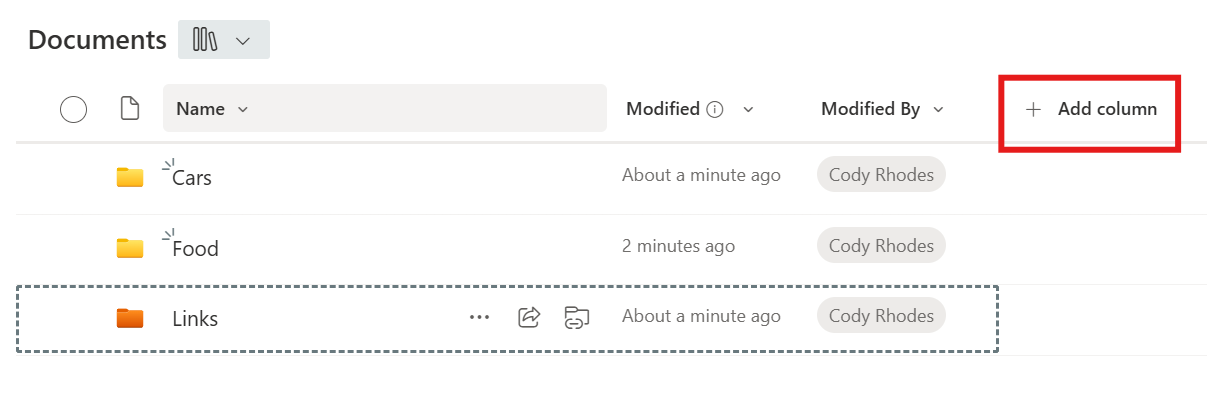
- You can add columns to files
- Columns store information like category, department, or status
- This makes sorting and filtering much easier
Using metadata helps teams find files faster without deep folder structures.
Opening and Reading Files
SharePoint provides multiple ways to open and read files:
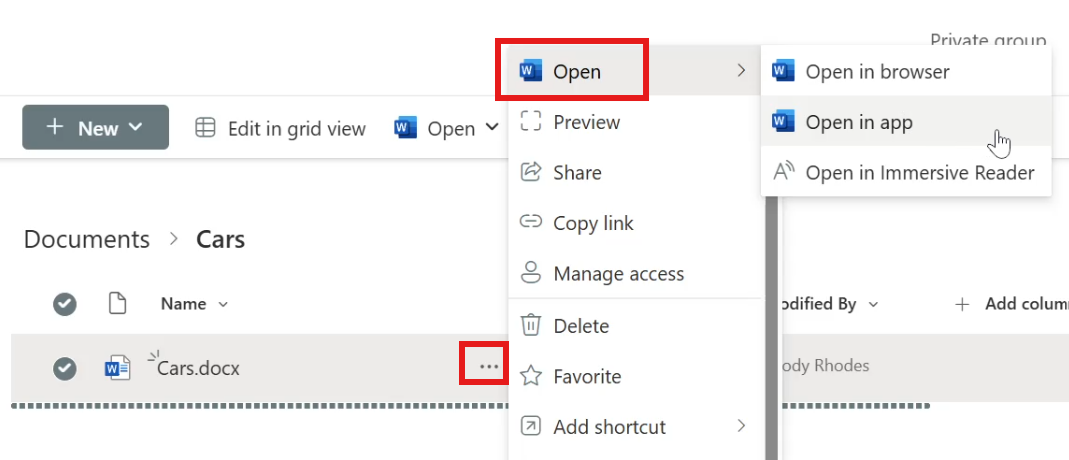
- Open in App
- Opens the desktop version for offline editing
- Changes sync back to the cloud
- Availability depends on your plan
- Open in Browser
- Edit and view directly online
- No downloads required
- Immersive Reader
- Larger, easier-to-read text
- Can read content aloud
- Helpful for accessibility and focus
By using document libraries, online editing, sharing tools, and metadata, SharePoint makes file management organized and team-friendly.
Editing Files and Using Version History in SharePoint
Microsoft SharePoint makes file editing and collaboration simple by allowing you to work directly in your browser or in desktop apps. There’s no need to download and re-upload files after every change. Even better, SharePoint automatically saves your work and supports real-time collaboration, so teams can edit together without confusion.
Another key feature is Version History, which quietly tracks changes and lets you restore earlier versions if needed. Together, these tools make file management safer and more efficient.
Video Explanation
Editing Files in SharePoint
One of the biggest advantages of SharePoint is how easy it is to edit files. You can open a file and start working immediately, with changes saved automatically.
How editing works:
- Files open directly in your browser
- Changes are auto-saved
- Multiple people can edit at the same time
- You can switch between browser and desktop apps
👉 Steps to edit a file:
- Go to your Documents Library.
- Click the file name (for example, a Word or Excel file).
- The file opens in a new browser tab.
- Start typing or making changes — they save automatically.
More editing options:
- Click the three dots (…) next to a file.
- Select:
- Open in Browser for quick online edits
- Open in App to use a desktop Office app
When others are editing the same file, you’ll see their initials or cursors in real time. This makes teamwork smooth and avoids duplicate versions.

File Version History in SharePoint
Version History is a built-in safety feature. Every time a file is saved, SharePoint keeps a record of previous versions. This allows you to review or restore older copies if needed.
Why Version History matters:
- Protects against accidental changes or deletions
- Lets you track how a file evolved
- Makes restoring older content easy
👉 Steps to access Version History:
- In the Documents Library, find your file.
- Click the three dots (…) next to it.
- Select Version History.
- A list of saved versions appears.
Options for each version:
- View → Open and review that version
- Restore → Revert the file to that version
- Delete → Remove a version if unnecessary
If you restore a version, SharePoint rolls the file back while still keeping newer versions stored. This ensures you never permanently lose important work.
Versioning and Check-In/Check-Out in SharePoint
Versioning is one of the most valuable features in Microsoft SharePoint for managing files. It helps teams track edits, collaborate confidently, and restore earlier versions when needed. Instead of saving files as “v1,” “v2,” or “final-final,” SharePoint automatically keeps a history of changes for you.
In this section, we’ll look at how versioning works, how check-out/check-in supports controlled editing, and how versioning applies to non-Office files.
Video Explanation
Understanding Versioning
Versioning allows you to track and manage changes made to a file over time. Every time a file is edited and saved, SharePoint records a new version in the background.
Why versioning is useful:
- Tracks who made changes and when
- Allows teams to collaborate on the same file
- Lets you restore earlier versions if mistakes happen
- Removes the need for manual version names in file titles
SharePoint also supports simultaneous editing, meaning multiple users can work on the same file at the same time. You may see another user’s cursor or presence indicator while they are editing, which helps avoid conflicts.
If unwanted edits are made, you can simply restore a previous version from the version history.
Check-Out and Check-In
Sometimes, you may want to prevent others from editing a file while you work on it. That’s where check-out and check-in come in.
How it works:
- Check-out locks the file so only you can edit it
- Others can view but not modify the file
- Check-in unlocks the file and saves your updates as a new version
When checking a file back in, you can add comments describing your changes. These comments appear in the version history and help track what was updated.
When to use check-out/check-in:
- When working on sensitive documents
- When making major revisions
- When you want full control over edits
Versioning for Non-Office Files
Versioning also works for non-Office files such as videos, images, or PDFs. The main difference is that these files cannot be edited by multiple users at the same time in SharePoint.
How versioning works for non-Office files:
- Download and edit the file offline
- Upload it again using the same file name
- Choose the option to replace the existing file
SharePoint recognizes this as a new version of the file.
You can then:
- View version history
- Track previous versions
- Restore older copies if needed
This is especially helpful for files like videos or design assets that go through multiple revisions.
Using versioning together with check-in and check-out gives teams strong control over file edits while still supporting collaboration. It ensures that changes are tracked, recoverable, and organized without extra manual effort.
Accessing SharePoint Files Offline with OneDrive
Working offline doesn’t mean you have to stop using SharePoint. With OneDrive integration, you can sync your SharePoint document libraries to your computer and access them directly from File Explorer—even without a constant internet connection. Any changes you make offline will automatically sync once you’re back online.
In this section, you’ll learn how to add a SharePoint library shortcut to OneDrive and then access those files from your PC.
Video Explanation
Add a SharePoint Library Shortcut to OneDrive
Adding a shortcut connects your SharePoint document library to your OneDrive. This lets you view and manage the same folders from both SharePoint and OneDrive.
👉 Steps to add the shortcut:
- Open your SharePoint document library.
- At the top, click Add shortcut to OneDrive.
- Wait for the confirmation notification.
👉 Verify in OneDrive:
- Sign in to the Microsoft 365 portal.
- Open OneDrive from the side navigation.
- Click the folder icon in the OneDrive menu to view your files.
- Look for a folder named after your SharePoint site followed by the library name.
- Open it to confirm the folder structure matches SharePoint.
✅ Key Point: The folder structure you see in OneDrive mirrors your SharePoint library.
Access OneDrive from Your Windows PC
Once synced, you can access your SharePoint files directly from your PC using OneDrive.
👉 Steps to access files from a PC:
- Log into a Windows PC using your organizational account.
- Complete multi-factor authentication if prompted.
- Open File Explorer.
- Select OneDrive from the left sidebar.
- Sign in if requested.
You’ll now see the same folders that appear in OneDrive on the web, including your SharePoint site folders.
Creating and Syncing Files Offline
You can create or edit files locally, and they will sync automatically.
👉 Example workflow:
- Open a synced SharePoint folder (for example, a folder named Test).
- Create a new file, such as a text file named File from PC.
- Save it normally.
When you later open SharePoint in your browser and navigate to the same folder, you’ll see that file there.
✅ Key Point: Any changes made on your PC sync seamlessly to SharePoint, keeping files updated across devices.
Using OneDrive with SharePoint gives you the flexibility to work from your desktop while still benefiting from cloud storage and collaboration features provided by Microsoft 365.
Using Templates and Managing the New Menu in SharePoint
Templates and the New menu in Microsoft SharePoint are simple features that can make a big difference in daily work. They help teams create consistent documents, save time, and reduce repetitive formatting. Instead of starting from scratch each time, users can begin with a ready-made structure.
In this section, you’ll learn how to upload and use templates, and how to control what appears in the New menu so it fits your team’s needs.
Video Explanation
Why this matters:
- Keeps documents consistent across the organization
- Speeds up document creation
- Reduces formatting errors
- Makes the New menu cleaner and easier to use
Upload and Use a Template File
Templates are pre-formatted files that users can open, fill in, and save as new documents. They’re useful for quotes, forms, reports, or any document with a standard layout.
A template can be almost any file type, such as Word, Excel, or PowerPoint.
How templates help:
- Include predefined fields (company name, address, etc.)
- Ensure consistent structure
- Save time for repeated document types
👉 Steps to upload a template:
- Open any document library.
- Click the New button at the top.
- From the dropdown, select Add template (usually at the bottom).
- Upload your desired file.
Once uploaded, your template appears as an option under the New button.
👉 How it’s used in practice:
- A user clicks New and selects the template.
- The file opens with prefilled structure.
- The user fills in the needed details.
- The file is saved with a new name (for example, Quote 1).
- The same template can be reused for other clients or scenarios.
This keeps documents uniform and organized.
Edit the New Menu
The New menu appears in every document library and lets users quickly create files, folders, or template-based documents. If the menu shows options you don’t need, you can customize it.
Why edit the New menu:
- Remove unused options
- Hide outdated templates
- Simplify choices for users
- Match the menu to team workflows
👉 Steps to edit the New menu:
- Open your document library.
- Click the New button.
- Select the Edit option in the menu.
- A panel opens on the right with checkboxes.
- Check or uncheck items to show or hide them.
- Save your changes.
If a template is no longer needed, simply uncheck it so it doesn’t appear in the New menu.
Using templates together with a well-managed New menu helps teams work faster, stay consistent, and keep document creation simple.
Associating Metadata with Uploaded Files in SharePoint
Using metadata in SharePoint is a powerful way to organize files beyond simple folder structures. Instead of relying only on file names or deep folders, metadata lets you tag files with useful information like department, project, or document type. This makes searching, filtering, and managing documents much easier as your library grows.
In this section, you’ll learn how to upload files and assign metadata so your documents stay organized and easy to find.
Video Explanation
Why metadata is important:
- Makes files easier to search and filter
- Reduces dependence on complex folder structures
- Keeps libraries organized as they grow
- Helps teams quickly identify file context
Upload Files to a Document Library
Before adding metadata, you first need files in your library.
👉 Steps to upload files:
- Open any document library.
- (Optional) Open a folder if you want to upload there.
- While folders can be used, SharePoint works best when organization relies on metadata.
- Click Upload.
- Choose Files or Folder from your computer.
- Wait for the upload to complete.
Once uploaded, you’ll see files in the library with default columns such as:
- Name
- Modified
- Modified By
At this point, filenames may be the only clue about content—but metadata will improve that.
Create a Metadata Column
Metadata is added through columns in the document library. Each column stores a specific type of information.
👉 Example: Create a “Department” column
- In the document library, click Add column.
- Choose a column type.
- Select Choice when you want predefined options.
- Click Next.
👉 Configure the column:
- Column name: Department
- Description: (optional)
- Choices:
- Accounting
- Marketing
- Sales
- HR
- Disable manual entry so users must pick from the list
- Turn on Require this column if every file must have a value
- Click Save.
Your new metadata column is now ready.
Assign Metadata to Files
After creating the column, you need to assign values to your files.
Method 1: File Details Panel (One-by-One)
Best for small updates.
- Click the three dots (…) next to a file.
- Select Details.
- In the panel, choose the correct department.
Method 2: Edit in Grid View (Bulk Editing)
Best for multiple files.
- Click Edit in Grid View from the top menu.
- The library switches to an Excel-like view.
- Click cells under the Department column.
- Assign departments to multiple files quickly.
- Exit grid view when finished.
This method is much faster when tagging many files.
Good Practice Tips
- Use folders sparingly; rely more on metadata
- Keep choice options limited and clear
- Require important metadata fields
- Use consistent naming for columns
Adding metadata transforms a simple document library into a smart, searchable system. With the right columns in place, teams can quickly filter, group, and find files without digging through folders.
Organize SharePoint Files Smarter with Metadata
In Microsoft SharePoint, organizing documents doesn’t have to rely on folders alone. Instead, you can use metadata—custom fields such as Department or Expense Type—to tag files with meaningful information. This approach is far more flexible than traditional folders and makes it easier to search, filter, group, and manage large volumes of documents.
Metadata helps you see your files from different perspectives without moving or duplicating them. The same document can belong to multiple logical views, something folders simply can’t handle well.
Video Explanation
Filtering Files Using Metadata
Once files are tagged with metadata, you can quickly narrow down what you see.
How filtering works:
- Each metadata column has a dropdown menu.
- You can filter files based on one or more values.
- Only matching files are shown, while others are temporarily hidden.
Steps to filter files:
- Go to the column header (for example, Department).
- Click the dropdown arrow.
- Select Filter.
- In the right-hand pane, check the values you want to see (for example, Accounting).
- Click Apply.
Now, only files tagged with that department are displayed.
To clear filters:
- Open the filter pane again.
- Click Clear all.
- Select Apply to return to the full file list.
Grouping Files by Metadata
Grouping lets you visually organize files into expandable sections based on metadata values. This is especially useful when working with many related documents.
How grouping helps:
- Files are grouped by category (such as departments or expense types).
- Groups can be expanded or collapsed.
- Makes bulk actions easier.
Steps to group files:
- Click the dropdown on a metadata column (for example, Department).
- Select Group by Department.
Files are now grouped under headers like Accounting, Sales, or HR. Each group has an arrow that lets you collapse or expand it.
You can also:
- Select all files in a group at once
- Perform bulk actions like delete, move, or download
Switching Between Different Metadata Views
You’re not limited to one way of grouping.
- If you want to group by Expense Type instead of Department, repeat the same steps using that column.
- Only one metadata field can be used for grouping at a time.
At the top of the file list, you’ll also find:
- Expand all – Opens all groups
- Collapse all – Closes all groups
These options help you quickly switch between a high-level overview and a detailed view.
By using metadata with filtering and grouping, SharePoint turns a simple document library into a powerful, flexible file management system—making it much easier to find, organize, and work with your files at scale.
Track and Analyze Expenses in SharePoint Using Currency Metadata
Microsoft SharePoint can do much more than store documents—it can also help you track and analyze financial data using metadata. Instead of organizing expense files with folders or relying on filenames, you can use structured metadata such as Department, Expense Type, and Currency (Amount) to gain clear, real-time insights directly within a document library.
This approach turns a standard SharePoint library into a lightweight financial tracking and reporting tool that’s easy for teams to use.
Video Explanation
Add a Currency Metadata Column
To begin tracking expenses, you first need a currency-based metadata column.
Steps to create a currency column:
- Open your SharePoint document library.
- Click Add column.
- Select Currency as the column type and click Next.
- Enter a column name such as Amount.
- Choose the currency format (for example, USD or EUR).
- Optionally set a default value or description.
- Click Save.
The new Amount column will now appear alongside your files.
Enter Financial Values
Once the column exists, you can start adding values to your files.
Efficient data entry:
- Click Edit in grid view to switch to an Excel-like layout.
- Enter amounts such as 450, 1200, or 2500 for each file.
- Exit grid view when finished—SharePoint saves changes automatically.
This method is ideal for entering or updating values across many files at once.
Sort, Filter, and Group Expense Data
With currency values in place, SharePoint’s built-in tools let you analyze the data quickly.
Using the Amount column, you can:
- Sort expenses from lowest to highest (or vice versa).
- Filter files to show only specific ranges (for example, expenses above $500).
- Group files by other metadata such as Department or Expense Type.
Grouping makes it easy to compare expenses across teams or cost categories without exporting data.
Use Totals for Instant Insights
One of the most powerful features is Totals, which provides quick summaries directly in the library view.
How to enable totals:
- Click the dropdown on the Amount column.
- Select Totals.
- Choose a calculation such as:
- Sum – total expenses
- Average
- Minimum / Maximum
- Count
- Standard Deviation / Variance
When combined with grouping, totals become even more valuable. For example:
- Group by Department and show the sum to see total spend per department.
- Group by Expense Type to identify major cost areas.
- Use Count to see how many expense files exist per category.
You can remove summaries at any time by setting totals back to None.
Why This Approach Works
Using currency metadata in SharePoint allows you to:
- Avoid maintaining separate spreadsheets for tracking totals
- Get instant financial overviews without exporting data
- Enable non-technical users to analyze expenses visually
- Combine document management with basic financial reporting
With metadata, filtering, grouping, and totals, SharePoint becomes a practical and flexible solution for managing and analyzing expense-related documents.
Visually Enhance SharePoint Lists with Conditional Formatting and Column Styling
Microsoft SharePoint makes it easy to store and manage data—but good visual design makes that data far easier to understand and act on. By using view formatting and column styling, you can highlight important information such as high expenses, specific categories, or outliers directly within a list or document library.
In this section, you’ll learn how to apply alternating row styles, conditional formatting, and column-level styling to make your SharePoint lists more readable, informative, and user-friendly.
Video Explanation
Open the Format Current View Panel
All list-level formatting starts from the same place.
Steps to open formatting options:
- Go to your SharePoint list or document library.
- In the top menu, click the All Documents (or current view) dropdown.
- Select Format current view.
You’ll see two tabs:
- Format view – styles entire rows
- Format columns – styles individual columns
Apply Alternating Row Styles
Alternating row styles improve readability by visually separating rows.
How to apply:
- In the Format view tab, choose Alternating row styles.
- Select background colors for:
- Even rows (for example, light gray)
- Odd rows (for example, white or light blue)
- Click Save to apply.
⚠️ This styling is purely visual and does not depend on data values.
Use Conditional Formatting (Row-Level)
Conditional formatting lets you style rows based on metadata values such as Expense Type or Department.
Steps to apply conditional formatting:
- In Format view, select Conditional formatting.
- Reset any default styling by choosing No style.
- Click Add rule.
- Choose a column (for example, Expense Type).
- Set a condition (for example, equals Travel).
- Choose a background color.
- Save the rule.
Only rows matching the condition will be highlighted, making important entries stand out instantly.
Workaround: Enable Formatting for Currency Columns
By default, Currency columns cannot be used in view-level conditional formatting. A simple workaround solves this.
Steps to update the column:
- Click the dropdown on the Amount column.
- Select Column settings → Edit.
- Change the column type from Currency to Number.
- In More options, enable Require that this column contains information.
- Choose a currency symbol if needed.
- Click Save.
The column will now be available for conditional formatting rules.
Add Conditional Formatting Based on Amount
Now you can highlight high-value items automatically.
Example: highlight large expenses
- Open Format current view → Conditional formatting.
- Clear any default styles.
- Click Add rule.
- Choose the Amount column.
- Set a condition (for example, Amount is greater than 3000).
- Choose a strong color such as red.
- Save.
Any row exceeding that amount will be visually emphasized—even when sorting or filtering the list.
Use Column Formatting for Individual Cells
If you prefer to highlight only one column instead of the entire row, use column formatting.
Steps:
- Click the dropdown on the Amount column.
- Select Column settings → Format this column.
You’ll see two powerful options:
- Conditional formatting
Apply color rules to individual cells based on values. - Data bars
Display horizontal bars that visually represent numeric values.
Data bars are especially useful for financial data:
- Higher values show longer bars
- Lower values show shorter bars
- Makes comparisons instant without charts or exports
Reset the View to Default
If you want to remove all formatting and return to the standard view:
- Open Format current view.
- Disable Conditional formatting.
- Click Save.
Your list will return to the default white-background layout.
Why Formatting Matters
Using conditional formatting and column styling in SharePoint helps you:
- Quickly spot high-value or critical items
- Improve readability of large lists
- Reduce the need for filtering or exporting data
- Create a clean, modern, and insightful user experience
With the right formatting in place, SharePoint lists become easier to scan, analyze, and act on—right where your data lives.
Customizing Columns in a SharePoint Document Library
Microsoft SharePoint document libraries become far more useful when columns are arranged and displayed in a way that matches how people actually work. SharePoint provides simple, built-in options to move, hide, show, and pin columns—allowing users to personalize their views without writing code or changing advanced settings.
In this section, you’ll learn how to adjust column layouts to create a cleaner, more productive document library experience.
Video Explanation
Reorder Columns (Move Left or Right)
Reordering columns helps bring the most important information into focus.
Method 1: Use Column Settings
- Click the dropdown arrow next to the column header.
- Select Column settings.
- Choose Move left or Move right.
Method 2: Drag and Drop
- Click and hold the column header.
- Drag it to the desired position.
- Release to drop it in place.
Both methods instantly update the column order in the current view.
Hide and Show Columns
If certain columns are not relevant, hiding them reduces clutter and makes the list easier to read.
Hide a column:
- Click the dropdown on the column header.
- Select Column settings → Hide this column.
The column is removed from the view but not deleted.
Show hidden columns:
- Click the dropdown on any visible column.
- Go to Column settings → Show/Hide columns.
- In the panel that appears, check the columns you want to display (for example, Modified or File size).
- Click Apply.
This is a quick way to bring back hidden columns or add built-in ones.
Pin Columns to the Filter Pane
Pinning columns makes filtering faster and more intuitive for users.
How to pin a column:
- Click the dropdown on the column header.
- Select Column settings → Pin to filter pane.
Once pinned:
- Open the Filter pane (top-right corner).
- The pinned column appears prominently with a pin icon.
- Users can quickly filter the library by that column’s values.
To unpin a column:
- Open the filter pane.
- Click Unpin next to the pinned column.
Why Column Customization Matters
Customizing columns in SharePoint helps you:
- Focus on the most important metadata
- Reduce visual clutter
- Make filtering faster and easier
- Create user-friendly views without technical effort
With just a few clicks, you can transform a crowded document library into a clean, organized, and highly usable workspace tailored to your team’s needs.
Creating and Managing Custom Views in SharePoint Document Libraries
Microsoft SharePoint document libraries can quickly become crowded as files and metadata grow. Views solve this by letting you present the same data in different ways—using filters, sorting, grouping, and totals—without changing the underlying files. Each view is simply a saved configuration, making it easy to tailor what different users see based on their needs.
Video Explanation
What Is a View in SharePoint?
A view is a customized way to display files in a list or document library. With views, you can:
- Show only files that meet specific criteria (for example, Department = Sales)
- Sort files by any column (such as Amount or Modified date)
- Group files by categories (like Department or Expense Type)
- Display totals (sum, count, average) for numeric columns
Views are especially useful for role-based work—finance, sales, or managers can all look at the same library through different lenses.
Create and Save a Filtered View
You can quickly turn a temporary filter into a reusable view.
Steps:
- Open the document library.
- Click the dropdown arrow on a column header (for example, Department).
- Choose Filter by and select the value you want (for example, Sales).
- Once the list updates, open the view selector at the top (usually labeled All Documents).
- Select Save view as….
- Enter a name (for example, Sales Files) and click Save.
The view is now saved and available in the view selector.
Create a New View from Scratch
For more control, you can build a view with detailed settings.
Steps:
- Open the view selector and choose Create new view.
- Enter a name and click Create.
- Open the view selector again and choose Edit current view.
From the configuration page, you can customize:
- Columns: Choose which metadata fields appear.
- Sort: Set the order (for example, sort by Amount descending).
- Filter: Include or exclude data (for example, Department is not HR).
- Group By: Organize files into expandable sections (for example, by Department).
- Totals: Show calculations like Sum for numeric columns.
- Click OK to save the view.
Switching Between Views
All saved views appear in the view selector at the top of the library. You can switch between them at any time, and each view keeps its own layout, filters, grouping, and totals.
Best practice: Use views where files are consistently tagged with metadata. Views rely on metadata to work correctly and are most effective in well-organized libraries.
By using custom views strategically, you can transform a single SharePoint document library into multiple, purpose-built workspaces—each tailored to how different teams need to see and analyze the same information.
Document Library Top Menu: A Quick Guide
The top menu in a Microsoft SharePoint document library provides quick access to the most important file and metadata management actions. Understanding what each option does helps you work faster, keep files organized, and take full advantage of SharePoint’s document management capabilities.
In this section, we’ll walk through the key options you’ll find in the document library’s top menu and when to use them.
Video Explanation
New, Upload, and Edit in Grid View
These options focus on adding content and managing metadata.
- New
Create new folders or files (such as Word, Excel, or PowerPoint) directly in the document library. - Upload
Upload existing files or entire folders from your computer into SharePoint. - Edit in Grid View
Switches the library into a spreadsheet-style layout.
This is especially useful for:- Bulk updating metadata
- Quickly filling required columns
- Editing multiple files at once
Share and Copy Link
These options help you share access without moving files.
- Share
Sends a link to the folder or file list to other users in your organization. - Copy Link
Generates a direct URL to a specific file or folder.
You can paste this link into emails, chats, or documents for quick access.
Sync and Add Shortcut to OneDrive
These options connect your document library to OneDrive and your local machine.
- Sync
Ensures your local OneDrive client is up to date with the latest library content. - Add shortcut to OneDrive
Creates a shortcut to the SharePoint library inside your OneDrive.
If OneDrive is synced on your Windows PC, the files also appear locally in File Explorer—making desktop access easy.
Download vs. Export to Excel
These options are often confused but serve different purposes.
- Download
Downloads only the files themselves.
Metadata (such as Department or Amount) is not included. - Export to Excel
Creates an Excel file containing:- File names
- Metadata columns
- File paths
View Options (List, Compact, Tiles)
You can change how files are visually displayed.
- List view
Default view that shows files in rows along with metadata columns. - Compact list
Reduces spacing to fit more files on the screen—useful for large libraries. - Tiles view
Displays large icons and file names only.
Metadata is hidden, so this view is not recommended when working with structured data.
Files That Need Attention
Sometimes you may see a red dot next to the All Documents (view selector) dropdown.
- This indicates that some files are missing required metadata.
- Clicking it shows which files need attention.
This often happens when:
- Metadata requirements differ across folders
- Files were uploaded before required columns were enforced
Best practice:
If different document types require different metadata, place them in separate document libraries (for example, one for expense files and another for contracts).
By using the document library top menu effectively, SharePoint becomes more than file storage—it becomes a structured, metadata-driven document management system that supports collaboration, reporting, and long-term organization.
Organize Your SharePoint Site with a New Document Library
When working with different types of files in Microsoft SharePoint, placing everything inside the default Documents library can quickly lead to clutter. Files with different purposes often require different metadata, views, and permissions. A much cleaner and more scalable approach is to create separate document libraries for distinct categories—such as one dedicated library for expense files.
Using multiple document libraries keeps content organized, simplifies metadata management, and makes the site easier to maintain over time.
Video Explanation
Why Create a New Document Library?
Creating a dedicated document library allows you to:
- Keep unrelated files clearly separated
- Apply purpose-specific metadata (for example, Expense Type, Department)
- Improve navigation and performance
- Manage permissions more cleanly
- Avoid confusion caused by mixed file types in one library
For example, storing all expense-related documents in an Expenses library keeps them isolated from contracts, project files, or general documents.
Steps to Create a New Document Library
Follow these steps to create a new document library in your SharePoint site:
- Go to Site Contents
- From your SharePoint site, open the menu (gear icon or navigation)
- Select Site Contents
- This page shows all apps and libraries in the site
- Click New → App
- Although you may see Document Library as an option, selecting App gives access to all built-in apps
- A document library is technically a SharePoint app
- Switch to Classic Experience (if needed)
- If built-in apps are not immediately visible
- Click Classic experience to view the default SharePoint app list
- Select the Document Library App
- Find and click Document Library
- Name Your Library
- Choose a clear, purpose-based name
- Example: Expenses, Project Files, or Contracts
- Click Create
- SharePoint creates the new library and opens it
- The library will be empty initially
Set Up and Use the New Library
Once the library is created, you can:
- Upload files related to that category
- Add metadata columns (Department, Expense Type, Amount, etc.)
- Create views, formatting, and totals specific to that library
- Apply permissions if access needs to be restricted
The new library will always be available under Site Contents, making it easy to return to and manage.
Best Practice for Long-Term Organization
Instead of using folders to separate file types, use multiple document libraries with clear purposes. This approach scales better, keeps metadata clean, and makes SharePoint easier for users to understand and use.
Creating dedicated document libraries is one of the most effective ways to keep a SharePoint site organized, structured, and ready for growth.
Create and Manage Site Navigation Links in SharePoint
Site navigation links in Microsoft SharePoint make it easy for users to move around a site and quickly access important resources such as document libraries, lists, pages, or even external websites. A well-organized navigation panel improves usability and helps users find what they need without searching.
In this section, you’ll learn how to add, edit, and remove links from the left-hand site navigation.
Video Explanation
Add a New Navigation Link
You can add links to both internal SharePoint content and external websites.
Steps to add a navigation link:
- Open your SharePoint site.
- Go to the left-hand navigation panel.
- Scroll to the bottom and click Edit.
- Hover between two existing links until a “+” (plus) icon appears.
- Click the + icon and select Link.
- Enter the link details:
- Address – Paste the URL (for example, a document library, a page, or an external site).
- Display name – Enter a friendly name (such as Expenses or Google).
- Click OK.
- When finished adding links, click Save at the bottom of the navigation panel.
The new link will now appear in the site navigation.
Remove a Navigation Link
If a link is no longer needed, you can remove it easily.
Steps to remove a link:
- Click Edit at the bottom of the navigation panel.
- Locate the link you want to remove.
- Click the trash (delete) icon next to it.
- Click Save to apply the change.
The link will be removed from the navigation.
Tip: Get the URL for a Document Library
To add a navigation link to a document library (for example, Expenses):
- Go to Site Contents.
- Click the document library you want to link to.
- Copy the URL from the browser’s address bar
- Copy it up to and including the library name (for example, /Expenses).
- Use this URL when creating the navigation link.
Best Practices for Navigation Links
- Use clear, meaningful display names
- Link to frequently used libraries and pages
- Remove unused or duplicate links
- Keep navigation concise to avoid clutter
By customizing site navigation links, you create a cleaner, more intuitive SharePoint site that helps users access important content quickly and efficiently.
Create and Use a Picture Library in SharePoint
A Picture Library in Microsoft SharePoint is a specialized type of library designed specifically for storing and viewing images. Unlike a standard document library, it provides a more visual, gallery-style experience, making it ideal for photos, graphics, or any image-heavy content.
In this section, you’ll learn how to create a picture library, upload images, browse them easily, and optionally add the library to your site navigation for quick access.
Video Explanation
What Is a Picture Library?
A Picture Library is optimized for images and offers features such as:
- Tile-based image display
- Built-in image preview and slideshow navigation
- Simple switching between different layout views
It’s best used when the primary purpose of the library is to view and browse images, not documents.
Steps to Create a Picture Library
- Go to Site Contents
- Open your SharePoint site.
- Navigate to Site Contents using the left navigation or settings menu.
- Create a New App
- Click New at the top.
- Select App (instead of Document Library).
- Switch to Classic Experience
- In the apps page, scroll down and click Classic experience.
- This displays SharePoint’s built-in apps.
- Select Picture Library
- From the list, click Picture Library.
- Name the Library
- Enter a meaningful name, such as Cars (or any name related to the images you’ll store).
- Click Create.
Your new picture library is now created and listed under Site Contents.
Upload and View Images
- Open the picture library from Site Contents.
- Click Upload and select image files from your computer.
- After uploading, images appear as tiles by default.
Viewing images:
- Click any image to open a preview.
- Use the left and right arrows to move through images like a slideshow.
This gallery-style navigation is what makes picture libraries different from standard document libraries.
Change the Display Layout
You can change how images are displayed based on your preference:
- Tile view – Best for visual browsing (default)
- List view – Displays images in rows with details
- Compact list – Shows more items on screen with minimal spacing
These options let you balance visual appeal with organization.
(Optional) Add the Picture Library to Site Navigation
To make the picture library easy to access from anywhere on the site:
- Open the picture library and copy its URL (up to the library name, such as /Cars).
- Go to the left navigation menu.
- Click Edit at the bottom.
- Click the + (plus) icon where you want the link.
- Paste the URL and enter a display name (for example, Cars).
- Click OK, then Save.
The picture library will now appear in the site navigation.
When to Use a Picture Library
A picture library is a great choice when:
- Images are the main content
- Visual browsing is more important than metadata
- You want an easy gallery-style experience
By using a picture library, you give users a clean, visual way to manage and explore images directly within SharePoint.
A Quick Guide to SharePoint Library Settings
In Microsoft SharePoint, document and picture libraries are more than just places to store files. Each library comes with a comprehensive Library Settings area that allows you to control behavior, structure, permissions, and user experience. Understanding these settings helps you design libraries that are secure, well-organized, and easy to use.
This section provides a clear overview of how to access library settings and what each major area is used for.
Video Explanation
How to Access Library Settings
Library settings are only available inside a library—they won’t appear if you’re on the site homepage.
Steps to access:
- Open the document or picture library you want to manage (for example, Documents, Expenses, or Pictures).
- Click the Gear icon in the top-right corner.
- Select Library settings.
- On the settings page, click More library settings to open the full classic settings view.
This classic page is where most configuration options live.
General Settings
General settings control the basic identity and behavior of the library.
Common options include:
- Name & Description
Rename the library and add a helpful description. - Navigation Settings
Decide whether the library appears in the site’s left-hand navigation. - Versioning Settings
- Enable or disable version history
- Choose major or minor versions
- Set limits on the number of versions stored
- Require content approval before publishing
Versioning is especially important for collaboration, auditing, and rollback.
Advanced Settings
Advanced settings define how the library behaves behind the scenes.
Key options include:
- Content Types – Allow multiple content types in one library
- Document Template – Set a default template for new files
- Open Behavior – Choose whether files open in the browser or desktop app
- Search Indexing – Include or exclude the library from search results
- Offline Availability – Control OneDrive sync behavior
- Reindex Library – Force search to re-crawl the library if results are outdated
Most advanced settings can remain at their defaults unless you have specific requirements.
Validation and Form Settings
These settings help control how users enter data.
- Validation Settings
Add rules or formulas to validate column values (for example, numeric ranges or required logic). - Form Settings
- Use the default SharePoint forms
- Or connect a custom form built with Power Apps for a richer experience
These options are useful when accuracy and consistency are critical.
Permissions and Management
This section controls access and lifecycle management.
Includes:
- Permission Settings – Grant or restrict access at the library level
- Delete This Document Library – Permanently remove the library (use with caution)
- Manage Check-Out Files – See and manage files checked out by users
- Enterprise Metadata & Keywords – Enable centralized tagging
- RSS Settings – Allow users to subscribe to library updates
Library-level permissions are helpful when access needs differ from the rest of the site.
Column and View Settings
This area controls how metadata and views work.
You can:
- Create new columns or add from existing site columns
- Change column order
- Index frequently used columns to improve performance
- Create and manage custom views with filters, sorting, grouping, and totals
This is where libraries become structured, searchable, and user-friendly.
Final Notes
Library settings give you full control over how files are stored, accessed, and managed. Whether you’re building an HR document library, a finance repository, or a team knowledge base, properly configuring these settings ensures a secure, organized, and efficient SharePoint environment.
Leave a Reply