
Table of Contents
Accessing SharePoint and Creating a Site
Microsoft 365 includes powerful tools for collaboration, and SharePoint is one of the most useful among them. It allows teams to share documents, organize information, and create dedicated spaces for projects or departments.
In this section, you’ll learn how to log in to your Microsoft 365 portal and create a new SharePoint site. Even if you’re completely new, the process is simple and guided.
Video Explanation
Logging in to the Office Portal
Before using SharePoint, you first need to sign in to your Microsoft 365 account. Once logged in, you can access all available apps from one place.
Steps to log in:
- Open your browser and go to office.microsoft.com.
- Enter your work or school email and password.
- After signing in, you may be redirected to a different Microsoft 365 URL — this is normal.
- Use your organization account when prompted.
- After login, you’ll see the Microsoft 365 app launcher with apps like Outlook, Word, Teams, and SharePoint.
- Click SharePoint to open it.
✅ Key Point: SharePoint is included with Microsoft 365, so one login gives you access to all apps.
Creating a SharePoint Site
A SharePoint site acts as a central hub where your team can store files, share updates, and collaborate.
Steps to create a site:
- On the SharePoint home page, click Create site (top-left corner).
- Choose Team site when asked for the site type.
- Select the default team template and click Use template.
Configure your site:
- Site name → Example: Test Site
- Site address → Auto-generated (editable)
- Description → Optional but useful
- Privacy settings:
- Public → Anyone in your organization can view
- Private → Only invited members can access
- For most team or project work, choose Private
- Click Create site.
- You can skip adding members for now and add them later.
✅ Key Point: A Private site keeps access limited to invited members, which is ideal for most teams and projects.
Familiarizing Yourself with the SharePoint Site Interface
A SharePoint site in Microsoft 365 is designed to make navigation and collaboration simple. Once you understand the layout, it becomes much easier to find information, manage files, and move between different areas of your site.
In this section, we’ll walk through the main parts of a SharePoint site interface so you know what each area does and how it helps with daily work.
Top Bar and Global Navigation
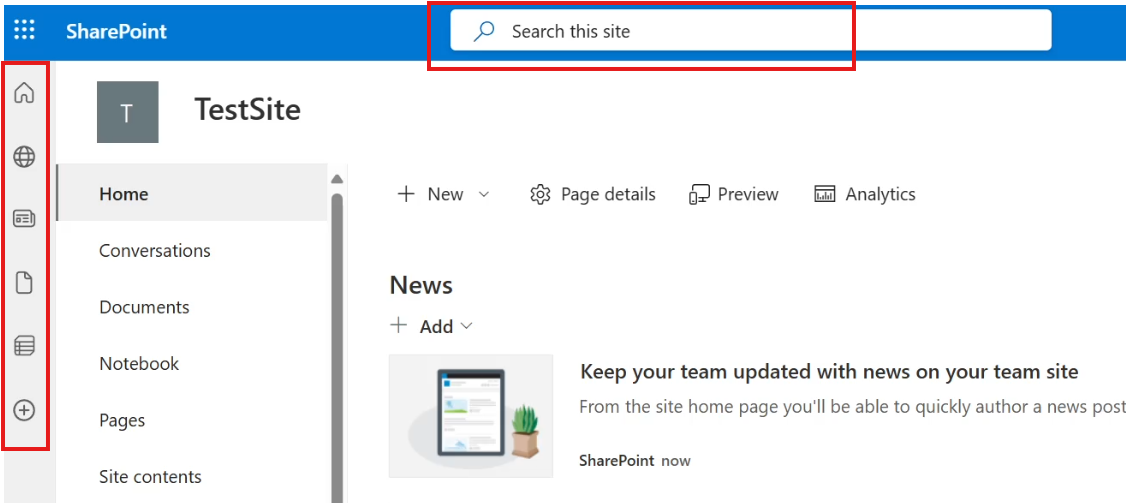
At the very top of a SharePoint site, you’ll find tools that help you search and navigate across sites.
Key areas:
- Search bar (top):
Lets you search for files, pages, or content across SharePoint. - SharePoint toolbar (far left):
This toolbar is consistent across SharePoint sites. It includes:- Home icon → Takes you to the SharePoint home page where you can see your sites.
- Sites icon → Shows all sites available to you in your organization.
- News icon → Displays news posts from different sites.
- Files icon → Lists your files across the organization, including files connected to your work.
Site Home Page
The site home page is made up of web parts, which you can think of as widgets that display different types of content.
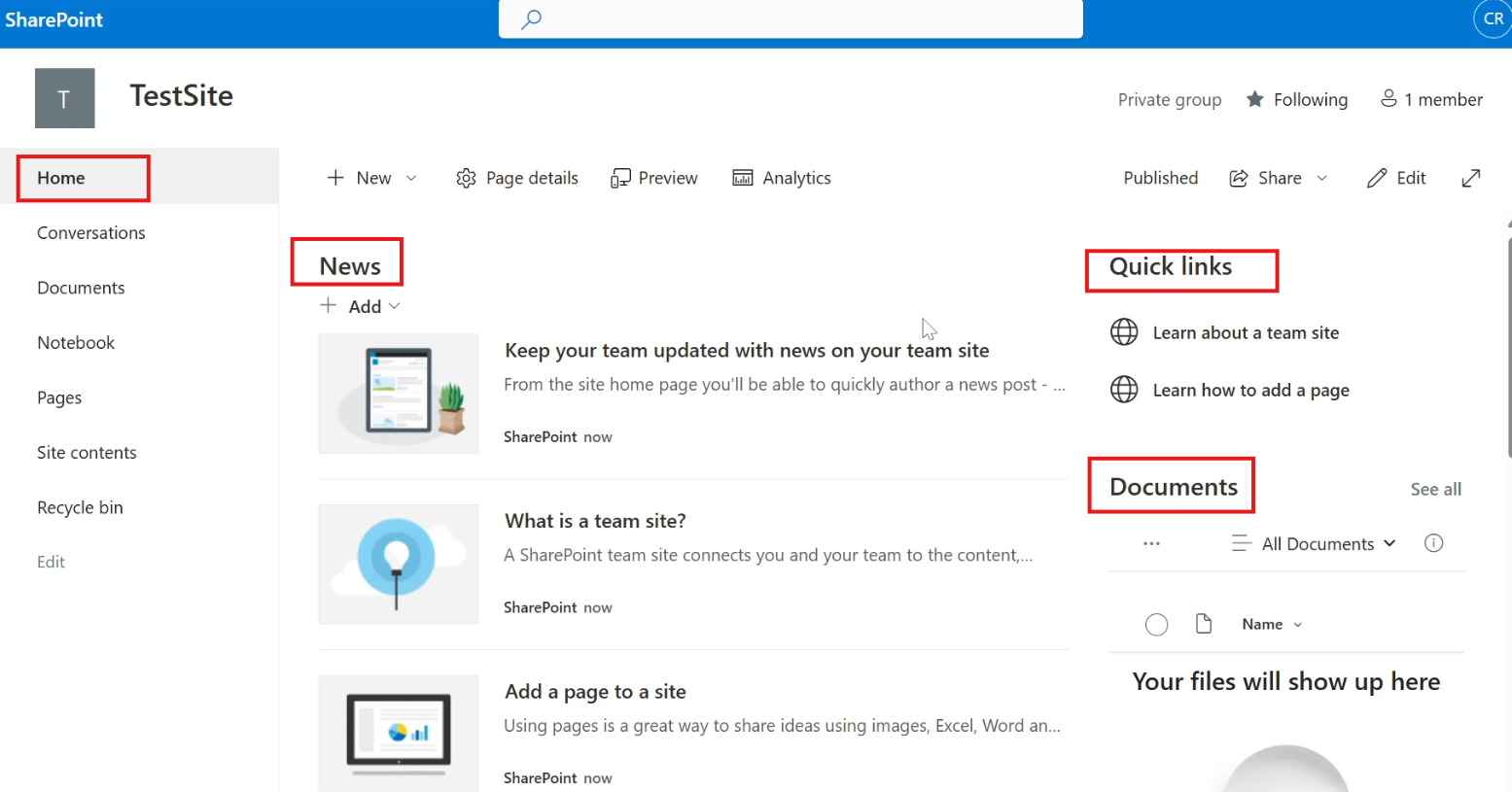
Common web parts include:
- News – Displays announcements and updates
- Quick Links – Provides shortcuts to important resources
- Documents – Shows recent or pinned documents
- Activity – Highlights recent actions on the site
The home page acts like a dashboard where important information is grouped in one place.
Site Apps and Left Navigation
A SharePoint site is essentially a collection of apps (also called site contents). Each app serves a specific purpose and has its own screen and menu.
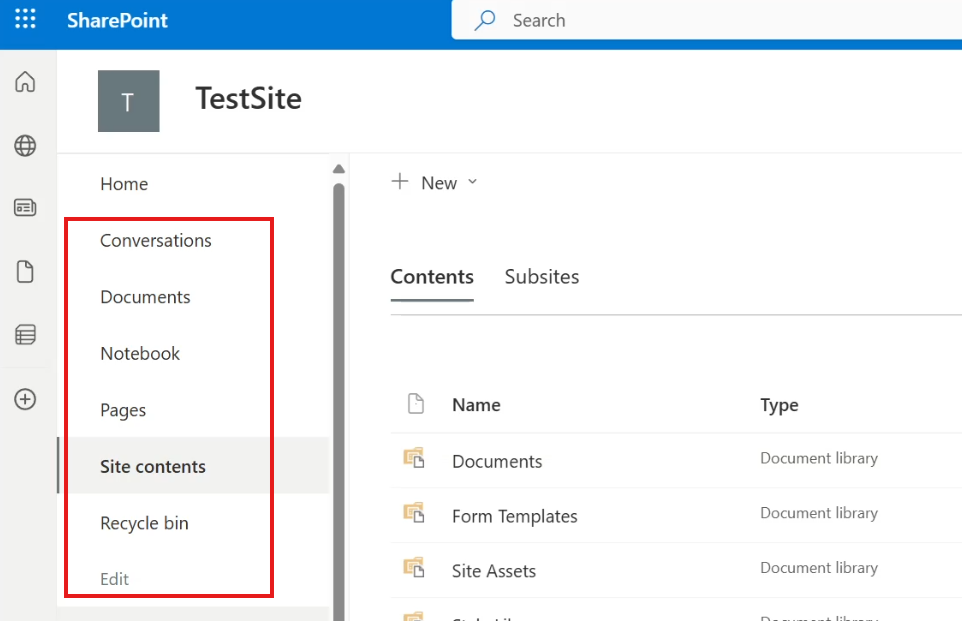
The left-side navigation menu helps you move between these apps.
Common apps include:
- Conversations
Used to track communications related to the site (often connected to group discussions). - Documents
A document library where site-related files are stored and managed. - Site Contents
A central area where you can see everything in the site. This includes:- Document libraries
- Page libraries
- Lists and other content types
To explore available content types, you can click New inside Site Contents and see what can be created.
How Apps Work
Each app in SharePoint has:
- Its own menu
- Its own display screen
For example, the Home page itself is an app with a layout and menu options.
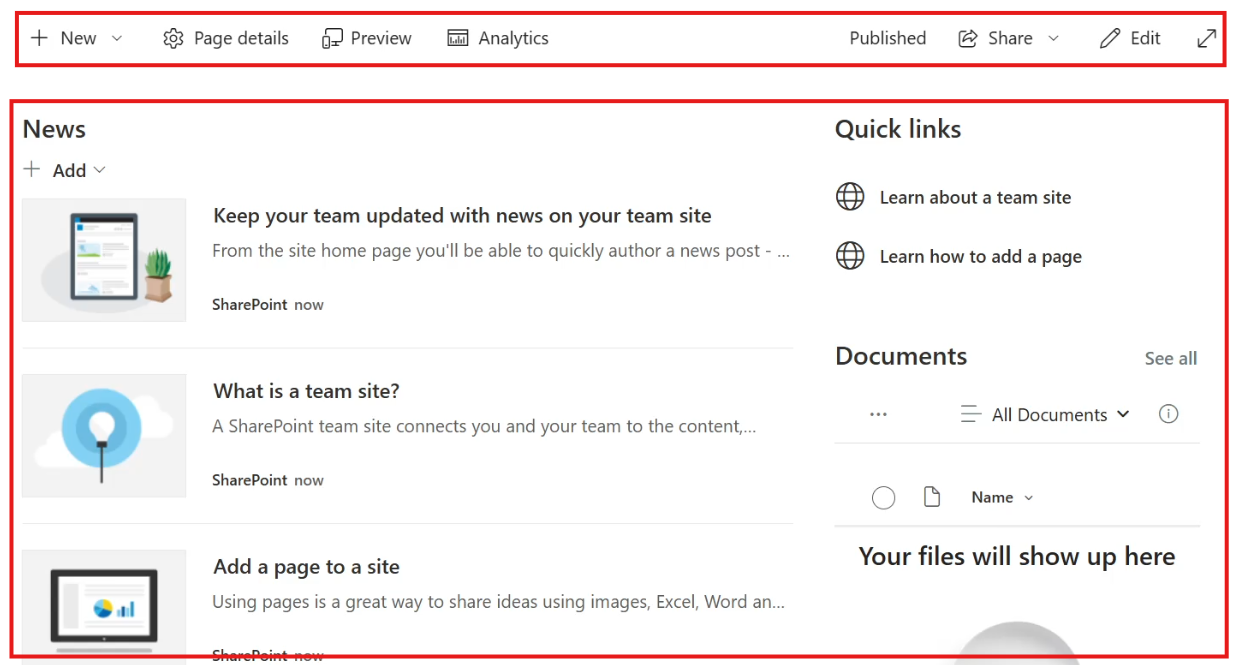
Understanding that a SharePoint site is built from apps makes it easier to manage and customize your site as your needs grow.
Once you’re familiar with these areas, navigating SharePoint becomes much more intuitive, helping you find information faster and work more efficiently.
Leave a Reply